
Extracting Data from PDF to Excel: A Practical Workflow
A step-by-step guide to extracting data from PDF to Excel, covering bank statements, scanned files, password-protected PDFs, bulk processing, and validation
Three days remain before the month-end close. Bank statements are scattered across inboxes and client folders, the general ledger is waiting for clean transaction data, and someone is already opening Excel to retype rows that should never have been typed by hand.
That process feels familiar because it's common. We fetch statements, extract data from files, copy transactions, repair columns, match activity to the ledger, investigate variances, and then repeat the same work for the next entity. Extracting data from PDF to Excel is not merely a conversion task. It's the first control in the reconciliation workflow.
A statement that imports quickly but shifts a debit into the credit column can create more work than a slower, carefully reviewed export. The right method preserves transaction structure, makes exceptions visible, and supports the final check that opening balance plus credits minus debits equals closing balance.
Table of Contents
- The Monthly Statement Pile and the Actual Bottleneck
- Identify the PDF Type Before You Choose a Method
- Five Methods Compared and When Each One Wins
- Step-by-Step Conversion Workflow That Holds Up
- Bulk Processing and Plan Sizing for Recurring Volume
- Three Checks That Prove the Output Is Right
- CSV Versus Excel and the Reconciliation Checklist
The Monthly Statement Pile and the Actual Bottleneck
Three days before month-end close, the statements are still spread across bank portals, inboxes, and client folders. The general ledger needs clean transaction rows, while someone is retyping fixed-layout PDFs into Excel. That is the point where the close starts losing control.
A bank statement lists deposits and other credits, plus checks and other debits. Reconciliation compares those entries with the general ledger or cash book to locate differences, as explained in this accounting overview of bank reconciliation. Until the PDF becomes structured data, the team cannot sort transactions, filter dates, calculate totals, or isolate unmatched activity efficiently.
Where the close loses time
The workflow has five practical stages:
- Collect statements: Download files from bank portals, client emails, or shared folders.
- Open protected documents: Enter passwords before processing encrypted PDFs, following the access requirements relevant to bank reconciliation and PDF handling.
- Extract transactions: Place dates, descriptions, credits, debits, and balances into a spreadsheet.
- Match activity: Compare the exported rows with the accounting records.
- Resolve variances: Investigate fees, deposits in transit, outstanding checks, reversals, and omissions.
Extraction determines how much of the remaining close becomes review versus repair. Correct columns, signs, dates, and balances let the accountant test the statement quickly. A misplaced decimal, missing negative sign, or repeated page header forces manual cleanup and can conceal a genuine variance.
Practical rule: A spreadsheet is not reliable because Excel opened it. It is reliable when its rows reproduce the statement's balance movement.
The broader market reflects the shift toward structured financial data. The global data extraction market was valued at USD 2,734.98 million in 2022 and is forecast to reach USD 5,691.02 million by 2030, representing a 9.80% CAGR from 2023 to 2030, according to Fortune Business Insights' data extraction market coverage. That growth connects directly to month-end work: PDF-to-spreadsheet tools are becoming part of a workflow that turns documents into data ready for checking.
Treat conversion as a control activity, not administrative cleanup. Choose the extraction method by the checks it must support, then confirm that opening balance plus credits minus debits equals closing balance before relying on the workbook.
Identify the PDF Type Before You Choose a Method
At month-end, the wrong PDF classification turns a short import into a repair project. Classify the PDF before choosing an extraction path. A text-based statement, a password-protected text statement, and a scanned image statement can look identical on screen, yet each demands different handling and creates different reconciliation risks.
Type one is native text
A bank-generated PDF generally contains selectable text, embedded fonts, and recognizable table content. Select one transaction description with your cursor. If individual words highlight and copy into a plain-text editor without blank output, direct parsing is the correct starting point.
For clean native files, Excel's Power Query import is inexpensive and effective. Direct parsing avoids OCR and preserves numbers that are already encoded correctly. Still, inspect the imported columns before reconciliation. Page headers, wrapped descriptions, and split amounts can disrupt rows even when the source text is selectable.
Type two is protected text
Some statements contain genuine text but require a password before opening or copying. Check for a lock indicator when opening the file. If the bank supplied an open password, enter it before extraction. A permissions password can restrict editing or copying, but it does not make the document a scan.
The accounting implication is straightforward. A locked text PDF needs authorized access and parsing. OCR does not solve an access restriction. Forcing the file through an image workflow adds another recognition step and creates more places for a transaction amount or sign to change.
Type three is a scanned image
A scanned statement contains page images rather than selectable transaction text. Selecting the page highlights one large image, or nothing useful. OCR must first read the visible characters, after which a table parser reconstructs dates, descriptions, amounts, and balances into rows.
Branch the workflow immediately:
- Selectable text: Parse directly, then inspect the table structure.
- Password-protected text: Open with the authorized password, then parse.
- Image-only PDF: Run OCR, identify the transaction region, rebuild columns, and validate the output.
The bank statement PDF guide explains which document characteristics affect the workflow. File size offers a clue, not a decision rule. A scan may become larger with image quality and page count, while a digitally generated statement may remain compact.
Classification should serve the close. Treating a scan as text creates empty or garbled rows. Treating clean text as a scan adds an unnecessary recognition layer. After either path, verify that the extracted rows preserve dates, signs, and balance movement before they enter the reconciliation workbook.
Five Methods Compared and When Each One Wins
At month-end close, the best method is the one that produces rows you can reconcile, not the one that creates an Excel file fastest. Choose based on document type, transaction volume, repeat frequency, and the cost of correcting a wrong amount.
| Method | Setup Cost | Text PDF Accuracy | Scanned PDF Accuracy | Password Support | Bulk Handling | Best For |
|---|---|---|---|---|---|---|
| Manual rekeying in Excel | None | Depends on review | Depends on visual reading | Manual opening | None | Very small, occasional files |
| Copy-paste through Notepad | None | Good on clean layouts | Not suitable | Limited | None | Simple native-text statements |
| Excel Power Query From PDF | Low if Excel is already available | Strong on structured tables | Limited without OCR | Depends on access | Limited workflow support | Repeatable native PDFs |
| Generic online PDF converter | Usually low | Variable structure | Variable, if OCR is offered | Varies by service | Often limited | Broad, low-risk document conversion |
| Purpose-built bank statement converter | Subscription or usage cost | Statement-focused parsing | OCR and layout handling | Supported by some services | Designed for batches | Recurring statements and mixed formats |
Manual entry
Manual rekeying is acceptable for an isolated statement with very few transactions. It gives you direct control, but every date, description, sign, and amount depends on transcription. That makes the method difficult to defend during reconciliation and unsuitable for recurring bookkeeping work.
Copy-paste
Copying the PDF content into Notepad before Excel can remove visual formatting and produce cleaner text. Use it only for a clean, native PDF with a simple transaction list. Multi-column layouts, repeated headers, wrapped descriptions, and scanned pages can shift fields or omit data. Always compare the resulting transaction total and ending balance with the source statement.
Excel Power Query
Power Query is the strongest low-cost choice for consistent, text-based statements. It can identify tables and pages, then repeat the same transformations each month. The trade-off appears when banks use different layouts. Query repairs, custom transformations, and repeated testing become part of the close, and the time saved on extraction can disappear during maintenance.
Generic converters
A general PDF converter handles many document types, but it is not designed around bank-statement controls. The spreadsheet may look tidy while a balance sits in the wrong column or a date arrives as plain text. Use this method for low-risk documents. For financial statements, require a preview and reconcile totals before posting anything.
Purpose-built conversion
A statement-focused converter fits recurring volume and mixed source files. Select one that handles OCR for image PDFs, authorized password-protected statements, transaction columns, batch uploads, and preview review before export. Those features reduce setup work, but they do not replace the accountant's balance check.
My recommendation is clear. Use manual entry for isolated, very small jobs. Use copy-paste or Power Query for clean native statements with stable layouts. Once monthly volume rises beyond a handful of statements, or scanned files enter the queue, use a purpose-built workflow and put the saved time into validation. Review this comparison of PDF-to-Excel conversion software before choosing a tool, then test its output against a real statement from each recurring bank.
Step-by-Step Conversion Workflow That Holds Up
A month-end close can stall over one misread transaction. Build the workflow around the reconciliation, not the upload. Start with the source file, choose the right extraction method, inspect the output, then compare it with the statement before using it in the ledger.
Upload and unlock the source
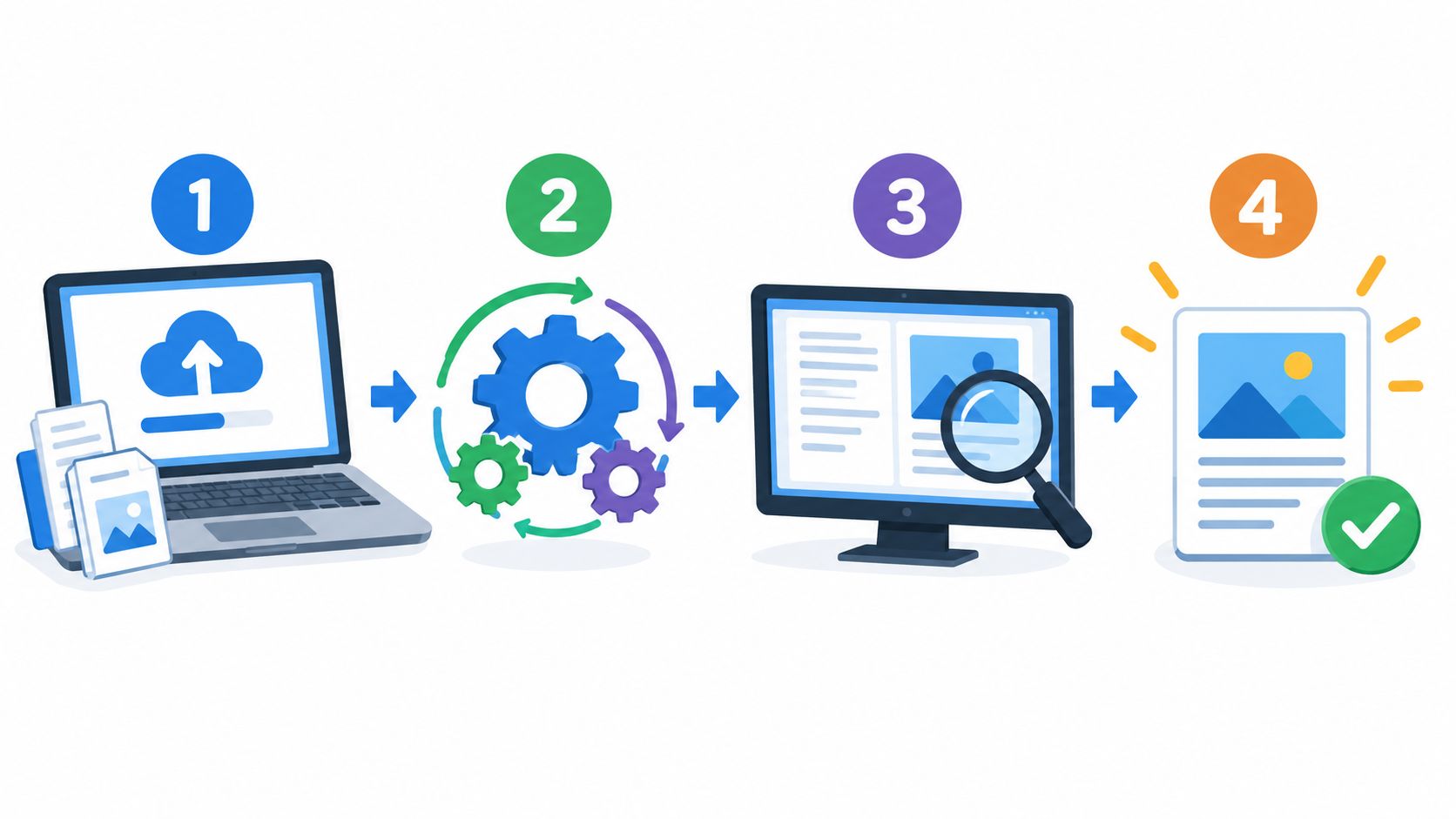
Begin with one statement and confirm the file opens correctly. Drag it into the browser upload area or select it from the file system. For a password-protected PDF, enter the document-open password in the password field before processing. If the bank supplied a separate restrictions password, use the tool's supported prompt instead of editing the file manually.
The service described here, autobankstatement, accepts digital, scanned, and password-protected bank statement PDFs and exports CSV or Excel/XLSX files. It supports files up to 25 MB, bulk upload, and a free guest preview before payment. Registered users receive 24-hour download access, and uploads auto-delete within 24 hours. Keep the original PDF with the close file so every exported row can be traced back to its source.
Use OCR only when the document needs it
Test direct text extraction first. If it returns empty cells, broken descriptions, or missing transactions, switch to OCR. Applying OCR to every file adds processing work and can introduce recognition errors. Use the table extraction workflow guidance to distinguish native parsing from OCR-based reconstruction, particularly for scanned statements.
Select the document language when the tool offers that setting. Limit the page range if only part of the statement contains transactions. Excluding terms, notices, and promotional pages keeps the review focused and makes unusual extraction results easier to isolate.
Inspect the preview before export
Keep the preview open and compare sample rows with the statement header, transaction area, and footer. Confirm these points:
- Columns align: Date, description, credit, debit, and balance must remain in the intended fields.
- Dates normalize consistently: Set one date format before exporting.
- Numbers use the right separators: Match decimal and thousands separators to the statement.
- Currency symbols don't pollute amounts: Keep currency markers separate from numeric values where possible.
- Running balances move correctly: The balance should change by each transaction in the expected direction.
Export a small sample first. Check Excel's column order, blank cells, and number formatting before processing the full statement. The automatic data extraction workflow guide gives further context on turning document data into structured output.
Finish in Excel by filtering amount columns, locating blanks and text-formatted numbers, and comparing statement totals before matching the file against the ledger. A converter saves entry time. The balance check determines whether the file is fit for close.
Bulk Processing and Plan Sizing for Recurring Volume
Bulk conversion changes the operating problem. We're no longer deciding how to extract one statement. We're deciding how to keep a queue moving while ensuring that one corrupt, protected, or unusual file doesn't disappear inside a successful batch.
Select multiple PDFs in the upload window, or prepare a group for queue processing where supported. Keep the source filenames meaningful, especially when several entities or bank accounts are processed in the same session. A queue should make the workload visible, not turn it into an anonymous collection of downloads.
Autobankstatement supports bulk upload and files up to 25 MB each. Its plans are structured by monthly page capacity:
| Monthly Volume | Typical Tier | Page Limit | OCR Included | Bulk Queue |
|---|---|---|---|---|
| Light recurring work | Starter | 400 pages | For supported scanned statements | Yes |
| Regular bookkeeping volume | Professional | 1,000 pages | For supported scanned statements | Yes |
| High recurring volume | Business | 4,000 pages | For supported scanned statements | Yes |
| Larger or unusual workloads | Enterprise | Custom limits | Confirm requirements | Yes |
The listed plans are Starter at $15 per month for 400 pages, Professional at $30 per month for 1,000 pages, and Business at $50 per month for 4,000 pages. Annual discounts and custom enterprise limits are available. Those prices and page limits come directly from the stated product options, not from a claim about savings.
Size capacity from actual pages
Count pages, not just files. A bookkeeper handling 30 multi-page statements plus five scanned PDFs should total the pages across all documents, then compare that real usage with the plan limit. Scanned work may also require more review time because OCR and layout reconstruction deserve closer inspection.
Watch for session restrictions, queue throttling, and partial failures. A good operational routine records which files completed, which need a retry, and which require manual fallback. Don't let a batch process become a black box.
Close-control habit: Track three months of actual page usage before choosing an annual plan, and keep a manual fallback for the month volume spikes.
Three Checks That Prove the Output Is Right
A PDF-to-Excel export is not ready for reconciliation because the file opens cleanly. Before month-end close, run three checks that expose missing rows, duplicate entries, and incorrect values.
Check one is the opening balance
Compare the statement's opening balance with the balance implied by the first transaction row. If the first running balance does not follow from the opening figure and first activity, inspect for a skipped transaction, repeated header, or row pulled from the wrong page.
Use this Excel formula:
=First_Running_Balance-(Opening_Balance+First_Credit-First_Debit)
The result should be zero, allowing only for rounding consistent with the statement's displayed precision. This catches a missing opening transaction before it affects the full-period comparison.
Check two is the movement equation
Sum credits, subtract debits, and compare that movement with closing balance minus opening balance:
=SUM(Credit_Range)-SUM(Debit_Range)-(Closing_Balance-Opening_Balance)
The accounting relationship is opening balance plus credits minus debits equals closing balance. A nonzero result points to duplicate rows, missing reversals, a reversed sign, or an OCR-substituted digit. Investigate the source PDF and the extracted row, rather than forcing the spreadsheet to balance.
Extraction quality sets the review burden. Native PDFs often parse with near 100% extraction accuracy, while scanned bank-statement-style PDFs can produce materially weaker results. That difference is why scanned documents need transaction-level checks, even when the converter reports successful processing.
Check three is row-count sanity
Count the exported transaction rows and compare them with the numbered or visibly listed transaction lines in the statement. Any difference requires investigation. A dropped row, duplicated page content, or wrapped description merged into one row can all produce a mismatch.
Complex layouts deserve extra scrutiny. Merged cells, borderless tables, multi-page statements, and repeated headers can disrupt row and column reconstruction. RD-TableBench benchmark results, documented at RD-TableBench benchmark results, show that table extraction performance varies materially among parsers. Test representative documents before relying on a converter, and define a manual fallback for exceptions. A file passes close control only when its balances and row population agree with the source.
CSV Versus Excel and the Reconciliation Checklist
Choose the output format according to the reconciliation work that follows.
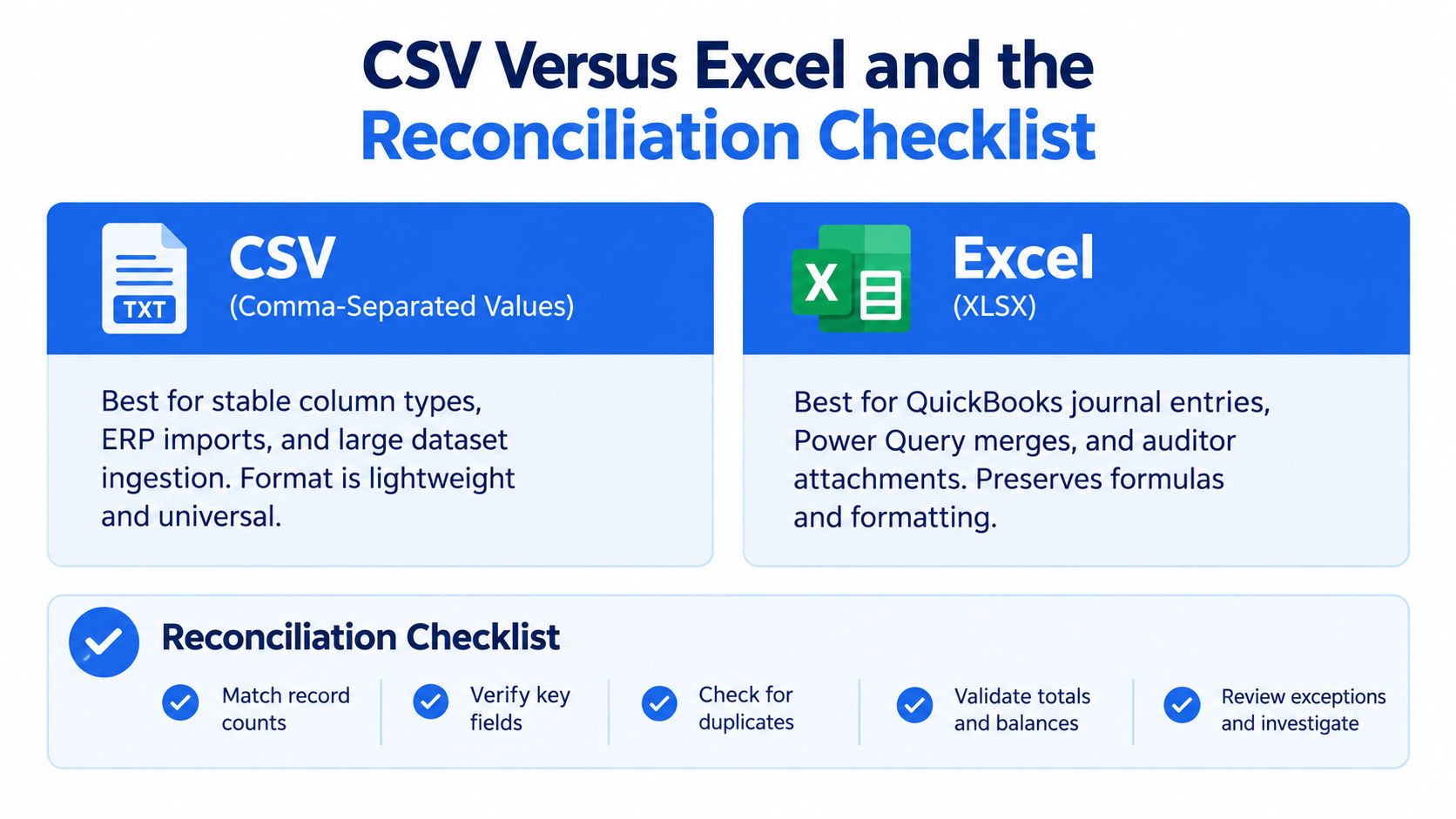
CSV is the cleaner handoff when the destination requires fixed columns, an ERP import, or ingestion of a large dataset. It is lightweight and widely readable. Open it directly in a spreadsheet, however, and locale settings can change date formats or decimal interpretation.
XLSX is the better review file when accountants need formulas, notes, filters, or multiple sheets. It supports Power Query merges and auditor attachments, while calculations and supporting commentary remain beside the extracted rows.
Neither format corrects a poorly structured source. Check account numbers for lost leading zeros, confirm that thousands separators were not read as decimals, and identify currency symbols attached to text values. Review merged statement headers carefully, since they can be misclassified as transaction data.
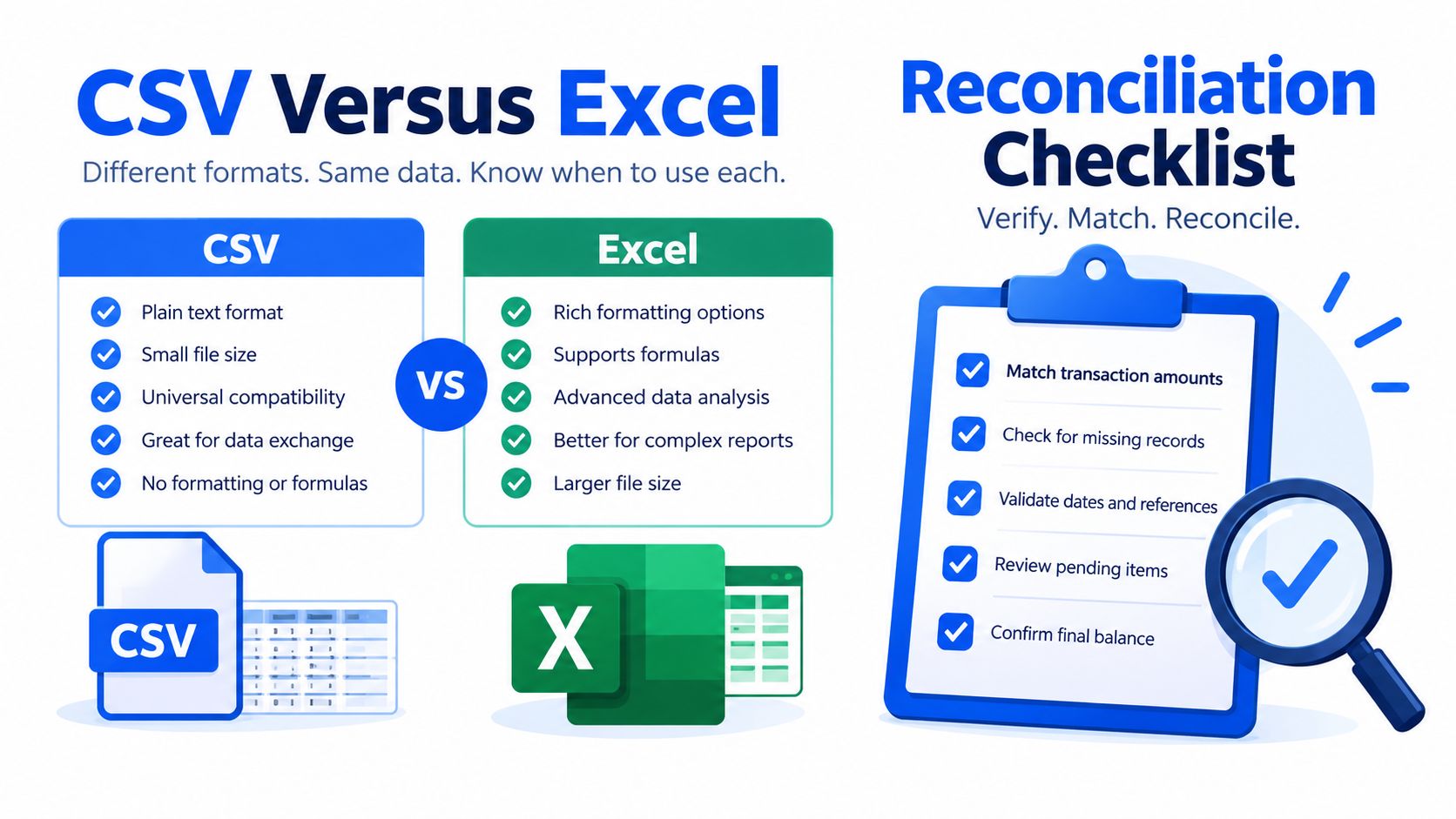
Before the next batch, run these checks:
- Confirm the delimiter: Open the CSV and verify that every field occupies its intended column.
- Verify date formatting: Sort the dates and confirm chronological order, not alphabetical order.
- Check numeric types: Confirm that credits, debits, and balances calculate as numbers.
- Spot-check totals: Compare opening balance, credits, debits, and closing balance with the PDF.
- Retain the source: Keep the original statement and record every manual adjustment in the audit trail.
A successful export is not just a spreadsheet without obvious errors. It provides clean rows, visible exceptions, and evidence that explains why the closing balance ties to the source.
Autobankstatement converts digital, scanned, and password-protected bank statements into CSV or Excel/XLSX files, with bulk uploads and browser preview before download. Visit autobankstatement to prepare statement batches for review and complete balance checks before month-end close.
Convert your next statement in minutes
Upload a bank statement PDF — digital, scanned, or password-protected — preview the extracted table, and download clean CSV or Excel.