
File Type QIF: What It Is and How to Use It
Learn what the file type QIF is, how its structure works, where it came from, and how to open, convert, and import it without losing data.
Tuesday morning, close is half-done, and the one account nobody wanted to touch is suddenly blocking the period. The bank portal for a legacy trust account doesn't offer CSV. It doesn't offer OFX. It offers a file ending in .qif, and that single attachment is now the difference between a clean reconciliation and another round of manual entry.
That's how the file type QIF usually appears in real finance work. Not as a format anyone chose on purpose, but as leftover infrastructure from an older workflow. We see it in archived downloads from old online banking portals, exports from desktop finance software that nobody has upgraded in years, and statement history pulled during cleanups, audits, and ledger rebuilds.
The practical question isn't whether QIF is elegant. It isn't. The practical question is whether the file can be trusted enough to move balances and transaction history into the workflow you use today. Sometimes the answer is yes, with careful handling. Often the better answer is to treat QIF as a short bridge, convert it, verify it, and move on.
Table of Contents
- The Moment QIF Shows Up in Your Reconciliation Workflow
- Which QIF You Actually Have
- Where the QIF Format Came From
- How a QIF File Is Structured
- QIF Compared With CSV, OFX, and QBO
- How to Open a QIF File
- Converting QIF to CSV or Excel
- Why QIF Is Still Around and Why It Is Fading
- The Most Common QIF Import Errors
- Verifying QIF Data Before You Trust It
- QIF Quick Reference
- Frequently Asked Questions About QIF Files
The Moment QIF Shows Up in Your Reconciliation Workflow
QIF often arrives unexpectedly rather than being actively sought out.
A controller asks for support on an old operating account. A bookkeeper downloads historical activity for a newly onboarded client. A finance manager needs prior-period transaction detail from a closed ledger because the opening balance in the current file doesn't tie out. Everything else in the stack is modern enough. This one account isn't.
That's why QIF still matters. It survives in places that don't get redesigned until something breaks.
Where it usually appears
In practice, we keep seeing QIF in three situations:
- Month-end exceptions: The bank feed is incomplete or unavailable, and the only export that preserves transaction detail is a legacy file.
- System migrations: An older desktop setup can still export history, but not in a format the new cloud ledger accepts cleanly.
- Forensic pulls: Teams revisit archived accounts, trust ledgers, or dormant entities and discover that the usable history lives in old downloads.
Practical rule: If QIF shows up during close, treat it like source data that needs inspection, not like a ready-to-post import.
The risk isn't that QIF is unreadable. It's that it looks simple enough to trust too quickly. A plain-text file can still carry ambiguous dates, weak transfer logic, and formatting quirks that don't reveal themselves until after import.
We've learned to slow the process down at exactly this point. Open the file. Identify which kind of QIF it is. Check whether it belongs in a finance workflow at all. Then decide whether to import it directly, convert it, or replace it with a cleaner source.
Which QIF You Actually Have
Before doing anything else, separate the two completely different formats that share the .qif extension. Plenty of bad advice starts with this confusion. One QIF is a legacy finance file. The other is an engineering quality standard.
The finance version is Quicken Interchange Format. It's the one used for transaction exchange in Quicken-style workflows and older accounting imports. It's plain text and usually readable in Notepad or another basic editor.
The engineering version is a separate QIF 3.0 standard used in manufacturing and metrology. Current guidance on that side recommends QIF 3.0 Edition 2 in binary .qifb for new projects, while older QIF 1.0 and 2.0 schemas are described as no longer maintained in CAD Interop's overview of the engineering QIF standard.
Three quick checks
Open it in a text editor
Financial QIF is usually legible as line-based text. If the file is unreadable as transaction text, you may not have the finance format at all.Look for a header
Financial QIF often starts with something like!Type:Bank. That's a strong clue you have a transaction import file.Check where it came from
If it came from a bank download, a Quicken export, or an old finance archive, it's probably the financial format. If it came from inspection software, a coordinate measuring machine, or a manufacturing workflow, it isn't.
QIF vs QIF 3.0 How to Tell Them Apart
| Attribute | Financial QIF (Quicken Interchange Format) | Engineering QIF (QIF 3.0 Standard) |
|---|---|---|
| Primary use | Bank and transaction exchange | Quality inspection and manufacturing data |
| Typical source | Bank portal, Quicken-style export, finance archive | Metrology software, inspection systems, manufacturing workflows |
| Human-readable in text editor | Usually yes | Often no in practical finance contexts |
| Common clue | !Type:Bank or similar transaction header |
Versioned engineering context |
| What to do next | Inspect, convert, or import carefully | Use the engineering software that created it |
If your concern is reconciliation, bookkeeping, or statement import, the rest of this article assumes you have the financial QIF.
Where the QIF Format Came From
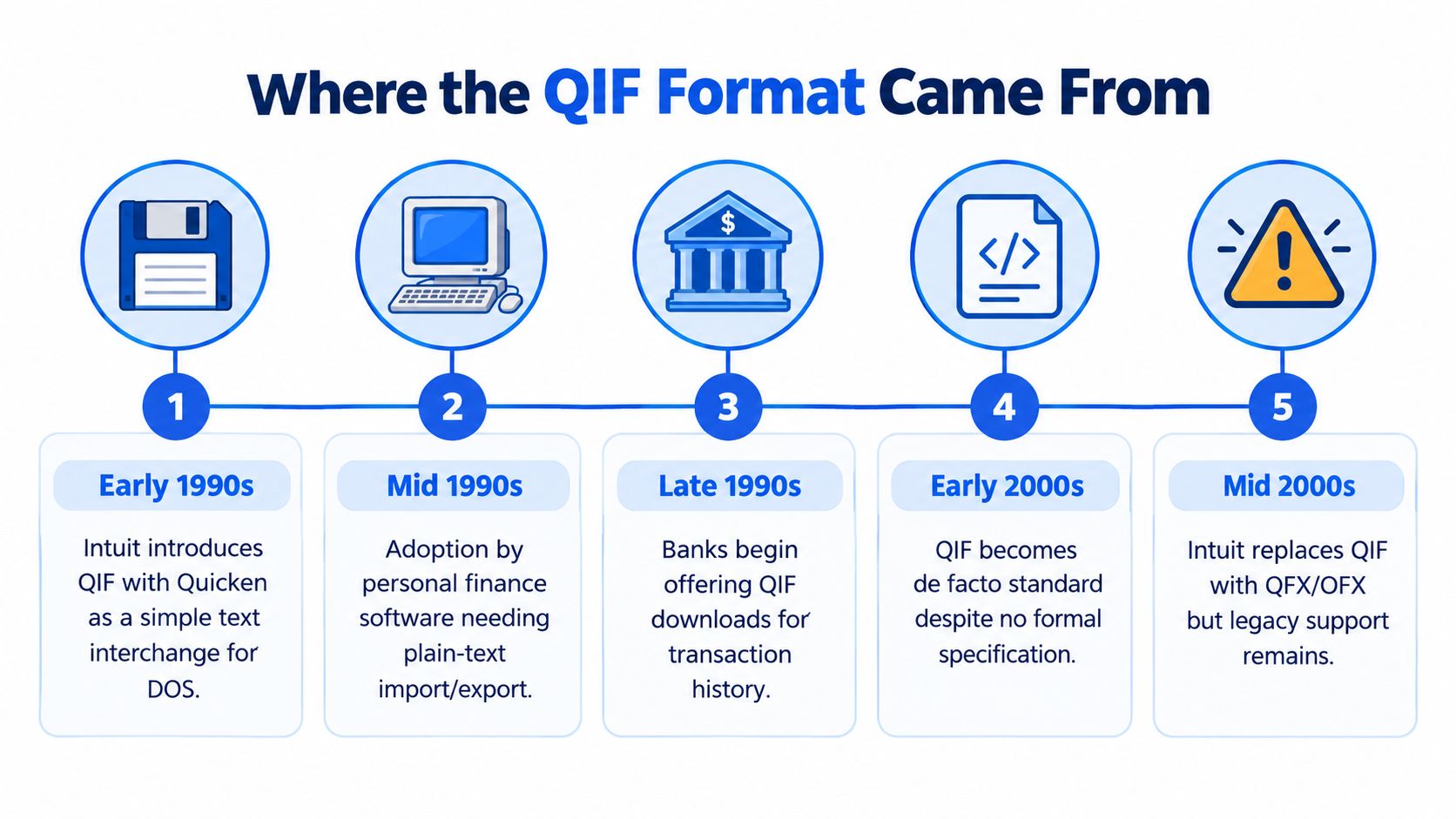
QIF, short for Quicken Interchange Format, was created by Intuit for Quicken and is a plain-text ASCII financial exchange format that predates OFX. The National Archives' PRONOM record notes that it is older than Open Financial Exchange, and community documentation shows Intuit's published QIF specification was still circulating in 1999, which places its documented lifecycle across at least the late 1980s and 1990s, as summarized in the Wikipedia entry on Quicken Interchange Format.
That history explains almost everything awkward about the file type QIF today. It comes from an era when portability meant simple text, not rich validation. The format had to be easy to write, easy to parse, and lightweight enough for older desktop software.
Why it looks so minimal
QIF uses short line tags and record terminators because it was built for straightforward interchange, not modern integration discipline. That design made sense when the goal was moving transaction data between desktop tools with minimal overhead.
The later problem was standardization. QIF spread widely, but it never became a strongly governed modern exchange format. Different tools adopted the same general structure and then handled details differently.
The Y2K problem never really left
QIF's original date design used a two-digit year, commonly formatted as MM/DD/YY, which created Y2K-era ambiguity. Developers later patched around that with variants such as MM/DD'YY and MM/DD/YYYY, and Intuit's Quicken line had moved away from broad QIF import support by 2006 for major account types, according to this QIF format history and date-format writeup.
Old formats don't just become old. They carry old assumptions into every import.
That's why QIF now sits in an awkward place. It's still useful as a bridge out of legacy systems. It's rarely the format we'd choose for a fresh workflow.
How a QIF File Is Structured
A financial QIF file is simpler than it first appears. It's a line-oriented text format built from short field tags. Each line starts with a single-character code, followed by the field value. Each transaction ends with a caret on its own line.
The structure is documented in the W3C QIF notes, which describe QIF as a plain-text financial interchange format with one-line tags and a caret record terminator. That same structure is what makes QIF easy to parse deterministically and easy to damage with small formatting mistakes.
A typical bank record
Here's a simple example:
!Type:Bank
D04/15/2024
T-48.20
PCorner Market
MGroceries for dinner
LFood:Groceries
N1008
C*
^
What the tags mean
- D means date
- T means amount
- P means payee
- M means memo
- L means category
- N means reference number or check number
- C means cleared status
- A means address line
- ^ ends the transaction record
There's no comma delimiter, no quoted field structure, and no spreadsheet-style header row. The line itself carries the meaning.
Why that matters in real imports
That layout creates two opposite realities at once:
- Parsing is straightforward: a script can read each line and assign values based on the first character.
- Breakage is straightforward too: a missing caret, wrapped amount line, or wrong header can cause skipped or merged transactions.
QIF also supports more than one record type. A file may contain bank transactions, cash records, card activity, account lists, category lists, or other sections. When the record type changes, the file uses a new !Type header.
A minimal multi-transaction file looks like this:
!Type:Bank
D04/15/2024
T-48.20
PCorner Market
MGroceries for dinner
LFood:Groceries
^
D04/16/2024
T1250.00
PClient Payment
MInvoice deposit
LIncome:Services
^
If you can read that block comfortably, you can usually diagnose most finance-side QIF problems before import.
QIF Compared With CSV, OFX, and QBO
When a bank or application gives multiple export options, the choice usually comes down to CSV, QIF, OFX, or QBO. On paper they all move transaction data. In operations, they behave very differently.
The biggest dividing lines are date handling, transaction identity, machine structure, and import reliability.
What actually changes by format
| Attribute | QIF | CSV | OFX | QBO |
|---|---|---|---|---|
| Date handling | Often ambiguous text dates | Depends on the file creator | More explicit structured dates | More explicit structured bank-feed style data |
| Transaction identity | No stable built-in transaction ID | Usually none unless added as a column | Includes stable identity concepts such as FITID | Typically mirrors direct-feed identity patterns |
| Machine readability | Plain text, line tags, no formal schema | Plain text rows, flexible columns | Structured exchange format | Structured bank-feed-oriented format |
| Import reliability | Varies by importer | Varies by column mapping | More predictable across supported tools | More predictable in supported banking workflows |
| Best use today | Legacy Quicken-style workflows | Spreadsheet review and manual cleanup | Direct financial exchange where supported | Bank-feed style imports where supported |
The trade-offs that matter
CSV is best when humans need to inspect, clean, map, and rework data in spreadsheets. It's flexible, but that flexibility is also the problem. Every export can use different columns and conventions.
QIF preserves some transaction context better than a bare spreadsheet in old desktop finance workflows, but it has weak identity and inconsistent interpretation across importers.
OFX and QBO are generally better choices for system-to-system movement because they carry more explicit structure. They're less pleasant to read by eye than CSV, but they usually create fewer surprises in supported import paths.
The practical rule is simple: use CSV for reviewable spreadsheet workflows, use QIF only when a legacy process requires it, and prefer OFX or QBO when the destination system supports them cleanly.
How to Open a QIF File
The first surprise for many users is that a QIF file doesn't open like a spreadsheet. If you double-click it on Windows, it will often open in Notepad. That's useful for inspection, but it doesn't import anything by itself.
What you do next depends on the software you still have available.
Quicken and GnuCash
If you still use Quicken desktop, the usual path is File > Import > QIF file. From there, the work is less about opening the file and more about mapping it to the correct account and checking whether dates, payees, and categories survive the trip.
If you use GnuCash, its File > Import > Import QIF wizard is one of the safer ways to process legacy financial QIF. The wizard gives you controlled choices for account selection, date interpretation, and category mapping.
Practical rule: If you can open QIF in software that understands QIF natively, do that first. Inspection inside the right importer reveals problems faster than trying to force the file into a spreadsheet.
Spreadsheets and cloud accounting tools
Excel and Google Sheets can display the text, but they don't natively interpret QIF as structured transaction rows. You'll need to convert it first.
Most modern cloud accounting systems also don't want raw QIF. If your destination is QuickBooks Online, Xero, or a similar tool, the clean route is usually conversion to CSV or Excel first, then import using the destination's supported flow. This guide on importing bank statements into QuickBooks Online and Xero is the kind of workflow many teams end up following instead of trying to force direct QIF support.
A useful rule of thumb is this: open in Quicken or GnuCash if you can. Convert to CSV if you can't.
Converting QIF to CSV or Excel
QIF usually lands on my desk when a bank feed failed, an archive export came out of old desktop software, or someone grabbed the wrong interchange file and now needs rows that Excel or a cloud accounting tool can use. Before converting anything, confirm which QIF you have. Financial QIF from Quicken-era tools can often be parsed into transactions. QIF 3.0 from manufacturing and metrology is a different standard entirely and will not turn into bank activity no matter how hard you push it.
For finance teams, conversion is often the safer choice because it exposes the data before import. That matters with QIF, which is a legacy bridge, not a format I would build a repeat process around unless there is no better source.
Three workable paths
| Method | Skill Level | Best For | Watch Out For |
|---|---|---|---|
| Text editor cleanup | Low | Small files and quick one-off jobs | Easy to lose line meaning or split records incorrectly |
| Scripted parsing | Medium | Larger files, repeated workflows, consistent outputs | Mixed record types and edge cases need testing |
| PDF-to-table conversion | Low to medium | When the source is a bank statement PDF, not a usable QIF | Memos, transfers, and category logic may need review |
Path one through a text editor
For a short file, open the QIF in Notepad, TextEdit, or VS Code and inspect the tag pattern. A basic bank transaction often maps cleanly enough to spreadsheet columns: D for date, T for amount, P for payee, M for memo, and ^ as the record end. If every transaction follows the same pattern, you can reshape it into rows and save as CSV for Excel.
This approach is fine for cleanup jobs under time pressure.
It starts to fail when the file mixes account headers, investment records, transfers, or multiple !Type blocks. At that point, hand-editing costs more than it saves, and small mistakes are hard to spot until reconciliation is off by a few lines.
Path two through a script
A short Python or PowerShell parser is the better option when the same bank or legacy system produces QIF every month. The benefit is not speed alone. It is repeatability. You can map tags into a fixed column set, flag malformed records, normalize dates, and keep a log of anything the parser skipped.
If you are building that workflow, define the destination schema first so the CSV is useful downstream. This guide to bank statement to CSV conversion workflows is a good reference point for deciding which columns to keep and how to structure the output.
I usually include a few checks in the script: record count, total amount, date range, and detection of blank payees or duplicate transactions. Those checks catch the common QIF failures before the file reaches the ledger.
Path three when the source is a PDF
Sometimes the QIF is just an awkward middle step. The cleaner source is the statement PDF, and the old QIF export only survived because a prior process needed it. In that case, convert from the PDF instead of preserving a fragile format that already lost context.
One option in that category is autobankstatement, which converts PDF bank statements into CSV or Excel/XLSX, including digital PDFs, scanned statements via OCR, and password-protected files. It supports files up to 25 MB, bulk upload, a free guest preview before payment, 24-hour download access for registered users, and automatic upload deletion within 24 hours. Its plans are Starter $15/mo for 400 pages, Professional $30/mo for 1,000 pages, and Business $50/mo for 4,000 pages, with annual discounts and custom enterprise limits.
Whichever path you use, validate the output before import. Check that credits and debits kept their signs, transfers did not collapse into ordinary expenses, memo text survived, and the row count still matches the source. With QIF, conversion is not the hard part. Trusting the result without verification is where teams get burned.
Why QIF Is Still Around and Why It Is Fading
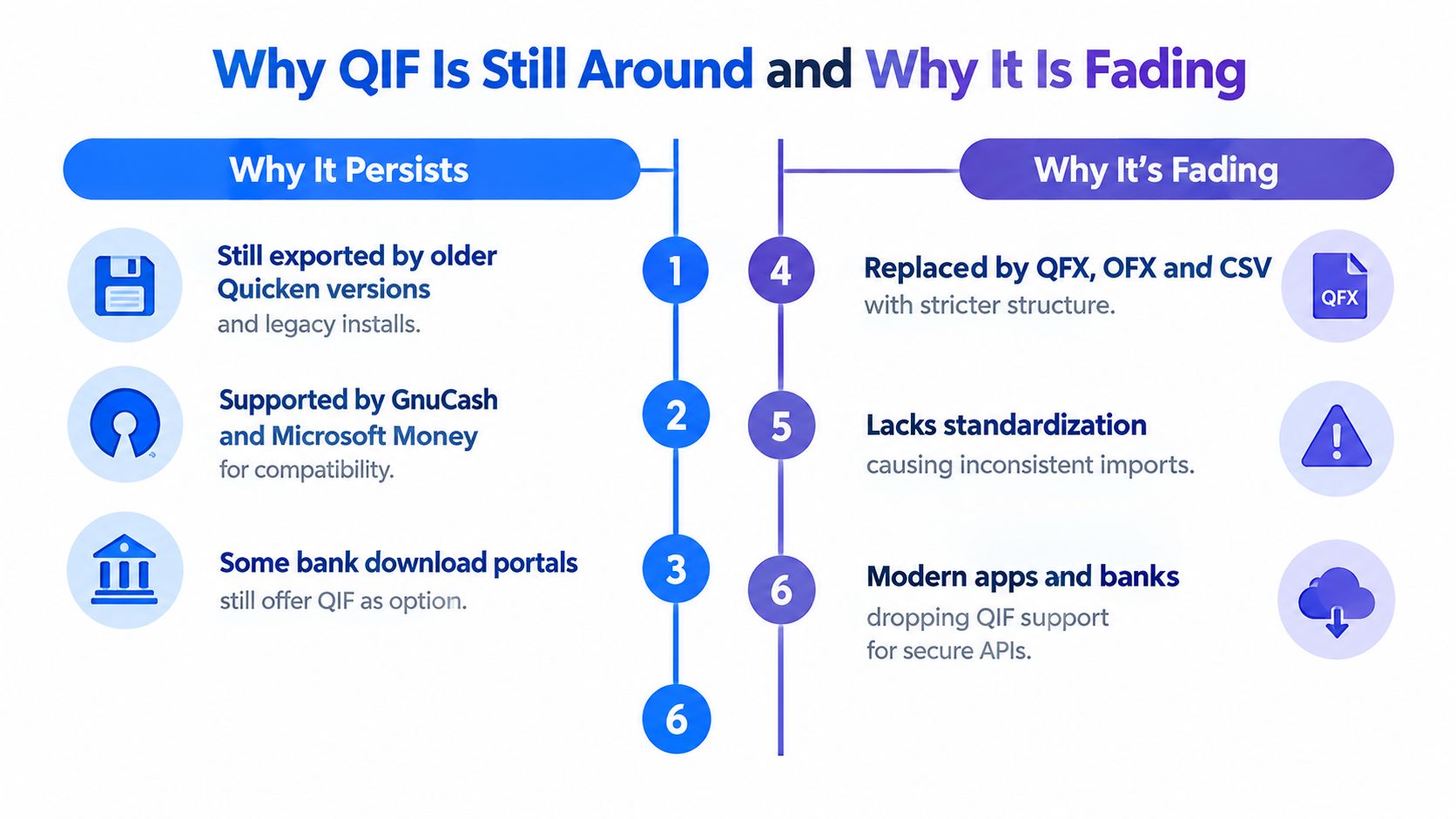
QIF persists because it solves one narrow problem well enough. It is simple text, human-readable, and still recognized by older desktop finance workflows. That makes it useful when we need to extract transaction history from a system that wasn't built for modern interoperability.
It also survives because legacy processes survive. A bank archive doesn't disappear because your team adopted better tools elsewhere. Old accounting desktops, dormant entities, and historical statement pulls keep dragging QIF back into active use.
Why teams still encounter it
- Legacy software support: Older finance applications can still read or emit it.
- Readable source files: Staff can inspect the text directly without specialized tooling.
- Compatibility bridging: It can act as an intermediate file when nothing cleaner is available.
Why we shouldn't build around it
Independent guidance increasingly treats QIF as a legacy, text-based format with ambiguous fields, no standard date format, and weak transaction identity, and notes continuing migration toward CSV, OFX/QBO, and other formats rather than deeper QIF adoption, as discussed in this bank statement QIF analysis.
That's the honest framing. QIF isn't dead, but it shouldn't be the foundation of a new reconciliation stack. It's a bridge. Use it to get out of the old workflow, not to lock yourself into one.
The Most Common QIF Import Errors
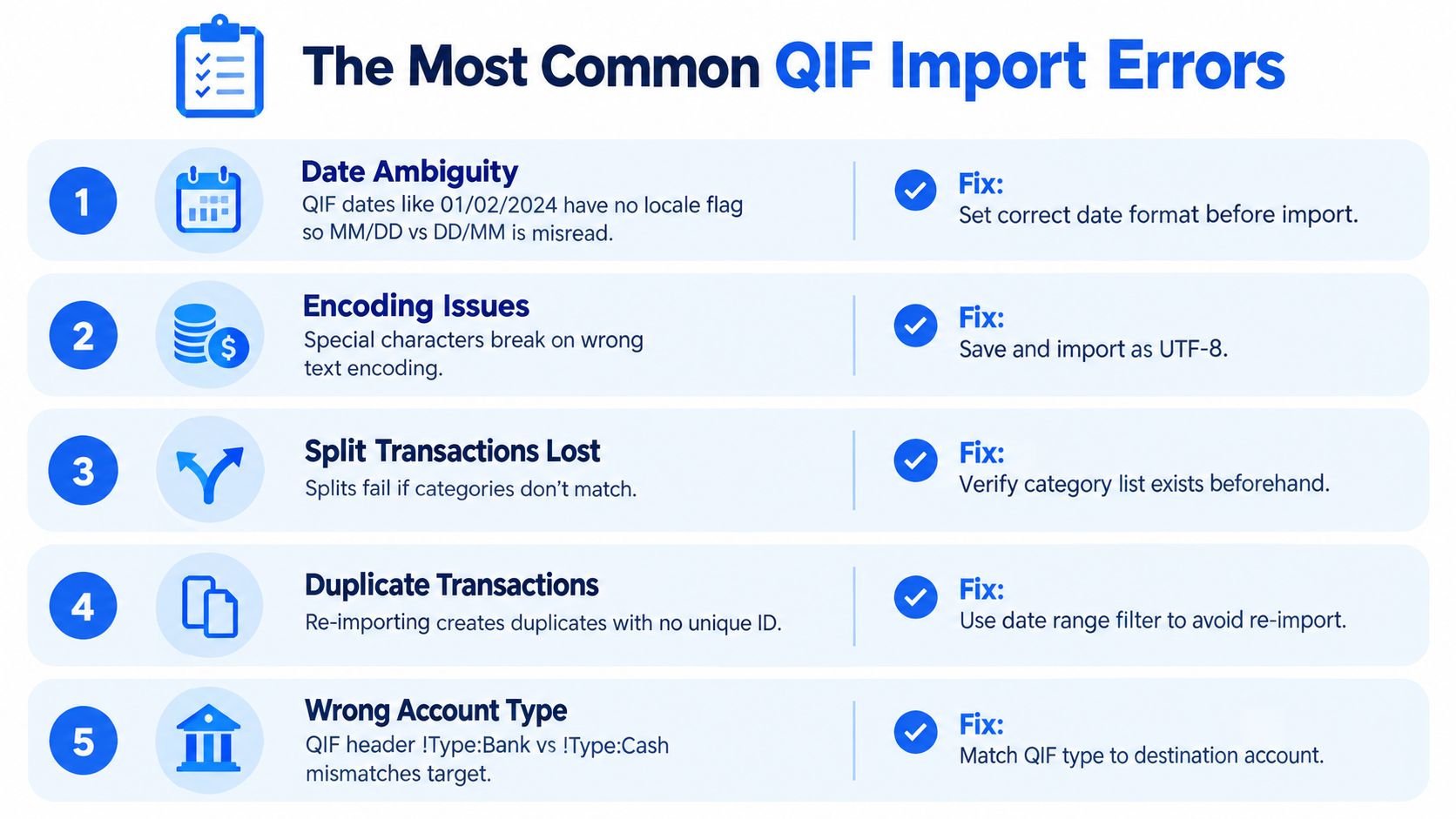
Most failed QIF imports trace back to a small set of repeat problems. The file type QIF is forgiving enough to look valid and fragile enough to break on details that a modern structured format would catch earlier.
The five errors we see most often
Date ambiguity
A date like01/02/2024can be interpreted in more than one way if the importer doesn't know the locale convention.
Fix: Set the date format inside the importer if possible, or normalize dates before import.Encoding problems
Older exports may behave like legacy text rather than modern UTF-8, which can garble accented payee names or symbols.
Fix: Open and re-save through a text editor using the encoding your destination expects.Transfer mismatches
Transfers are often weakly represented, so renaming accounts or categories can break the relationship between the two sides.
Fix: Keep transfer naming stable through export and review all inter-account movements after import.Currency formatting issues
Some parsers choke on symbols, separators, or unusual amount formatting inside the amount line.
Fix: Strip symbols and normalize amount formatting before conversion or import.Wrong file extension or record type
Some exports arrive as.txteven though the contents are QIF, or the header type doesn't match the destination account.
Fix: Confirm both the extension and the!Typeheader before importing.
If a QIF import "mostly worked," assume it didn't. Check the exceptions first. They usually hold the accounting risk.
A related failure is duplication. QIF doesn't give you a strong transaction identity model, so re-importing overlapping periods can create duplicate rows without a reliable way for the system to detect them. Tight date-range control matters more here than with richer financial exchange formats.
Verifying QIF Data Before You Trust It
Every QIF import needs a reconciliation check before anyone posts it forward. The required test is the same one used in standard bank reconciliation: opening balance plus credits minus debits should equal closing balance.
That principle appears directly in bank-reconciliation guidance from CPA Ireland's reconciliation article, and standard teaching guidance also states that reconciliation is the process of matching the bank statement balance with the cash-book balance for the same period, with the opening balance carried forward from the prior reconciled period in NCERT's bank reconciliation material.
The check we actually perform
- Confirm the opening balance from the prior reconciled period.
- Sum all credits and debits in the imported data for the statement window.
- Tie the result to the closing balance on the bank statement.
- Review outliers such as duplicate dates, strange memo truncation, and transfers that landed as expenses.
A practical spreadsheet habit
In Excel or Google Sheets, we usually add a date-window flag column and a simple balance check formula before any journal logic starts. That catches rows outside the statement period and highlights totals that drift from the source.
If your team is building repeatable validation, it helps to understand the parsing step itself, not just the import screen. This short explainer on what data parsing means in statement workflows is useful background for anyone documenting controls.
Keep a simple import log. File name, source account, statement period, row count, and reconciliation result are enough to make future reviews much easier.
QIF Quick Reference
When a file type QIF needs fast inspection, these are the tags worth remembering.
Core tags
- D means the transaction date
- T means the amount
- P means the payee
- M means the memo
- L means the category
- N means the number or reference
- A means address lines
- ^ means end of record
Record anatomy
A financial QIF file usually uses the .qif extension and is plain text rather than a formally schema-driven document. A common record starts with a type header, then lists one field per line, then ends with a caret.
Example:
!Type:Bank
D04/15/2024
T-48.20
PCorner Market
MGroceries
LFood:Groceries
^
If one of these tags behaves oddly in your importer, the first place to look is the import-errors section above. Most QIF failures come from malformed records, wrong type headers, or values the destination system interprets differently than the source.
Frequently Asked Questions About QIF Files
Is QIF still supported
Yes, but mostly as a compatibility format. Older desktop finance tools and some import libraries still work with it. In day-to-day bookkeeping, support usually means import tolerance, not active investment in the format as a modern standard.
Can banks still export QIF directly
Sometimes, but much less often than before. In many current workflows, QIF arrives from an old finance application, an archived download, or a conversion step rather than a modern bank feed. If a bank gives you CSV, OFX, or another structured option, that's usually the cleaner path.
What replaces QIF
The replacement depends on the destination. CSV or XLSX works best for spreadsheet review and manual cleanup. OFX, QFX, and QBO are generally better choices for direct financial imports where the receiving software supports them. For most finance teams, the long-term goal isn't to perfect QIF. It's to get off it cleanly.
If your real problem isn't a QIF file but a bank statement trapped in PDF, autobankstatement converts digital, scanned, and password-protected bank statement PDFs into CSV or Excel/XLSX for review and import. That's often the cleaner route when a legacy QIF step is only hanging around because nobody had a better way to get structured rows out of the source documents.
Convert your next statement in minutes
Upload a bank statement PDF — digital, scanned, or password-protected — preview the extracted table, and download clean CSV or Excel.