PDF to Excel File Converter: What Finance Teams Should Know
Learn how a PDF to Excel file converter works, OCR vs text-based extraction, security controls, and how to validate converted bank statements.
The month-end deadline is close. A bookkeeper has a bank statement open on one monitor, a spreadsheet on the other, and a cursor hovering over the first transaction. Copying each date, description, debit, credit, and balance by hand feels manageable until the statement runs across several pages, repeats its header, or arrives as a scan. That's where a PDF to Excel file converter can save time, but only if the exported spreadsheet is treated as a starting point rather than unquestionable accounting data.
A reliable workflow has two parts. First, the converter must identify the statement's structure and produce usable CSV or XLSX rows. Then the finance team must test those rows against the original document, especially balances, transaction counts, dates, amounts, and debit or credit signs. The mechanics matter, but the controls determine whether the file is safe to use in a close.
Table of Contents
- The Moment a PDF Becomes a Spreadsheet
- What a PDF to Excel File Converter Does
- Generic Converters Versus Bank Statement Specialists
- How OCR Works and Why It Changes the Workflow
- Output Formats and Workflow Features That Matter
- Security and Privacy for Sensitive Statement Data
- Validating the Output Before You Trust the Numbers
- Choosing a Converter That Fits Your Team
The Moment a PDF Becomes a Spreadsheet
A PDF statement looks structured because people can see its columns. Software doesn't necessarily see those columns in the same way. It may encounter text positioned on a page, a scanned image, repeated headers, wrapped descriptions, and balances that only make sense when read in sequence.
That distinction becomes obvious during a busy close. A clean digital statement may convert into rows quickly, while a photographed or scanned statement needs OCR to identify the characters first. A generic converter might place visible text into a grid, yet still move a minus sign, merge a description with an amount, or treat a page header as a transaction.
Practical rule: A spreadsheet export is not reconciled data until it has passed checks against the source statement.
The useful question isn't merely, “Can this tool turn PDF into Excel?” It's, “Can the resulting rows support review without forcing us to rebuild the statement manually?” We need to know whether the converter handles digital, scanned, and password-protected PDFs, whether it exports to CSV or XLSX, and whether it gives us a way to inspect uncertain rows before download.
This article approaches the problem from the close process rather than from a feature checklist. We'll look at how extraction works, why bank-statement parsers differ from ordinary PDF tools, how OCR changes the risk profile, and which validation controls should run before any imported transaction affects the books.
What a PDF to Excel File Converter Does
A PDF to Excel file converter changes information arranged for visual reading into rows and columns that a finance team can sort, filter, calculate, and reconcile. It may produce an XLSX workbook for review and editing or a CSV file for import into software that expects delimited data. The file format affects the next step, but neither format proves that the extracted transactions are correct.
The conversion path starts with the PDF's underlying content. A text-native PDF contains an encoded text layer, allowing software to read characters directly. The converter still has to infer where rows, cells, and columns begin and end because a PDF does not necessarily define spreadsheet structure. Tagged PDFs can provide clearer table signals through tables, rows, header cells, and data cells. Untagged files require spatial interpretation, as Adobe's PDF accessibility guidance explains.
A scanned statement contains an image rather than directly readable transaction characters. The converter therefore applies optical character recognition, or OCR, to identify table regions, recognize characters, and reconstruct relationships between rows and columns. The process has two jobs: read the content and assign each value to the right field.
The difference is practical during monthly close:
- Text-native extraction: Software reads the existing text layer and maps it into fields.
- OCR extraction: Software interprets visual characters and estimates where each character belongs.
That distinction makes the source file a major risk factor. Research in a document-extraction study found that digitally created documents in its evaluation reached approximately 100% extraction accuracy because their text layers could be read directly. Image-based documents required OCR and produced lower results.
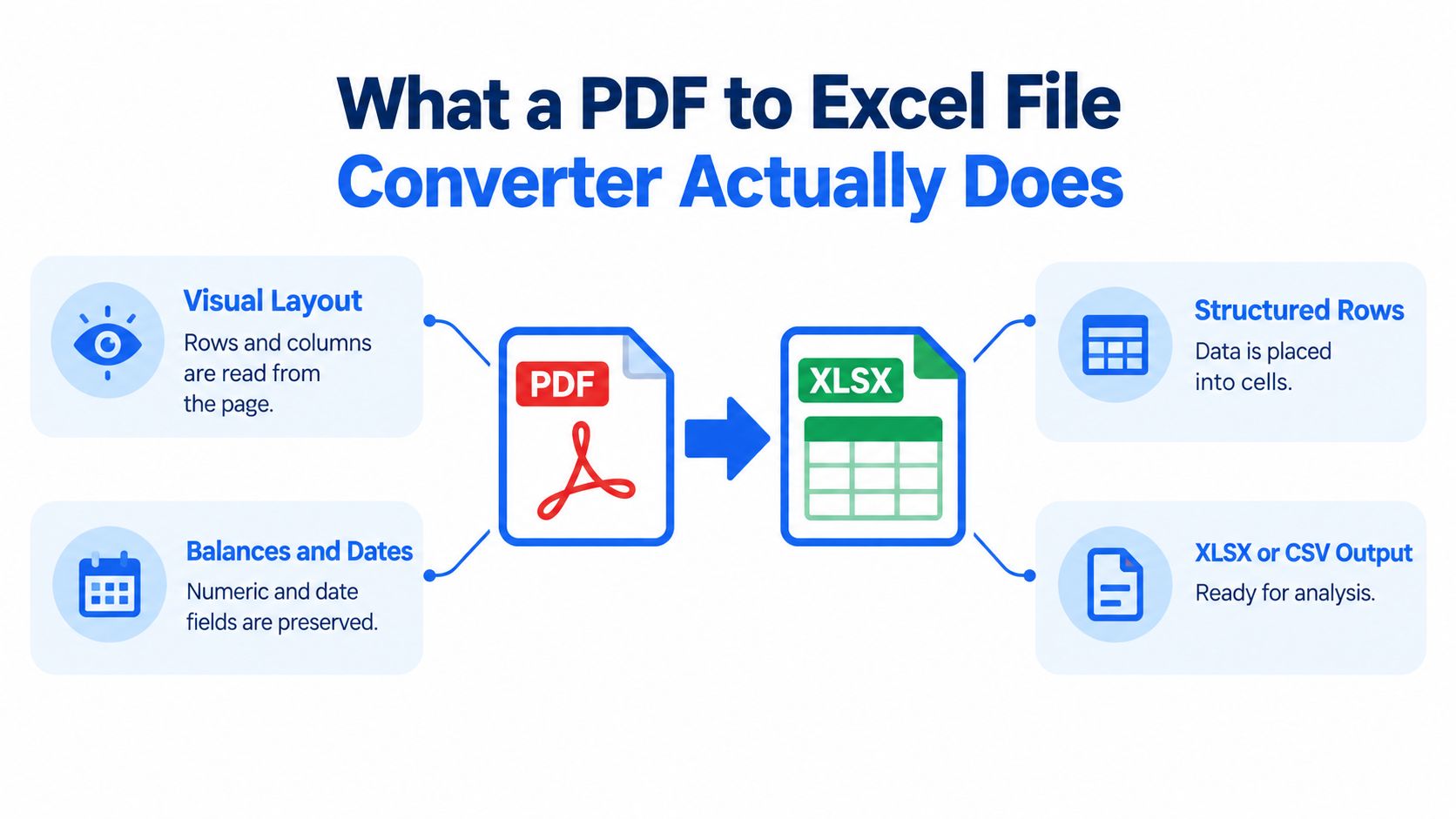
Character recognition is only an intermediate result. A usable export must preserve transaction dates, descriptions, debit and credit fields, and balances in columns that reviewers can trace back to the statement. A tidy workbook can still misstate the books if one amount shifts columns, a sign disappears, or a balance is assigned to the wrong row. Treat the download as an extraction for validation, not as reconciled accounting data.
Generic Converters Versus Bank Statement Specialists
A generic converter treats a PDF primarily as a page layout. It looks for text blocks, lines, and apparent tables. That approach can work well for a straightforward report or a simple vendor invoice, but bank statements carry meaning that depends on financial roles and relationships.
A bank-statement-specialized parser should distinguish a transaction date from a posting date, a description from an amount, and a debit from a credit. It should also recognize opening and closing balances, running balances, repeated page headers, split transactions, and sign conventions. Those details matter because a table can look correct while producing the wrong reconciliation.
| Conversion approach | What it usually recognizes | Main financial risk |
|---|---|---|
| Generic PDF converter | Visible text blocks and apparent rows | Amounts, descriptions, or headers can shift between columns |
| Table extraction tool | Spatial table boundaries | Multi-page statements and split transactions may need cleanup |
| Bank-statement specialist | Dates, descriptions, debits, credits, and balances | Output still requires review, but the fields reflect the accounting task |
Password handling also requires precision. Adobe distinguishes a document-open password, which controls whether a person can view the file, from a permissions password, which controls actions such as printing, editing, or copying. A responsible workflow uses an authorized password for the intended conversion and doesn't attempt to bypass protection, consistent with Adobe's guidance on PDF passwords.
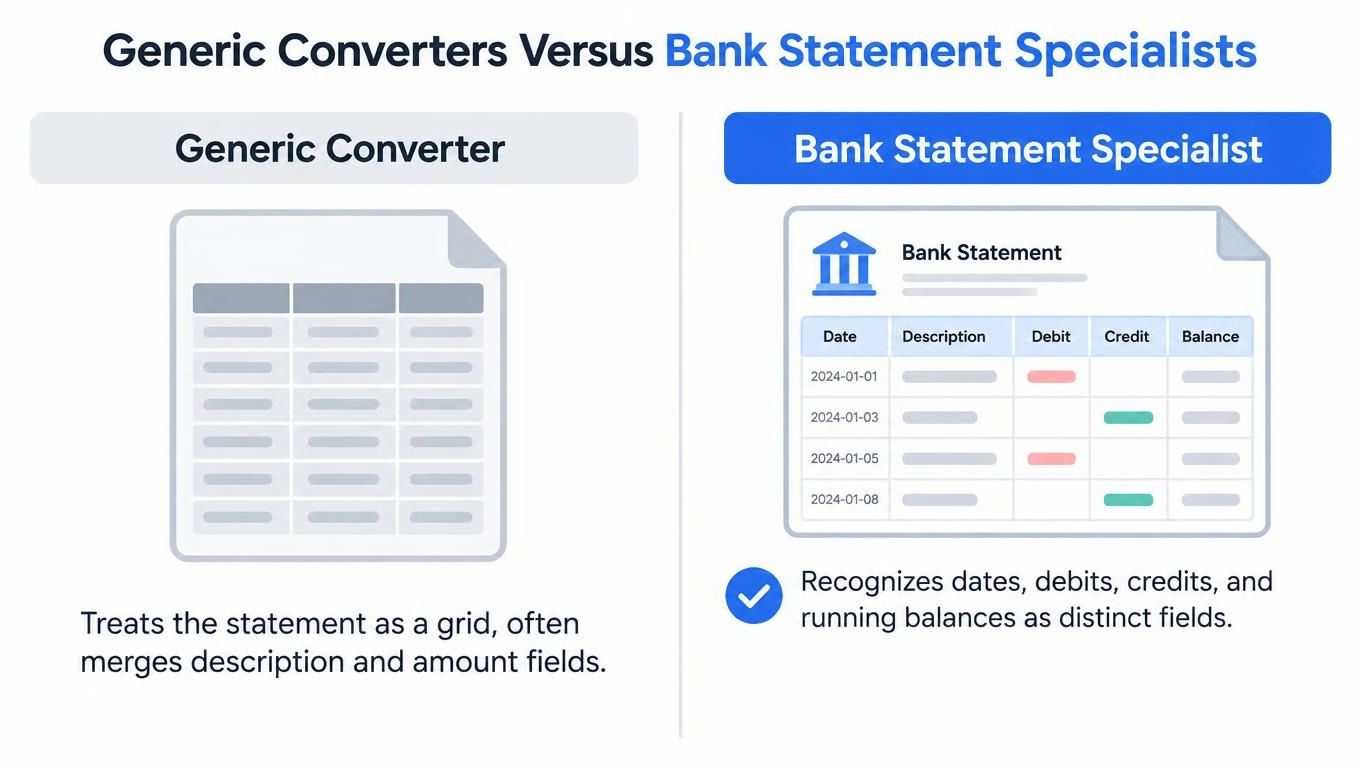
The practical test is simple. If a tool converts an invoice cleanly but can't expose uncertain transaction rows or preserve balance logic, it isn't necessarily suitable for statements. Finance teams should prefer a parser that validates column alignment, normalizes debit and credit signs, retains balance fields, and gives reviewers a clear way to correct exceptions.
How OCR Works and Why It Changes the Workflow
During month-end close, a scanned statement can look clean while hiding several extraction risks. OCR must locate the table, recognize characters, identify dates and amounts, then assign each value to the correct row and column. A correct character can land in the wrong cell, while a correctly placed cell can contain a misread decimal point.
Reported performance varies by document type, scan quality, and OCR system. One evaluation found average accuracy of 94.7% for normal documents, falling to 86.9% for crumpled documents, 80.9% for dirty documents, and 72.7% for wet documents, as described in the published research. Treat these figures as evidence that image condition affects review effort, not as a guarantee for a particular statement.
A separate tabular-OCR evaluation reported a 0.049 word-error rate and a 0.035 character-error rate, with full-table F1 scores of 0.850 at character level and 0.755 at token level in its context-aware pipeline. A single wrong digit can change a transaction total even when the rest of the page appears accurate.

Build review controls around those failure points:
- Use confidence thresholds: Surface rows where the system is unsure about a character, field, or cell assignment.
- Preview before export: Review the browser table and edit questionable rows before downloading XLSX or CSV.
- Normalize carefully: Standardize dates and currency symbols while retaining the original visible value for comparison.
- Reconcile totals: Compare extracted movements and balances with the printed statement.
- Escalate poor scans: Reprocess or manually inspect statements with stains, folds, blur, or overlapping marks.
These checks fit a practical close workflow. A reviewer can focus first on flagged amounts, unusual signs, missing balances, and rows that fail reconciliation instead of rereading every clear line. For a plain-language explanation of the process, see what OCR means for bank statements.
Treat OCR output as probabilistic data capture: most characters will be right, and the review step exists precisely for the few that are not.
Output Formats and Workflow Features That Matter
Format choice should follow the next action. CSV is often appropriate when a bookkeeping workflow expects a strict set of columns and we don't need formulas, styling, or multiple worksheets. XLSX is usually better when a reviewer needs to filter transactions, add checks, compare values, or prepare a workbook for internal approval.
| Workflow scenario | Recommended format | Why it fits |
|---|---|---|
| Import into a process that expects delimited transaction fields | CSV | Simple structure and predictable columns |
| Reviewing uncertain rows during month-end close | XLSX | Easier filtering, editing, and formula-based checks |
| Preparing management analysis | XLSX | Supports worksheets, formulas, and pivots |
| Passing normalized rows between team members | CSV or XLSX | Choose based on the recipient's system and review needs |
The right converter should also match the team's volume. Bulk upload matters when a bookkeeping firm receives several statements in one session or when an internal finance team processes multiple accounts during close. A 25 MB per-file limit can be sufficient for ordinary statements, but teams should check unusually large scans before building the process around them.
Access rules affect control as well as convenience. A free guest preview lets a user inspect the conversion before payment. Registered users receive 24-hour download access, and uploads auto-delete within 24 hours, so the team needs to download and store approved outputs within that window. These limits also make it easier to define who owns the resulting workbook and where it belongs in the firm's records.
Text-native statements may process rapidly because the system can read their text layer directly. Scanned statements can take longer because OCR must interpret both characters and layout. That difference should be reflected in close planning. For a practical view of preparing transaction rows for spreadsheet use, see converting bank statements to CSV.
Security and Privacy for Sensitive Statement Data
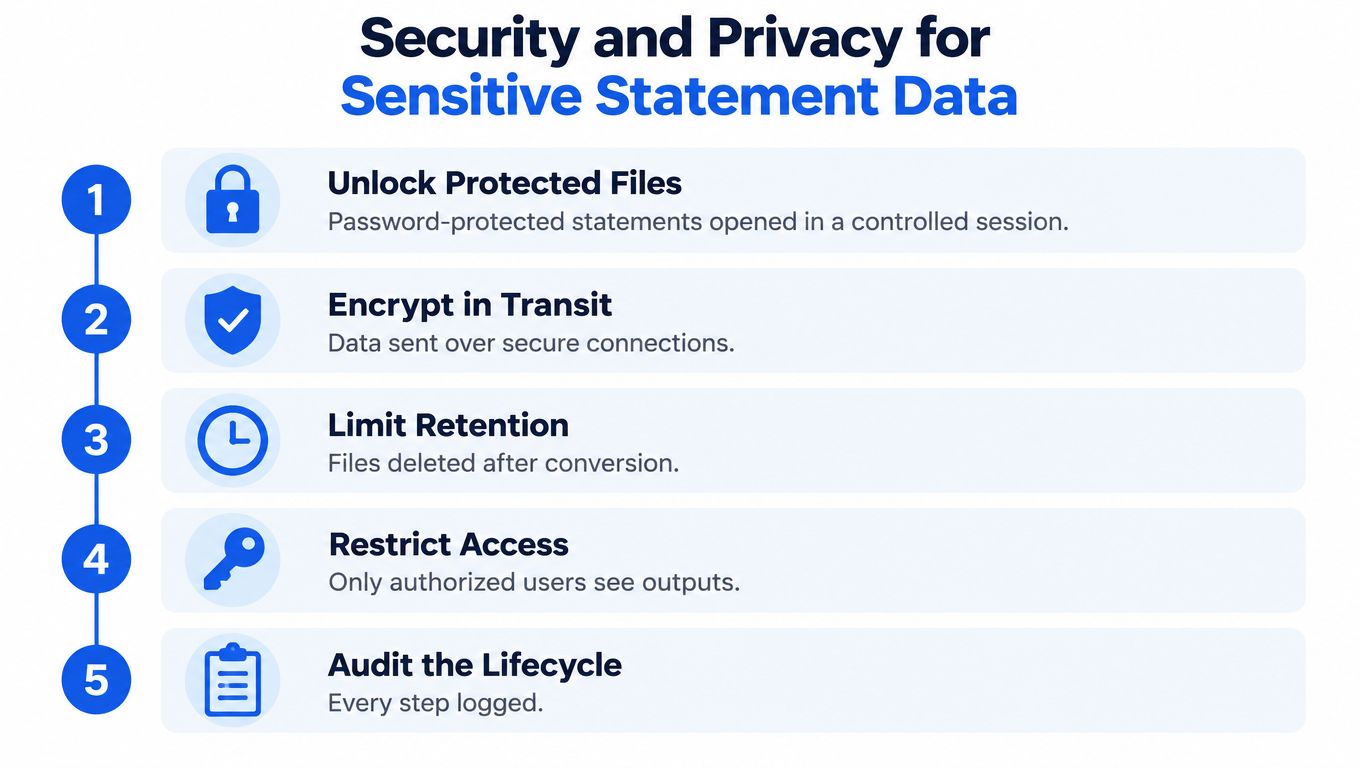
Bank statements contain balances, counterparties, account identifiers, and transaction histories. Privacy therefore depends less on a broad security slogan and more on what happens to the source file, password, extracted rows, preview, and download after processing.
A defensible lifecycle starts with authorization. If the PDF is protected against opening, the account holder or another authorized person should provide the password for that conversion. The credential should be used only for the intended session and should not become part of a permanent document record. A permissions password is different, because it restricts actions on a file that may still be viewable.
The processing window should also be limited. autobankstatement supports password-protected statements, scanned PDFs through OCR, CSV and XLSX output, and uploads up to 25 MB. Its stated workflow includes a free guest preview, 24-hour download access for registered users, and automatic deletion of uploads within 24 hours.
Before approving a provider, we should ask:
- Password handling: Is the password needed only to open the source for conversion?
- Retention: When are the PDF, preview, extracted rows, and download link removed?
- Access: Who can see the source and spreadsheet during processing?
- Client communication: Can the firm explain the lifecycle in onboarding material?
- Local records: Where will the approved XLSX or CSV be stored after download?
No temporary workflow eliminates every risk. A finance team still needs internal access controls, approved storage, and a clear rule against creating unnecessary copies. The strongest privacy position is specific: limit the processing window, document the deletion period, restrict authorized users, and avoid providers that retain source statements or credentials indefinitely.
Validating the Output Before You Trust the Numbers
The exported file should enter the close process only after a short control routine. Start with the statement's core equation:
Opening balance + credits − debits = closing balance.
If the equation fails, don't assume the bank statement is wrong. Check for a missing row, a duplicated transaction, an inverted sign, a shifted decimal, or a balance column placed beside the wrong transaction.
Use this pre-import checklist:
- Confirm the opening balance: Match the first balance in the spreadsheet with the statement's printed opening balance.
- Count transaction rows: Compare the spreadsheet row count with the statement's transaction listing or summary.
- Recalculate movement: Sum credits and debits separately, then apply the balance equation.
- Check signs: Confirm that withdrawals are treated as debits and deposits as credits according to the statement's convention.
- Review dates: Look for impossible sequences, missing dates, or a date shifted into the description or amount field.
- Inspect high-value rows: Compare larger or unusual transactions directly with the source PDF.
- Check page transitions: Look for repeated headers, split descriptions, and transactions that continue across pages.
- Resolve exceptions: Keep low-confidence rows out of the final import until a person verifies them.
A clean-looking spreadsheet can hide a one-character error. A misplaced decimal or transposed digit may pass a quick visual scan but still change the reconciliation result. That's why browser preview and row-level edits are more useful than raw extraction speed when the file supports tax work, lending analysis, or financial reporting.
A 2025 reconciliation survey found that manual intervention and poor system integration accounted for 44% of reconciliation mistakes, with financial discrepancies reported as a major operational impact. The lesson isn't that automation should be avoided. It's that automation needs a defined exception process and a named reviewer.
Close control: Never import the workbook because the columns look aligned. Import it after the balances, row count, signs, dates, and exceptions agree with the source.
Choosing a Converter That Fits Your Team
The selection decision usually turns on two questions. First, are most statements text-native, or do scans and image-only PDFs make OCR central to the workflow? Second, can the provider explain how it handles passwords, temporary processing, previews, downloads, and deletion in terms a client can understand?
Teams with mostly digital statements may prioritize fast extraction, consistent columns, and convenient XLSX or CSV output. Teams handling scans need stronger review controls, visible uncertainty, and a process for correcting rows before export. A generic converter can be adequate for a one-off document with a simple layout, but recurring bank-statement work demands recognition of financial fields and balance relationships.
The price and capacity model should also match the monthly workload. autobankstatement offers Starter at $15 per month for 400 pages, Professional at $30 per month for 1,000 pages, and Business at $50 per month for 4,000 pages, with annual discounts and custom enterprise limits. It converts digital, scanned, and password-protected bank statements into CSV or XLSX, supports bulk uploads, and accepts files up to 25 MB.
The right choice is the one that passes two tests:
- Operational test: The exported rows pass the opening balance plus credits minus debits equals closing balance check, transaction-count comparison, sign review, and exception review without manual reconstruction.
- Privacy test: The firm can document how the source PDF and password are handled, how long outputs remain available, and when uploaded files are deleted.
For a broader evaluation framework, use this guide to compare PDF to Excel conversion software. The fastest tool isn't automatically the best fit. A reliable converter gives the team a reviewable file, exposes uncertainty, and supports a retention practice that stands up when a client asks what happened to their financial records.
autobankstatement converts digital, scanned, and password-protected bank statements into reviewable CSV or Excel/XLSX files, with bulk uploads for files up to 25 MB and automatic upload deletion within 24 hours. Visit autobankstatement to preview a conversion and choose a plan that fits your reconciliation workload.
Convert your next statement in minutes
Upload a bank statement PDF — digital, scanned, or password-protected — preview the extracted table, and download clean CSV or Excel.