
Convert Bank Statements to Excel the Right Way
Learn how to convert bank statements to Excel or CSV step by step. Covers PDFs, scans, passwords, validation, and privacy best practices for finance teams.
The last week of the month always exposes the same problem. A folder full of PDF bank statements lands in Downloads, the ledger is waiting, and someone has to decide whether to spend the afternoon copy-pasting line items or turning those files into something the team can trust.
That is the actual job when we convert bank statements to Excel. The point is not a prettier file, it is a spreadsheet that survives reconciliation, supports review, and gets us to close without guessing where a balance went wrong.
Table of Contents
- Why a Spreadsheet-Ready Statement Changes Everything
- Identify the Kind of PDF You Are Working With
- The Upload, Parse, Review, and Export Workflow
- Three Checks That Prove the Output Is Accurate
- Pricing, Page Quotas, and Sizing Your Subscription
- Privacy Controls and Retention Best Practices
- Putting the Workflow Into Practice This Month
Why a Spreadsheet-Ready Statement Changes Everything
A bank statement sitting in PDF form is designed for reading, not for analysis. Finance teams, accountants, lenders, and auditors deal with high volumes of digital records because electronic payments keep growing, and the ACH Network processed 33.6 billion payments in 2024, up 6.7% from 2023, with $86.2 trillion transferred, up 7.6%. Same Day ACH exceeded 1.2 billion payments and moved about $3.2 trillion, with volume rising 45.3% year over year, which is why statement data now matters so much for structured financial work. Nacha's 2024 ACH network summary
Why the file format is not the real problem
The pain starts when transaction history stays trapped in a format meant for the eye, not the ledger. A statement may hold hundreds of ACH credits, debits, payroll items, vendor payments, and transfers across just a few pages, so the old copy-and-paste habit breaks down fast.
When we turn that PDF into Excel or CSV, each transaction becomes a row we can sort, filter, reconcile, and import. That change is bigger than convenience. It is what lets us handle cash-flow reporting, transaction matching, tax prep, fraud review, and month-end close without retyping the same data over and over.
Practical rule: if the output can't be reconciled, it isn't ready, no matter how clean the spreadsheet looks.
A spreadsheet-ready statement also gives us a better operating rhythm. We stop treating each file as a one-off cleanup job and start treating it as part of a repeatable control process.
Identify the Kind of PDF You Are Working With
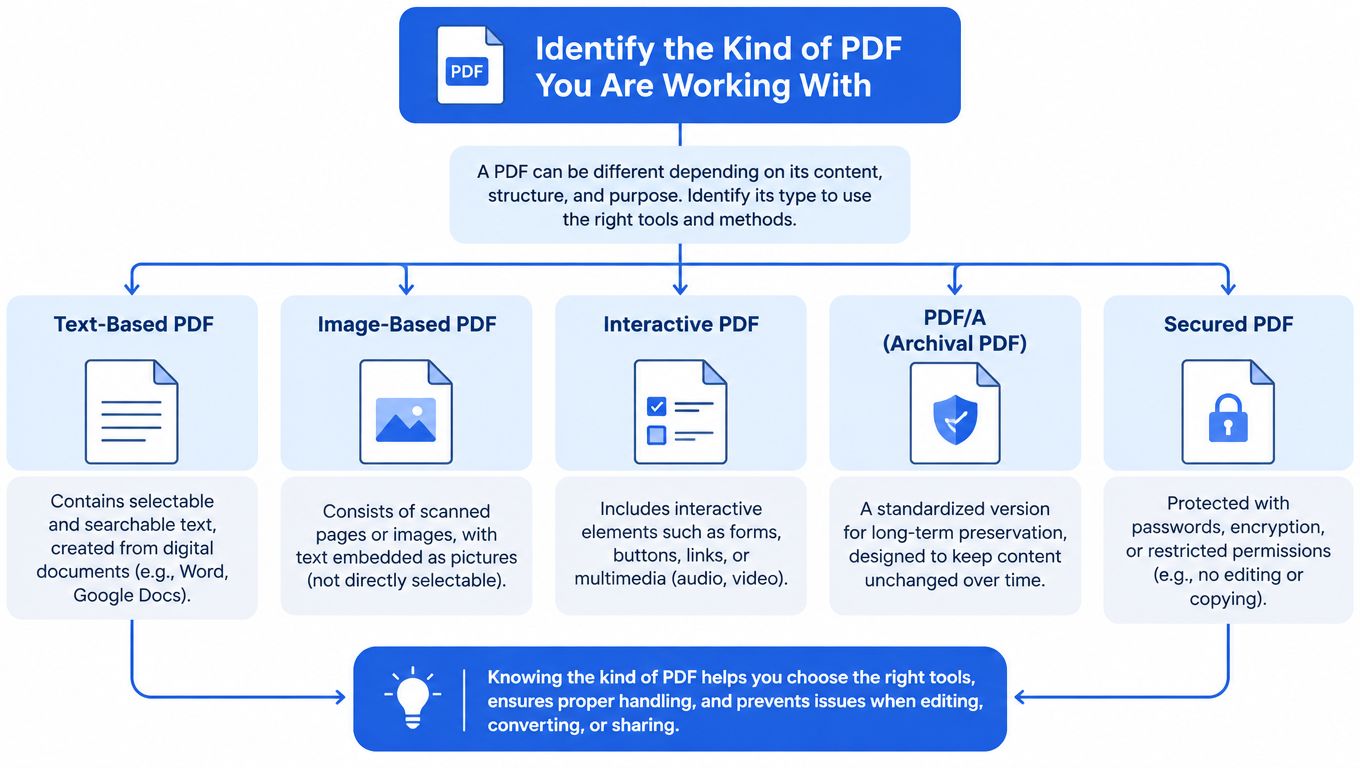
A bank statement PDF looks simple until you try to convert it. The file type decides the workflow. A native-text PDF, a scanned image, and a password-protected file each need a different approach, or the output will be unreliable from the start.
Why text, scans, and locked files need different handling
A native-text PDF usually lets you select a transaction line with the cursor. That is the easiest case because text and table extraction can pull the data cleanly. A scanned PDF behaves like an image, so OCR has to read the characters first, and that is where decimals, minus signs, dates, and account numbers can break. A password-protected PDF needs the password at upload, not after conversion has already started.
Run a simple test before you do anything else. Open the statement, highlight one transaction line, and see what copies into the viewer. Clean selection means text-based extraction. A picture-like page means OCR. A prompt for a password means the file must be opened during upload, not worked around later.
For a practical walkthrough of parsing logic, see the parsing file guide.
Use this PDF type flowchart as a quick check before conversion.
A file type check takes seconds. Skipping it creates cleanup work, and cleanup is where reconciliation errors start.
The Upload, Parse, Review, and Export Workflow
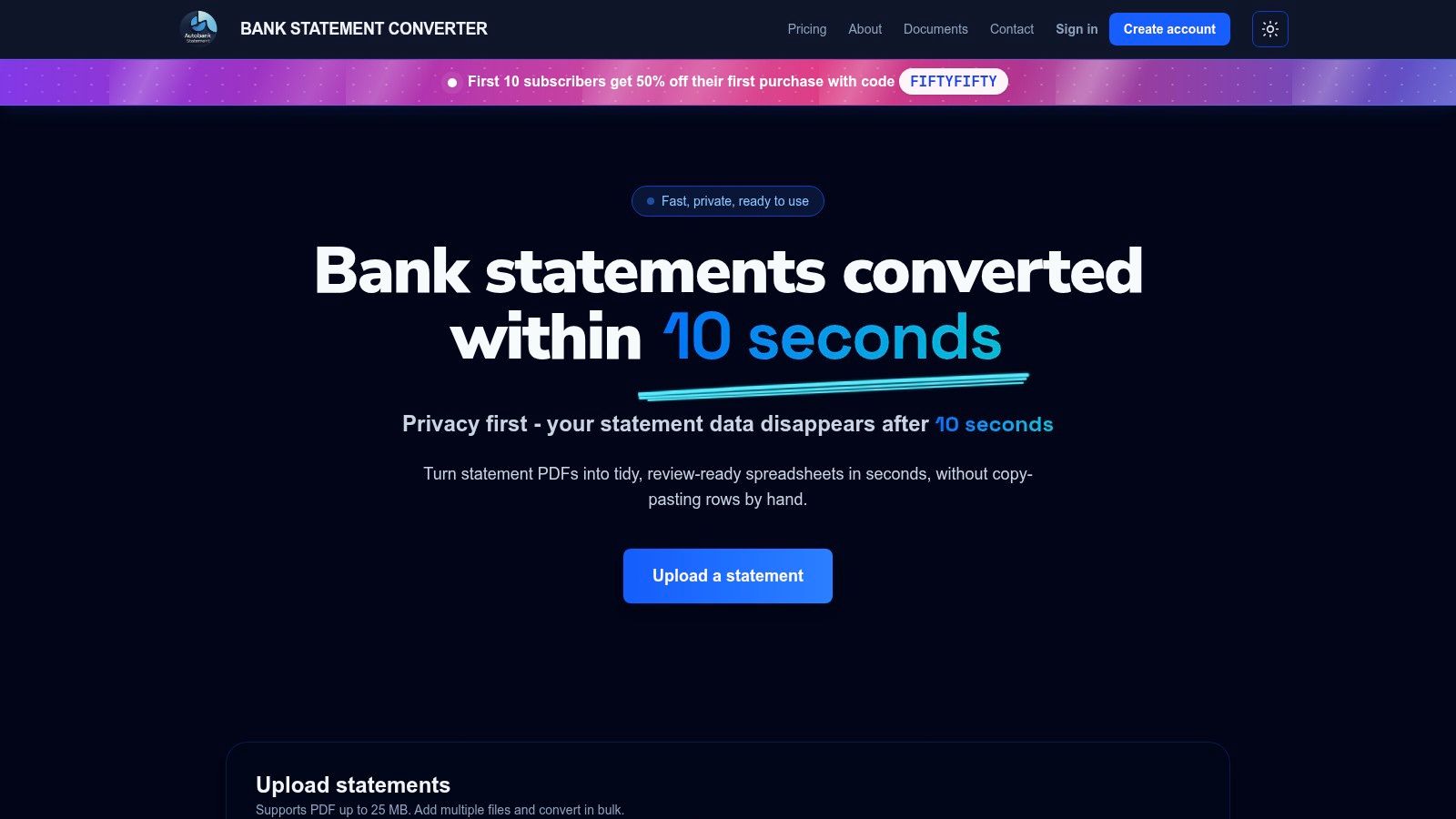
A clean workflow is simple. Upload the statement, let the parser read it, inspect the preview, correct anything obvious, and export only when the table ties out. Anything more complicated than that is usually a sign the tool is forcing manual cleanup into the wrong stage.
Start with upload discipline
Keep each file under the service limit of 25 MB and upload statements in batches when the month-end pile is large. Password-protected files should be entered at upload, not handled in a separate tool, because the conversion needs the password to read the content correctly. Autobankstatement handles PDF bank statements, including digital, scanned through OCR, and password-protected files, and it exports to CSV or Excel/XLSX. That kind of flow fits routine statement work because the parser, preview, and export are all in one place.
A free guest preview lets us inspect the output before payment, which is the right way to check whether the table is usable. Registered users get 24-hour download access, and uploads auto-delete within 24 hours, so the file handling stays temporary.
Review before export, every time
Use the browser preview like an internal control, not like a cosmetic screen. Rename columns if needed, trim descriptions that wrapped awkwardly, and correct obvious sign issues before downloading the file. Then export to Excel or CSV only after the rows make sense as a transaction table.
For a closer look at editing output before download, see the statement editor guide.
A single statement can be processed quickly, but bulk upload matters when we're dealing with several client files in one session. The point is to reduce handling, not to skip review. If the preview looks wrong, stop there and fix the source or the extraction path.
Three Checks That Prove the Output Is Accurate
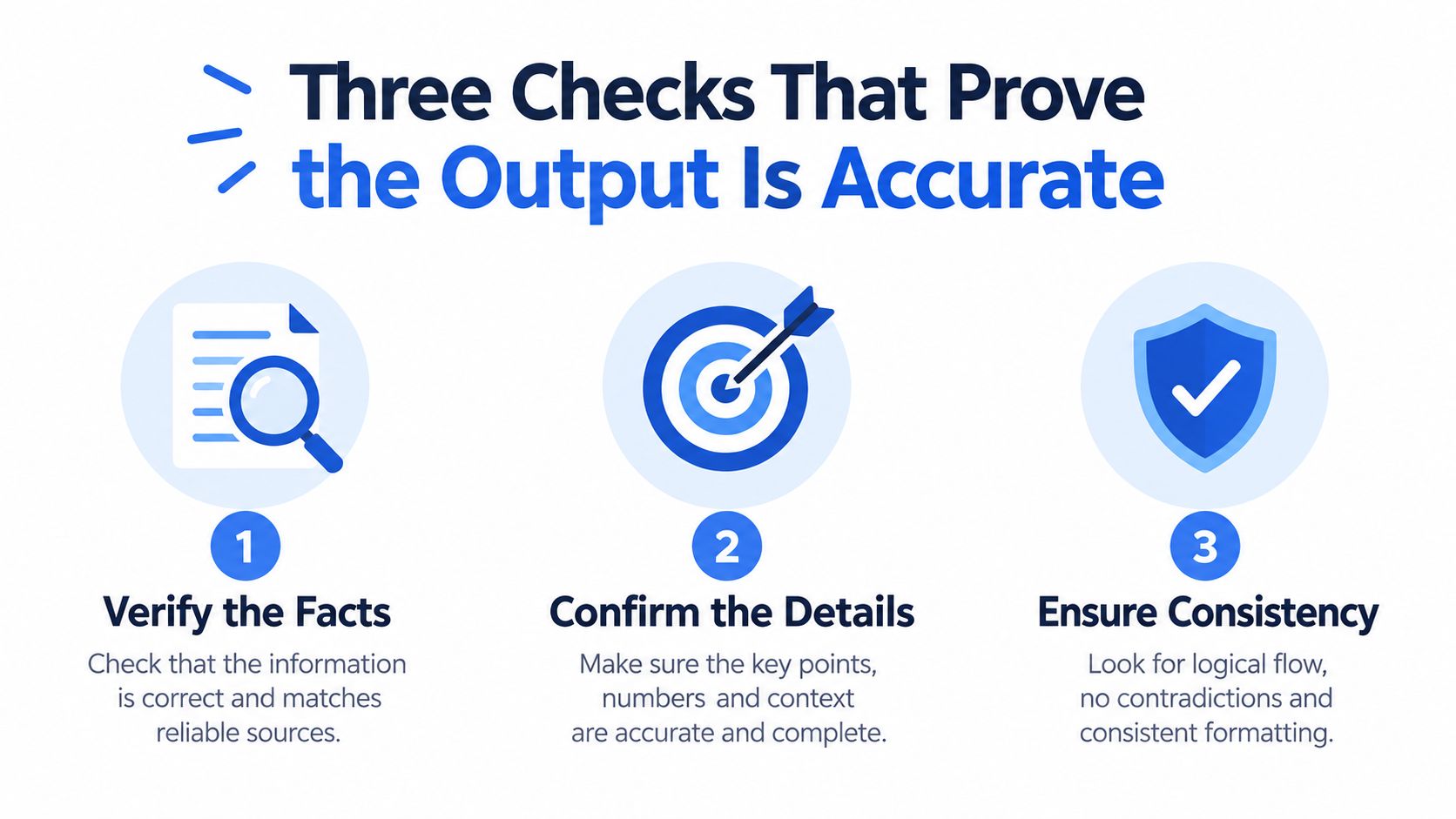
Exporting a file is not the same as trusting it. The balance has to prove itself, the row count has to make sense, and the signs have to match what the bank printed. That is the standard we should use, not a vague promise that the converter “worked.”
First, test the balance equation
Use the reconciliation formula directly. Opening balance plus credits minus debits should equal the closing balance, and that's the same structure used in the New York City Comptroller's reconciliation template, which states that the calculated closing balance should match the ending balance on the bank statement. NYC Comptroller reconciliation template
If the equation fails, do not import the file. A mismatch can mean a missing transaction, a duplicated row, the wrong sign on an amount, or an OCR error in a decimal place. It can also mean the statement period itself needs review. The correction is always cheaper before import than after the ledger has already absorbed bad data.
Then, compare counts and signs
Row count is the second control. Compare the number of extracted transactions against the statement summary, and check whether debit and credit columns still behave like debit and credit. A withdrawal should reduce the balance, and a deposit should increase it.
The third check is sample-based review. Pick a handful of rows, including at least one wrapped description and one transaction near a page break, and match them against the PDF. Scanned statements are where this matters most. In one benchmark, native bank-statement PDFs achieved 100% precision, recall, and accuracy, while scanned statements averaged 96.22% character accuracy but only 84.14% word accuracy, which is exactly why visually similar values deserve human review. Benchmark study on bank-statement extraction
If one row is wrong in a balance chain, the whole export deserves a second look.
The strongest safeguard is a three-way check, row count, debit and credit totals, and the opening-to-closing-balance equation. If any one of those fails, the file stays out of bookkeeping until the exception is cleared.
Pricing, Page Quotas, and Sizing Your Subscription
Choose the wrong plan and we either overspend or choke the workflow. The clean way to size a subscription is to match monthly page volume to the smallest tier that keeps the team moving without friction.
| Plan | Monthly price | Pages per month | Typical user |
|---|---|---|---|
| Starter | $15/mo | 400 pages | Solo bookkeeper or very small practice |
| Professional | $30/mo | 1,000 pages | Growing bookkeeping team or small firm |
| Business | $50/mo | 4,000 pages | Firm with recurring client batches |
Annual discounts are available, and larger practices can use custom enterprise limits. Autobankstatement also offers bulk upload, so the page cap matters more than the number of files when batches arrive together. For a broader product comparison context, see the PDF-to-Excel software guide.
A solo bookkeeper with a handful of monthly statements usually fits the Starter tier. A firm handling several client sets every close cycle should move to Professional or Business rather than rationing usage and slowing the team down. The rule is simple. Size for the actual batch, not the ideal one.
Privacy Controls and Retention Best Practices
Bank statements carry account numbers, routing details, and a full transaction history, so the converter's data handling matters as much as the output. We should treat file handling like a procurement decision, not a throwaway upload screen.
Ask the vendor the hard questions
Before uploading, check where files are stored, how long they stay there, who can access them, and what happens to the password used for a locked statement. Ask whether the service discloses subprocessors, whether it logs access, how breach notification works, and whether uploaded documents or extracted rows train any public system. A free tool is not automatically safer than a paid one, and a paid one is not automatically compliant.
Temporary handling is fine when it is explicit. Autobankstatement's uploads auto-delete within 24 hours, and registered users get 24-hour download access, which fits a short-lived processing model. That still doesn't remove the need for the user's own recordkeeping rules, because retention obligations can outlast any vendor's download window. IRS electronic-record guidance
Match the vendor controls on your side
The IRS guidance says digitized records and associated metadata must remain readable, searchable, retrievable, and authentic through the applicable retention period, and that electronic records must be disposed of in a way that protects sensitive or proprietary information. Federal Student Aid guidance also treats bank statements as records that may need retention and says personally identifiable information must be safeguarded and released only under the proper conditions. Keep the source when your own retention rule requires it, restrict access to authorized staff, and delete working copies when they're no longer needed.
A practical checklist is enough:
- Retention limits: Know how long the original statement and extracted file must stay available under your tax, client, or regulatory obligations.
- Access control: Limit the file to the people who reconcile or review it.
- Password handling: Enter the password only where it is needed for conversion.
- Deletion discipline: Remove temporary uploads and local working copies when the engagement no longer needs them.
- Evidence trail: Keep the source PDF alongside the workbook when retention or audit support requires it.
Security is not a marketing line. It is a file-lifecycle decision.
Putting the Workflow Into Practice This Month
A bookkeeper handling five client statements this week can run the process without drama. Classify each PDF first, upload the locked ones with the password, review the parsed table, export to Excel or CSV, and run the balance check before anything touches the books.
The routine looks like this in practice. Monday, the statements arrive and get sorted by type. Tuesday, the batch upload runs and the preview catches one wrapped description. Wednesday, the export gets the arithmetic check, and the keeper resolves the one row that failed the balance test before close.
What matters is consistency, not speed theater. The team that classifies first, verifies the math, and keeps only the files it still needs will trust the spreadsheet more than the team that just clicks export and hopes for the best.
- Classify first: Text PDF, scanned PDF, or locked PDF.
- Upload with purpose: Keep each file under the size limit and enter the password at upload when needed.
- Check the math: Opening balance plus credits minus debits must equal closing balance.
- Sample the rows: Spot-check a few lines against the original statement.
- Handle privacy carefully: Retain only what the rules require and delete temporary copies when they're no longer needed.
Autobankstatement handles PDF bank statements into Excel or CSV, including scanned and password-protected files, with bulk upload, temporary file handling, and a short preview-before-download workflow. If we want a straightforward way to convert bank statements to Excel and still keep reconciliation controls in place, visit autobankstatement and review how it fits into the monthly close.
Convert your next statement in minutes
Upload a bank statement PDF — digital, scanned, or password-protected — preview the extracted table, and download clean CSV or Excel.