
CSV Excel Import: How to Keep Your Data Intact
Learn the CSV Excel import steps that keep dates, account numbers and amounts intact, plus fixes for the errors bookkeepers meet most.
The usual advice for a CSV Excel import is to open the file and check whether the columns look right. That's not enough for bank transactions. We shouldn't trust a tidy worksheet until we've checked how Excel interpreted the identifiers, dates, and amounts.
Table of Contents
- Why a Plain CSV Import Can Quietly Go Wrong
- Column Types to Set Before You Load
- Import the Bank CSV Into Excel Without Silent Changes
- Fix the Problems That Break a Bank Statement Import
- Verify the Import Before You Trust It
- Choose CSV or XLSX Based on Who Opens the File
Why a Plain CSV Import Can Quietly Go Wrong
Double-clicking a CSV is convenient, but it gives Excel the first decision about what each value means. Excel can treat an account reference as a number or reinterpret a posting date using the computer's regional settings, without displaying an import error.
Say a reference starts with a zero. If Excel reads it as numeric data, that zero can disappear. A date that makes sense in the bank's format can become a different, equally plausible date on another computer. Neither problem necessarily leaves an obvious visual clue.
CSV makes these mistakes possible because it carries text fields, not a dependable set of spreadsheet column types. The IETF's RFC 4180 documents CSV conventions but is informational rather than a mandatory Internet standard. Exporters still differ in their handling of delimiters, quotation marks, line endings, encodings, and headers.
A failed import announces itself. A silently converted import can look ready for reconciliation.
That distinction changes our workflow. We choose the parsing rules before loading, preserve identifiers as text, and test the resulting transactions against the statement. The question isn't whether Excel opened the file. It's whether the imported values still mean exactly what the bank recorded.
Column Types to Set Before You Load
Use this table as a pre-load reference. The example values are illustrative, not a required bank export layout.
| Bank statement column | Example value | Type to set | Failure this prevents |
|---|---|---|---|
| Transaction or reference ID | REF-000ABC | Text | Automatic interpretation of identifiers |
| Account number | 000ABC | Text | Loss of leading zeros or identifier precision |
| Posting date | Day/month/year text | Date using the source locale | Swapped month and day |
| Amount | Signed debit or credit | Numeric using the source decimal convention | Text amounts or incorrect decimal interpretation |
| Description | Merchant, branch | Text | Unwanted type conversion |
| Running balance | Statement balance value | Numeric using the source decimal convention | Balances that can't be summed or compared |
Identifiers aren't quantities. We don't add account numbers or average transaction references, so there's no benefit in storing them as numbers. Keep those columns as Text even when every character is a digit.
Match the bank's locale, not the computer's
The Microsoft Power Query locale guide explains that locale controls how Power Query interprets text, numbers, and dates, including mm/dd/yyyy versus dd/mm/yyyy. Its practical consequence is significant: 03/04/2025 can mean March 4 or April 3.
Many US statements use month-first dates; many UK and European statements use day-first dates. Confirm the convention from the statement itself, preferably using an unambiguous date, rather than assuming the bank follows the reviewer's location.
In Power Query, select the date column and use Change Type > Using Locale. Choose Date and the locale matching the source. Changing the cell's display format afterward doesn't repair a date that was parsed incorrectly.
For amounts and running balances, match the statement's decimal and thousands separators. Keep debits signed consistently, or preserve separate debit and credit columns if that's how the export is structured. Don't remove negative signs merely to make the sheet look uniform.
Descriptions stay Text. Embedded commas are fine when the exporter quotes the field correctly; our CSV examples help distinguish a separator between columns from punctuation inside a description.
Practical rule: Change interpretation in the query before loading. Change appearance in the worksheet only after the underlying values are correct.
Import the Bank CSV Into Excel Without Silent Changes
Start with Excel, not the CSV file. This gives us a preview and a place to control interpretation before values reach the worksheet.
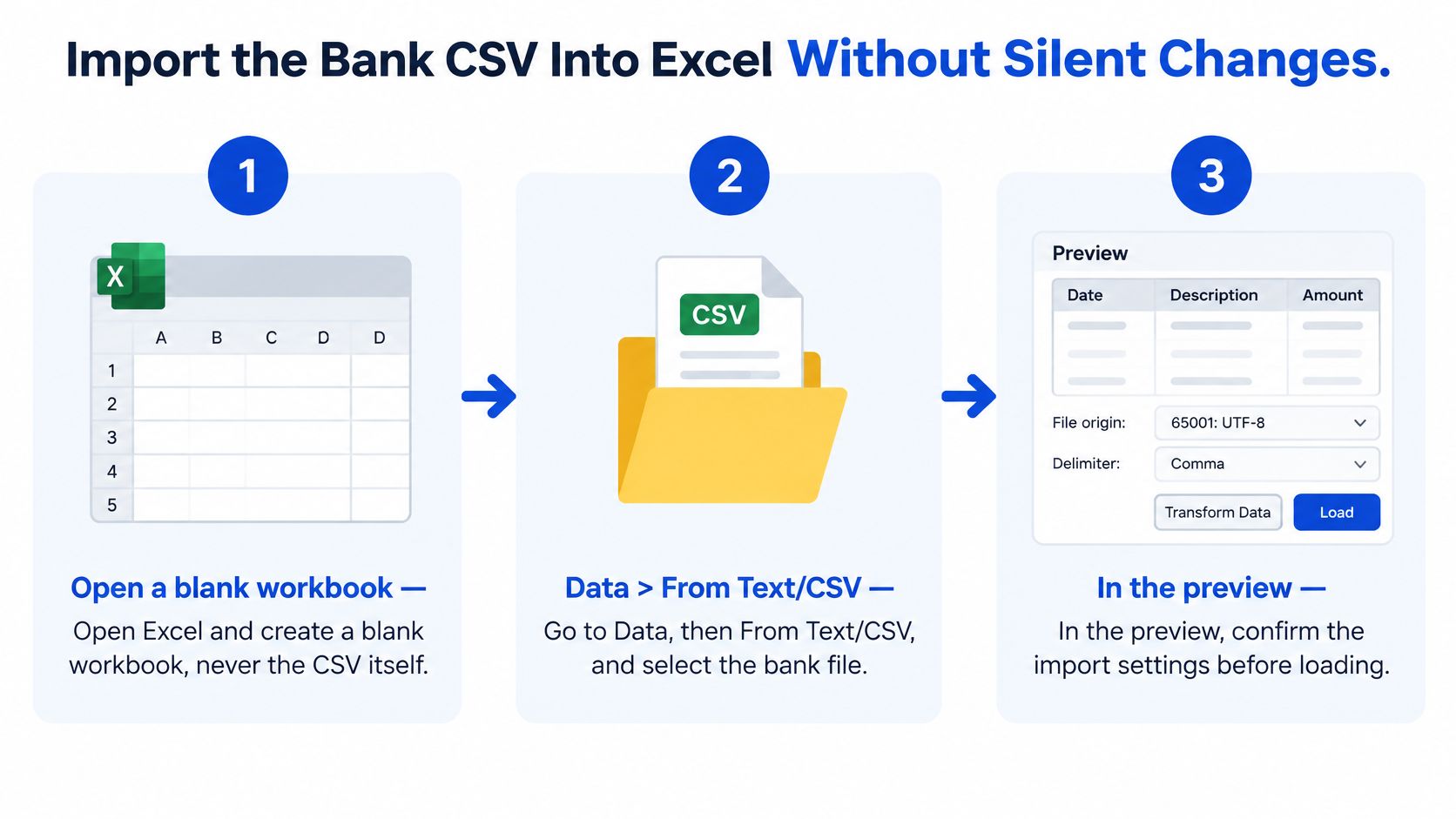
Use the controlled import path
Open Excel and create a blank workbook. Leave the downloaded CSV unopened. We want an import process with visible settings, not an automatic file-opening process.
Go to Data > From Text/CSV, then select the bank file. This opens the preview so we can examine the structure before committing it to the workbook.
Check the delimiter and encoding. Confirm that the headings and transaction values fall into their intended columns. Choose UTF-8 when that matches the export, especially for merchant names containing accents or non-Latin characters. Read several transaction records, not just the header.
Assign identifier and date types before loading. Choose Transform Data when the preview doesn't offer the controls needed. Set account-number and reference columns to Text, then check the posting-date interpretation. If Power Query has already added an automatic Changed Type step, remove or edit that step before applying the correct types.
Load only after the preview is correct. From the query editor, use Close & Load. If the preview already has the right structure and types, use Load directly. Query transformations can be reused when refreshing or importing replacement data with the same layout, but a different bank layout still needs review.
Microsoft's guidance on keeping leading zeros and large numbers recommends importing through From Text/CSV and changing identifier columns to Text in the query editor. The important distinction is timing: setting Text after Excel has changed the value may preserve the damaged value rather than the original.
The easy mistake is to treat the preview as a confirmation screen and click through it. Instead, inspect an identifier, a date, a debit, a credit, and a description containing punctuation. Those fields test different parts of the import.
Prevent irreversible identifier damage
According to Microsoft's data import and analysis options, Excel preserves only 15 digits of numerical precision; 12345678901234567890 can become 12345678901234500000 and display as 1.23457E+19.
Widening the column won't restore digits that Excel has already replaced. Neither will changing the number format. Return to the unchanged CSV and import the column as Text.
In recent Excel versions that expose these controls, also visit File > Options > Data > Automatic Data Conversion and disable unwanted conversions. This makes direct opening safer, but it doesn't replace delimiter, encoding, or locale checks.
Before clicking Load: An account number belongs in Text. An amount belongs in a numeric column. Their similar appearance doesn't make them the same kind of data.
A correctly loaded result has headers in the first row, a transaction on each subsequent data row, numeric amounts, and date values that sort chronologically. Save the reviewed workbook as XLSX if someone will reopen it, filter it, or build calculations from it. Keep the original CSV unchanged so we can repeat the import if a validation check fails.
Fix the Problems That Break a Bank Statement Import
When the whole file lands in a single column, check the delimiter first. A semicolon-separated or tab-separated export won't split correctly under a comma setting.
The Microsoft text-file import guide documents separator selection in Excel's import workflow. Confirm the separator across transaction records, not just the heading, before changing other settings.
Symptoms, causes and fixes for bank statement CSV imports
| Symptom | Likely cause | Fix |
|---|---|---|
| Whole file in one column | Semicolon or tab delimiter not detected | Set the delimiter in the preview window |
| Dates swapped or shown as numbers | Source date order differs from the locale | Set the locale in Transform Data before loading |
| Amounts in the wrong column, rows shifted | Unquoted comma inside a description | Check field count per row, then re-export with quoted fields |
| Account numbers lose leading zeros | Column treated as a number | Set the column type to Text before loading |
| Accented names garbled | Wrong character encoding | Choose UTF-8 in the preview window |
| One transaction split into two rows | Line break inside an unquoted description | Re-export with quoted fields, or merge rows in the query after confirming the transaction boundary |
| Extra title or total rows at the top | Statement headers included in the export | Remove top rows in Transform Data |
| Amount split by a thousands separator | Comma used as both delimiter and thousands separator | Use a semicolon or tab export, or set separators in the query |
Separate parsing errors from damaged exports
Wrong-column amounts deserve an immediate stop. Suppose a payee description contains a comma but isn't enclosed in quotation marks. Excel may treat the punctuation as a field boundary and move the amount into the balance column. Compare field counts across records before trusting any affected totals.
A description can legitimately contain a line break inside a quoted field. Without correct quoting, the importer may split that transaction into separate records. Only merge rows when the source statement proves where the transaction begins and ends; otherwise, request a fresh export.
Thousands separators create a similar structural trap. If an unquoted amount contains the same comma used to separate columns, numeric settings alone can't reliably reconstruct the original field. Re-export with correctly quoted amounts or a different delimiter. Query separator settings help only when the fields are still structurally intact.
Make repeatable corrections in Transform Data, not by dragging individual cells into place. Remove title rows deliberately, and don't trim spaces across every column without checking whether they belong to an identifier or description.
Request a replacement export when inconsistent field counts, broken quotation marks, or unclear transaction boundaries prevent a deterministic repair. Hand-editing until the sheet looks aligned hides the cause and makes the next import just as risky.
Verify the Import Before You Trust It
A successful load proves that Excel accepted the file, not that the transactions survived unchanged. Treat verification as part of the import, before the worksheet feeds bookkeeping or reconciliation.
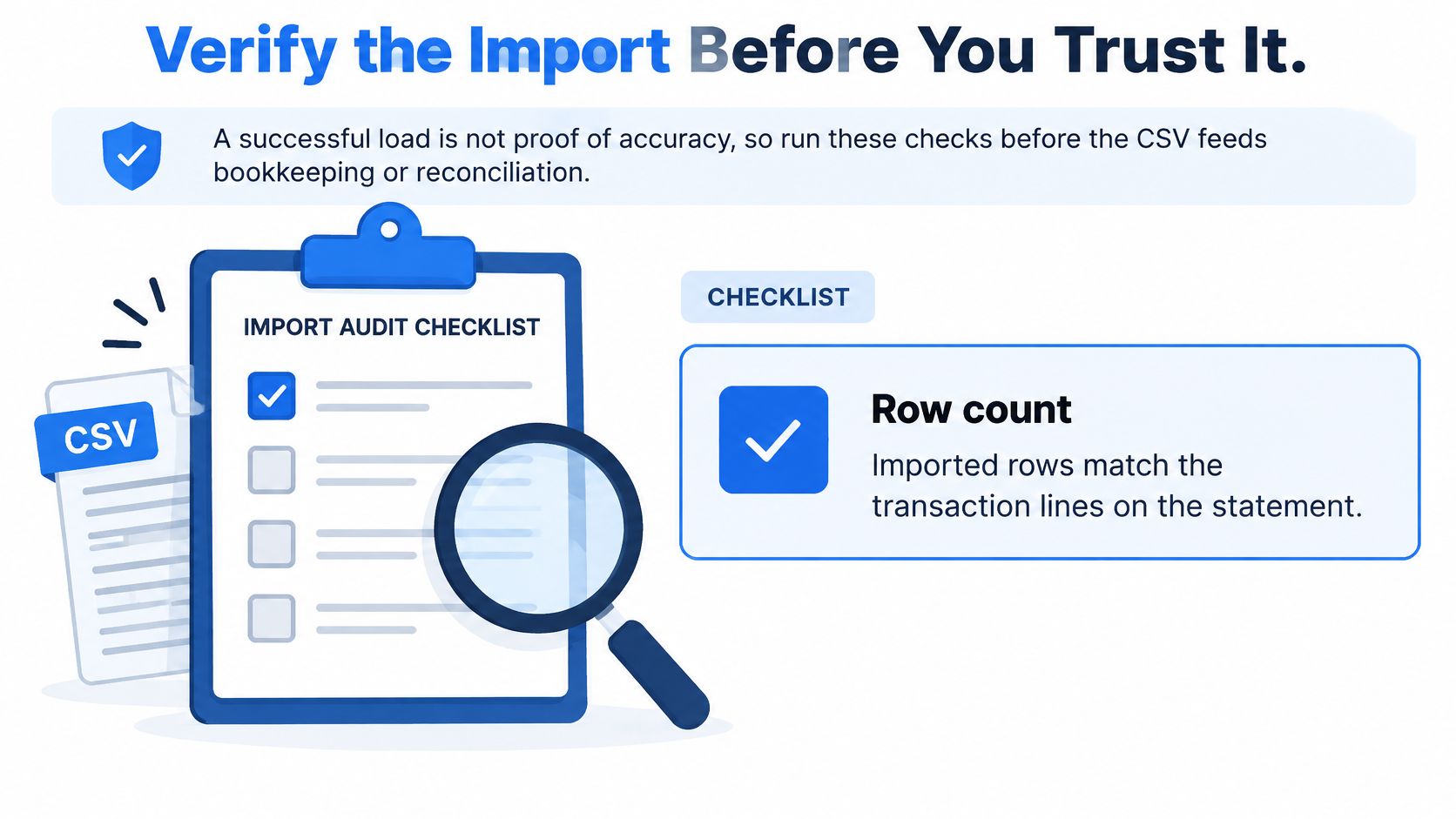
Run an acceptance checklist
Match the row count. Compare imported transaction rows with statement transaction lines, excluding titles, headers, subtotals, and footers. This catches omissions and accidental extra records.
Sum debits and credits independently in Excel, then compare each total with the statement. A net total alone can conceal offsetting errors.
Prove the balance equation: opening balance + credits − debits = closing balance for each statement period. Use debit magnitudes in this equation; don't subtract already-negative debit values again.
Check dates and boundaries. Confirm that transactions fall within the statement period and sort in the expected order, allowing for the bank's distinction between posting and transaction dates.
Inspect signs and classifications. Debits must use a consistent sign or column, and credits must follow the corresponding convention.
Review suspicious leading characters. OWASP's CSV injection guidance warns that cells beginning with =, +, -, or @ may execute as formulas. A negative numeric amount is legitimate; formula-like description or memo text needs controlled review before sharing. Don't assume quotation marks alone provide lasting protection.
Spot-check against the PDF. As a practical sampling habit, compare five randomly selected transactions and one long account identifier with the source. Include descriptions and balances, not just amounts.
Stop when a check fails
Microsoft's IMPORTCSV documentation specifies comma delimiters and UTF-8 defaults, but convenient defaults aren't an acceptance test. Use our guide to checking bank statements to keep statement-level review alongside spreadsheet checks.
Investigate every mismatch before posting. Find the missing, duplicated, misclassified, or incorrectly signed transaction rather than editing a total to force agreement. A balanced result is an essential control, but it doesn't replace identifier, date, and security checks.
Choose CSV or XLSX Based on Who Opens the File
CSV for machines, XLSX for people. Choose the format for the destination rather than downloading whichever button appears first.
CSV or XLSX by destination
| Where the file goes | Format | Why |
|---|---|---|
| Accounting software or any import wizard | CSV | The broadly supported interchange format, subject to the destination's required columns |
| Script or database load | CSV | Machine-readable and predictable for automated pipelines |
| Person reviewing, filtering or building a pivot table | XLSX | Properly typed dates and amounts avoid a fresh CSV locale-parsing step |
| Both checking and bookkeeping | Download both | Same rows: XLSX to check, CSV to import |
XLSX can preserve cell types, formatting, and review work, but the workbook must be created correctly. It can't repair values damaged before export. CSV remains useful for imports into systems such as QuickBooks or Xero, provided we follow that destination's required schema; this isn't a direct integration.
If the source is OFX instead, follow the separate workflow for opening an OFX file, rather than renaming its extension.
For statements still in PDF, autobankstatement converts digital, scanned via OCR, and password-protected files into CSV or Excel/XLSX, accepts files up to 25 MB, and offers a free guest preview before payment. We extract transactions into clear rows for browser review and quick edits before downloading a spreadsheet for bookkeeping, taxes, reconciliation, or reporting.
Choose by destination, run the balance check on the file used, and retain the XLSX as the record of review.
Visit autobankstatement to preview your PDF bank statement as a transaction table before paying for a download. Choose CSV for your import workflow or XLSX for spreadsheet review, then verify opening balance + credits − debits = closing balance before using the transactions.
Convert your next statement in minutes
Upload a bank statement PDF — digital, scanned, or password-protected — preview the extracted table, and download clean CSV or Excel.