How to Open OFX File: Accounting, Excel and CSV Methods
Learn how to open OFX file in QuickBooks, Xero, GnuCash and Excel, fix common import errors, and verify balances before you post.
You've got a file ending in .ofx sitting in your downloads folder, and double-clicking it gets you a blank window, a wall of angle brackets, or a dialog asking which app should open it. The transactions behind that file are the ones you need in the books before close, and the clock is running.
The fix starts with one shift in thinking. An OFX file isn't a statement you read, it's a data feed you import. Treat it like a document and you'll fight it all afternoon. Treat it like structured financial records and the job takes about ninety seconds, plus a balance check that most how-to pages skip entirely.
The route you pick depends on what you need back. Posting entries into a ledger, eyeballing a running balance, and handing a clean spreadsheet to a client are three different jobs, and only one of them involves anything close to "opening" the file the way you'd open a PDF.
Table of Contents
- Pick the Right Route for Your OFX File
- How to Import an OFX File into QuickBooks and Xero
- How to Open an OFX File in GnuCash and Excel
- Common OFX Errors and How to Fix Them
- Verify the Balances Before You Post Anything
- Choose Your Next Step Based on File Type
Pick the Right Route for Your OFX File
An OFX file needs an application that speaks the format. On a machine with no accounting, personal-finance or spreadsheet software installed, double-clicking it gets you a file-picker dialog and nothing useful, because the extension points at data rather than a rendered page.
The history explains the behaviour you're seeing. The Open Financial Exchange overview records that Microsoft, Intuit and CheckFree announced the standard on January 16, 1997, and released version 1.0 on February 14, 1997. Versions 1.0 through 1.6 used SGML-based syntax, and version 2.0 and later moved to XML. That split is why the same extension opens cleanly in one program and gets rejected by another.
So the choice comes down to the result you want back from the file.
| Goal | Route | Input file | What you get |
|---|---|---|---|
| Post transactions in QuickBooks Online or Xero | Bank import menu, upload the file | OFX or CSV, as the upload screen lists | Transactions queued for matching |
| Keep a local ledger in GnuCash | File → Import → Import OFX/QFX transactions | .ofx or .qfx file | Matching screen before anything is posted |
| Review rows and columns in Excel | File → Open → All Files → As an XML table | .ofx file | Read-only table for checking, not a native OFX workflow |
| Edit or share the data | Convert to CSV or XLSX, then open in Excel | Converted CSV or XLSX | Editable rows that need balance checks |
| Inspect the raw file | Plain-text editor | Any OFX file | Visible tags and headers, with a risk of breaking the file if edited |
The rule that keeps this simple: import first, convert second, and keep the original download either way. When the goal is posting, go straight to the accounting application through its bank-download or account-import menu, selecting OFX as the file type. Convert only when you need to edit figures or hand the data to someone who works in a spreadsheet, because every conversion produces a copy with its own error surface. The untouched original is your reference when a converted file disagrees with the statement.
Two cautions before you pick a row. A plain-text editor opens an OFX file fine, since the underlying data is text, but editing tags, dates, identifiers or amounts by hand can invalidate it, so treat that route as read-only. And whichever route you choose, the file carries full account numbers and transaction history, so send it only to software and services you'd hand a bank statement to. When the route runs, confirm the imported ending balance matches the statement before you treat the job as done.
How to Import an OFX File into QuickBooks and Xero
The most common reason an OFX file lands on a bookkeeper's desk is a gap in the bank feed. The direct connection lapsed for three weeks, the client changed banks mid-year, or you're rebuilding a prior period that never got imported. Whatever the cause, the file goes in through the bank import screen, not through a viewer.
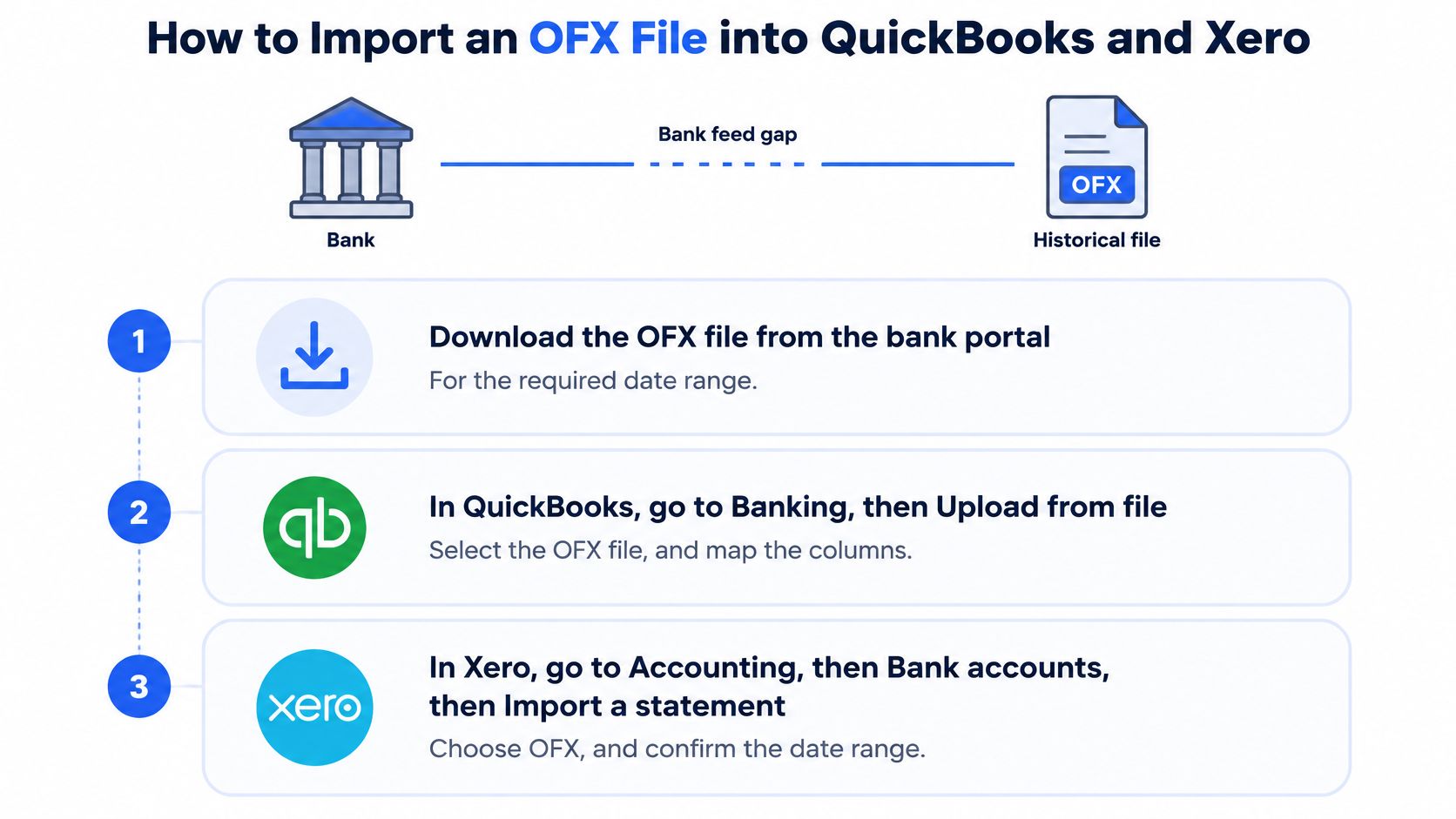
Here's the sequence that works in both platforms.
Download for the exact account and date range. Pull the OFX file from the bank portal, choosing the account and the period you need. Save the original in the client folder and never edit it; every later step works from an import or a copy.
Find the import option inside the bank account. In QuickBooks Online, open the bank account and look for the upload or file import control in the banking area. In Xero, open the bank account and choose the import statement option. Labels move between releases, so trust the file types the upload screen lists more than the wording above it.
Confirm the destination account before you upload. Point the file at the matching bank account in the software, not just any account in the file. A file loaded into the wrong account is the most common silent error in the whole process, because the import completes and the numbers still look plausible.
Review the match queue. Both platforms propose matches against entries already recorded. Work through the list and sort unmatched lines into two piles: new transactions, and duplicates of something already booked.
Accept matches only once amount and date agree. A payee name matching is not enough, since two supplier payments in the same month will look identical until you compare figures. Check the amount and posting date on each proposed pair before you approve it.
Compare the closing balance before you leave the screen. Take the closing figure from the software's register and hold it against the bank statement. If they disagree, you have a dropped row or a duplicate, and the next section shows how to find which.
When the upload screen doesn't list OFX
Some platforms restrict statement uploads to a CSV template they publish and document. That's a different route, not a workaround: export or convert to their documented CSV layout, then map the columns they specify. Guessing at a layout wastes more time than reading their column definitions once.
Check before you accept: a clean import means every line is either matched to an existing entry or deliberately added as new, and the closing balance agrees with the bank.
If your source documents are PDFs rather than OFX files, the statement-side workflow is different, and our walkthrough on importing bank statements into QuickBooks Online and Xero covers that path end to end. Keep the two routes separate in your head: OFX is a feed built for software, while a PDF statement needs extraction before any accounting app can read it.
How to Open an OFX File in GnuCash and Excel
GnuCash is the free desktop option that handles OFX properly, and its import is built around matching rather than blind posting. The steps below assume you already have the company file you want to update.
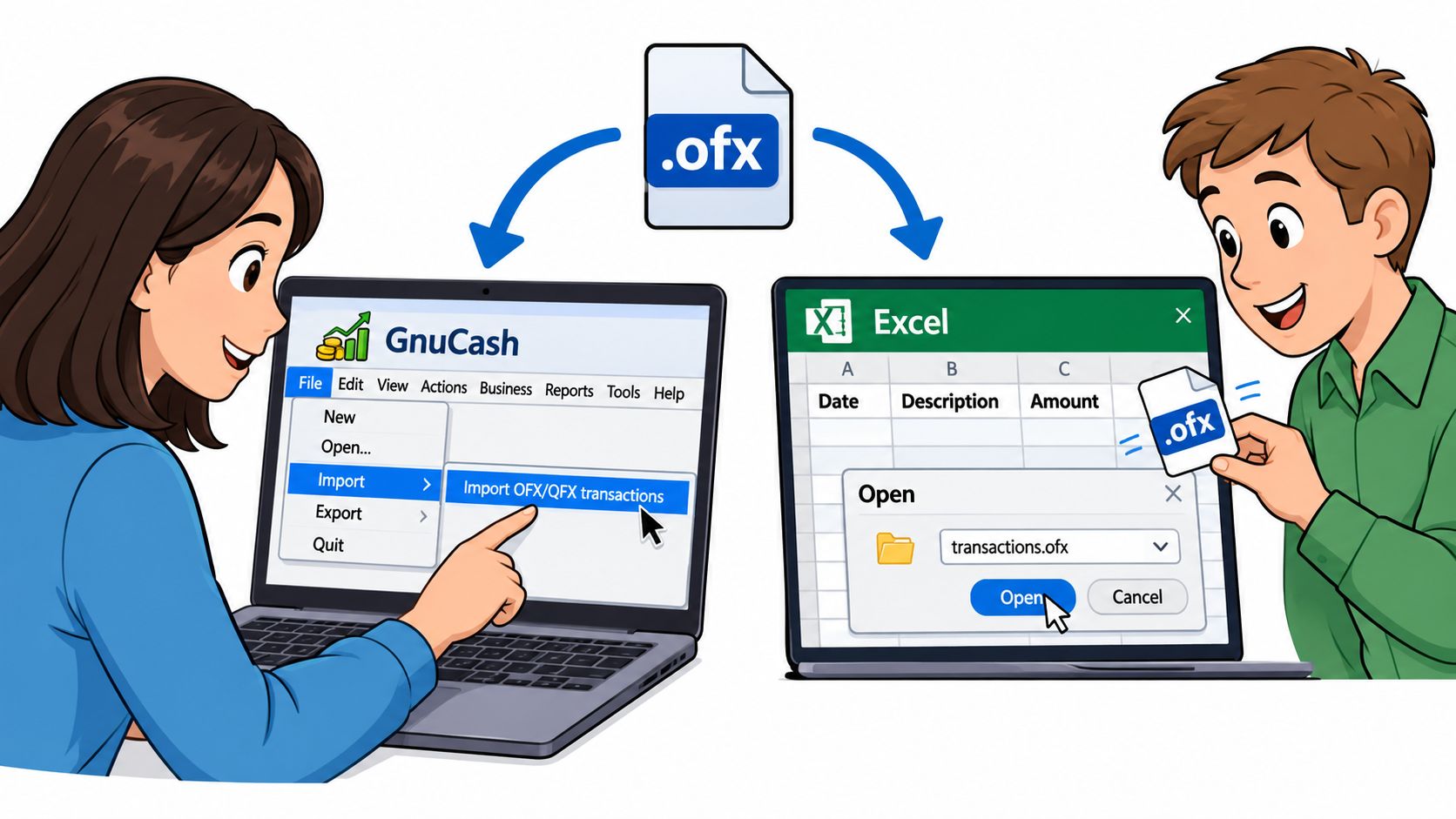
GnuCash in five steps
Open or create the company file you want the transactions to land in. Importing into the wrong book is a bigger cleanup than importing into the wrong account.
Select File, then Import, then Import OFX/QFX transactions. This is the path GnuCash's guide to importing from files documents, and it's the one that maps structured fields such as account, balance, transaction type, date, amount and identifier into the ledger.
Choose the .ofx file and pick the destination account in the Account Selection dialog. Confirm the selection before you continue, because the dialog is the last cheap moment to catch a wrong account.
Work through the matching stage. GnuCash launches transaction matching rather than posting every record: review the proposed matches, identify duplicates and approve only the new transactions. Its duplicate recognition reduces the risk of double-booking but doesn't remove it.
Reconcile the imported closing balance against the bank statement. A successful parse proves the file was readable, not that you chose the right account or date range.
QFX is an Intuit variant of OFX, which is why the same menu path usually handles both. The guide also draws a clear line between OFX/QFX and CSV, and that line matters: CSV has no transaction identifier, so a re-import can double your entries.
Excel opens the file as an XML table
Excel doesn't list OFX among its standard workbook formats, but Microsoft's community guidance on opening bank files in Excel describes a practical route that works because the file contains XML data.
- Open Excel and choose File, then Open.
- Set the file-type selector to All Files and select the OFX file.
- Accept the format warning, then choose the option to open it as an XML table.
- Let Excel generate a schema if it prompts you, since there's no existing table definition for this file.
- Review dates, descriptions, amounts, account identifiers and balances in the resulting table.
That's a reading and checking view, not a bookkeeping workflow. Excel won't match transactions, won't hold a transaction identifier, and won't reconcile anything, so keep the original file on hand as the record of truth.
When you actually need to edit
Editing is the one job where conversion earns its place. Convert to CSV or XLSX first, then validate before any figure reaches a ledger: check that dates kept their day, debits still carry a negative sign, decimal separators stayed consistent, and account identifiers survived the trip. Our CSV examples library shows what well-formed output should look like when you're comparing formats.
Common OFX Errors and How to Fix Them
The failure that sends people searching is a flat rejection. The application refuses the file as unreadable or invalid, and no amount of retrying changes it. According to the OFX format notes in the ZeraBooks bank-statement-formats repository, compatibility turns on the file's version against the application's supported import rules, and the format's own history explains the mismatch: OFX began in 1997, shifted from SGML to XML around version 2.0, added retirement-account and tax-related data in 2004, and introduced multifactor-authentication data in 2006, with OAuth token-based authentication added in 2016. Stewardship has been associated with the Financial Data Exchange consortium since 2019, and the latest reference release identified there is version 2.3, dated October 16, 2020.
An old SGML 1.6 download opened in software that expects XML 2.x is the classic rejection. The fix is software that supports the version, or a fresh download from the bank, not hand-editing tags.
| Symptom | Likely cause | Fix |
|---|---|---|
| Software rejects the file as unreadable | Version mismatch, such as an SGML 1.x file in an app that expects XML 2.x | Use software that supports the version, or download a fresh copy from the bank |
| The same transactions appear twice | File imported twice, or duplicate matches approved | Delete duplicates, keep an import log, and review matches before accepting |
| Transactions land in the wrong account | Destination account not selected or chosen incorrectly | Reselect the account before confirming the import |
| Dates shift by one day in Excel | Date format or timezone conversion during review | Set the date column format and compare with the statement |
| Debits and credits appear flipped | Sign reversed during conversion or manual editing | Check totals against the statement and correct the sign rule |
| Closing balance does not match | Rows dropped or duplicated during conversion | Run the opening plus credits minus debits check and locate the gap |
| File shows garbled or tag-heavy text | Opened in a non-text viewer or edited by hand | Reopen in the proper app, and use a text editor only to inspect |
The most damaging symptoms sit in the middle of that table, because duplicates and dropped rows often look like a successful import. Every line appears, the register fills, and nobody notices that one transfer posted twice. Knowing the cause tells you where to look: a wrong-account import shows up as a balance that's wildly off, while a dropped row shows up as a small, stubborn gap that survives every other check.
The rejected-file case has a diagnostic you can run safely. Open a copy in a text editor and look for readable OFX headers and transaction tags. If the header is a block of colon-separated lines, you're holding an older SGML file; an XML declaration means version 2.x. Don't convert by hand from there, since changing dates, signs, decimal separators or account identifiers alters balances.
An import log is cheap insurance. Note the date, file name, account and statement period for every import, so a second import can be checked against the first in seconds.
One shortcut doesn't work: renaming an .ofx file to .csv. The bytes stay in OFX structure and the spreadsheet or accounting importer misreads the rows. Convert properly through the route in the first table instead.
Verify the Balances Before You Post Anything
A file that opens cleanly has proved one thing only, that a parser could read it. It hasn't proved the account is right, the date range is complete, or the signs are intact. The reconciliation control used in structured statement formats is blunt and reliable: extracted transactions should be tested against the statement's reported balances rather than accepted because they display successfully.
The three-number check
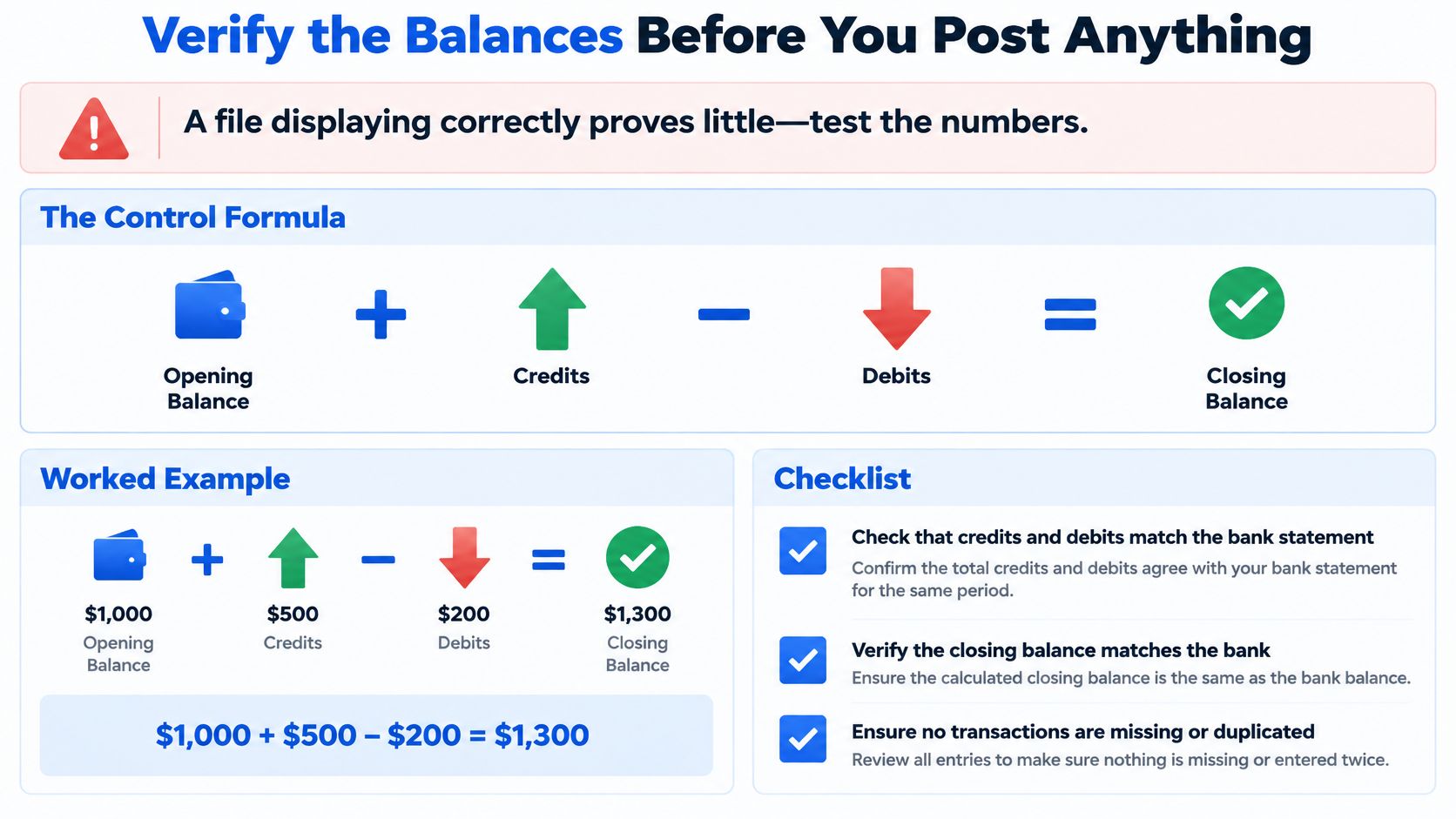
Opening balance plus credits minus debits equals closing balance. Run it on the imported data before a single entry goes into the books.
Take an opening balance of 2,000.00, credits of 3,450.25 and debits of 2,870.10. The closing figure should land at 2,580.15. If your import shows anything else, the gap itself is the clue: a missing row, a duplicated transfer or a reversed sign, and the size of the difference usually points to which one. Then compare total credits and total debits against the statement's own totals, and spot-check five to ten transactions by date, amount and payee for a final set of eyes.
The same discipline applies to converted output. Whether the rows came from an OFX import or from a PDF turned into a spreadsheet, check the opening balance, total credits, total debits and closing balance against the source before you post or report from it. Our guide to checking bank statements walks through the same controls on the statement side.
Who gets to see the file
Privacy is where most guides wave a hand. As the OFX format reference sets out, an OFX file can carry transaction dates, amounts, payee descriptions, account identifiers and balances. The format governs how data moves between a bank and a client, and the specification does describe transport and application security options for client-server exchanges, but none of that protects a local export once it's sitting in your downloads folder.
Treat three situations differently:
- Opening locally in trusted software. Lowest risk, as long as the machine and the accounting file are yours.
- Uploading to a web service. Verify the provider, avoid public file viewers, and check whether uploads and download links expire.
- Sending to an accountant or support team. Share the minimum period needed, and send it through a channel you'd use for payroll data.
A converted spreadsheet deserves stricter access control than the original file, because it's easier to read and easier to forward. Delete working copies once the reconciliation is done, and keep only the original for as long as your records policy requires.
Choose Your Next Step Based on File Type
Two file types lead to two different jobs. An OFX file is already structured financial data, so it goes straight into your accounting application through the import route in the first table, with the balance check running before anything posts. A PDF bank statement is a document rather than data, and the import menus covered earlier cannot read it. Conversion comes first.
For the PDF branch, autobankstatement converts PDF bank statements into CSV or Excel XLSX. It handles digital statements, scanned pages processed through OCR, and locked files where you enter the password at upload. Files can be up to 25 MB each, several statements can go in as a bulk upload, and a free guest preview lets you check the output before payment. Charges apply when you download or export a file, and subscriptions suit ongoing bookkeeping or larger batches, with current pricing on the site. Registered accounts get 24-hour download access, and uploads are deleted automatically within 24 hours.
Whichever branch you take, treat the output the same way. Confirm that opening balance plus credits minus debits equals closing balance before the figures go anywhere near the ledger, and handle the converted file like anything else that carries account numbers and balances.
If the statements arriving on your desk are PDFs rather than OFX files, autobankstatement turns them into clean CSV or Excel rows you can reconcile, including scanned pages handled by OCR and locked files where you add the password at upload. You can put several statements through in one session, up to 25 MB each, and check the output with a free guest preview before paying anything. Visit autobankstatement to run a statement through and see the rows come back.
Convert your next statement in minutes
Upload a bank statement PDF — digital, scanned, or password-protected — preview the extracted table, and download clean CSV or Excel.