Scanned PDF to Excel: The 2026 Accountant's Guide
Learn how to convert a scanned PDF to Excel in 2026. Extract data effortlessly with this practical verification guide for accountants.
You've received a month of bank statements as scanned PDFs, and the close is already underway. The pages look perfectly readable on screen, but copy and paste returns nothing useful, Excel puts amounts in the wrong columns, and a spreadsheet that appears tidy may still contain a wrong decimal or missing transaction. That's why scanned PDF to Excel work should be treated as a controlled accounting process, not a one-click export.
The practical standard is simple: convert the document, clean the result, then prove that the spreadsheet agrees with the statement. We shouldn't trust a file merely because it opens in Excel or contains recognizable text. Opening balance + credits − debits must equal closing balance before the data is ready for reconciliation, reporting, tax work, or lending review.
Table of Contents
- Why Scanned Bank Statements Fail Standard Import Methods
- Converting Scanned Bank Statements with Purpose-Built Tools
- Cleaning Up OCR Output for Accurate Reconciliation
- The Verification Check That Prevents Reconciliation Failures
- Choosing Between CSV and Excel for Your Workflow
- Troubleshooting Common Conversion Errors
- Building a Reliable Monthly Conversion Workflow
Why Scanned Bank Statements Fail Standard Import Methods
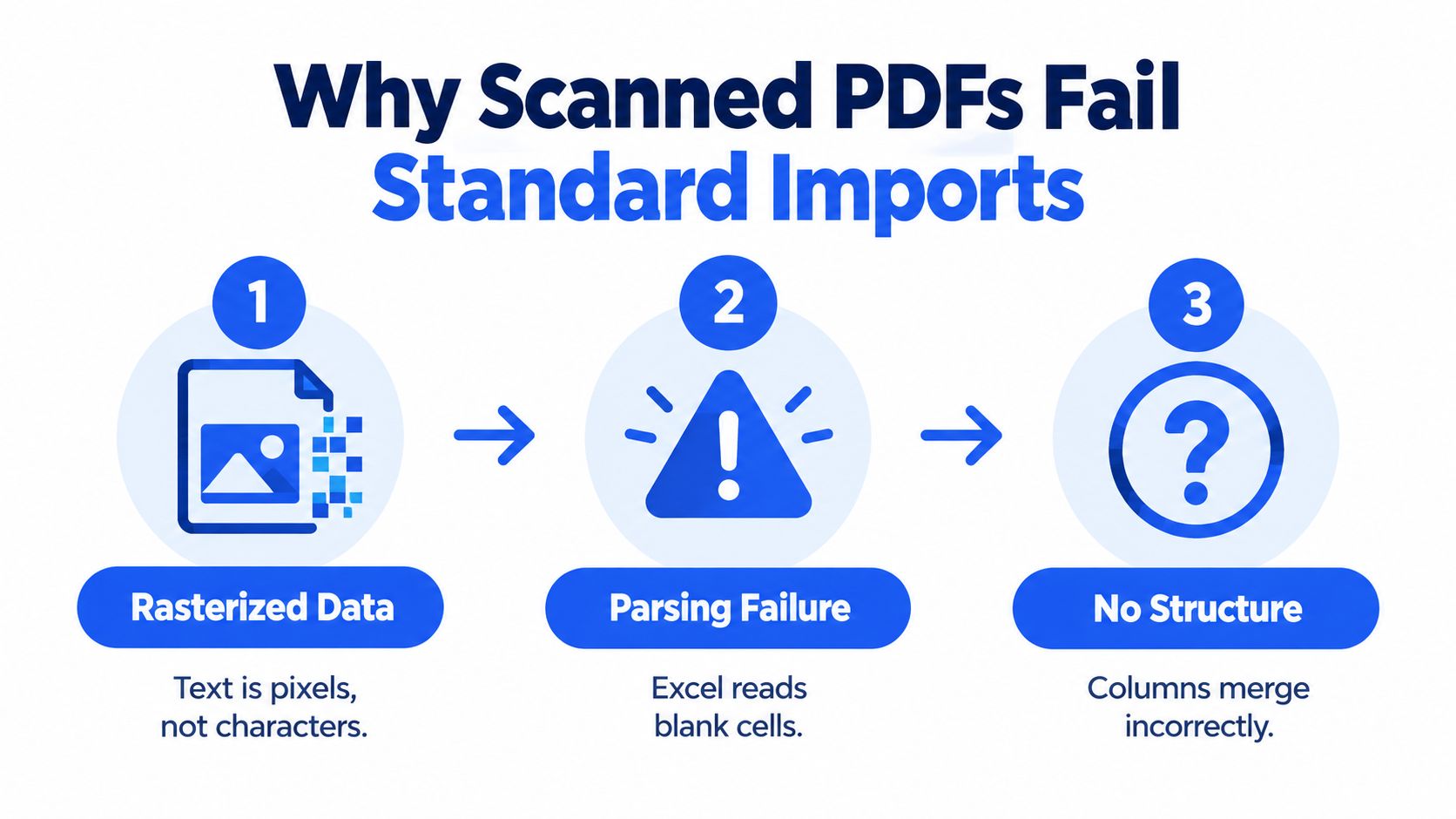
PDF doesn't describe one uniform kind of document. A native text PDF contains characters with defined positions, so software can often expose the text layer and map it into rows and columns. A scanned PDF is different. Each page may be an image of paper, with visible letters represented as pixels rather than selectable characters.
That distinction explains why a standard PDF importer can work on a statement downloaded directly from a banking portal but fail on a scanned statement from an archive. The importer may find no usable text layer, or it may read the page in visual order without understanding that a date, description, debit, credit, and balance belong to the same transaction.
What OCR actually has to solve
Optical character recognition, or OCR, converts visual patterns into machine-readable characters. For a bank statement, that isn't enough by itself. The system must also determine where transaction rows begin and end, which column contains an amount, whether a minus sign belongs to the number, and whether a wrapped description continues the previous row.
A dependable workflow has four stages:
- Render each page at approximately 300 DPI.
- Preprocess the images by deskewing, cropping margins, removing noise, and improving contrast.
- Run layout-aware OCR with table detection.
- Normalize the output into typed spreadsheet fields, then validate dates, signs, currencies, row counts, and balances.
Reported table-extraction performance varies with scan quality, from approximately 85–95% for clean scans, to 70–85% for moderately degraded 200-DPI scans, and 50–70% for poor scans below 200 DPI, according to table-extraction guidance from TableDrip. Those figures shouldn't be treated as a promise for a particular statement. They demonstrate why the source image matters before any spreadsheet formula is applied.
Practical rule: A readable page isn't necessarily a machine-readable page, and a machine-readable page isn't necessarily a financially correct spreadsheet.
The PDF format itself also creates variation. Adobe introduced PDF 1.0 in June 1993, and the format later became an international standard through ISO 32000-1:2008. PDF 2.0 was published in 2017. That long evolution helps explain why valid bank PDFs can use different fonts, layouts, metadata, and encoding while still looking similar to a person. The history and structure of the format are documented in the PDF Association's PDF 2.0 keynote.
Conversion is therefore only the first deliverable. The useful deliverable is a spreadsheet whose transactions preserve the source structure and pass an accounting check.
Converting Scanned Bank Statements with Purpose-Built Tools
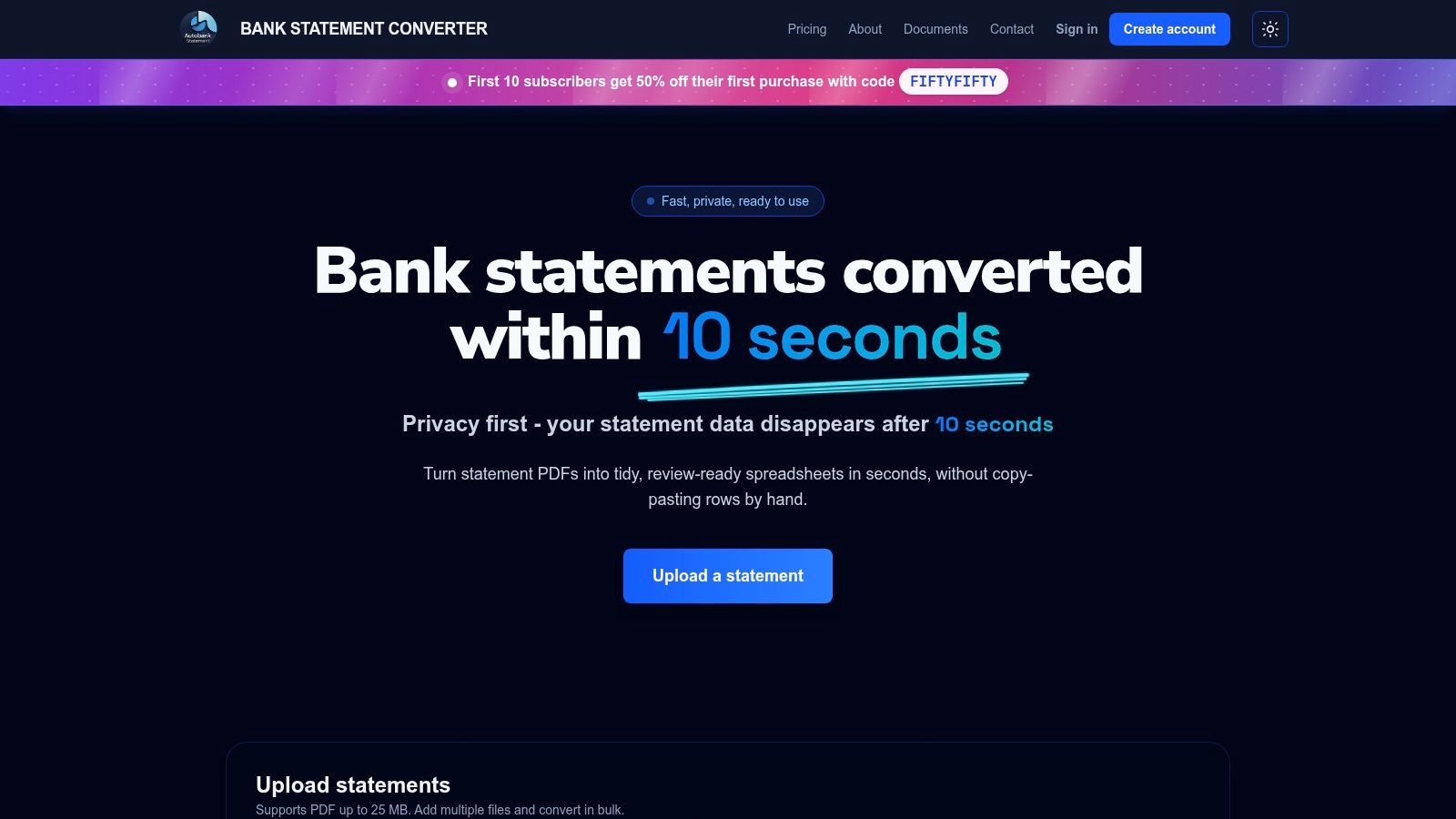
For a recurring bookkeeping workflow, we want fewer manual image adjustments and a clear review point before download. autobankstatement converts digital, scanned via OCR, and password-protected PDF bank statements into CSV or Excel/XLSX. It supports bulk upload for files up to 25 MB, offers a free guest preview before payment, gives registered users 24-hour download access, and automatically deletes uploads within 24 hours.
A practical upload sequence
Start with a small representative batch, especially when statements come from multiple banks or scan generations. Upload the files, select CSV or XLSX, and inspect the browser preview before treating the output as accounting data. The preview is useful for catching obvious issues such as blank pages, merged amount columns, or a statement header being mistaken for a transaction.
Password-protected files require the document-open password. A permissions password is a different control, affecting actions such as printing, editing, or copying after the file opens. Adobe's explanation of PDF passwords and permissions distinguishes those controls clearly, and that distinction matters when a conversion process can't access the document contents.
Bulk upload is useful when we're processing several accounts or periods together, but it doesn't remove the need for account-level review. Keep the original filenames or another internal identifier in the working folder so every exported sheet can be traced back to its source statement.
Use the temporary window deliberately
The service's temporary handling creates a defined operational window, not a permanent records system. Download the reviewed spreadsheet during the available access period, move it into the finance team's approved storage, and retain the original statement under the organization's records policy. Don't leave the only copy of a converted file in a temporary browser session.
For a recurring process, subscriptions are listed as Starter at $15 per month for 400 pages, Professional at $30 per month for 1,000 pages, and Business at $50 per month for 4,000 pages, with annual discounts and custom enterprise limits. Those plan figures are published on the product's service materials and should be checked before purchase because pricing details may change.
For additional procedural background, see how a PDF-to-Excel file converter fits into a bookkeeping workflow. The important control remains the same regardless of the tool: preview, download, preserve the source, and reconcile the exported rows.
Cleaning Up OCR Output for Accurate Reconciliation
An OCR export rarely arrives ready for posting without inspection. The most common problems are not dramatic. A decimal point shifts, a debit sign disappears, two columns merge, or a description wraps onto the next line and gets interpreted as a new transaction.
Start by making a working copy of the exported file. Keep the original download unchanged, then create a review version where corrections can be documented. Add a source-page or source-row reference if the export provides one, or record the PDF page beside manually corrected transactions.
Fix structure before fixing values
If Excel has placed dates, descriptions, and amounts into one field, use Text to Columns with the correct delimiter or fixed-width positions. Don't split on spaces when descriptions contain spaces. Fixed-width separation or a table-aware export is safer for statements with aligned columns.
For CSV files, open the import dialog rather than double-clicking blindly. Set the date interpretation and decimal conventions deliberately, because a spreadsheet application can otherwise convert dates or amounts according to local settings.
Use conditional formatting to flag:
- Blank transaction dates, which may indicate a merged or dropped row.
- Text in numeric columns, which can reveal OCR characters such as “O” in place of “0.”
- Unusually long descriptions, which may contain a wrapped line or two joined transactions.
- Negative values in unexpected fields, which can signal a misplaced minus sign.
- Balances that break the expected sequence, which require comparison with the source page.
The distinction between an “O” and a “0” is small on screen but material in a ledger. Search and replace can help with confirmed patterns, but a blanket replacement is risky because the letter may be valid in a description, account label, or reference number.
Normalize the fields without hiding the source
Convert dates into one consistent date type, not just a visual format. Store amounts as numbers, not text with currency symbols embedded. Separate debit and credit columns if the statement uses them, and preserve the original sign convention until the reconciliation logic is confirmed.
Wrapped descriptions deserve a page-by-page check. If a continuation line has no date or amount, it may belong to the preceding transaction. If it has its own amount, it may be a separate row that OCR failed to identify.
This explanation of what OCR is doing during PDF conversion is useful for understanding why cleanup is necessary. OCR recognizes visual characters, but accounting review must also confirm field meaning, column position, and transaction relationships. Cleanup isn't proof that the tool failed. It's the control that turns an extraction into reviewable working data.
The Verification Check That Prevents Reconciliation Failures
A spreadsheet can look clean and still be wrong. The strongest first test is the accounting relationship between the statement's opening balance, transactions, and closing balance:
Opening balance + total credits − total debits = closing balance
This control follows the reconciliation equation in the New York City Comptroller's reconciliation template. The template also connects the opening balance to the previous period's ending balance and requires the calculated closing balance to agree with the bank statement's ending balance.
Build the check in Excel
Assume the opening balance is in B2, credits are in column E, debits are in column F, and the statement closing balance is in B3. A simple calculated closing balance can be written as:
=B2+SUM(E:E)-SUM(F:F)
Compare that result with B3. If the values don't agree, don't adjust the closing balance to force a match. Treat the difference as an exception and investigate the rows that could explain it.
A useful review sequence is:
- Confirm page continuity. Check that every statement page is present and that repeated headers haven't become transaction rows.
- Compare row counts. A missing page or duplicated page often produces an unexplained balance difference.
- Review signs and columns. A debit placed in credits changes the result materially even when the amount itself is recognized correctly.
- Inspect decimal placement. A dropped decimal can make one transaction obvious in the balance difference.
- Check the carry-forward. Confirm that the opening balance agrees with the prior statement's ending balance.
A failed tie-out tells us where to look, not merely that something went wrong.
Diagnose the difference instead of hiding it
A duplicated withdrawal may make the calculated closing balance too low. A missing credit can produce the same direction of error, so the balance difference narrows the search but doesn't identify the row by itself. Sort by date, filter unusual values, and compare the transaction list directly with the source PDF.
For multi-page statements, check the last transaction on one page and the first transaction on the next. OCR can merge a wrapped description, omit a row at a page break, or repeat a header with an amount that looks valid. Any row with a low-confidence appearance, unusual sign, or balance discrepancy should be reviewed against the image.
This check is essential for data used in tax filings, loan applications, management reporting, or a monthly close. Character recognition answers, “What might these pixels say?” Reconciliation answers, “Do these transactions behave like the statement says they do?”
Choosing Between CSV and Excel for Your Workflow
CSV and XLSX are both useful, but they serve different stages of the accounting process. CSV is plain, portable data. Excel is a review and analysis workbook. Choosing between them depends on whether the next user needs a predictable import structure or a controlled workspace for formulas and annotations.
| Workflow need | CSV | Excel/XLSX |
|---|---|---|
| Bulk data processing | Strong fit for simple rows and columns | Useful when formulas or multiple sheets are needed |
| Review and annotation | Limited | Strong fit for comments, filters, and conditional formatting |
| Formula support | Not retained as a workbook feature | Supports reconciliation formulas and review tabs |
| Formatting risk | Low, if delimiters and encoding are handled correctly | Higher, if dates or amounts are auto-formatted |
| Source comparison | Requires a separate review method | Can hold source data, checks, and exceptions together |
Choose CSV when the downstream process expects uncomplicated records and the columns must remain stable. Before importing, verify the delimiter, decimal convention, date format, and whether debit and credit signs are represented consistently. A CSV should remain a data interchange file, not a place where we rely on visual formatting to communicate meaning.
Choose XLSX when the reviewer needs a reconciliation tab, exception flags, formulas, notes, or a side-by-side comparison with the source statement. Keep the transaction table normalized. Put explanations and sign-off notes on separate sheets rather than inserting comments into the transaction descriptions.
A security decision applies to both formats. Converted statements contain personal and financial information, so download them during the available service window, store them under approved internal controls, and avoid sending them through unmanaged personal accounts. Don't assume that a spreadsheet is safer than the PDF just because it looks less sensitive.
For a more detailed CSV-oriented workflow, use this guide to converting a PDF to a CSV file. Whichever format we choose, the file still needs the same source comparison and balance tie-out.
Troubleshooting Common Conversion Errors
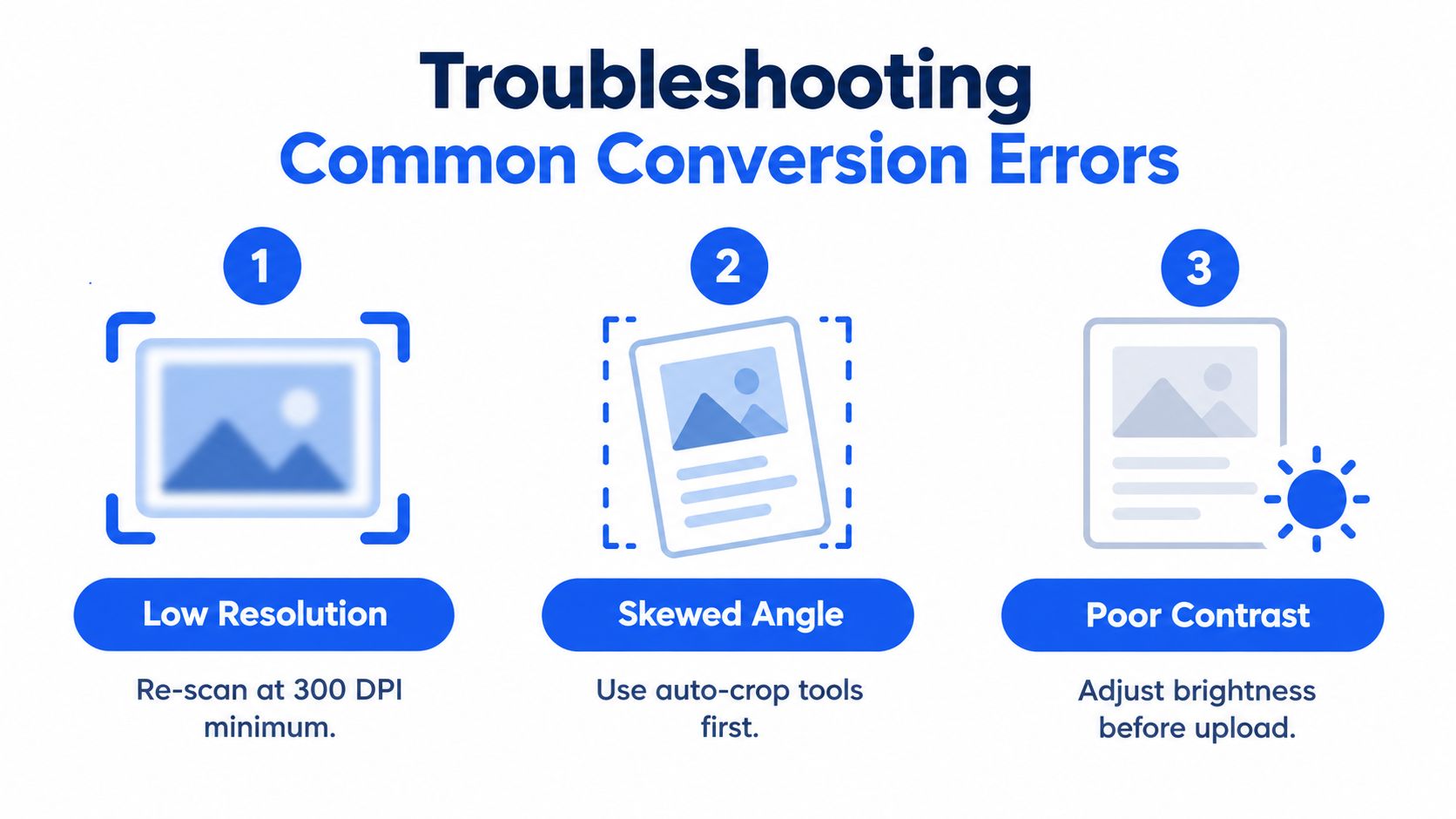
Conversion failures usually fall into two categories. Technical problems often improve when the source image is repaired. Structural problems require a manual decision because the page doesn't present information in a consistent table that software can safely infer.
Use the source page to choose the response
| Observed problem | First response | Escalation |
|---|---|---|
| Blurry or faint characters | Rescan with better resolution and contrast | Request a native digital statement from the bank |
| Skewed or cropped pages | Deskew, crop, and restore margins | Manually review affected rows |
| Stamps, handwriting, or unusual fonts | Isolate the affected page and compare visually | Correct specific fields with a documented source reference |
| Unknown opening password | Obtain the correct document-open password | Ask the bank or account owner for an accessible copy |
| Mixed native and scanned pages | Classify pages separately and review the transition | Process difficult pages independently |
A low-resolution page shouldn't trigger endless retries with different export settings. If amounts remain ambiguous after preprocessing, rescan the statement or request a native PDF. A better source usually saves more time than correcting every transaction manually.
Skew and poor contrast are more often fixable. Crop excess margins, straighten the page, and improve contrast before uploading again. Don't crop away account headers or page numbers, because those details help confirm that the right document and page sequence were processed.
Know when to stop automating
Unusual fonts, stamps, handwritten annotations, and narrow columns can cause visually similar characters to be misread. Review decimal points, minus signs, dates, account numbers, and adjacent columns directly against the PDF. The same caution applies to low-resolution, skewed, faint, or marked pages.
OCR has a long history, from Edward Fournier D'Albe's 1914 Optophone to operational postal recognition systems adopted during the 1960s. The technology has advanced, but the basic task remains recognition of visual patterns followed by interpretation. This history of OCR helps explain why recognition isn't the same as accounting validation.
If the password is unknown, don't try to bypass it. Obtain the document-open password from the authorized source or request an accessible export from the bank. If only a few rows remain uncertain, manually correct those rows and record the source page. If the entire layout is inconsistent, stop and obtain a better document rather than exporting a spreadsheet that appears complete but cannot be defended.
Building a Reliable Monthly Conversion Workflow
A repeatable close process treats every conversion as an extraction with an exception review.
- Classify the source. Identify native-text pages, image-only pages, mixed documents, passwords, and obvious scan defects.
- Convert in a controlled batch. Keep filenames and account periods tied to each output.
- Review the spreadsheet structure. Check headers, page breaks, row boundaries, dates, signs, and numeric fields.
- Compare exceptions to the PDF. Focus on low-confidence rows, unusual amounts, wrapped descriptions, and missing or duplicated entries.
- Run the tie-out. Confirm opening balance + credits − debits = closing balance.
- Sign off and store. Preserve the source statement, reviewed spreadsheet, and documented corrections under the approved records policy.
Automation reduces repetitive entry, but it doesn't replace accounting judgment. The spreadsheet becomes trustworthy only after the numbers agree with the source and the reviewer can explain any correction.
autobankstatement converts digital, scanned, and password-protected bank statements into CSV or Excel/XLSX, with bulk upload for files up to 25 MB and a temporary preview and download workflow. Visit autobankstatement to test the conversion process, review the extracted rows, and apply the reconciliation check before using the file in your monthly close.
Convert your next statement in minutes
Upload a bank statement PDF — digital, scanned, or password-protected — preview the extracted table, and download clean CSV or Excel.