How to Convert a PDF to CSV File for Bank Statements
Learn how to convert a PDF to CSV file for bank statements. Step-by-step workflow covers OCR, password handling, bulk uploads, and accuracy checks.
It's the 28th of the month, the controller wants the trial balance by noon tomorrow, and twelve bank statements are waiting in a shared inbox. The PDFs look complete, but nobody can sort, filter, or reconcile them as easily as a spreadsheet. A task that should take minutes turns into copy-paste work, rekeying, and a growing concern that one transaction has disappeared.
Learning how to convert a PDF to CSV file is therefore less about changing one file format into another and more about creating reliable bookkeeping data. The process must account for the statement type, OCR, password protection, table structure, output format, editing, and balance verification. A CSV that opens successfully but contains a shifted debit column isn't ready for the general ledger.
Table of Contents
- The Month-End Close Problem Hidden Inside a PDF
- Identify Your Statement Type Before You Touch a Tool
- Upload and Process Statements in One Pass
- Pick the Right Output Format for Your Workflow
- Review and Edit Before You Download
- Verify Accuracy With the Balance Equation
- Troubleshooting and What Comes After Extraction
The Month-End Close Problem Hidden Inside a PDF
A PDF is designed to preserve how a document looks. A CSV is designed to preserve rows and fields. That distinction becomes expensive during close. A bank statement can display transactions clearly on screen while still hiding the structure needed for filtering by date, separating credits from debits, or matching entries against the ledger.
Manual copy-paste creates several failure points at once. A wrapped description can become a second transaction row, a negative sign can disappear, and a page header can be pasted into the transaction list. The output may look reasonable until the reconciliation fails, and by then the bookkeeping team has to compare the spreadsheet against the original statement line by line.
Practical rule: A readable CSV isn't necessarily a reliable CSV. Treat every conversion as an extraction and control process, not a download.
The underlying technology also matters. OCR, or Optical Character Recognition, turns scanned or image-based text into machine-readable characters, which is why it sits at the foundation of scanned-statement conversion. Early OCR ideas date to the 1910s, commercial systems appeared in the 1950s, Tesseract became open source in 2005, and Adobe Acrobat added OCR support for any PDF in 2008, according to this history of optical character recognition. Modern tools still follow the same broad pipeline: detect text, identify table structure, and export rows.
That history explains why a PDF-to-CSV workflow can handle both a bank-generated digital statement and a scanned paper statement, but it doesn't mean the results are equally trustworthy. Native text is generally easier to parse, while scans require recognition and structural interpretation. Finance teams should plan a review pass even when the output looks clean.
Identify Your Statement Type Before You Touch a Tool
A statement that opens normally may still require a different conversion path. Select a transaction description in the PDF. If the text highlights cleanly, the file is a native digital PDF. If the document asks for authorized access, it is a password-protected PDF. If nothing can be selected, it is a scanned or image-only PDF.
This classification is part of the finance-control workflow, not a cosmetic file check. Native PDFs can usually go directly to text and table parsing. Protected files need an authorized password before classification and extraction. Scanned pages need OCR and table reconstruction. Autobankstatement's extraction guidance describes the sequence as password entry, document classification, extraction, and transaction-row reconstruction.
Match the file to the processing path
| Statement Type | Source | Processing Required | Typical Accuracy |
|---|---|---|---|
| Native digital PDF | Online banking export with selectable text | Direct text and table parsing | Usually the strongest, provided the layout is consistent |
| Password-protected PDF | Encrypted bank download | Enter the authorized password, then classify and parse | Depends on the underlying PDF |
| Scanned image PDF | Paper statement or image-only export | OCR, layout detection, column reconstruction, and review | Lower than native text and more sensitive to scan quality |
Native PDFs retain character positions and table boundaries that parsers can use. Scanned PDFs contain an image instead, so the converter must recognize characters and infer where columns and rows belong. That creates specific review risks: amounts can shift columns, wrapped descriptions can merge, and headers can enter the transaction data. A comparison of table extraction pipelines describes native files as easier to process than scanned files and highlights the extra cleanup required for alignment and reconstructed tables.
Do not attempt password recovery. If the password is unavailable, request an authorized copy or a raw export from the account holder or bank. Record the statement type before processing, because OCR choice, access requirements, bulk handling, and later balance reconciliation all depend on that initial decision.
Upload and Process Statements in One Pass
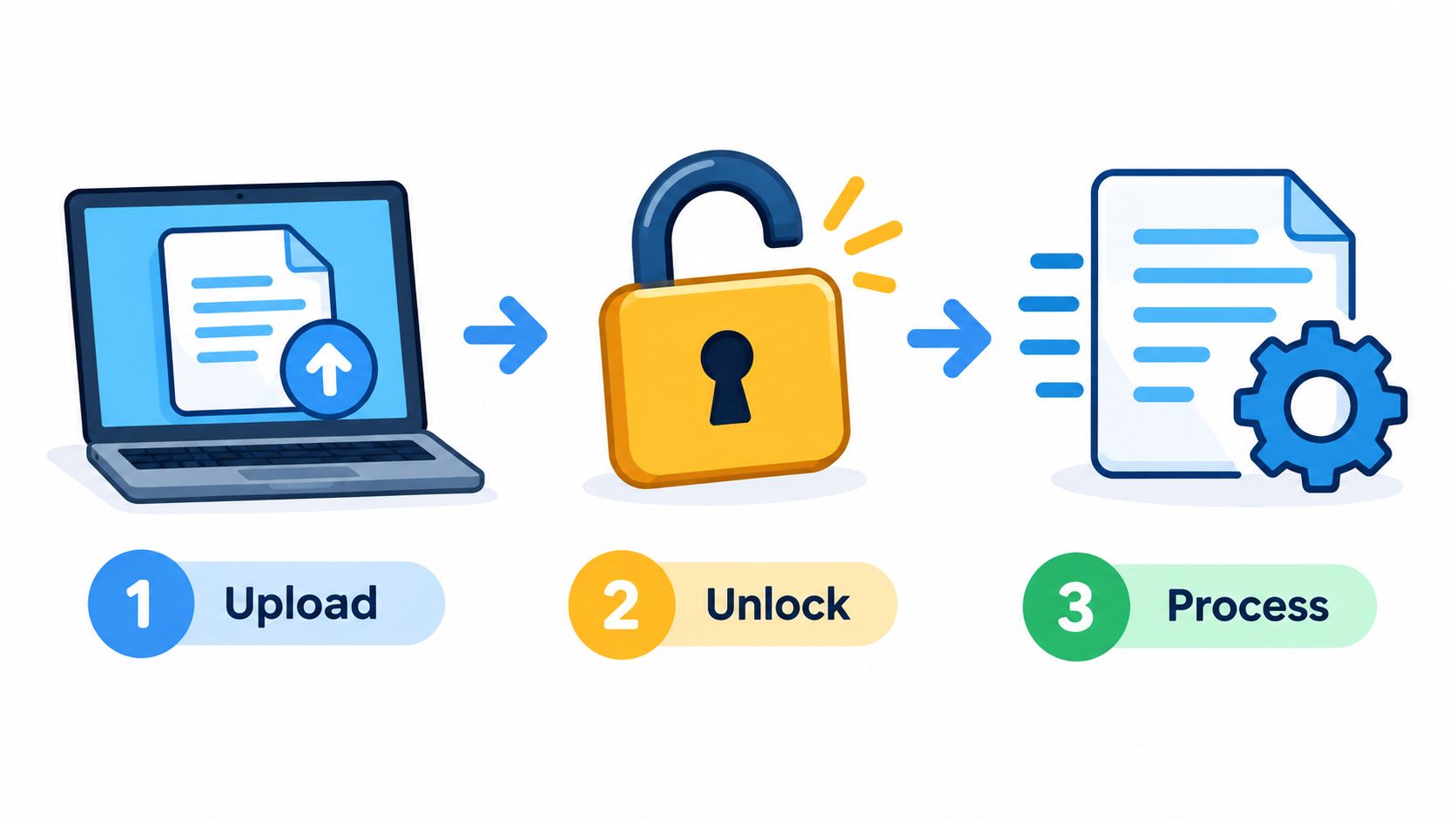
A reliable browser workflow treats conversion as a control point, not a file-format swap. Upload the statement, provide the authorized password when required, let the system identify whether it can read the text layer or needs OCR, and keep the resulting files grouped by account and period. That sequence connects access, extraction, bulk handling, and later reconciliation.
For a native PDF, parsing is usually direct. A scanned statement requires OCR to recognize characters and rebuild the transaction table. The risk is not limited to unreadable text. A converter may capture the merchant correctly while placing the amount under the wrong heading, leaving a row that looks complete but cannot support reconciliation.
Use a controlled upload sequence
Start with files from one defined reconciliation period. Check each filename and account before uploading, particularly when processing several clients or bank accounts. If a statement is protected, enter the authorized password before processing. Trying to open the document after extraction will not restore missing transactions or repair an incomplete result.
For recurring work, bulk upload supports consistency rather than just speed. Processing a multi-month set through the same workflow helps preserve column conventions, which makes review in Excel or Google Sheets more predictable. It also limits the chance that one statement receives a separate manual treatment and produces a subtly different schema.
Check the processing queue before downloading. Confirm that every file completed text extraction or OCR, no page returned an error, and the page count is reasonable. A missing page in the middle of a statement can appear as a balance discrepancy, so compare the queue result with the original before investigating the ledger.
For protected files, follow this workflow for password-protected PDF uploads.
Keep OCR decisions visible
Scanned pages may require language selection, orientation correction, or transaction-area cropping. A skewed page or oversized footer can push non-transaction text into the CSV. Faint scans need amount-by-amount review. Successful OCR only confirms that text was detected, not that each value landed in the correct column.
The bank-statement workflow at autobankstatement processes digital and scanned statements through OCR, as well as password-protected PDFs, with CSV or Excel/XLSX output. It supports bulk uploads and files up to 25 MB. Keep related statements in one processing session, then review each completed file individually before using the output for month-end close.
Pick the Right Output Format for Your Workflow
Choose the output according to the control step that follows extraction. CSV is a data interchange format, while XLSX is a working document. The same transactions can work in either file, but inspection, cleanup, and importing behave differently.
| Criterion | CSV | XLSX |
|---|---|---|
| File structure | Plain rows and columns | Workbook with sheets, cells, and formatting |
| Best use | Transaction logs and system imports | Human review, formulas, pivots, and charts |
| Column handling | Requires delimiter and encoding control | Preserves typed cells and visible column layout |
| Excel compatibility | Opens in Excel, but import settings matter | Native Excel workbook format |
| Google Sheets compatibility | Imports cleanly when encoding is correct | Opens and converts as a workbook |
| Formulas and formatting | Not preserved | Can preserve formulas and formatting |
| Main risk | Commas, encoding, and date interpretation can alter imports | Extra formatting or workbook structure may not suit a target importer |
Use CSV when the receiving system expects a plain transaction table and the column structure is already agreed. Use XLSX when a bookkeeper still needs to inspect rows, add formulas, build a pivot, or make controlled edits. The PDF-to-Excel workflow explains why review can matter as much as the export itself.
CSV is usually the better handoff for recurring imports, provided the receiving system's field order, delimiter, date format, and sign convention are known. XLSX gives reviewers more visibility, but workbook tabs, formulas, and formatting may not survive a later import or may create extra cleanup.
Check encoding before trusting names and descriptions with accented characters. UTF-8 BOM can help spreadsheet and import applications identify the character encoding, reducing garbled account-holder or merchant names. Test a sample in the actual receiving system. A file that displays correctly in one application may be interpreted differently in another.
TSV can suit statements with descriptions containing many commas, but only when the next system accepts tab-separated files. Select the format that preserves the fields and controls required at month-end close, not merely the familiar export option.
Review and Edit Before You Download
The preview isn't a formality. It is the least expensive place to find extraction damage. Once incorrect rows enter the ledger, the team has to trace them through imports, matching, corrections, and possibly a reopened reconciliation.
Start with the fields that affect the accounting result:
- Dates: Confirm whether the file uses posting date, transaction date, or both.
- Descriptions: Remove broken line wraps, OCR artifacts, and repeated page text.
- Debit and credit columns: Check that outflows and inflows haven't been merged or swapped.
- Balances and amounts: Look for missing decimal points, stray currency symbols, and inconsistent signs.
A common statement layout places debit and credit values in one amount column. Split that field only after checking the bank's sign convention. Some statements show outflows as negative numbers, while others use a separate debit column with positive values. The CSV must reflect one consistent structure before formulas or imports are applied.
European and US number formats can also cause trouble. A value such as 1.234,56 can be interpreted incorrectly by software expecting a US-style decimal point. Standardize the decimal convention and date format before exporting, not after an import has already converted the values.
Catch page and OCR artifacts
Scan the second page separately from the first. Repeated headers often enter the transaction list as if they were rows, and OCR may double-read a page or turn a faint character into a second line. Search for duplicate dates and amounts, then compare suspicious rows with the source PDF.
The bank statement editor can be used as a model for this kind of browser-based review. Whether edits happen in a tool or directly in Excel, the control is the same: inspect the extracted row before treating it as bookkeeping data.
Before download, experienced bookkeepers usually scan four things first: the first transaction date, the last transaction date, the debit and credit totals, and the running balance. If any of those four looks wrong, pause the export and resolve the issue while the source page is still visible.
Verify Accuracy With the Balance Equation
The essential control is:
Opening balance + credits − debits = closing balance
Use it for every statement period. Don't validate only the closing balance, because a missing debit and a missing credit can cancel each other out while still leaving the closing figure apparently correct. Clearly Ledger's reconciliation guidance identifies this equation as the core integrity test.
In a spreadsheet, the calculation can be built with SUMIF or SUMIFS. If the exported file has separate Credit and Debit columns, the logic is direct:
=OpeningBalance + SUM(CreditRange) - SUM(DebitRange)
If the file uses one signed Amount column, sum positive and negative values according to the bank's convention. If outflows appear as negative amounts, adding the signed amount may be appropriate. If debits are positive in a separate column, subtract them explicitly. Never apply a formula until the sign convention has been confirmed against the statement.
Interpret a failed reconciliation
A native digital PDF should normally reconcile exactly after correct parsing. A scanned statement may need a small rounding allowance because OCR or decimal interpretation can introduce minor differences, but a material variance is a control failure, not an acceptable result.
Look for the most common causes:
- A fee or adjustment was missed in a footer or continuation page.
- OCR created a duplicate row.
- A wrapped transaction lost part of its amount.
- A currency-conversion line was treated as a normal transaction.
- A debit or credit was placed in the wrong column.
- The opening or closing balance was copied from the wrong account period.
When the equation fails, return to the preview and compare the transaction count, dates, and exceptional amounts against the original statement. Once the equation balances and the columns have passed visual review, the extracted file can move into bookkeeping with a defensible control record.
Troubleshooting and What Comes After Extraction
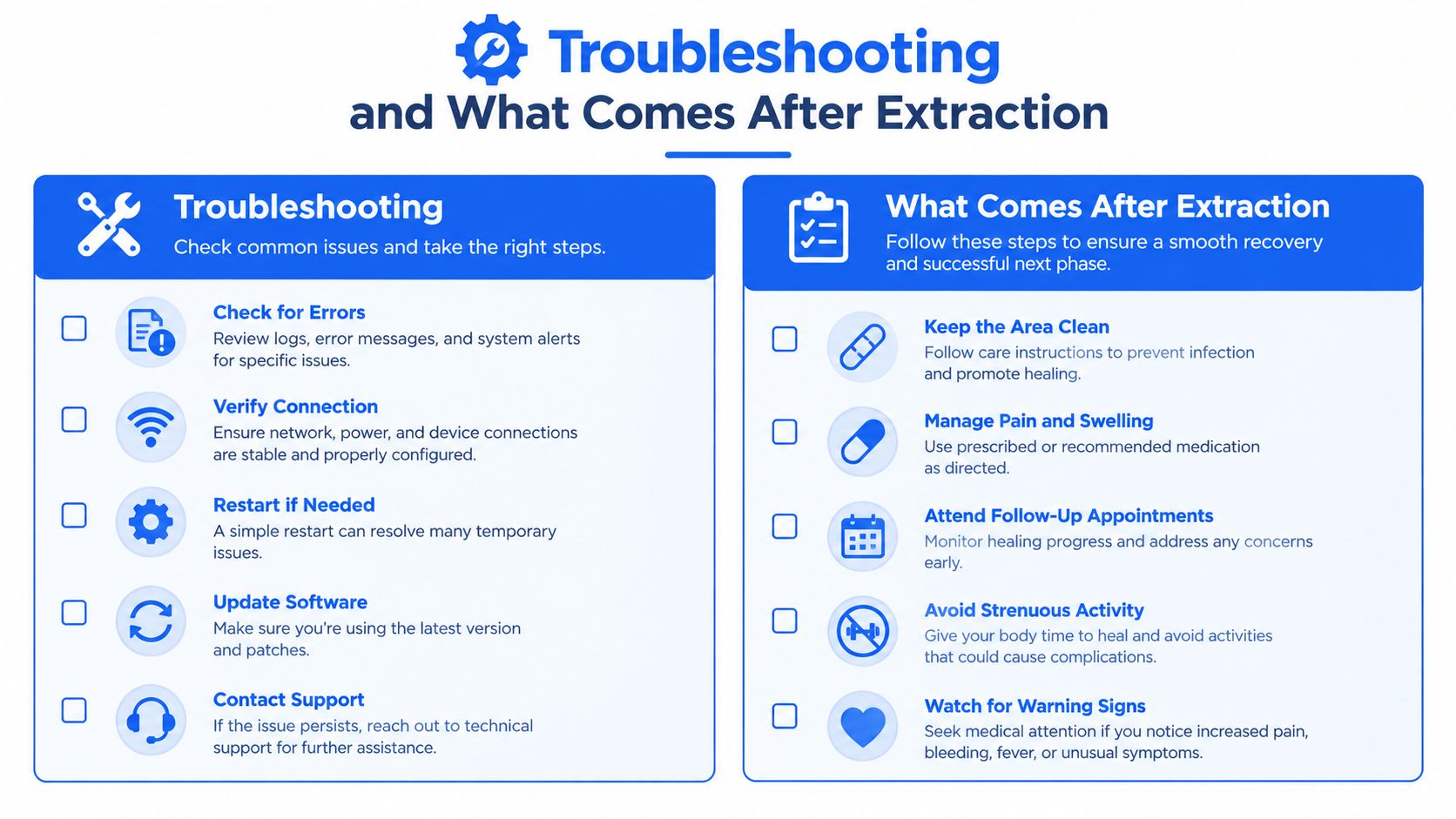
Most conversion failures follow a recognizable pattern. The useful response is to connect each symptom to a verification step that shows whether the problem came from the scan, the parser, or the output mapping. Rerunning the same file without changing that decision path usually produces the same error.
Match symptoms to corrective action
| Symptom | Likely cause | Corrective action and control |
|---|---|---|
| Columns drift across rows | Merged cells, wrapped descriptions, or irregular spacing | Recheck table boundaries, then compare several rows with the source |
| Characters appear as hashes or blanks | Weak scan quality or unsuitable OCR language | Improve the source image, select the correct language, and review every affected amount |
| Decimal points disappear | Low-resolution scan or number-format conversion | Compare amounts with the PDF and normalize the decimal convention |
| Multi-currency rows collapse | Currency, amount, and converted amount share one visual region | Separate the fields and verify which amount belongs in the ledger |
| Headers appear as transactions | Repeating page headers were parsed as data | Remove header rows and confirm that no page break interrupted a transaction |
| A page is missing | Queue or processing error | Check completion status and page coverage before downloading |
For poor scans, resampling around 300 DPI can improve OCR input, but it remains a processing setting, not a guarantee of accuracy. Language selection and page zoning matter as well. A statement with side notes, multiple columns, or a large footer may require the transaction table to be isolated before recognition.
Parser choice also affects the result. An independent evaluation tested 21 PDF parsers on 100 synthetic documents containing 451 tables and found substantial differences in table-extraction performance, as reported in the PDF parser benchmark. Validate the table structure before flattening it into CSV. A file can look tidy while hiding shifted columns or lost merged-cell relationships.
Treat extraction as a handoff
The CSV is the middle of the process, not the finish line. Import it into the bookkeeping system your team uses, match transactions against the ledger, investigate unmatched items, and retain the reconciled statement with its supporting records. If the target is Excel or Google Sheets, keep the original PDF beside the cleaned workbook so another reviewer can trace an unusual row.
Security continues during the handoff. Financial documents need limited access and a defined deletion policy. One documented workflow describes guest results expiring after 24 hours, while another states that source PDFs are deleted when conversion completes, as summarized in this overview of online bank-statement converter safety. Check the provider's current terms before uploading client records, and do not place sensitive statements into an unapproved tool.
A trustworthy conversion workflow starts with statement classification, uses the appropriate OCR or text path, reviews the preview, and proves the result with the balance equation. A service such as autobankstatement can handle digital, scanned, and authorized password-protected bank statements, with CSV or Excel/XLSX output and bulk processing. Use a real reconciliation batch, retain the source files, and compare exported rows with the statements before allowing them into the ledger.
Convert your next statement in minutes
Upload a bank statement PDF — digital, scanned, or password-protected — preview the extracted table, and download clean CSV or Excel.