
Password Protected File Upload for Bank Statements
Learn how to handle password protected file upload for PDF bank statements — enter the password, convert to Excel or CSV, verify balances, and keep data secure.
Month-end close is two days away. Accounting needs every bank statement in Excel, but the PDF downloaded from the bank portal is locked behind a password nobody can find. The tempting response is to open the statement page by page and retype transactions. That turns a simple file-access problem into a reconciliation risk.
A password protected file upload should start a controlled workflow, not end with a PDF that still requires the password. We need to enter the password, convert the statement, verify the balances and transaction rows, remove the password from the working file, and archive the checked output under our normal finance controls.
Table of Contents
- Why Locked Bank Statements Break the Reconciliation Workflow
- How Password Protected File Upload Actually Works
- Preparing Your PDF and Finding the Right Password
- Uploading, Converting, and Choosing Your Output Format
- Security and Privacy Behind Password Protected File Upload
- Verifying Your Converted Statement Before You Trust It
- Removing the Password, Closing the Loop, and Common Questions
Why Locked Bank Statements Break the Reconciliation Workflow
A locked bank statement stops the process at the point where finance teams need reliable data most. We can't extract transactions into a spreadsheet, sort deposits from withdrawals, or compare the statement against the ledger until the PDF can be read.
Banks commonly protect downloaded statements, so this isn't an unusual exception for bookkeepers. The password is part of the document's access control, but it still creates operational friction when the person who downloaded the file isn't the person performing the reconciliation.
Manual retyping looks manageable under deadline pressure. It isn't. A transposed digit on a wire, a missed service charge, or a duplicate transaction can create a difference that takes longer to investigate than the original data entry. The actual cost is the rework loop: finding the variance, checking the PDF again, correcting the ledger, and explaining why the first version was wrong.
Practical rule: Never treat a typed spreadsheet as trustworthy merely because every row appears complete. Reconciliation begins with source access and ends with balance verification.
The workflow we actually need
For a locked statement, the sequence is straightforward:
- Open the source: Enter the bank-issued password during upload.
- Convert the data: Choose CSV for raw rows or XLSX for a readable working spreadsheet.
- Check the output: Compare balances, totals, and sample transactions against the PDF.
- Remove the downstream obstacle: Save a password-free working copy if the next system or reviewer can't handle protected files.
- Archive deliberately: Store the verified file according to the firm's retention and access rules.
That sequence matters because password entry is only the first control. OWASP's File Upload Cheat Sheet places secure uploads within a broader discipline that includes authorization, file-type validation, filename handling, size limits, CSRF protection, malware scanning, and controlled storage. A password doesn't validate the contents or prove that the conversion captured every transaction.
How Password Protected File Upload Actually Works
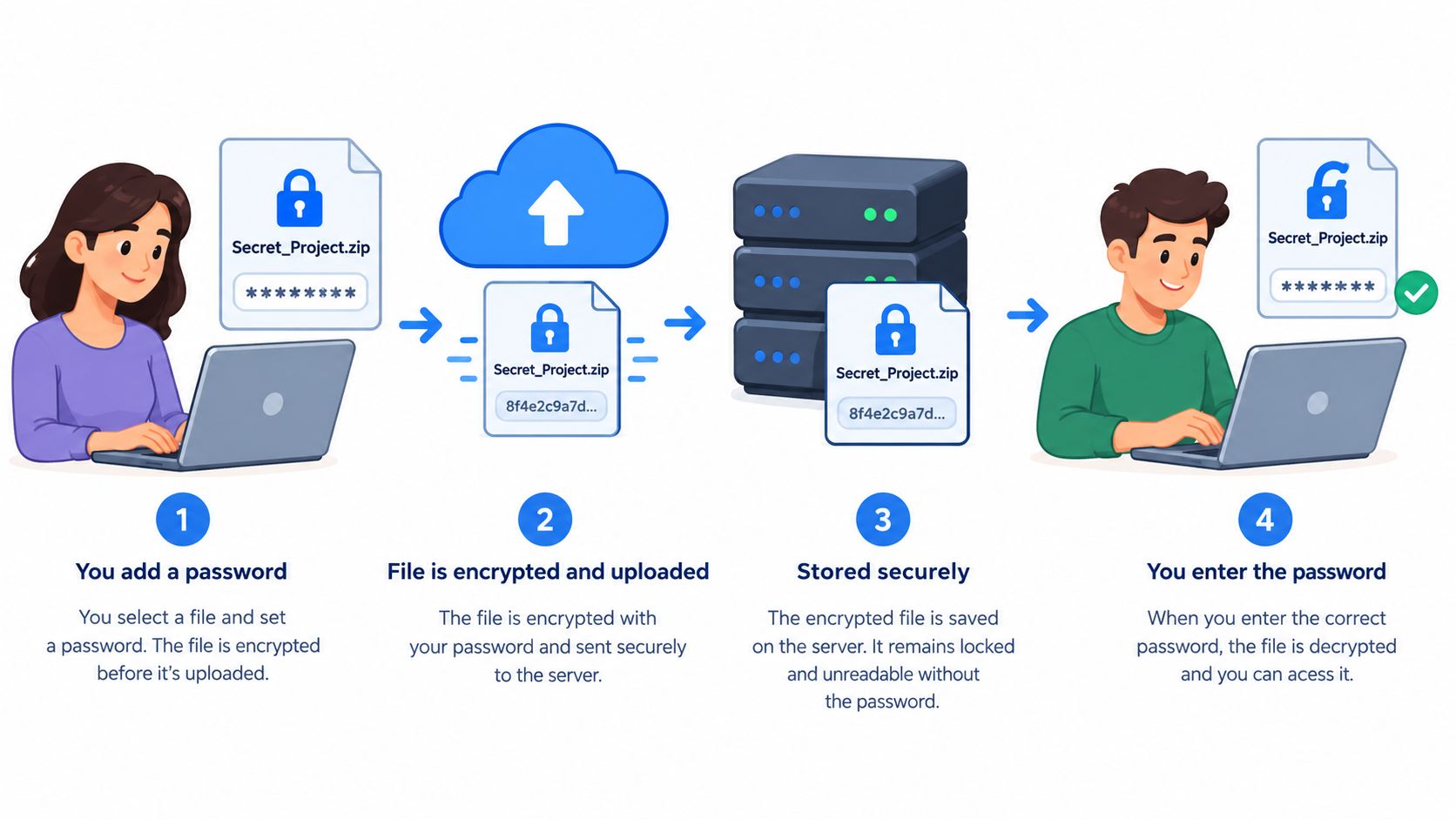
A password protected file upload should make the password part of the upload job itself. We select the encrypted bank statement, the form presents a password field, and we enter the password supplied by the bank. The converter then uses that credential to read the protected PDF and begin parsing its pages and transaction tables.
The password grants access to the PDF's content stream. Once decrypted, the pages, table structure, dates, descriptions, amounts, and balances become available for extraction. It doesn't mean the password should be saved with the file, copied into a note, or exposed to someone managing a conversion queue.
What happens during the conversion
A well-scoped conversion job uses the password for that job's decryption step. The credential should remain tied to the session, used in memory to open the source, and not stored beside the uploaded PDF or displayed after submission. The plaintext content is then processed into the selected output format.
Before spending credits, check the preview. Readable transaction descriptions, populated amounts, and a page count that corresponds with the source are good initial signs. A blank table, garbled characters, or missing sections means the file wasn't properly decrypted or parsed.
Two failures deserve special attention:
- Wrong-password rejection: The system returns an error and leaves the source file unchanged. Don't keep resubmitting guesses.
- Partial decryption: The output opens and looks plausible, but a scan reveals missing rows, blank pages, or a truncated statement. This is more dangerous because it can pass a superficial review.
The upload password isn't a complete security boundary. It doesn't automatically protect the file from the converter's infrastructure, encrypt the output spreadsheet, validate the uploaded content, or replace secure transport. Password-protected files can also conceal malicious content from inspection tools, which is why the wider upload pipeline still needs validation and malware handling. For sensitive finance documents, we should use an approved service and follow the firm's secure transfer policy.
Preparing Your PDF and Finding the Right Password
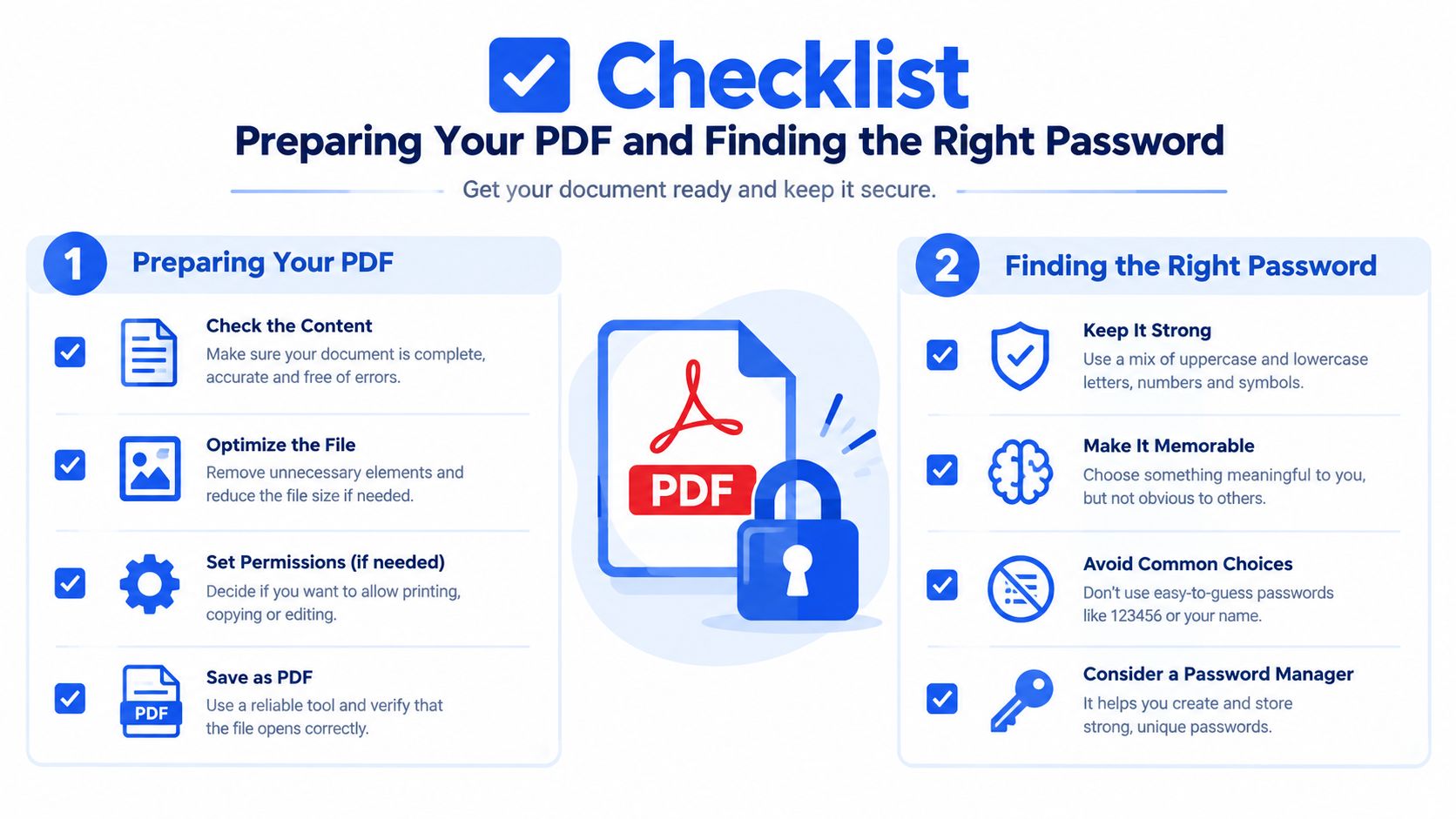
Preparation prevents most failed uploads. We start by locating the password before opening the converter, then confirm that the file is a genuine PDF, and finally check its size.
Banks handle password delivery differently. The password may appear in the email that links to the statement, inside the online banking portal under document security or download history, or in a corporate treasury arrangement where one password applies to the relationship. We should retrieve it from the bank's approved channel rather than rely on a password saved from an older statement.
Next, open the file locally in a trusted PDF reader. Confirm that it has a readable PDF structure, not merely a scanned image stored with a .pdf extension. Scanned statements may require OCR, while an image-only file can fail ordinary text extraction even when the password is correct. If the statement needs rotation before review, follow a controlled process such as this guide to rotate PDF files.
The file-size limit is 25 MB for autobankstatement. That covers many monthly statements, but a consolidated file containing several accounts or long periods may exceed it. Split the PDF by account or month, preserve the original filenames, and process the parts separately so we can reconcile each segment without losing its source reference.
Troubleshooting a rejected password
A rejection usually comes from a typo, a password reused from a previous statement, or a mismatch between the password required to open the file and a separate owner-level restriction. Open the PDF locally and enter the password in the reader. If the reader can't open it, the problem is with the credential or the file, not the conversion form.
Before submitting, confirm: correct PDF, correct password, readable pages, file within 25 MB, and the required output format selected.
Uploading, Converting, and Choosing Your Output Format
Once the source is ready, we process it in the same order every time. Select the PDF, enter its password, and wait for the preview or decryption confirmation before committing the conversion. A failed decryption can consume the attempt, so a password check in a local reader is worth doing first.
Choose CSV when the next step needs raw tabular data for import or structured manipulation. Choose XLSX when the reviewer needs a readable spreadsheet with formatting, visible columns, and room for review notes. The output decision belongs to the reconciliation workflow, not personal preference. If the file will be reviewed by a client or senior accountant, XLSX is usually easier to inspect. For a data-handling process, CSV may be cleaner. We also use a dedicated guide on extracting data from PDF to Excel when the source format needs more planning.
Download before the window closes
Uploads are automatically deleted within 24 hours, and registered users receive 24-hour download access. That window is useful for temporary handling, but it creates a firm operational obligation. Download the converted file, verify it, and move it into the approved finance location before the access period ends.
The download window is tied to a registered account. We shouldn't treat the result as an anonymous link that can be forwarded casually. Sign in, download the output to a controlled workstation or approved storage location, and avoid leaving copies in personal downloads folders.
During peak periods, a conversion may sit in a queue. If it remains stalled for more than five minutes, check the file size, confirm that the session is still active, and avoid submitting multiple duplicate jobs. A second submission can create confusion about which output was checked. If the issue persists, save the source details and contact support rather than editing an incomplete file.
Plan Tier Comparison for Password Protected File Upload
| Feature | Starter | Professional | Business |
|---|---|---|---|
| Monthly price | $15/mo | $30/mo | $50/mo |
| Included pages | 400 pages | 1,000 pages | 4,000 pages |
| Best fit | One-off or lighter personal conversions | Monthly reconciliation batches | Teams handling multiple client statements |
| File handling | Password-protected PDFs, scanned PDFs, and bulk upload | Password-protected PDFs, scanned PDFs, and bulk upload | Password-protected PDFs, scanned PDFs, and bulk upload |
Annual discounts are available, and custom enterprise limits can be arranged. We should match the tier to actual statement volume rather than choose based on the password feature alone.
Security and Privacy Behind Password Protected File Upload
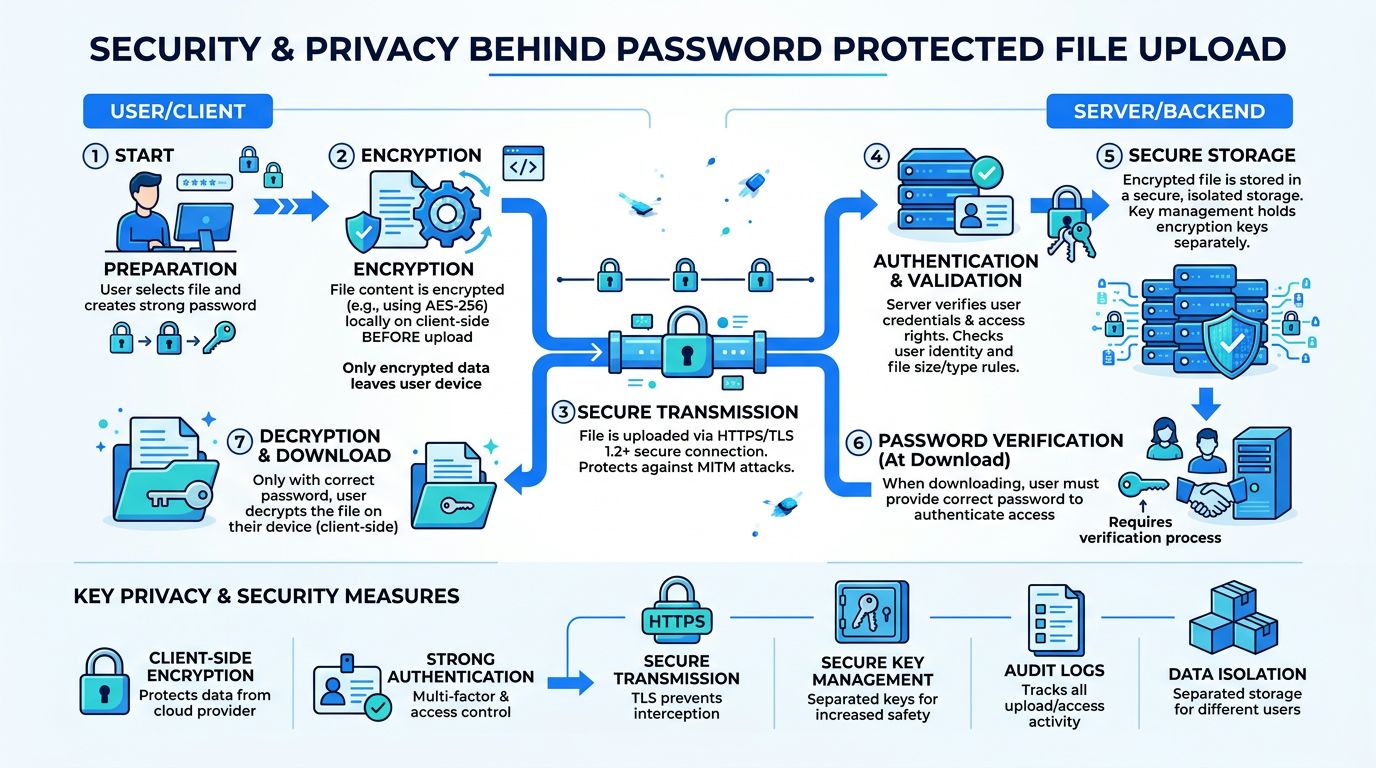
The practical security model is temporary and job-specific. The password entered for a locked statement is scoped to that conversion, not saved alongside the file, not placed in account history, and not exposed to people managing the queue.
The service processes the decrypted document in an isolated worker, creates the selected CSV or XLSX output, and automatically deletes the original upload and converted result within 24 hours. That arrangement limits how long the files remain available, but it also means we must complete our own verification and storage steps promptly.
What the model doesn't provide
There is no API access and no persistent audit log. That makes the workflow suitable for controlled, repeatable manual conversions, but not for an automated pipeline that fetches the same statement later or records every processing action indefinitely.
For regulated work, that limitation changes our procedure. A client statement under review can't be re-fetched from the conversion service after the purge. We download the result, verify the opening and closing figures, store the checked file in systems covered by the firm's retention policy, and preserve the source reference needed for the engagement file.
Password entry also shouldn't be confused with full upload security. OWASP recommends controls around authorization, file validation, storage location, and malware scanning because encrypted access doesn't establish that a file is safe to process. We should keep sensitive uploads outside executable paths and apply the same review standards used for other financial documents.
The password grants access to an existing PDF content layer. It doesn't require sending the statement to a third-party OCR provider merely to read text already embedded in the document. Scanned pages are a different case, because they may require OCR to turn visible image content into structured transactions.
Verifying Your Converted Statement Before You Trust It
A converted spreadsheet isn't reconciliation evidence until we compare it with the source. The preview can tell us whether the file is readable, but only a financial check can tell us whether the extracted rows are complete and mathematically coherent.
Start with the opening balance. Compare the first balance in the converted file with the opening balance printed on the first page of the PDF. A mismatch can indicate that the output began partway through the statement, omitted early rows, or interpreted a balance line as a transaction.
Three checks that prevent false confidence
- Opening balance: Confirm the converted opening balance matches the bank statement's opening balance.
- Movement calculation: Verify opening balance + credits − debits = closing balance, allowing for stated fees and other adjustments. Sage describes bank reconciliation as a process that includes matching the bank account's opening balance to the bank statement and checking the movement through the account. See its bank reconciliation guidance for the underlying control.
- Transaction sampling: Select three to five transactions and compare the date, description, and amount line by line with the PDF. Include a transaction with a long or split description, because multi-line source entries are a common parsing fault.
A statement isn't trusted until the balances and sampled rows agree with the source.
If a row is wrong, return to the PDF and locate the exact transaction. Check whether the description spans multiple lines, whether the converter merged two lines, or whether it split one transaction into separate rows. If the structure is wrong, upload the source again with the password rather than repairing the Excel file by hand.
Manual edits can make the spreadsheet look correct while breaking formulas, audit reasoning, or the relationship between the source and output. Keep the first conversion, note the issue, and compare the replacement against the same checks. A bank statement editor may help with review work, but it shouldn't replace source-level verification.

Removing the Password, Closing the Loop, and Common Questions
After the converted file passes review, create a working copy that downstream users can open without entering the bank password repeatedly. In Excel, open the workbook and use File > Info > Protect Workbook, then remove the password protection before saving the verified copy. For CSV, save the converted data as a new file. CSV doesn't preserve workbook password settings, so the important control is the location and access permissions applied to the saved file.
The completed workflow is simple: upload the bank PDF with its password, choose CSV or XLSX, download within the access window, verify opening balance plus credits minus debits equals closing balance, sample transactions against the source, remove the password from the working copy, and archive it under the firm's policy.
Questions finance teams ask
What happens if conversion fails? Check the password locally, confirm the PDF is readable, verify the file is within 25 MB, and retry with the original source rather than a manually modified copy. If the queue stalls, avoid creating duplicate jobs and contact support.
Is the password stored? The password is used for the individual conversion and isn't stored alongside the uploaded statement or shown after submission. We still shouldn't send it through the same channel as the file when sharing the source with another person.
Can we batch-process statements? Yes. Bulk upload supports multiple statements in one session, subject to the applicable file and plan limits. Keep filenames tied to the account and period so each converted file can be matched during reconciliation.
Autobankstatement converts digital, scanned, and password-protected PDF bank statements into CSV or Excel/XLSX, supports bulk uploads up to 25 MB per file, offers a free guest preview before payment, and provides registered users with 24-hour download access before automatic deletion. Visit autobankstatement to test the upload workflow with a locked statement, verify the preview, and choose the plan that matches your reconciliation volume.
Convert your next statement in minutes
Upload a bank statement PDF — digital, scanned, or password-protected — preview the extracted table, and download clean CSV or Excel.