How to Rotate PDF Files: A Guide for Finance Teams
Learn how to rotate PDF files on any device with these practical steps. Includes tips for preparing bank statements for automated OCR and CSV parsing.
You've opened a bank statement and one page is sideways, another is upside down, and the rest look fine. A quick screen rotation makes the document readable, but the improvement disappears when a colleague opens the file or an OCR system processes it. For finance teams, how to rotate PDF files isn't only a viewing question. The important question is whether the correction is saved into the document and remains reliable for review, extraction, and reconciliation.
Table of Contents
- Quick Fix for PDF Rotation on Windows, Mac, and Mobile
- Visual vs. Logical Rotation and Why It Matters
- Handling Mixed-Orientation Scans and Page Integrity
- Preparing Rotated Statements for Automated Parsing
- Verifying Extracted Data and Next Steps
Quick Fix for PDF Rotation on Windows, Mac, and Mobile
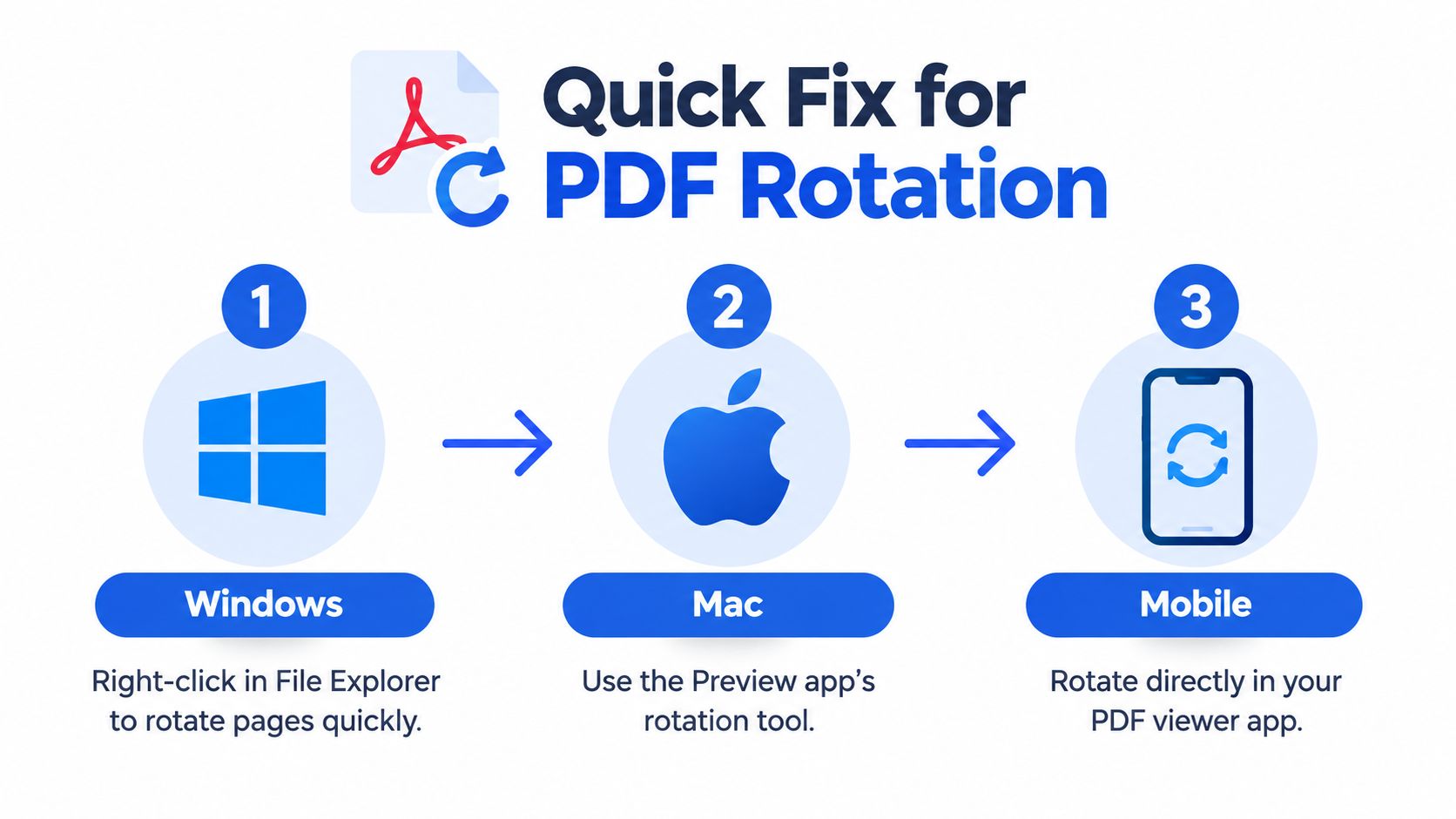
For a one-off viewing problem, start with the software already on your device. On Windows, open the PDF in a viewer that supports page controls, select the affected page, and use its rotate-page command. A right-click in File Explorer may expose rotation options depending on the installed PDF application, but File Explorer itself doesn't provide a universal permanent PDF-editing function. If the command only changes the screen view, save the document through the PDF application before closing it.
On macOS, open the file in Preview, show the page thumbnails, select the page or pages that are sideways, and use the rotate button. Preview is useful because you can work from the thumbnail panel and avoid changing pages that are already upright. After rotating, save a copy, close it, and reopen that copy. That simple test tells us whether the edit was written to the file rather than applied only to the current viewing session.
On iOS or Android, the exact controls depend on the PDF viewer. Many apps let us rotate the current display with a gesture or toolbar button, but a gesture may not change the document itself. Look for an option labelled Organize Pages, Rotate Pages, Edit, or Save a Copy. If the app offers only screen rotation, use a PDF editor that can save page-level changes.
Use browser tools carefully
A browser-based PDF tool can be practical when we can't install software, especially for a non-sensitive document. For bank statements, payroll records, and client files, check the provider's handling terms before uploading anything. Local software is usually the safer choice when confidentiality matters.
PDF rotation normally uses fixed right-angle increments. Adobe's Acrobat guidance describes rotation in 90-degree steps, and PDF software guidance referencing ISO 32000 limits page rotations to 0°, 90°, 180°, and 270°. If the page is slightly crooked rather than turned sideways, rotation alone won't straighten it. That calls for deskewing or rescanning.
For the next stage, teams converting statements should also understand how PDF-to-Excel conversion software handles source files, because a page that looks correct on screen may still carry an orientation problem that affects extraction.
Visual vs. Logical Rotation and Why It Matters
A PDF can look upright without being permanently corrected. That distinction causes many failed handoffs: we rotate a statement, save nothing, and assume the file is fixed. The colleague, browser, or automated processor then opens the original orientation.
Visual rotation changes the display in the current viewer. It helps us read the page, but it may not alter the PDF's internal page definition. Close the file or open it in another application, and the page can return to its original position.
Logical rotation changes the document's stored page information, such as the page metadata or content stream, so the orientation travels with the file. Expert guidance on PDF document rotation distinguishes visual rotation from logical rotation and explains that the logical form remains correct across systems.
A practical test for persistence
Use this sequence whenever the rotated file will be shared or parsed:
- Select only the affected page or pages.
- Apply the page-rotation command, rather than a viewer's rotate-view command.
- Save the file as a new copy.
- Close the PDF completely.
- Reopen it in a different viewer, if available.
- Confirm the page remains upright and the text reads in the expected order.
The save step is not a formality. Some tools keep the visual adjustment separate from the document until we explicitly save. A new filename also protects the original statement, which matters if the rotated copy later proves unsuitable for extraction.
Why finance workflows need the permanent version
A human reader can compensate for a sideways page. OCR and parsing systems are less forgiving because they must determine text direction, positions, columns, and transaction boundaries. A temporary display setting usually isn't part of the file submitted to a downstream process, so the processor sees the uncorrected page.
Rotating the whole document is also a poor default. If only a statement appendix or scanned receipt is sideways, changing every page can create new errors and make review harder. Page-specific logical rotation keeps the document's existing structure intact while correcting the actual defect.
Practical rule: If another person or system must receive the corrected orientation, save a page-level rotation and verify it after reopening. A comfortable screen view isn't proof that the file has been edited.
Handling Mixed-Orientation Scans and Page Integrity
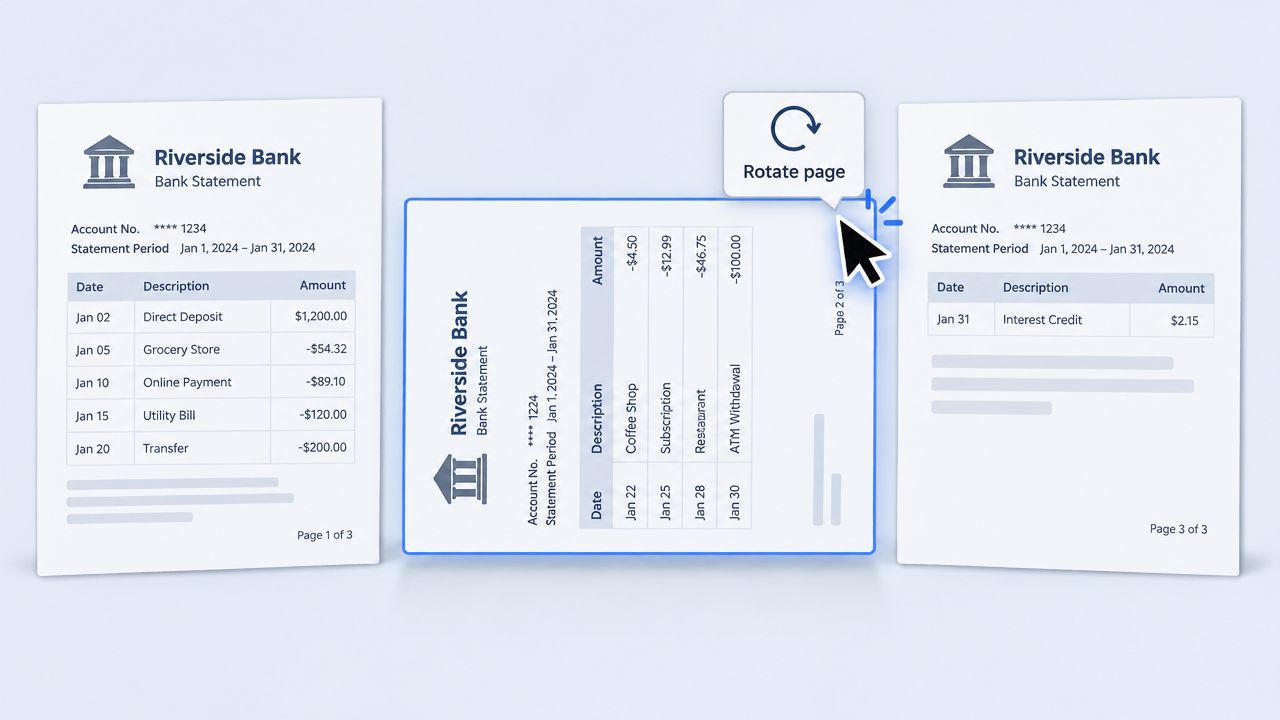
Mixed-orientation PDFs require page-level review. A bank statement may place upright transaction pages beside a sideways scanned deposit slip, supporting note, or image. Rotating the entire file would misorient pages that were already correct, creating fresh review and processing errors.
Start in thumbnail view and inspect the page sequence. Mark each page that needs correction, then group pages with the same orientation problem. Most PDF page tools support selective rotation of a single page, a range, or the whole document using the same right-angle increments. Guidance on rotating individual PDF pages also covers practical considerations such as file size, OCR quality, and page-specific handling.
Rotate before OCR
Correct scanned pages before OCR or automated extraction. If recognition runs on a sideways page, the system may assign incorrect reading order and text coordinates. Rotating the page afterward does not reliably realign the recognized text with its bounding boxes, which can disrupt transaction fields and table columns.
Use this preparation sequence:
- Inspect thumbnails: Find sideways, inverted, and visibly skewed pages.
- Rotate selectively: Change only pages with an orientation defect.
- Save a new copy: Keep the original available for comparison.
- Reopen the copy: Confirm that the saved correction persists.
- Run OCR afterward: Process the corrected orientation.
- Review difficult pages: Check forms, tables, and image-heavy scans.
For image-based statements, a badly blurred scan needs a better source or a suitable image cleanup process. See this guidance on extracting data from images before sending low-quality pages to a parser. Improving the source image is more effective than repeatedly rotating an unreadable page.
Protecting quality and file structure
For standard right-angle changes, rotation is commonly a metadata-level adjustment rather than a redraw of the page content. It generally preserves text quality and remains lossless for ordinary page rotations. Some applications re-render or recompress pages during saving, so export settings can affect file size and image clarity.
Rotation and deskewing solve different defects. A page turned sideways needs rotation. A page that is only crooked needs deskewing, while a blurred scan needs a clearer source or image cleanup. Keeping these problems separate protects OCR accuracy and preserves the document's structure.
Preparing Rotated Statements for Automated Parsing
Orientation is an input-quality issue, not a cosmetic preference. OCR guidance identifies 90° rotations, 180° inversions, and even 1° to 10° of skew as conditions that can damage segmentation and recognition, with pages rotated 90° or 270° often failing until corrected. OCR page-orientation guidance supports the practical sequence: detect the problem, rotate or deskew only where necessary, then run OCR.
The best source file is logically corrected, readable, and still close to the original. Avoid taking screenshots of the pages after rotating them. A screenshot turns document content into a new image, can remove useful text structure, and may introduce another compression step. Use the saved PDF page rotation whenever the original file can be preserved.
Check the file before upload
Before automated processing, review these points:
- Orientation: Open several pages, including the first, last, and any scanned inserts.
- Persistence: Close and reopen the saved copy to confirm the pages stay upright.
- Password access: If the statement is protected, use the password supplied by the bank or sender. PDF security features can block access or editing without the correct password, and password-protected files should only be accessed with authorized credentials. Background on OCR and protected electronic bank statements explains why access controls matter in statement handling.
- File size: Check the upload limit of the processing service before starting. Limits vary. One support source specifies PDF uploads under 60 MB, while another sets a 15 MB maximum. One upload policy illustrates why we should check the actual service limit rather than assume that a file will be accepted.
- Scan clarity: Confirm that transaction dates, descriptions, amounts, and balances are legible at normal zoom.
- Page completeness: Make sure no page was omitted during saving, exporting, or combining.
Treat rotation as preparation, not conversion
Rotation fixes orientation. It doesn't validate transactions, repair missing scan content, or resolve an ambiguous character in a description. Automated parsing still needs a readable source and a review step after extraction.
The distinction between PDF data parsing and ordinary text extraction is useful here. A parser has to interpret fields and relationships, not merely find isolated words. A sideways amount column, an upside-down balance, or a skewed table can interfere with that interpretation even when a person can decipher the page.
For mixed-language, forms-heavy, or image-heavy statements, inspect the extracted output more closely. Automatic orientation detection can make the wrong choice, particularly when a page contains sparse text, stamps, logos, or unusual layouts. Correcting the source first reduces one avoidable variable, but it doesn't remove the need for accounting review.
Verifying Extracted Data and Next Steps
A converted spreadsheet isn't ready for reconciliation merely because it opens cleanly. We should compare the statement's balances with the extracted transactions and investigate any mismatch before posting entries or relying on the file for month-end work.
Start with the basic arithmetic:
Opening balance + credits − debits = closing balance
Use the statement's own opening and closing figures, then compare the totals represented in the spreadsheet. A failure can indicate an OCR error, a missing page, a duplicated transaction, an incorrectly signed amount, or a legitimate reconciling item. The equation doesn't diagnose the cause, but it quickly tells us that the output needs attention.
Work from the statement and the ledger
A bank statement typically presents the opening balance, total credits, total debits, and closing balance. An explanation of bank statement structure provides the basis for comparing the ending cash position with internal records and the statement balance.
Use a short review routine:
- Confirm the period: Check that the statement dates match the reconciliation period.
- Check the opening balance: Compare it with the prior period's reconciled closing balance and the internal bank account.
- Recalculate movement: Apply opening balance plus credits minus debits.
- Inspect exceptions: Look for duplicated rows, missing transactions, reversed signs, and unreadable amounts.
- Compare the closing balance: Tie the extracted result to the statement and then to the ledger.
- Document unresolved items: Separate processing errors from genuine timing differences.
The final comparison is not always expected to equal immediately. Chartered Accountants Ireland reconciliation guidance says we should begin by reconciling the opening bank balance with the opening bank-statement balance, then adjust for items not yet debited, items not yet credited, unpresented cheques, unrecorded lodgements, and bank errors before reaching the reconciled position. The professional training material gives that sequence a useful accounting framework.
Control point: A rotated PDF can be visually correct and logically correct, yet the extracted figures still require reconciliation. Orientation is one control in the workflow, not the control itself.
Keep the original PDF, the logically rotated working copy, and the reviewed spreadsheet according to your firm's approved records policy. When a page is difficult to read, return to the source rather than correcting the spreadsheet without documentation. That preserves an audit trail of the judgment applied during review.
Autobankstatement converts digital and scanned PDF bank statements into CSV or Excel/XLSX, supports password-protected files and bulk uploads up to 25 MB, and provides a free guest preview before payment. Visit autobankstatement to prepare rotated statements for structured review, with registered download access and automatic upload deletion within 24 hours.
Convert your next statement in minutes
Upload a bank statement PDF — digital, scanned, or password-protected — preview the extracted table, and download clean CSV or Excel.