
Convert PDF to CSV for QuickBooks: Step-by-Step Guide 2026
Learn how to convert PDF to CSV for QuickBooks: map columns and signs, handle passwords and OCR, verify balances, and fix common import errors.
You've got a client statement in PDF, a month-end deadline, and a spreadsheet that looks perfectly tidy. Then QuickBooks rejects the upload, or worse, accepts it and puts money in the wrong direction. That's the gap we see repeatedly when teams convert PDF to CSV for QuickBooks. Extraction is only half the job. The file also has to pass QuickBooks layout rules and prove its own arithmetic before it touches the ledger.
Table of Contents
- The QuickBooks-Ready CSV Layout
- Convert a Statement PDF Into Clean Rows
- How to Map Columns and Signs for Import
- Validation Checks to Run Before Upload
- Fixing Common QuickBooks Import Errors
- Import a Test Batch Before the Full Statement
The QuickBooks-Ready CSV Layout
A converted file can look clean in Excel and still fail on import. QuickBooks doesn't accept a general purpose spreadsheet. It accepts two narrow transaction layouts, and a file built to any other shape is a file you'll rebuild under pressure.
Start from the target, not from whatever columns the converter produced.
| Layout | Required headers | Amount rule | Notes |
|---|---|---|---|
| Three-column | Date, Description, Amount | Withdrawals negative, deposits positive | One signed value per row |
| Four-column | Date, Description, Credit, Debit | Only one of Credit or Debit populated per row | Leave zero cells blank |
What each layout actually means
In the three-column layout, every row carries one signed Amount. Deposits are positive. Withdrawals, card payments and fees are negative. There's no second money column to hide in, so the sign does all the work.
In the four-column layout, money in goes to Credit and money out goes to Debit. Only one of those two cells holds a value on any row. If both are populated, QuickBooks can't tell which direction the money moved, and the row is meaningless even if the upload accepts it. The QuickBooks guidance on common import errors makes the same point about narrow structure, exact headers and blank cells where a value is zero.
Practical rule: A neat spreadsheet isn't a success metric. Import acceptance and correct accounting direction are.
Dates and file size
Use dd/mm/yyyy throughout, because that's the convention Intuit recommends. Statements from other regions often arrive in a different order, and a mixed file can easily swap day and month on any date where both numbers are 12 or lower. Convert every date to one format before upload, not row by row during mapping.
Keep each upload below the 1,000-line limit that QuickBooks documentation on manually uploading transactions sets for a transaction list. Larger statements should be split by date range into smaller files. Splitting also makes a failed batch easier to isolate.
If you're unsure what a well formed source statement looks like before conversion, compare yours against a worked PDF bank statement example first. Which layout you choose depends on how the bank presents amounts, as a single signed column or as separate paid in and paid out columns. That check comes first in mapping, because it decides everything after it.
Convert a Statement PDF Into Clean Rows
Before uploading anything, answer three questions about the PDF. Is it digital text or a scan? Is it password-protected? Does it cover one account or several? Those answers decide how much review time the file needs, and a statement covering several accounts produces one combined transaction list that has to be separated before import.
Upload the statement and open it if needed. If the file is locked, enter its password at upload so the statement can be read. The common slip is using a password for a different account's statement, which either fails or returns the wrong transactions entirely.
Check whether pages are digital or scanned. Digital PDFs carry selectable text and convert cleanly. Scanned pages go through OCR, so budget more review time. The typical slip is subtle, such as 1,250.00 read as 1,250.OO with a letter O in place of a zero. That single character turns a number into text, and text in an amount column will not import.
Review the output in a spreadsheet after download. Fix merged or split descriptions, misread decimal separators and lost negative signs before anything else. A lost sign is the damage that matters most, because the row still imports and posts in the wrong direction. Watch for a description wrapping onto two rows as well, since the second line becomes a phantom transaction with no amount or, worse, a duplicated one.
Download and file handling
Download as CSV for QuickBooks, or XLSX if the team reviews in Excel first. Files up to 25 MB are accepted and you can add multiple statements for bulk conversion. Registered users get 24-hour download access, but the uploaded statement is deleted within 10 seconds after conversion, so download the CSV or XLSX as soon as it is ready and keep your own copy.
Save the original PDF beside the CSV under the same statement name. The PDF is your source record when a figure is questioned later. Deleting it after conversion removes the only evidence you can check against.
A clean table has one row per transaction, a date and description on every row, and a single amount per row before any reformatting begins.
Rows that look neat can still fail import or post backward. Scan the amount column for text characters, sort by date to expose gaps where a page dropped out, and check that page breaks haven't repeated a header row as data. Those three passes take minutes and catch most extraction damage while it's still cheap to fix.
How to Map Columns and Signs for Import
First, look at how the bank presents amounts. A single signed column points to the three-column layout. Separate Paid in and Paid out columns point to the four-column layout. Decide that before renaming anything, because it selects the target shape.
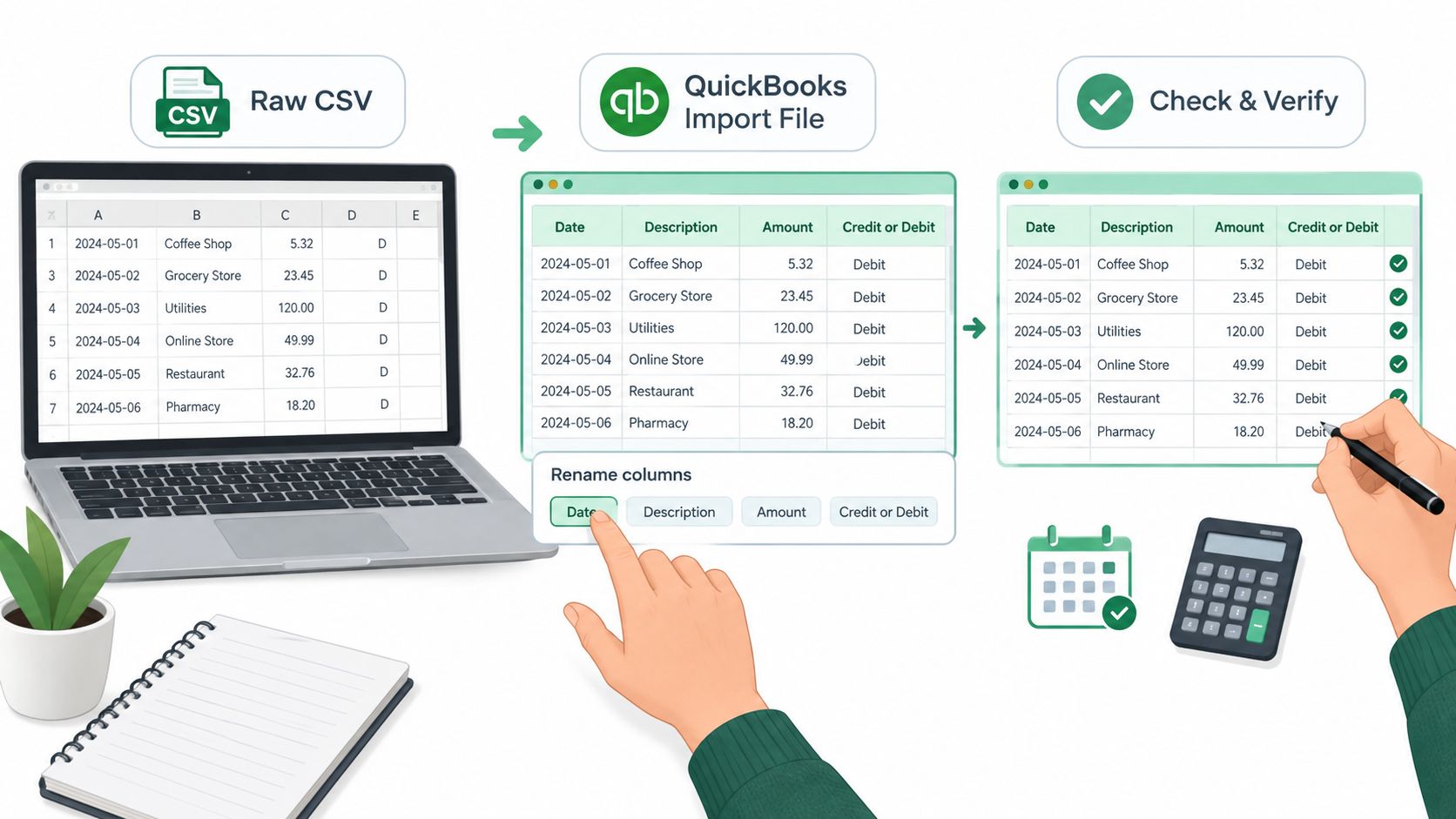
Rename headers exactly. Use Date, Description, Amount, Credit or Debit, with no added words. A header reading Credit Amount isn't a minor variation. It's a rejection.
Normalize every date to dd/mm/yyyy. Remove day-of-week text some statements append, such as Mon 03/06/2026. QuickBooks reads that leading text as part of the date and fails.
Strip currency symbols and thousands separators. 4,820.50 becomes 4820.50. A comma inside a number can also split the value across two CSV columns, shifting everything after it.
Assign signs deliberately. In the three-column layout, withdrawals, card payments and fees become negative. In the four-column layout, withdrawals go to Debit and deposits to Credit. A card payment shown in brackets on the statement, such as (250.00), must become -250.00, not 250.00.
The details that break otherwise good files
Leave zero values blank. Don't write 0.00 in Amount, Credit or Debit. A blank cell means no value, which is what QuickBooks expects.
Clean descriptions. Remove transaction reference numbers unless a reference is the only thing separating two otherwise identical payments. Keep a bank fee that appears as its own row separate from a payment sharing the same description, and keep its own sign.
Save as a plain CSV with consistent encoding. Mixed encodings produce stray characters in payee names and can break column mapping.
Our fuller walkthrough on turning a bank statement into CSV shows the same sequence end to end. Apply it identically every month. When the mapping drifts between preparers, the file structure drifts with it, and errors become hard to trace.
Validation Checks to Run Before Upload
A clean-looking spreadsheet can still carry a wrong file. Formatting gets a file accepted by QuickBooks; validation tells you whether the numbers are true and whether the rows mean what they should mean in the ledger. These checks run in a spreadsheet in minutes, and they catch errors a visual scan won't, including a single transposed digit or a deposit that landed as a withdrawal.
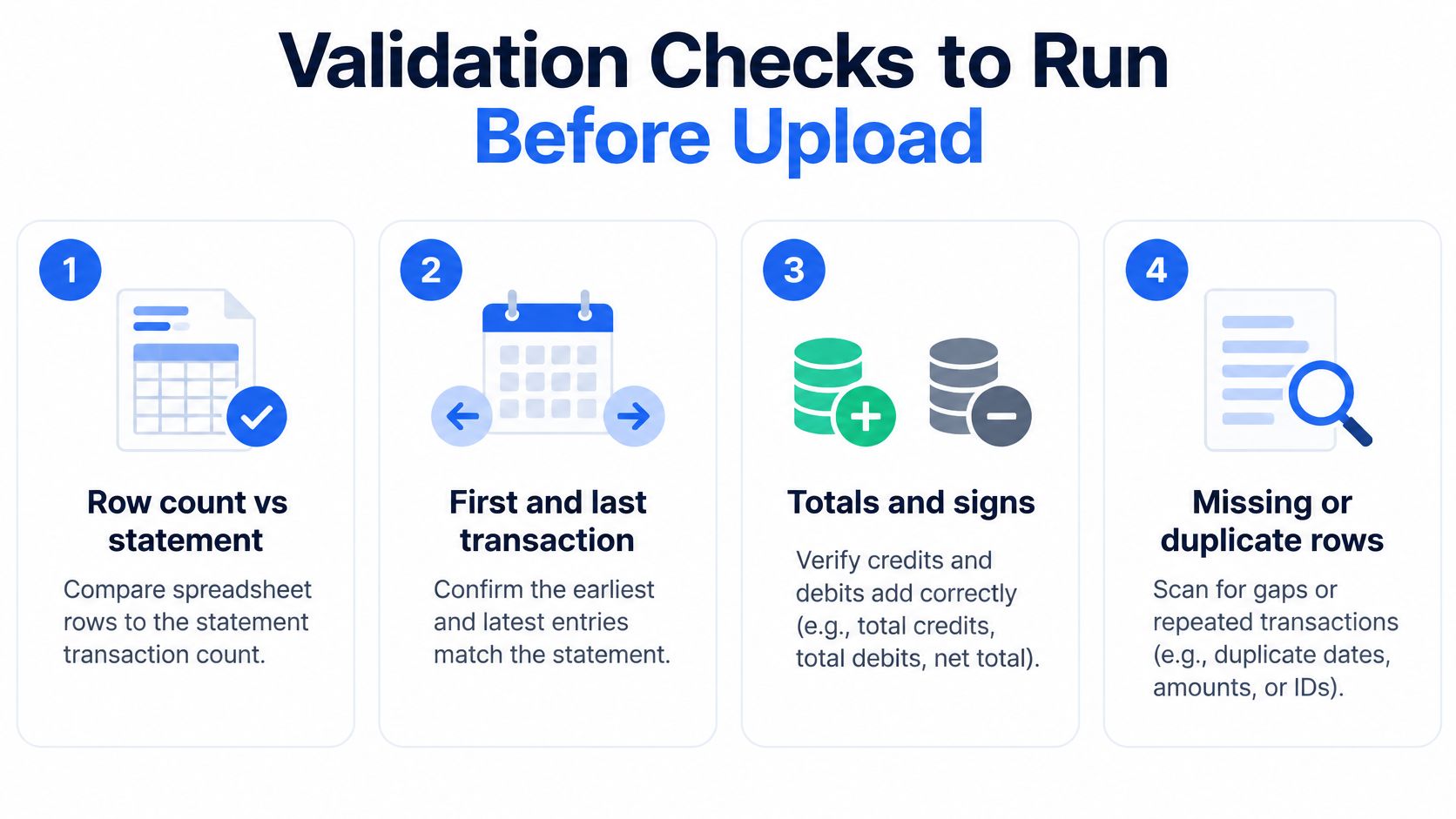
| Check | How to test | Pass condition |
|---|---|---|
| Row count | Count CSV rows against the statement | Matches the statement's transaction count |
| Date range | Compare first and last dates with the statement | Falls within the statement period |
| Balance equation | Opening balance + credits − debits | Equals the closing balance |
| Duplicates | Sort by date, amount and description | No repeated rows from page breaks or OCR |
| Sign check | Sample withdrawals and deposits against the PDF | Withdrawals negative, deposits positive |
The balance equation
The central control is a standard reconciliation principle: opening balance + credits − debits = closing balance. Every bank statement is built this way. The opening figure, total money in, total money out and closing figure must tie together, and any gap between the calculated and stated closing figures needs an explanation before the file goes anywhere near the ledger.
Say a statement opens at 5,000.00, with credits of 2,300.00 and debits of 1,850.75. The closing balance must be 5,449.25. If your CSV produces 5,449.28, a row was missed, double-counted or signed wrong. Three cents isn't rounding you can wave through. Genuine rounding or timing differences should be written down and explained, not ignored.
Counting rows only proves you extracted something. The balance tie-out proves you extracted everything, once, in the right direction.
Add a sample review on top of the equation. Pick a few deposits, withdrawals, fees and transfers and trace each one back to the PDF, including multi-line descriptions. Fees and transfers are where signs flip most often, and a flipped sign doubles the damage: the balance ties by accident or misses by twice the amount.
Save the file together with its check results once it passes. That record shows what was verified, not just what was uploaded.
Fixing Common QuickBooks Import Errors
Most failed imports are formatting defects, not PDF-reading failures. That means the fix usually sits in the CSV, not in a reconversion. Work in a fixed order so you don't chase symptoms: headers first, then dates, then signs, then zero values and file size.
The QuickBooks guide to formatting CSV files in Excel covers the recurring culprits, including exact headers, consistent dates, blank zero values and removing day-of-week text from dates. Currency symbols, embedded commas and special characters also prevent import or shift column mapping.
| Symptom | Likely cause | Fix |
|---|---|---|
| Upload rejected at mapping | Extra word in a Credit or Debit header | Rename to Credit or Debit only |
| Dates land in the wrong month | Mixed regional date formats | Convert all dates to dd/mm/yyyy |
| Columns shift mid-file | Comma inside an amount or description | Remove thousands separators |
| Money moves the wrong way | Lost negative sign, or both Credit and Debit filled | Correct signs, one money value per row |
| Import stops partway | File over the line limit | Split by date range into smaller batches |
The error that doesn't look like one
A rejected file is annoying. A successful upload that reverses money direction is worse, because nothing warns you. QuickBooks can accept structurally valid rows that still carry a reversed sign, a duplicate or an OCR-transposed amount. That's why a completed upload is never proof of accuracy on its own.
Numbers embedded in descriptions can also trigger rejection, and extraneous transaction numbers add noise without helping categorization. Strip them unless they distinguish two identical payments.
Our notes on importing a bank statement into QuickBooks Online and Xero cover the platform side of the same failures. When totals are off by cents rather than failing outright, go back to the balance check. A misread decimal separator or a dropped row is the usual cause, and the equation will tell you the size of what's missing.
Import a Test Batch Before the Full Statement
Never load a full statement first. Import a controlled test batch covering one month or a smaller date range, then confirm the imported transaction count and ending balance match the statement before anything else goes in.
Follow this sequence every time:
- Run the validation checks on the batch, including the balance equation.
- Import the test batch into the correct QuickBooks account.
- Review the bank feed review queue for duplicates or reversed signs before categorizing.
- Load the remaining batches only after the first one reconciles.
Keep the original PDF on file as the audit reference. The CFPB Regulation Z commentary states that evidence may be retained by any method that accurately reproduces records, including computer programs. That standard is accuracy, not successful conversion, so compare the spreadsheet with the source PDF and retain both with the check results.
A downloaded CSV can then be reused for bookkeeping, tax preparation and reconciliation rather than rebuilt for each task. Schedule the test-and-check routine once per statement cycle. Repetition is what turns a careful process into a reliable one.
When you're ready to convert PDF to CSV for QuickBooks without retyping statements by hand, we turn digital, scanned and password-protected PDF bank statements into clean CSV or Excel files you can map, validate and import using the checks above. Start with a free guest preview to see your rows before paying, then visit autobankstatement to convert your next statement.
Convert your next statement in minutes
Upload a bank statement PDF — digital, scanned, or password-protected — preview the extracted table, and download clean CSV or Excel.