OCR Screen Capture: How to Extract Text from Any Screen
Learn how to run OCR screen capture on Windows, Mac, phone and browser, with tips for accurate tables, privacy checks and verifying totals.

A client sends you a phone photo of a bank statement, or you can see the transactions on screen but can't select a single character. Retyping four pages of dates, descriptions and amounts is slow, and one transposed digit can break a reconciliation. That's where OCR screen capture earns its place, turning pixels into editable text you can paste, sort and check.
Treat the capture as the first link in a verification chain, not the finished record. The image you grab, the tool that reads it and the checks you run on totals all decide whether the numbers that reach the ledger are trustworthy.
Table of Contents
- Choose the Screen OCR Method That Fits Your Device
- How to Capture Text and Run OCR Step by Step
- Fixing Poor OCR Results Before You Blame the Tool
- Extracting Tables from Screenshots Without Losing Rows
- Privacy Checks for Screen Captures That Hold Client Data
- Decide Whether Screen OCR Is Enough for Your Statements
Choose the Screen OCR Method That Fits Your Device
Start with the rule that saves the most time. If the statement text can be selected, copy it directly. OCR only earns its place when text exists as pixels, in a screenshot, a scanned PDF, a video frame or a window the operating system can't read as text.
Apps that expose text through the accessibility layer let you copy it cleanly, with characters intact. OCR is the fallback for rendered content those routes can't reach. When one statement mixes both, use a hybrid approach, copy the selectable parts, run OCR on the rest, and review both outputs before they enter a spreadsheet.
OCR screen capture has two steps. You capture a region of the display as an image, then software reads the characters inside that image and returns text. Accuracy follows the image, not the marketing claim. As the history of OCR at PrinterArchive explains, accuracy depends on image quality, typography, language and whether the source is printed or handwritten, so a single universal percentage is misleading. Machine-printed recognition can exceed 99% under suitable conditions, while degraded historical pages ranged from about 81% to 99% at character level.
Screen OCR routes by device and source
| Device or app | Route | Best for | Watch for |
|---|---|---|---|
| Windows (any version with PowerToys) | PowerToys Text Extractor, Win+Shift+T | Text from any region without saving a file | Plain text only, no table structure |
| Mac | Live Text in Preview or Photos | Text inside an existing screenshot | One image at a time; check punctuation and minus signs |
| iPhone or iPad | Live Text in Photos | Statement pages captured on a phone | Glare and camera angle reduce accuracy |
| Android | Google Lens from a screenshot or gallery image | Mobile statement pages | Check output on your device model and app version |
| Any browser | Right-click an image, then Search with Google Lens | Text in images shown on web pages | Doesn't apply to text that's already selectable |
| Dedicated statement converter | Upload the PDF or scan and export rows | Multi-page or scanned bank statements | Verify every output table against the source before use |
Match the route to the job. One page of a statement on a Mac suits Live Text in Preview. A 14-page scanned statement suits a dedicated converter because rows and columns must survive across pages, and choosing well starts with knowing what makes a strong OCR program for your workload.
A route is adequate only when the output row count matches the rows visible on screen.
Before you scale up, run a test. Capture one line whose value you already know, and compare it character by character, including the decimal point and sign, before you trust the method with a full statement.
How to Capture Text and Run OCR Step by Step
Work through the desktop procedure first, then adapt it for a phone or browser. Menu names and shortcuts change between operating system versions, so confirm each one on your device before you rely on it during month end.
Desktop capture
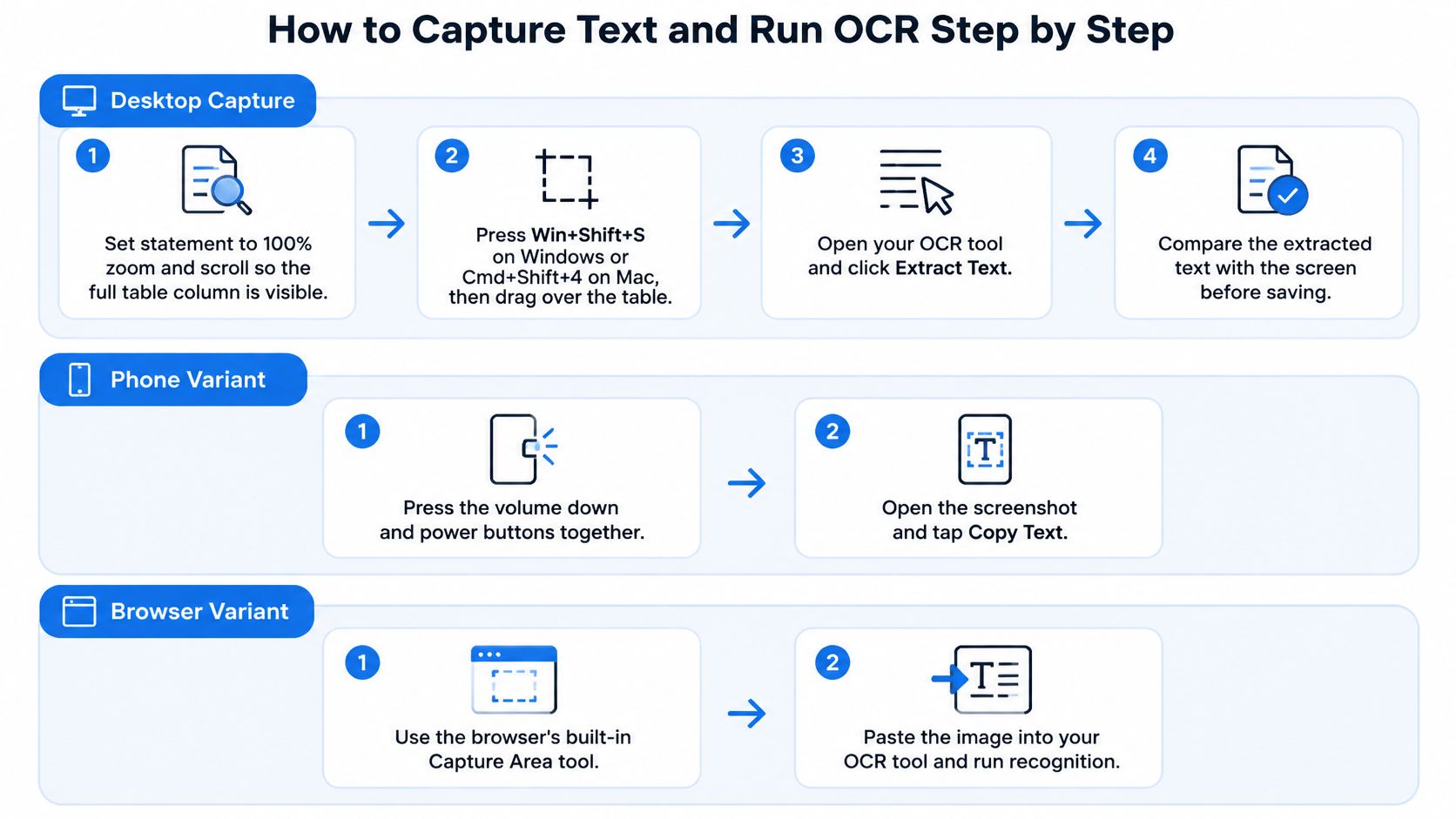
- Set the statement to 100% zoom and scroll so the full table column is visible. Characters need enough pixels for the reader to separate a 5 from an S or a comma from a full stop. A scaled-down window is the most common avoidable cause of errors.
- Press Win+Shift+S on Windows or Cmd+Shift+4 on a Mac, then drag a box around the table block only. A tight box stops neighbouring columns, sidebars and browser tabs from merging into your data. Include the full amount column so signs and brackets aren't cropped.
- Extract the text. On Windows 11, select Text Actions in the snip toolbar to copy the recognized text. On a Mac, save the screenshot, open it in Preview, and select the text with Live Text. Copy it immediately so you're working from the fresh capture, not an older file.
- Paste into Excel or Google Sheets, then use Excel's Data > Text to Columns where spacing between values is clear. The paste step is where columns most often break, because dates, descriptions and amounts can land in a single cell. Splitting them now makes every later check easier.
- Compare the first and last rows with the source before you continue. If the opening transaction or the final balance is wrong, recapture that block rather than fixing cells one by one. Early rows reveal whether the column alignment held.
Phone and browser variants
On a phone, take the screenshot, open it in Photos and long-press the text to select and copy it. On Android, open the screenshot in Google Lens and copy the detected text from there. Keep the phone flat and square to the page if you're photographing paper, because angle and glare distort characters at the edges.
For an image in a browser, right-click it and choose Search with Google Lens, then copy the detected text. This route suits a statement image embedded in a web portal or help page. It doesn't help when the portal text is selectable, and in that case a direct copy is faster and cleaner.
Count check: the pasted row count should match the rows visible on screen. If it doesn't, a row has merged or dropped, and no amount in that block should be trusted yet.
Work in small blocks. Capturing one visible table section, extracting it, counting the rows and checking the last balance takes minutes. Capturing a whole statement in one pass and hunting for a missing row later takes far longer, and the error is harder to locate once sorting has moved rows away from their original order.
Fixing Poor OCR Results Before You Blame the Tool
OCR output is only as good as the pixels it reads. A different app won't rescue a blurred, compressed or half-cropped image, so fix the capture before you switch tools.
Accuracy is scored per character. One wrong character can make a whole word wrong, and in finance work it can change a value. A misread decimal point turns 1,250.00 into 125000, and a lost minus sign turns a debit into a credit. That's why clean machine-printed text performs well while small, faint or irregular text doesn't.
What degrades a statement capture
The factors that lower accuracy on screen are predictable. Watch for low resolution, small or anti-aliased fonts, compression artifacts on saved screenshots, light grey text, coloured table rows, dark-mode statements, scaled-down windows and cropped column edges. Each one removes the contrast or shape detail the reader needs.
Where the source allows it, switch the statement to a light view before capture. Dark text on a white background gives most engines the clearest signal. Zoom in until digits are crisp, and capture a smaller region rather than shrinking the whole page to fit.
OCR symptoms, causes and fixes
| Symptom | Likely cause | Fix |
|---|---|---|
| Letters swapped, such as 0 for O or 1 for l | Small text or low resolution | Zoom to 100% or higher and recapture a sharper image |
| Decimal points or commas missing | Blurred or compressed capture | Recapture at higher resolution and check the amount against the source |
| Minus signs or brackets lost | Light grey text or a cropped amount column | Widen the box to include the full amount column |
| Words run together across columns | Region spans several columns with uneven spacing | Capture one column block at a time |
| Rows missing or merged | Scrolling or a page break inside the capture | Capture each page separately and compare the row count |
| Garbled text on a dark background | Light text on dark rows | Switch the statement to a light view if the source allows it |
If the error sits in a number, recapture the region at higher resolution and check the amount against the source. If it's a typo in a description, correct it by hand.
That closing rule protects the ledger. Descriptions tolerate a manual fix because a misspelled payee name doesn't change a total. Amounts, dates and account numbers don't tolerate guesswork, so they get a fresh capture and a direct comparison with the source line.
Extracting Tables from Screenshots Without Losing Rows
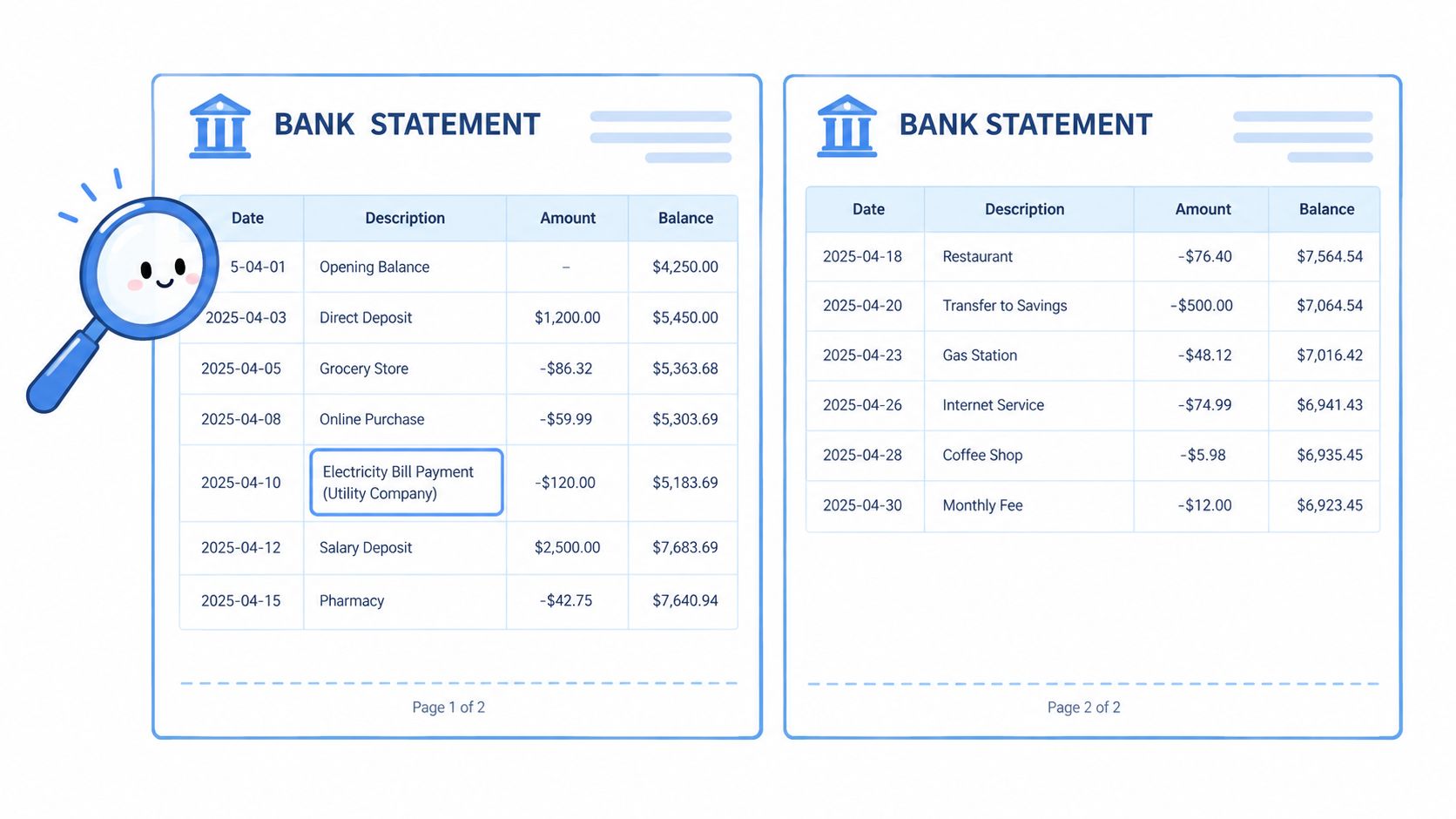
Statement tables break under OCR in three ways. Columns shift, wrapped descriptions split into separate rows, and page breaks drop lines. Plain text extraction won't warn you, so the workflow has to catch each one.
A page-by-page workflow
- Capture one statement page at a time, including the header row. The header anchors column order for that page. Capturing across a screen scroll or page break invites merged and missing rows.
- Extract each page into a table and keep the column order. Don't sort or filter yet. Preserving the statement's sequence lets you trace every output row back to its source line.
- Review a sample of the output, checking every amount on the first and last page and a sample of the middle pages. The UK National Archives information management guidance advises reviewing a sample of scans and OCR output before a full project and verifying machine-generated OCR rather than assuming it's perfect. It also warns that image noise such as spots and dark patches can materially reduce OCR quality.
- Run the field checks in the table below before you combine pages. Pay extra attention to decimal points, minus signs, columns and numbers near page breaks.
- Apply the balance test. Verify that opening balance + credits - debits = closing balance, and check each running balance against the row before it.
- Review the table in the browser before download, then save a clean spreadsheet for bookkeeping or reconciliation. After upload, transactions are pulled into clear rows, and we let users review the table in the browser and make quick edits before downloading a clean spreadsheet for bookkeeping, taxes, reconciliation or reporting.
Field checks for extracted statement tables
| Field | Common OCR error | Check against the source |
|---|---|---|
| Amount | Dropped decimal point or minus sign | Match each amount to its source line, including the sign |
| Date | Day and month swapped | Confirm the statement's date format, such as DD/MM or MM/DD, before sorting |
| Description | Wrapped line split into two rows or merged with the next row | Count rows per page against the statement |
| Running balance | Balance shifted to the wrong row | Recalculate each balance from the prior row |
| Page totals | Rows lost at a page break | Compare total credits and debits for each page with the printed totals |
Say a 1,250.00 debit is read as a credit. The closing balance is overstated by 2,500.00, because the amount is both missing from debits and wrongly added to credits. One missed sign can flip a reconciliation that otherwise looks complete.
Keep the original page image alongside the spreadsheet. The spreadsheet is a working copy for sorting and posting. The source page is what you return to when a balance doesn't agree.
Privacy Checks for Screen Captures That Hold Client Data
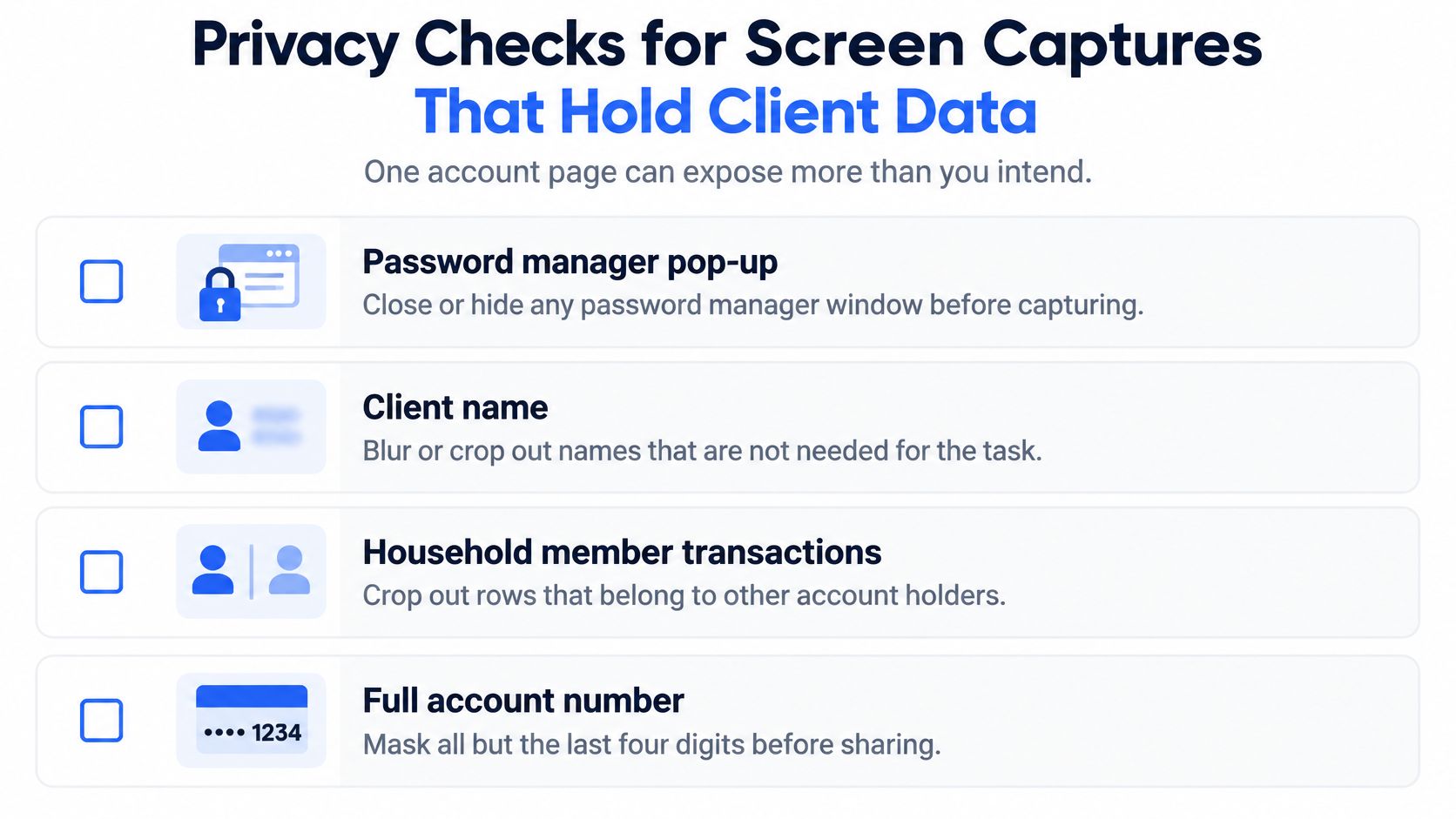
A screenshot of one account page can show more than the transactions you need. A password manager pop-up, a client's name, a household member's transactions or a full account number can sit in the same frame, and OCR turns all of it into searchable text.
On-device doesn't automatically mean private
Treat each capture as a lifecycle with five points to check. Note when pixels are captured, whether OCR text is stored, where clipboard history goes, whether thumbnails or logs remain, and how deletion works. Check which permissions the tool holds too, such as screen recording and accessibility access.
As CronusHQ's coverage of screen capture privacy notes, a locally processed capture can still create a searchable, persistent record on the device and expose data through backups or broad operating system permissions. A stolen laptop, an unencrypted backup or other software with disk access can expose stored captures. Retention and permission scope can matter more than where processing happens.
Distinguish one-off capture from continuous monitoring. A key press that grabs one region records only what you chose. A tool that watches the screen continuously records far more than the statement page, including data you never meant to collect. For client work, knowing how account numbers are shortened and masked helps you decide what must be cropped out before a capture is shared.
A five-point checklist
- Review permissions: Check screen-recording and accessibility permissions in system settings and remove apps you no longer use.
- Crop before saving: Cut out account numbers, unrelated people and pop-up windows.
- Clear the clipboard: Paste the text, confirm it landed correctly, then clear clipboard history.
- Delete the residue: Remove each capture along with any thumbnails or history it leaves behind.
- Check cloud storage first: Before running client statements through a cloud OCR provider, confirm where it stores images and for how long.
Capture the smallest region that contains the data you need. Everything outside that box can't leak, can't be misread and can't end up in a client's file by mistake.
Decide Whether Screen OCR Is Enough for Your Statements
Use a clear decision rule. Screen OCR suits a one-off extraction of a few pages you can check line by line. A dedicated converter suits recurring work, including multi-page statements, scanned files, password-protected PDFs and monthly reconciliation.
Keep the original statement on file either way. FDIC consumer guidance on electronic statements says account holders should immediately review electronic statements because timely error reporting can help limit liability, and recommends saving monthly statements securely when proof of payment may later be required. The IRS states that records supporting income, deductions or credits generally must be kept until the applicable limitation period expires, usually three years from the return due date for a timely filed return, and that electronic records are subject to the same requirements as paper records.
So the spreadsheet is a working copy, not a replacement for the statement. Keep temporary processing copies apart from records retained for tax, audit or dispute support. If your statements arrive as images inside PDFs, converting a PDF image to text is the same OCR problem at document scale.
Do one thing this week. Run a statement you've already reconciled through the free guest preview, compare the output against your ledger and confirm the balance test before you commit. We convert PDF bank statements, including digital, scanned via OCR and password-protected files, into CSV or Excel (XLSX), and the guest preview shows the table before you pay.
When screen capture stops being practical, we convert your PDF bank statements, including scanned and password-protected files, into clean CSV or Excel tables you can review in your browser before downloading. Try the free guest preview on a statement you've already reconciled, run the balance test against your ledger, and see the rows for yourself at autobankstatement.
Convert your next statement in minutes
Upload a bank statement PDF — digital, scanned, or password-protected — preview the extracted table, and download clean CSV or Excel.