OCR Best Program: How to Pick One for Bank Statements
Find the OCR best program for bank statements: compare accuracy, table recovery, pricing and privacy, then test before you commit.
The most popular advice on choosing an OCR best program is to pick the tool with the highest accuracy score. For bank statements, that advice points you in the wrong direction. A program can read nearly every character correctly and still drop a row, flip a sign, or move a decimal, leaving a spreadsheet that won't reconcile. We judge OCR by a different standard, reconciliation-ready output and the correction time it leaves behind. Data handling counts too, because a statement contains account numbers, balances, and transaction histories.
Table of Contents
- Quick Picks for Each Bank-Statement Situation
- Why Headline Accuracy Misleads on Bank Statements
- Compare Options and Privacy Trade-offs
- Cost, Speed and Integration Compared
- How to Run a Bulk Statement Batch
- Confirm Accuracy Before You Commit to a Program
Quick Picks for Each Bank-Statement Situation
There's no single OCR best program for every bank statement. The right choice depends on volume, scan quality, privacy rules, and who does the work. A solo bookkeeper with clean downloads needs something different from a firm facing boxes of faint scans, and both differ from an engineering team building a pipeline. For the general-purpose OCR landscape beyond statements, see our guide to the best software for OCR; this page focuses on reconciliation-ready statement conversion.
The table below is a shortlist by situation. Each row pairs a strength with its main trade-off, so the cost of the choice stays visible.
| Situation | Best fit | Why it fits | Main trade-off |
|---|---|---|---|
| Occasional scanned statements, technical staff available | Tesseract or OCRmyPDF, run locally | Free and offline, no statement leaves the machine | Weaker on noisy scans, you build preprocessing and validation |
| Text-based PDFs for monthly bookkeeping | Dedicated converter such as autobankstatement | Outputs CSV or XLSX, bulk upload | Still needs balance checks, paid subscription |
| Large scanned archives, engineering team | Google Document AI or Amazon Textract | Both outperformed standalone Tesseract as image noise rose | Custom parsing and table logic, per-page pricing and residency review |
| Enterprise capture with review workflows | ABBYY FineReader or FlexiCapture | About 8.8/10 overall in a 2025 business-document comparison | Licensing and setup effort |
| Sensitive statements that must stay local | Tesseract or OCRmyPDF on private hardware | No cloud upload, repeatable batch control | Accuracy depends on your preprocessing |
Reading the rows in practice
For occasional scanned statements with technical staff available, Tesseract or OCRmyPDF run locally keeps everything offline and costs nothing. The price is engineering time, since you own deskewing, cleanup, and every check. For monthly bookkeeping on text-based PDFs, a dedicated converter outputs CSV or XLSX and handles bulk upload, which suits regular bookkeeping, tax prep, and larger batches. You're paying a subscription, and you still verify balances.
For large scanned archives, cloud engines earn their place. Google Document AI produced the best result in a large benchmark, and both server-based systems substantially outperformed standalone Tesseract as noise increased, which matters on compression artifacts and faint photocopies. You'll build table reconstruction and pay per page. For enterprise capture, ABBYY options bring structured review workflows, balanced against licensing and setup effort.
A shortlist narrows the field. It doesn't settle the decision. Your own statements do that.
Sensitive files that must stay on local hardware belong on a local engine, where nothing is uploaded and batches run repeatably under your control. Accuracy then depends on your preprocessing, not a vendor's defaults.
For a quick one-off conversion, generic web-based OCR services can turn images, PDFs, and scanned documents into editable text, but most publish no independently audited accuracy rates, so treat them as a convenience option and verify every row. Use this table to shortlist two or three candidates, then run the test at the end before committing.
Why Headline Accuracy Misleads on Bank Statements
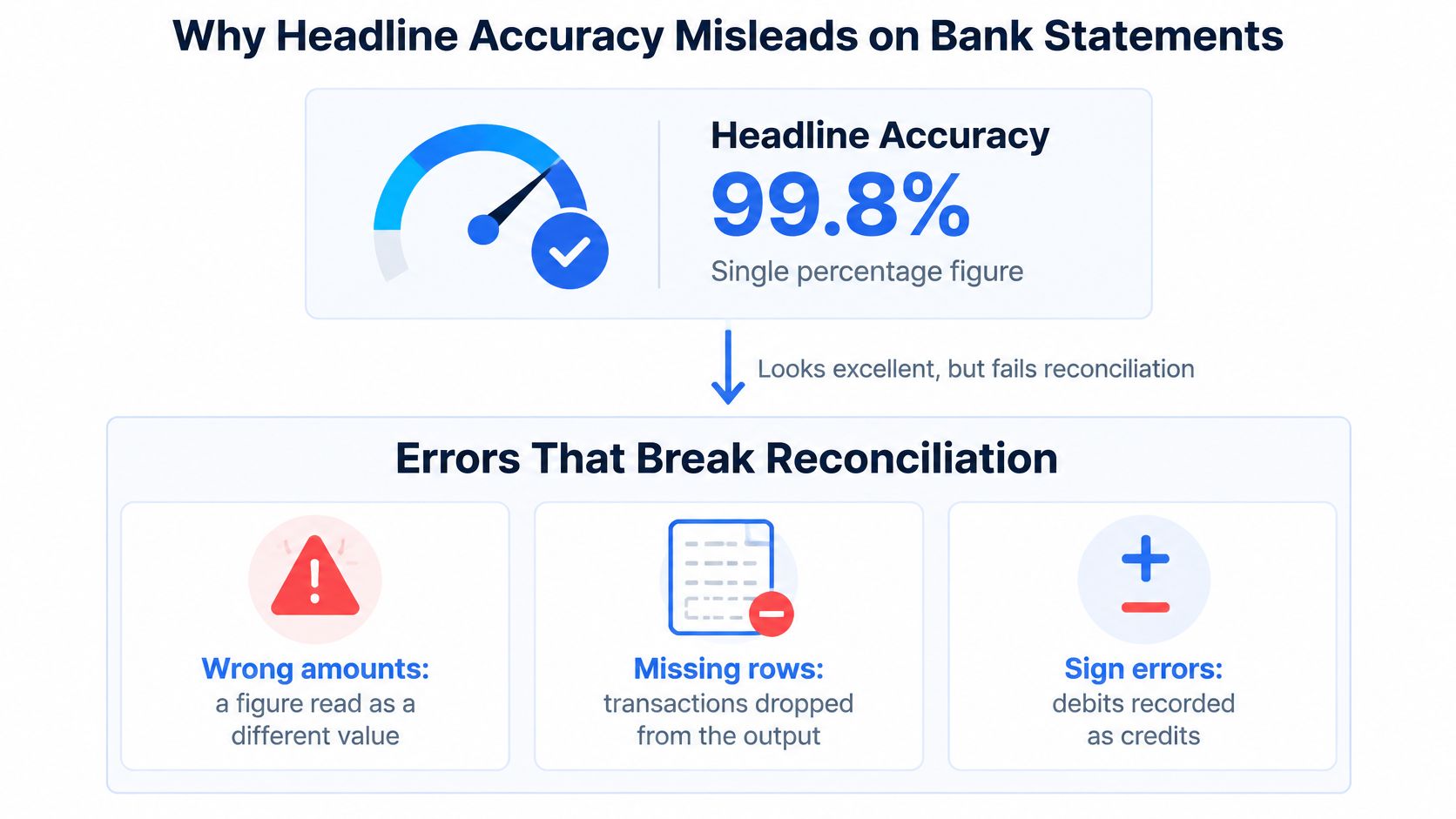
A single accuracy percentage can look excellent while hiding the exact errors that break reconciliation. Most rankings measure character-level accuracy on clean printed pages. Bank statements don't fail at the character level. They fail when a row disappears, a column shifts, or a debit lands as a credit.
The published pattern shows why. Leading systems perform near 98 to 99% on clean printed text but can fall to roughly 80 to 90% on noisy scans, unusual layouts, or low-resolution images, and even 90 to 97% integrity can leave material residual risk in finance. A score in that range sounds reassuring until you consider what the remaining errors do to a ledger.
What to measure instead
Track measures that map to reconciliation work, not character counts.
- Field-level accuracy: Dates, descriptions, amounts, and signs are each read correctly, not just most characters in them.
- Row-level completeness: Every transaction appears exactly once, with none merged across lines or split into two.
- Balance continuity: Opening balance plus credits minus debits equals closing balance on every page and every statement.
- Debit and credit classification: Money out stays money out, including amounts shown in brackets or with trailing minus signs.
- Duplicate detection: A transaction near a page break isn't captured twice.
- Exception rate: The share of rows a person must correct, which translates directly into minutes per statement.
One character, one broken statement
Consider a 1,200.00 debit read as 120.00. That's a single dropped character. A character score barely moves, yet the closing balance is off by 1,080.00 and the account won't reconcile. The balance check catches it immediately, because the equation stops balancing.
The same logic applies to dates and descriptions. A swapped day and month can push a transaction into the wrong period. A truncated payee can leave a tax record that can't support the entry it belongs to. None of these show up in a headline percentage.
Judge an OCR program by the quality of its spreadsheet-ready output and the minutes of correction it requires, not by its character score.
That's the standard we apply throughout. A program that scores slightly lower on raw characters but preserves rows, signs, and running balances will cost you less time than a higher-scoring tool that scrambles table structure. The question worth asking isn't which program reads characters best. It's which one produces the fewest reconciliation errors on your specific statement formats. Real financial workflows depend on preserving rows, columns, decimal separators, and running balances together, and a useful evaluation tests all of them at once on statements from your own banks.
Compare Options and Privacy Trade-offs
Two programs can read characters equally well and still differ completely on what happens to your file afterward. The matrix below compares options on the criteria that matter for statement work. Where a cell says no published figure, the vendor has not released one you can verify, and that absence is information in itself.
| Option | Best at | Noisy scans | Table and layout | Language support | Privacy model |
|---|---|---|---|---|---|
| Google Document AI | Scanned documents at volume | Best result in a published benchmark | Structured extraction with custom parsing | No single published figure in our data | Cloud, review residency and retention |
| Amazon Textract | Cloud extraction at scale | Substantially beat standalone Tesseract as noise rose | Structured output needs your table logic | No single published figure in our data | Cloud, review residency and retention |
| ABBYY FlexiCapture | Enterprise capture and validation | Higher overall score in a 2025 comparison | Built for structured capture | Deployment dependent | Depends on deployment |
| Adobe PDF Extract | Structured PDF extraction | Lower overall score in a 2025 comparison | Structured PDF output | No single published figure in our data | Review provider terms |
| Tesseract | Offline, privacy-sensitive batches | Weaker than server engines, needs preprocessing | Raw text, layout must be rebuilt | Broad, via language data packs | Local, data stays on your hardware |
| OCRmyPDF | Local searchable-PDF batches | Inherits Tesseract results | Adds searchable text layer, no table rebuild | Inherits Tesseract languages | Local, data stays on your hardware |
| autobankstatement | Bank statements to CSV or XLSX | No published rate; test on your files | Transactions as rows, balances preserved | No published figure | Confirm terms; Registered downloads accessible for 24 hours |
What the benchmarks actually show
A large benchmark across 18,568 generated document samples and 51,304 processing requests found Google Document AI produced the best results, with both server-based systems substantially outperforming standalone Tesseract, especially as image noise increased. That gap matters on skew, background marks, and low-quality photocopies.
Document type drives results just as much. A Code4Lib comparison of Adobe Acrobat, ABBYY FineReader, and Tesseract on digitized archive texts cites earlier research reporting OCR error rates of up to 30% in digitized historical issues of the British Medical Journal. Degraded or structurally complex source material drags any engine down, which is why generic rankings transfer poorly to your statements.
Our own service sits in a narrower lane. We convert bank statement PDFs into CSV or Excel outputs, accept files up to 25 MB, and allow multiple files for bulk conversion. We publish no accuracy rate. Treat any rate a vendor cannot back with a benchmark as unverified, and run your own statements to check the balances. Our guide on choosing a PDF to Excel file converter for statement work covers the format decision in more depth.
Privacy is part of the comparison
Bank statements carry a higher privacy burden than ordinary scans. Local tools such as OCRmyPDF, Tesseract, and NAPS2 suit privacy, repeatability, and batch control, while cloud APIs suit large-scale processing, and there's no universal best tool across these goals.
Put these questions to any provider, including us.
- Retention: How long do uploaded files and extracted fields persist after processing?
- Passwords: Where is a statement password entered, and is it stored?
- Download expiry: Do download links expire, and when?
- Residency and encryption: Where is data processed, and how is it protected in transit and at rest?
- Auditability: Are uploads, downloads, and deletions logged?
Where we can answer today: the Registered option gives easy access to recent results and downloads for 24 hours. On retention windows, password handling, residency, and logging, ask before you upload client files and get the answer in writing. Apply the same check to every provider on this list, because marketing pages rarely spell these terms out.
If your firm requires configurable retention or a complete audit trail, a local engine or an enterprise deployment will fit better, whatever the accuracy difference. No option leads on every criterion, so test several months of your own statements before committing.
Cost, Speed and Integration Compared
Headline prices hide what a statement actually costs, so run the per-page math on your own volume before comparing anything. Count accounts, multiply by pages per statement, then multiply by the months in a batch. Say you handle twenty client accounts with three-page monthly statements: that is sixty pages a month, a very different workload from a firm closing a hundred books at month end. The right access option follows from that arithmetic.
We keep the choice narrow on purpose.
| Option | What it provides | Best suited to |
|---|---|---|
| Registered | Easy access to recent results and downloads for 24 hours | Occasional conversions and one-off batches |
| Subscribe | Recurring access for ongoing statement work | Regular bookkeeping, tax prep, and larger batches |
The first 10 subscribers get 50% off their first purchase with code FIFTYFIFTY. Whichever option fits, each file can run up to 25 MB, and you can add multiple files for bulk conversion, so a month of client statements goes up as a single batch.
We don't publish a per-page cloud comparison here, because cloud document services price differently and add your own engineering cost on top. A cheaper per-page rate that needs weeks of parser work is rarely cheaper.
Speed, stated honestly
Scanned statements take longer than text-based ones because OCR adds work. Text-based PDFs skip recognition entirely and finish faster. Page quality, resolution, and statement length all shift the timing, which makes any single vendor speed figure a poor planning tool.
Timing rule: Run one representative batch, including your worst scan, and plan around that result instead of a published per-image number.
Time the full cycle. Upload, preview, correction, and export all count. A fast engine that needs heavy cleanup loses to a slower one that produces clean rows.
Integration paths worth weighing upfront
If you are building a pipeline, cloud document AI services offer programmatic APIs, and open tools like Tesseract and OCRmyPDF connect through code or command-line jobs. That route gives full control and costs engineering time to build and maintain. Desktop capture tools sit between these poles, with licensing and workstation setup in place of API work.
Our service sits in the file-delivery category. You upload statements, we return CSV or XLSX downloads, and you import the output wherever your books live. Plan sessions around the Registered option's 24-hour access to results and downloads: it works as a temporary working area, so anything you still need after it closes has to live in your own records.
How to Run a Bulk Statement Batch
Two intake patterns cover most of the work we see. An accounting firm runs a monthly batch across many clients at close. A loan officer or freelancer converts one applicant's statements once, often several months at a time. The procedure is the same. The scale and the stakes differ.
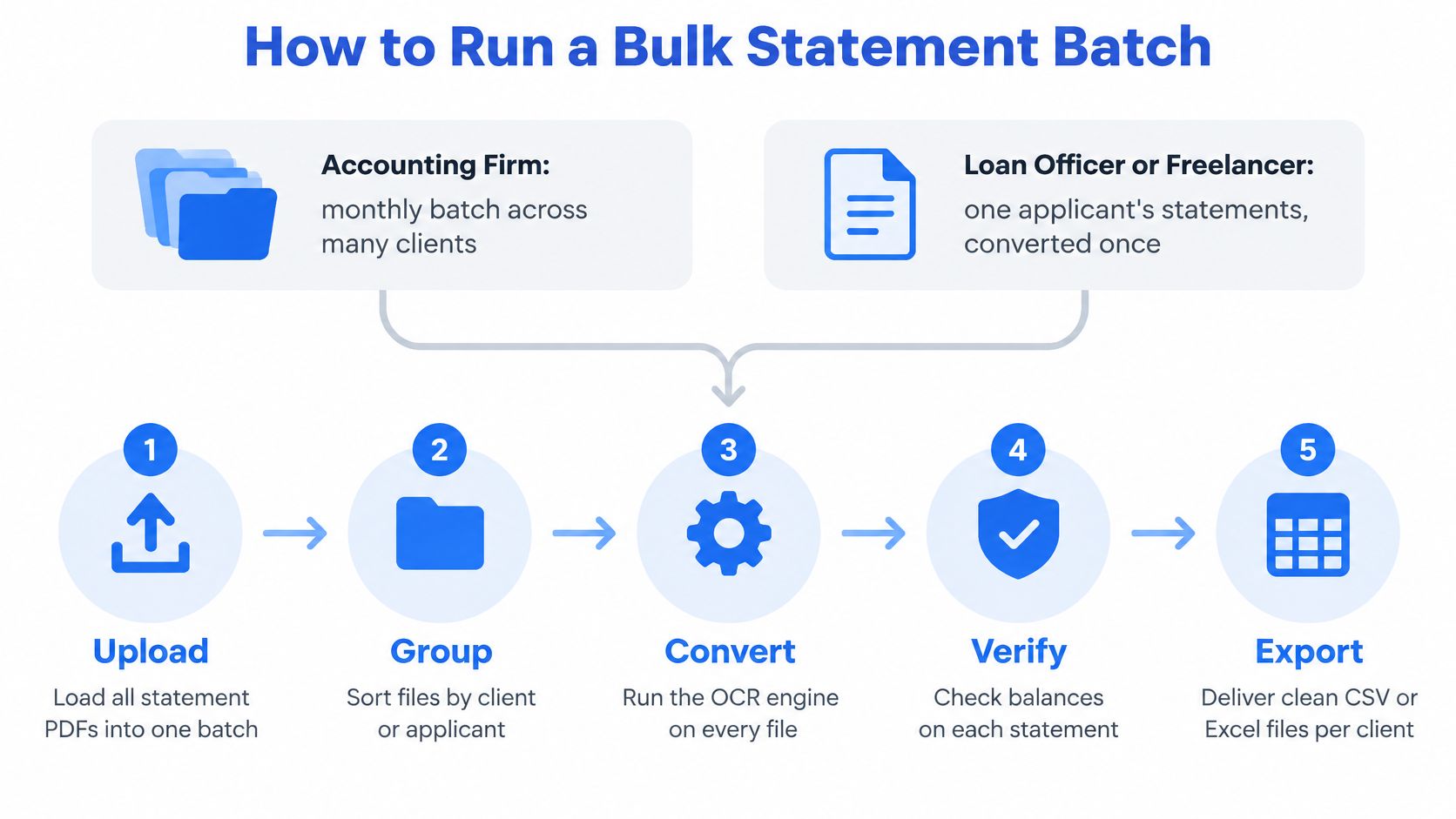
The batch procedure
- Sort by client, account, and month. Name files consistently before upload, so every output can be traced back to its source statement without opening it.
- Separate files by type. Split text-based, scanned, and password-protected PDFs into groups, because scanned and locked files need closer review after conversion.
- Enter passwords at upload. Add each password for the files that need one, and note which accounts were locked. That note explains any delay later and keeps credentials out of email threads.
- Upload the batch in one session. Keep each file under the 25 MB limit and use bulk upload rather than processing statements one at a time.
- Preview before download. Check each statement in the browser and correct obvious header or layout errors while the source is still on screen.
- Export and file together. Download CSV or XLSX for each account and save it beside the original PDF in the client folder, never in a separate downloads pile.
- Record period and page count. Log the statement period and page count for each file. That log becomes the reference for the completeness check that follows.
Consistent intake is what turns conversion into a repeatable close process rather than a fresh scramble each month. Our notes on reaching maximum data entry efficiency without adding staff cover the surrounding habits that keep batches moving.
The single-applicant variant
For a loan file or a freelancer's tax records, follow the same seven steps with one adjustment. The balance check must cover the full review period, not just one statement. A reader assessing an applicant trusts the running balance across months, so confirm that each month's closing balance becomes the next month's opening balance. A gap between statements, or a mismatch at the join, undermines the whole set even when every individual page converted cleanly.
Sorting discipline matters more here, not less. With one person's statements, it's tempting to upload everything in arrival order. Sort chronologically first. You'll spot a missing month in seconds, and the reviewer won't have to reconstruct the sequence from file names.
Confirm Accuracy Before You Commit to a Program
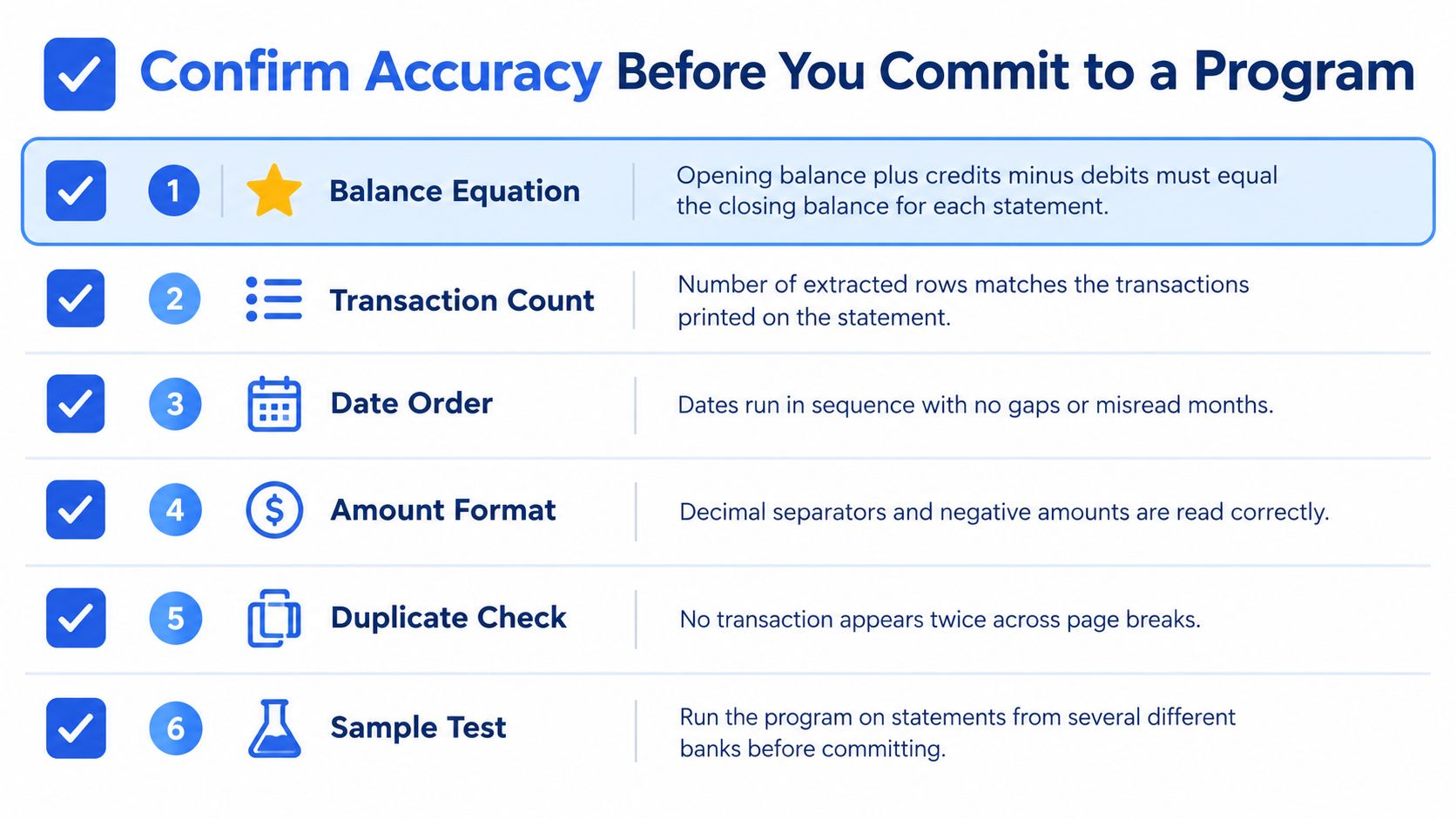
One check catches most failures. Opening balance plus credits minus debits must equal closing balance for each statement. Run it before anything else. If the equation balances, the extraction is probably sound. If it doesn't, no other quality measure rescues the file.
The verification sequence
- Compare transaction count. Match the number of extracted rows against the statement's page count and printed summary. A shortfall means a page or block was skipped.
- Check page-level totals. Compare extracted page totals with the totals printed on the statement. Page breaks are where rows get dropped or doubled.
- Spot-check about ten rows per statement. Include the first and last rows, any negative amounts, and transactions near month end, since those carry the highest error cost. Our walkthrough on converting a scanned PDF to Excel with checks intact shows where these errors usually surface.
- Confirm descriptions and dates. Check that descriptions aren't truncated at line breaks and that dates follow the statement's own format, not your spreadsheet's default.
- Re-run failing pages and keep the source. Reprocess any page that fails, correct it by hand if needed, and keep the original PDF filed with the output.
Why the source file stays
Converted spreadsheets are working documents, not evidence. IRS guidance requires electronic records to be complete, accurate, legible, and retrievable, with systems that index, store, preserve, retrieve, and reproduce records in legible form. The same guidance accepts scanned records and treats a legible bank statement as proof of payment.
That creates a clear obligation. Compare OCR output against the source PDF, especially dates, decimal points, transaction signs, check numbers, and page totals. The CSV supports your reconciliation. The retained statement supports your tax filing and any audit. Deleting the original because the spreadsheet looks clean removes the record you'd be asked to produce.
Common errors, causes, and fixes
| Symptom | Likely cause | Fix |
|---|---|---|
| Balance check fails by a round amount | A debit or credit misread, or a row missed | Compare the row with the PDF and re-run the page |
| Negative amounts show as positive | Brackets or minus signs not parsed | Correct the sign rule and check debit and credit classification |
| Description cut off at a line break | Wrapped text split across rows | Join wrapped lines before import and keep the original for reference |
| Columns shifted in some rows | Skew or uneven table lines on a scan | Re-scan at higher resolution or correct the page by hand |
| Day and month swapped | Date format misread | Confirm the format against two known transactions |
| Page total missing or doubled | Page break handled incorrectly | Compare page totals with the statement summary |
| Scanned page skipped | Faint or photocopied page not read | Check the page count against the source and re-run the page |
Most of these failures announce themselves through the balance equation or the row count. That's why those two checks come first. Chasing individual cell errors before confirming the totals wastes effort on files that may need a full page re-run anyway.
Spend your review minutes where the money moves. Balances first, then signs and month-end rows, then everything else.
The decision rule
Run three months of your own statements through each shortlisted program. Use real files, including at least one scan you'd normally apologize for. Count balance failures, count corrected rows, and time the cleanup per statement.
Then choose the program with the fewest balance failures and the lowest correction time per statement. That result predicts your monthly workload. A vendor's headline score doesn't. If two programs tie on accuracy, let the privacy and integration fit decide, since those constraints don't improve with practice. Whichever program wins, keep the verification sequence in your monthly routine. OCR quality shifts with new statement layouts, new banks, and worse scans, and the balance check is what tells you when it has.
We convert digital, scanned, and password-protected PDF bank statements into clean CSV or Excel files, with a free guest preview before payment, bulk upload for monthly batches, and uploads that auto-delete within 24 hours. Run three months of your own statements through the balance check described above and judge us on correction time, not promises. Start your first conversion at autobankstatement.
Convert your next statement in minutes
Upload a bank statement PDF — digital, scanned, or password-protected — preview the extracted table, and download clean CSV or Excel.