Converting PDF Image to Text for Bank Statements
Learn how converting PDF image to text works for scanned bank statements, with OCR steps, preprocessing settings and balance checks before import.
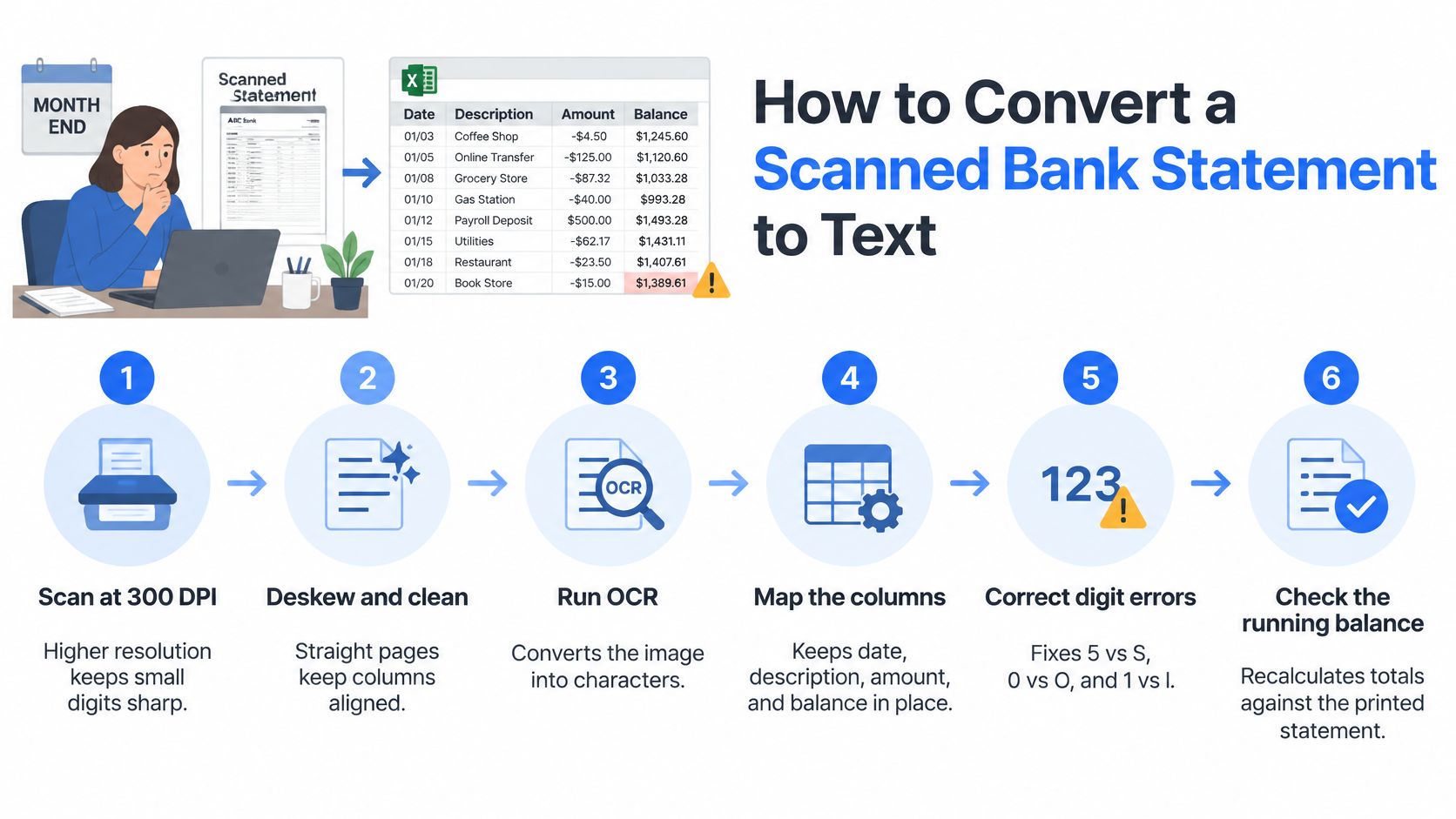
It's month-end, and the scanned bank statement has finally pasted into a spreadsheet. The columns look tidy, the descriptions seem readable, yet the closing balance is off by a few dollars. Before we adjust anything, we need to find the source line that changed during conversion.
Converting PDF image to text is only the extraction stage. For bookkeeping, we also need transaction rows we can trace, amounts we can recalculate, and the original statement available for comparison.
Table of Contents
- How to Convert a Scanned Bank Statement to Text
- Preprocessing Settings That Protect Amounts
- Verify Totals Before the Data Leaves Your Desk
- Common OCR Errors and How to Fix Them
- Handling Statement Privacy and Proof of Origin
- Choose Your Workflow and Keep the Source File
How to Convert a Scanned Bank Statement to Text
A PDF isn't necessarily a text document. It can hold embedded text, page images, or a mixture of both, a distinction explained in Adobe's PDF accessibility guidance. That determines whether we can extract existing characters or need optical character recognition, commonly called OCR, to interpret pixels.
Establish what the file contains
Test for a text layer. Open the PDF and drag-select a transaction line. Search for a known description with Ctrl+F or Cmd+F, then paste the selected line into a blank document. Selectable, searchable text can usually go straight to extraction; an empty selection or a selected image suggests the page needs OCR. A searchable page can still have an inaccurate older OCR layer, so inspect the pasted result.
Unlock the statement with its authorized password. Use the password issued by the bank before rendering or extraction begins. If the converter accepts protected files, supply that password through its upload process. Don't try to solve a password problem by printing screenshots of the statement, which replaces the original document with another image.
Prepare image-only pages. Straighten the rows, improve contrast, and crop a working copy to the transaction table while retaining its headers. Keep the untouched original separately. The purpose is to make punctuation and column boundaries easier to recognize, not to make the page look attractive.
Extract, review, then release
Run OCR and export structured columns. Keep date, description, debit, credit, and balance separate in CSV or XLSX. Where the statement distinguishes transaction date from posting date, preserve both rather than forcing them into a single field. The CFPB model periodic statement illustrates why transaction dates, posting dates, descriptions, amounts, and activity categories have distinct meanings.
Compare the output with the source. Run the balance, continuity, row-count, and amount checks before treating the sheet as usable bookkeeping data. Check spreadsheet field types too: a date that becomes text or an amount imported with the wrong decimal separator can cause trouble after otherwise successful recognition.
Import only the checked output. Save the reviewed spreadsheet alongside the original PDF, with matching statement-period identifiers. Preserve an unedited extraction separately from the version prepared for import, so later changes remain explainable.
Practical rule: A readable description doesn't compensate for an unreadable amount.
When something fails, identify whether it began with file access, image preparation, recognition, column mapping, or import formatting before changing the spreadsheet.
Preprocessing Settings That Protect Amounts
Start with 300 DPI grayscale, level rows, and a crop that includes the table headers. Treat that as a practical starting setting, not an accuracy guarantee. Image preparation determines whether OCR can distinguish a faint minus sign, a decimal point, or a narrow digit from the background.
Starting preprocessing settings for bank statement scans
| Setting | Starting point | Why it matters | Warning sign |
|---|---|---|---|
| Resolution | 300 DPI for printed statements | Small digits and decimal points need enough pixels to be distinct | Tiny or merged characters in the output |
| Color mode | Grayscale | Keeps faint shading without a heavy file size | Grey speckle or background noise in text |
| Deskew | Rows level and running straight across the page | Tilted rows push amounts into neighbouring columns | Text lines wrapping across columns |
| Contrast | Clean white background with solid black text | Faint minus signs and decimal points disappear otherwise | Missing signs or dropped decimals |
| Despeckle | Remove isolated dots and specks | Dots are read as commas or periods | Stray punctuation in amount columns |
| Crop | Table area only, including the header row | Page edges and punch holes are read as characters | Junk rows at the top or bottom |
| Compression | High-quality scan, avoid repeated re-saving as JPEG | Compression artifacts blur 0 and O, 1 and I | Confusable characters such as 0 and O in amounts |
Skew deserves attention because character recognition and row assignment are different jobs. A processor might read an amount correctly but attach it to the neighbouring transaction. A NIST document-image experiment measured skew across 122 images in an average of 1.5 seconds, showing that automated straightening can be a routine preprocessing operation rather than a specialist intervention.
Rotation and deskew aren't interchangeable. Turn a sideways page upright first, then correct its smaller tilt; our guide to rotating PDF files covers orientation changes. Inspect each page rather than assuming the entire statement was scanned at the same angle.
Test the amounts, not the appearance
Aggressive cleanup has costs. Despeckling can erase decimal points, while strong thresholding can remove faint brackets or thin strokes. Cropping too tightly can also exclude a balance column or a transaction that extends into the margin.
Increasing resolution won't restore detail already lost in a compressed source. Nor will it correct a parser that mistakes a wrapped description for another transaction.
For a baseline test, take a representative page from each bank and process it using contrasting cleanup settings. Compare the resulting amounts and row assignments with the image. Keep the setting that preserves the financial fields, not the setting that produces the smoothest-looking page or the highest general text score.
Verify Totals Before the Data Leaves Your Desk
Conversion success is not data safety. A spreadsheet can open normally while containing a missing transaction, a misplaced decimal, or a debit assigned to the credit column. The institutional OCR workflow report reinforces the distinction between completed conversion and reliable recognition, supporting field-level review rather than acceptance based on file creation alone.
Run the reconciliation checks in order
Verify the balance equation. Check opening balance + credits − debits = closing balance for a deposit-account statement. In a hypothetical example, 4,210.55 + 3,000.00 − 2,845.30 = 4,365.25. Compare every input with the printed statement, not just the calculated result. The FDIC checking-account balancing guide identifies deposits, withdrawals, fees, and beginning and ending balances as statement information used in balancing.
Check page continuity. Where the statement prints carried-forward balances, match each page's ending figure to the next page's starting figure. Don't interpret a repeated balance label as a new transaction.
Count transaction rows by page. Compare visible transactions with exported records, excluding headings, subtotals, and carried-forward lines. A wrapped description is still part of its transaction, not an extra record.
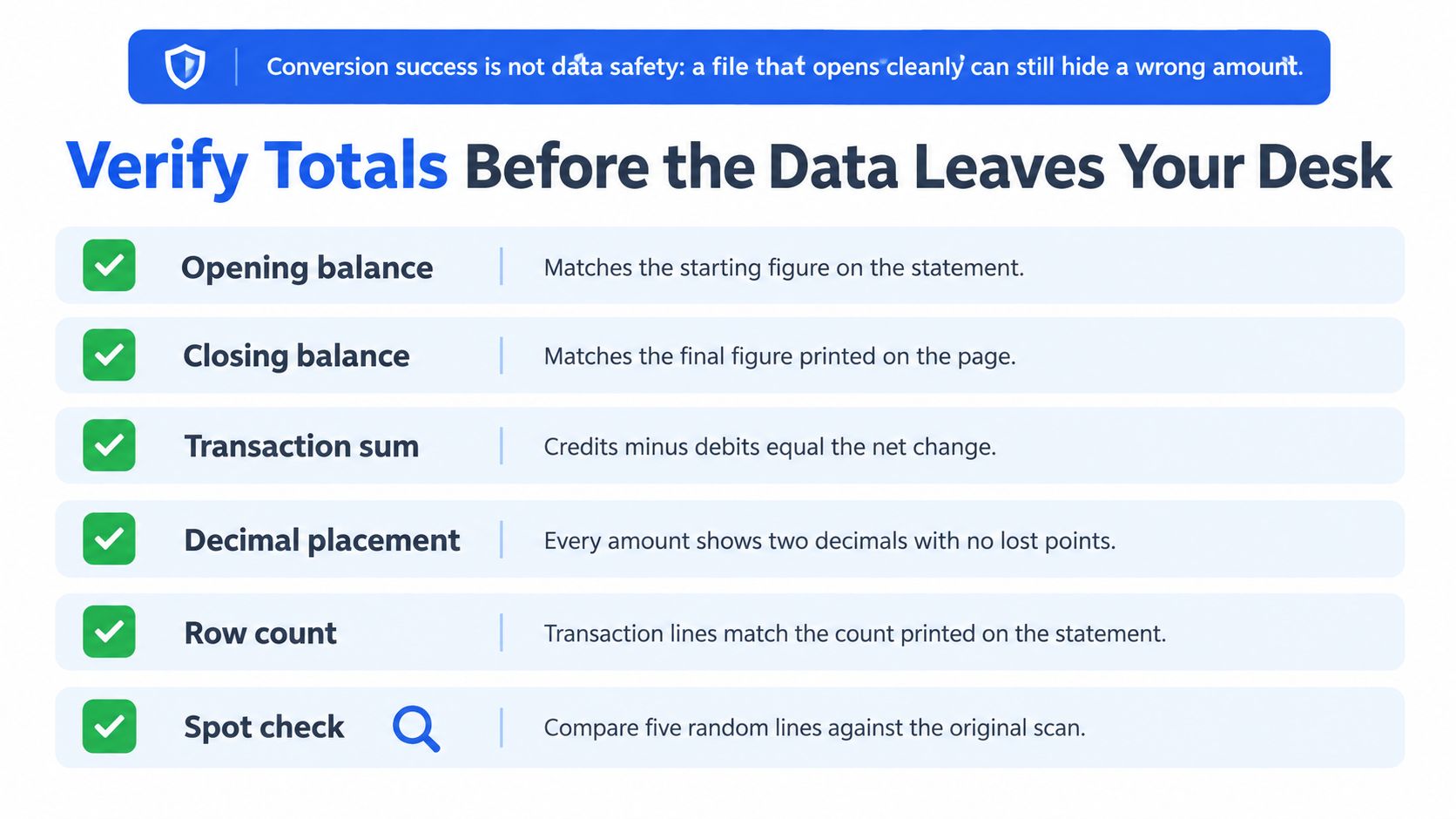
Compare printed totals. Sum exported debits and credits independently and compare them with any corresponding statement totals. Make sure fees and other separately presented activity haven't been omitted or counted twice.
Inspect material and sampled transactions. Compare every row above the review threshold established for the engagement, plus a sample of smaller entries, against the source image. Pay particular attention to dates, signs, decimal placement, and transaction descriptions that determine coding.
Resolve flagged fields. Route ambiguous punctuation and low-confidence OCR results to a reviewer where confidence information is available. If the output doesn't expose confidence, flag suspicious formats and failed arithmetic instead; the absence of warnings isn't approval.
Record what passed
Use the statement's own labels when classifying activity. Our guide to reading a bank statement can help distinguish transaction activity from summary information before we assign columns.
A matching closing balance is necessary, but it isn't sufficient: offsetting errors can cancel each other. Keep the row and source-image checks even when the equation passes.
Record the date checked, source file name, transaction count, equation inputs, and reviewer with the working file. Another colleague should be able to reproduce the check without guessing which export was approved.
Common OCR Errors and How to Fix Them
A merged row or lost minus sign can look plausible on screen. The amount may still resemble a normal payment, and the description may remain readable enough that nobody notices the mismatch.
Noise and layout deserve separate diagnosis. A peer-reviewed OCR benchmarking study found that increasing image noise raised recognition errors across the systems tested. That supports improving the source image, but a column-assignment problem also requires layout correction.
OCR symptoms, likely causes and fixes for bank statements
| Symptom in the output | Likely cause | Fix |
|---|---|---|
| Balance check fails by a round amount | Row omitted or duplicated at a page break | Compare row count per page and re-OCR the page at better quality |
| Debit shows as credit | Minus sign or brackets lost, or column shifted | Read the sign from the column header, fix page skew and reprocess |
| Two transactions merged into one row | Tight line spacing or a wrapped description | Check the image, split the row, then reprocess the page |
| Columns drift on later pages | Each page tilted differently or layout changed | Deskew page by page and confirm column boundaries on the first page |
| Descriptions garbled or cut short | Low contrast, small font or heavy compression | Rescan at higher quality and avoid re-saving the scan as JPEG |
| Fewer pages in output than in the PDF | Page not rendered, or password not applied | Unlock the file, confirm the page count and rerun the conversion |
Start a balance-failure investigation at page boundaries. A missing or doubled transaction there is worth ruling out before we inspect individual characters throughout the sheet. Count the affected page's records and inspect its first and last transaction.
For merged rows, use the image to establish the intended split. If we make a manual correction in the working spreadsheet, record it and check that the amounts and dates remain attached to the correct descriptions.
Never correct the closing total just to make the spreadsheet balance. Correct the transaction that caused the difference.
Confirm the repair at source
Reprocess the affected page after changing image quality or layout settings, then compare the new result with the previous export. Check that the repair hasn't removed a neighbouring row, shifted a column, or created another duplicate.
A successful repair produces the right source-linked transactions and passes the reconciliation checks. A visually cleaner page alone doesn't confirm anything.
For recurring monthly work, retain a representative test page whenever a layout proves difficult. Run it again after changing the extraction method, so a fix for one bank doesn't silently break another bank's format.
Any row we can't tie to a visible source line remains unverified. Hold it out of import until someone checks the image and resolves the discrepancy.
Handling Statement Privacy and Proof of Origin
Searchable text doesn't prove that a statement is genuine. The ACM DocEng proceedings highlight the sensitivity of documents and weaknesses in document-protection methods. Privacy controls and origin checks therefore belong alongside extraction, not after it.
A clean spreadsheet cannot establish who issued its source. When authenticity matters, obtain the statement through an authorized bank channel or follow the lender's, auditor's, or engagement's source-verification procedure.
Keep exposure limited and evidence intact
Retain the original PDF. File it beside the converted output. OCR can normalize or omit visual differences such as altered fonts, overwritten amounts, or unusual page composition, so reviewers need the image as well as the extracted values.
Keep passwords out of working records. Supply the statement password only through the authorized upload or unlocking process. Never put it in a spreadsheet cell, file name, or message accompanying the extract.
Plan around temporary access. Our uploads auto-delete within 24 hours, and registered users receive 24-hour download access. Download and file the output the same day rather than relying on the conversion service as an archive.
Share only what the reviewer needs. If a task requires transaction activity but not account identifiers, prepare a limited review copy. Use consistent, unambiguous labels; our account-number abbreviation guide helps distinguish account-reference fields from other identifiers.
Apply your records policy to both files. The IRS guidance on gathering tax records recognizes scanning paper records and states that electronic storage requirements apply to electronic books and records as they do to hard-copy records.
Evidence boundary: Arithmetic checks support extraction accuracy. They don't authenticate the issuer.
The converted file is a working record that supports use of the source. It doesn't replace the source or establish authenticity on its own.
Choose Your Workflow and Keep the Source File
Choose the route by the statement's condition and intended use, not merely by how quickly we can produce a download.
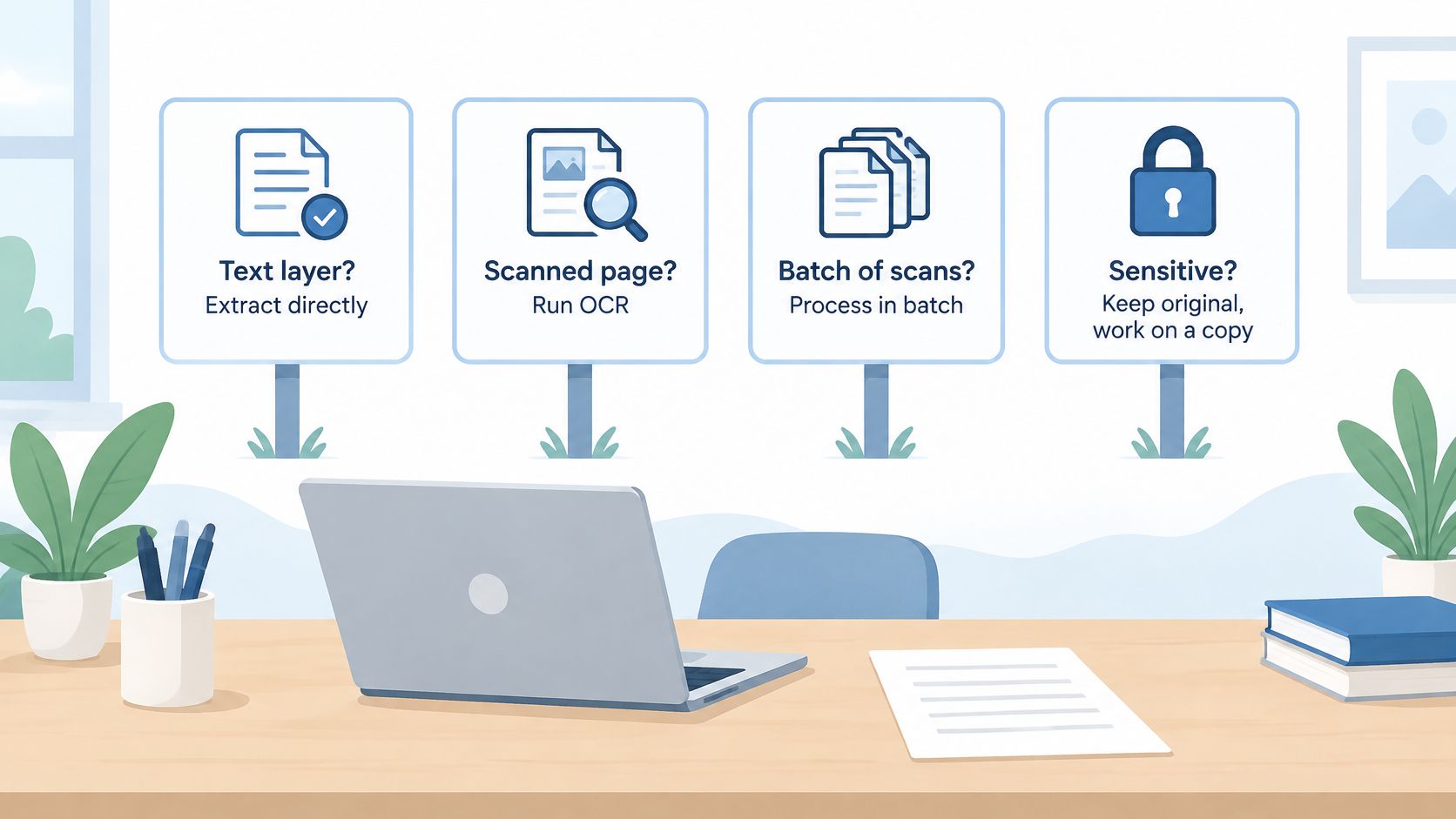
- Single digital statement. Extract its existing text, inspect the column mapping, and complete the balance check.
- Scanned monthly statement. Prepare the page images and run the full verification checklist before import.
- Several clients at month-end. Use repeatable settings by bank layout and maintain a representative regression page for each bank. Don't force visibly different layouts through an unsuitable shared template.
- Lending, tax, or audit support. Retain the original and require another person to review every flagged row before releasing the working file.
Prove the workflow before processing a batch
One option is autobankstatement, which converts digital, scanned via OCR, and password-protected bank statement PDFs into CSV or Excel/XLSX. We support bulk upload of files up to 25 MB each, with a free guest preview before payment.
Use that preview to examine difficult transactions, not just the first readable rows. A sensible trial includes a page break, a wrapped description, and any faint signs or decimals present in the source.
This week, run a statement from upload through reconciliation, record the result, and resolve every unexplained difference before processing a batch. Keep the source under your own privacy and retention controls rather than treating temporary conversion access as document storage.
Visit autobankstatement to preview your bank statement conversion before payment and prepare a CSV or Excel file for review. Start with a statement you can reconcile against its original PDF, verify the arithmetic, and only then move the checked transactions into your bookkeeping workflow.
Convert your next statement in minutes
Upload a bank statement PDF — digital, scanned, or password-protected — preview the extracted table, and download clean CSV or Excel.