
How to Convert PDF to Google Sheets: A Practical Guide
Learn how to convert PDF to Google Sheets for bank statements and invoices. Compare automated tools, manual methods, and verification steps to ensure accuracy.
You're staring at a PDF that needs to land in Google Sheets, and the file probably contains the one thing nobody wants to rekey by hand at month end, rows of transactions, balances, or invoice lines that have to stay intact. The trap is that PDF files are built for viewing, not for spreadsheet work, so the conversion has to protect structure first and formatting second. If we lose the row logic, the sheet becomes busy-looking but useless for reconciliation.
The practical answer is to treat this as a PDF-to-structured-data problem, not a simple file swap. Google Sheets doesn't natively import PDF files, so we need an intermediate format such as CSV or XLSX, then a clean import step, then a quick arithmetic check to prove the data still reconciles. That last part matters more than most guides admit, because a pretty spreadsheet can still hide broken totals.
Table of Contents
- Why PDF Conversion Requires an Intermediate Step
- Using Autobankstatement for Secure Automated Conversion
- Importing the Converted File into Google Sheets
- Manual Fallbacks and Their Hidden Risks
- Verifying Data Integrity Before You Close
- Best Practices for Ongoing Statement Workflows
Why PDF Conversion Requires an Intermediate Step
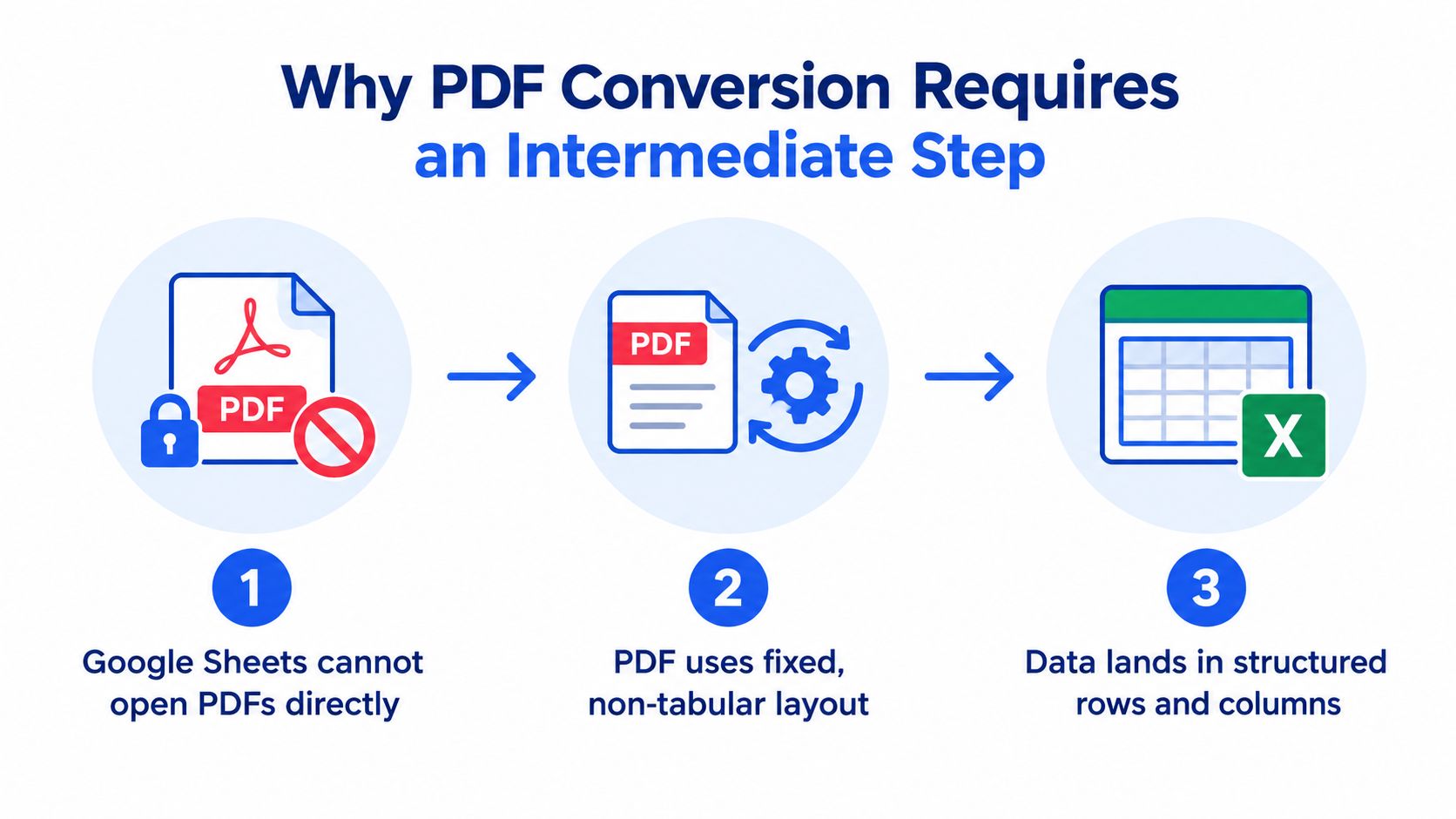
Google Sheets doesn't natively import PDF files, so the normal path is to convert the PDF into CSV or Excel first, then bring that file into Sheets through the import flow. Google's own import options are built around spreadsheet files, not PDF files, which is why the process is indirect rather than built in. For finance work, that difference matters because the goal isn't just opening a document, it's preserving rows, balances, and transaction structure for review and reconciliation.
Text-based PDFs and scanned PDFs behave differently
A text-based PDF usually converts more cleanly because the text already exists as selectable content. A scanned PDF is different, it's an image of text, so OCR has to read it before any table data can be extracted. That extra step is where structure starts to fall apart, especially when the PDF contains bank statement columns, merged cells, or repeating headers.
Practical rule: if you can't select the text cleanly inside the PDF, assume the table structure will need extra help before it reaches Sheets.
The problem is not just visibility. It's the layout model. A PDF stores text in fixed positions on a page, while a spreadsheet expects data in cells with real row and column relationships. That's why copy-paste often dumps everything into one column or breaks the table into a mess that needs rework.
For a deeper look at why extraction and parsing are not the same job, see what data parsing means in practice.
Using Autobankstatement for Secure Automated Conversion
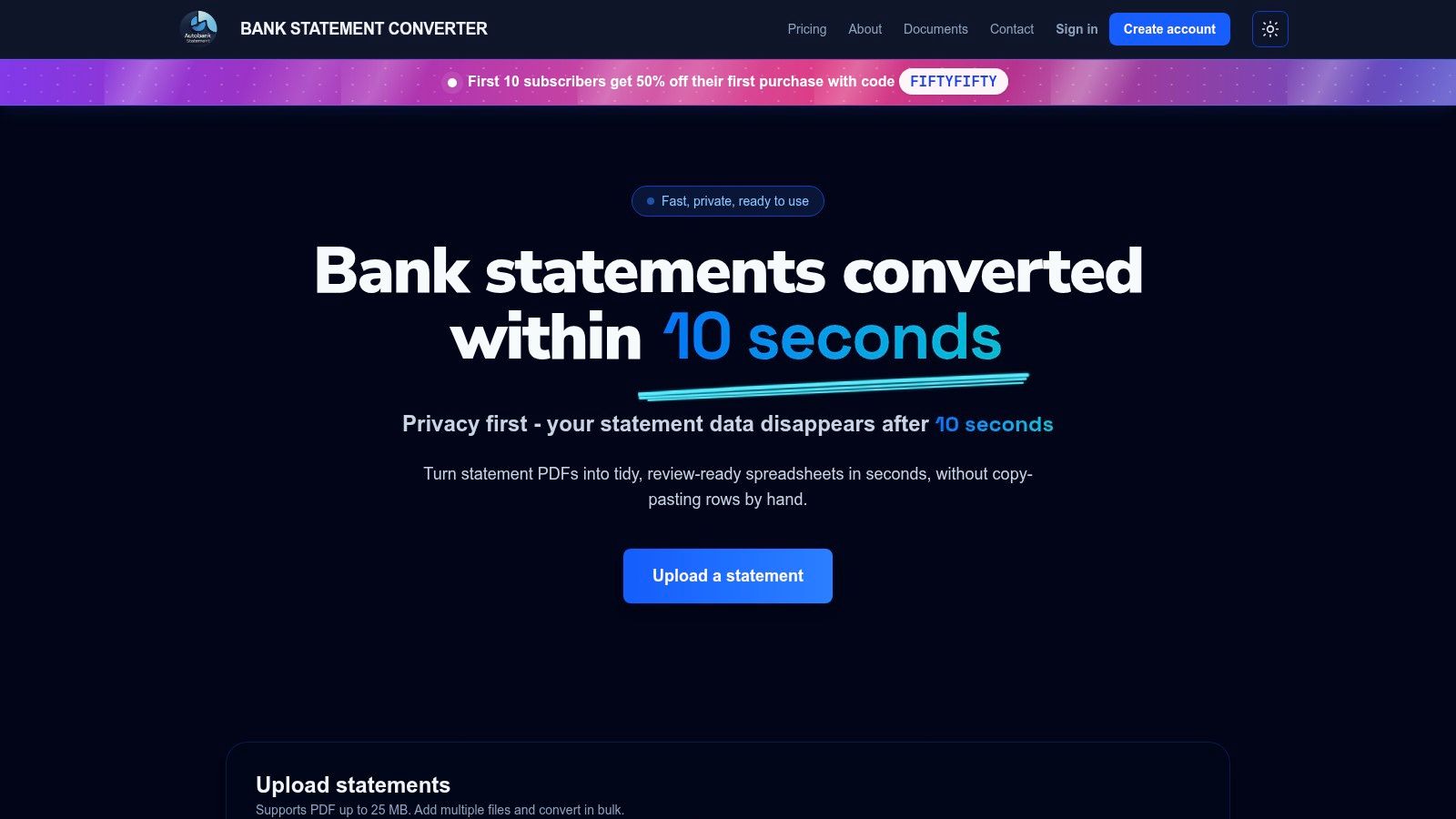
When we're handling bank statements, the cleanest workflow is a purpose-built converter instead of a generic PDF tool. Autobankstatement converts PDF bank statements, including digital, scanned, and password-protected files, into CSV or Excel/XLSX. It also supports bulk upload, accepts files up to 25 MB, gives a free guest preview before payment, and lets registered users download for 24 hours before files are deleted automatically.
Upload the statement, then check the preview
The workflow is straightforward. Upload the statement, enter the password if the file is locked, and let the browser preview show the extracted rows before download. That preview step matters because it lets us see whether transaction lines, dates, descriptions, and balances survived the conversion in a form that's sheet-ready.
If the statement is scanned, OCR has to do the first pass. That doesn't mean the result is finished. It means we still need to check that the table columns stayed aligned and the amounts didn't drift into the wrong field.
We want the converter to do the repetitive work, not the judgment call. The judgment call is whether the file is ready for import.
Use the file type that matches the job
For reconciliation work, CSV is often the easiest landing format because Sheets handles it cleanly, while XLSX is useful when we want a preserved spreadsheet container. Autobankstatement is set up for that financial-document use case rather than general text extraction, which is the right fit when the source is a bank statement and the output needs to survive month-end review.
Practical rule: the converter is only half the control. The other half is checking that the opening balance, credits, debits, and closing balance still match before anyone uses the file.
For the service itself, go to Autobankstatement and use the preview to confirm the structure before you pay or download.
Importing the Converted File into Google Sheets
Once the PDF has become CSV or XLSX, the import step in Google Sheets is simple, but it's also where avoidable mistakes show up. Open Sheets, use File > Import, then choose whether you want to create a new spreadsheet or replace data in an existing one. That decision affects whether we keep the converted file isolated for review or drop it into a working sheet that already has formulas and headers.
Choose the import mode carefully
A new spreadsheet is safer when we're testing a fresh conversion or comparing several statement formats. Replacing the current sheet makes sense only when the structure is already set and we know the incoming file matches it. If we choose the wrong option, we can overwrite existing reconciliations or force mismatched columns into an old layout.
The main import risk is column drift. Dates, descriptions, debit amounts, credit amounts, and balances need to land in separate cells, not in one collapsed column. If the file opens as a single stream of text, stop there and fix the source file rather than trying to patch every row in Sheets.
For the CSV path, check that the separator is interpreted correctly. For XLSX, check that each worksheet lands where expected and that the table doesn't split across the wrong tabs. The goal is not just visibility, it's usable structure.
A quick import discipline that saves cleanup
- Open the file in preview first so we catch obvious delimiter or tab issues before the data touches the working sheet.
- Import into a clean tab when the statement is new or the layout has changed.
- Sort by transaction date only after the columns are confirmed, because sorting broken data only makes the damage harder to spot.
- Freeze the header row once the structure is correct, so later review stays readable.
For a related walkthrough on file preparation, see how to convert a PDF to CSV file.
Manual Fallbacks and Their Hidden Risks
Manual methods still come up when a PDF is messy, old, or too odd for a converter to parse cleanly. Copy-paste looks fast at first, and generic online tools can seem convenient, but both often create more cleanup than they save. The reason is simple, they usually preserve text more than structure, and finance work depends on structure.
Copy-paste is fine for text, bad for tables
If the PDF is a simple memo or a short text-only form, copying into Sheets can be acceptable. But once a statement has multiple columns, running balances, or repeating transaction lines, pasted text usually collapses into one column or lands with broken spacing. That's where we start spending time re-splitting cells, trimming blanks, and trying to reconstruct the table by eye.
Generic converters are a little better, but they still struggle when the layout gets messy. Scanned pages make that worse, because OCR can read the words without preserving the spatial relationship between them. That's how we end up with merged cells, shifted amounts, and rows that don't line up with the date they belong to.
Use automation when the document is financial
For bank statements, the tolerance for manual cleanup is low. Reconciliation depends on clean row order, clear balances, and a structure we can trust. If the source file is irregular, it's usually smarter to use a converter built for financial tables than to salvage the output line by line.
The distinction between “can I extract text?” and “can I preserve usable rows?” becomes practical here. Text extraction is easy to fake. Reconciliation-ready tables are not.
Verifying Data Integrity Before You Close
The easiest way to prove a converted statement is usable is to check the arithmetic before the file enters the close process. Bank reconciliation starts with the opening balance in the bank account and the opening balance on the statement, then it works through items that haven't yet been recorded so the records agree. That same logic applies to the converted sheet, because if the totals don't tie out, the table is not ready for reporting.
Run the balance check first
The core test is simple. Opening balance + credits − debits = closing balance. In practice, that means we sum the inflows, sum the outflows, and compare the result to the closing figure on the statement. If the equation fails, we know the conversion dropped, duplicated, or misread something.
A formal reconciliation process compares the cash book and the bank statement for the same period, then adjusts for the differences between them. Practical guidance also emphasizes matching deposits in the books to deposits on the statement, then adjusting the closing cash balance for reconciling items. That's why a converted sheet has to survive both the layout check and the arithmetic check before anyone trusts it.
Practical rule: if the opening balance plus credits minus debits doesn't equal the closing balance, stop and fix the import before the month-end close moves forward.
What to look for when the formula fails
- Missing rows: one transaction didn't come across, often because the PDF split poorly across pages.
- Duplicated lines: the converter repeated a row during OCR or page stitching.
- Shifted amounts: a debit or credit landed in the wrong column, which breaks the totals even when the rows look close.
- Broken statement balance: the opening balance or closing balance is missing, which means the file itself may need repair before import.
An electronic statement integrity check can also verify that the opening balance plus the total debits and credits equals the closing balance, and even calculate the closing balance if it's missing from the file format. That makes the balance equation a real control, not just a nice-to-have formula. If the math works, the sheet is much more likely to be reconciliation-ready.
Best Practices for Ongoing Statement Workflows
The most efficient workflow is the one the team can repeat without guessing. Keep the converted files separate from the working sheets, use consistent names for source PDFs and output files, and treat the preview step as part of the control process, not an extra click. That discipline reduces the chance that one bad import gets mixed into a live reconciliation file.
Bulk processing also matters when the volume spikes. If a month brings several statements at once, a tool that can handle multiple uploads in one session helps us keep the work moving without rekeying every page. Temporary handling is important too, because sensitive bank data shouldn't sit around longer than necessary once the sheet-ready export is done.
When a statement is clean and standardized, the import path can stay simple. When the layout is scanned, password-protected, or inconsistent, we should slow down and confirm the structure before trusting the output. That is the dividing line in how to convert pdf to google sheets for finance work, whether the file is merely converted or safe to reconcile.
If you're dealing with bank statements regularly, Autobankstatement can turn PDF statements into CSV or XLSX with a browser preview, OCR for scanned files, and automatic 24-hour file deletion. Use autobankstatement when you want spreadsheet-ready output that's built for reconciliation, not just text extraction, and visit the site to see whether it fits the statements your team handles each month.
Convert your next statement in minutes
Upload a bank statement PDF — digital, scanned, or password-protected — preview the extracted table, and download clean CSV or Excel.