
QFX File Format: How to Open and Use It
Learn the QFX file format, its structure, and common uses. Discover how to open QFX files and convert them for your financial software.
A client has just emailed your bookkeeping team a file named March-Transactions.qfx. One person suggests opening it in Excel, another expects Quicken to recognize it, and someone else wonders whether it should be converted before anyone imports it. The extension looks familiar, but it doesn't tell you whether the file is structurally valid, registered for the right financial institution, or financially complete.
The QFX file format becomes much easier to manage once we separate those questions. A QFX file is a Quicken-oriented OFX interchange file, not an ordinary spreadsheet and not a live bank connection. We need to inspect its structure, understand the application it was designed for, and verify the numbers before trusting the import.
Table of Contents
- What a QFX File Actually Is and Why You Keep Receiving Them
- Anatomy of a QFX File From Header to Transaction Row
- QFX vs OFX vs QBO vs QIF vs CSV
- How to Open a QFX File in Quicken, Excel, and a Text Editor
- The Four Validation Gates Before You Trust the Import
- Converting QFX Statements Into a Spreadsheet-Ready File
- Verifying Balances and Keeping an Audit Trail
- When QFX Is the Right Choice and When to Use Something Else
What a QFX File Actually Is and Why You Keep Receiving Them
A QFX file usually arrives because someone downloaded financial information from a bank's website. In the typical Web Connect workflow, the user signs in, selects an account and date range, downloads a .qfx file, and imports that file into Quicken. Quicken isn't communicating with the bank during that import. The file is a bounded statement dataset, not proof of a live connection or a current balance.
QFX isn't an independent financial-data standard. It's Intuit's proprietary variant of the Open Financial Exchange format, or OFX, designed primarily for Quicken's Web Connect workflow. OFX was created to represent structured financial information such as bank transactions, credit-card activity, investment positions, and related account data. The foundational OFX milestone occurred on January 16, 1997, when Microsoft, Intuit, and CheckFree announced a common specification intended to unify competing methods for downloading financial information, as documented in the history of Open Financial Exchange.
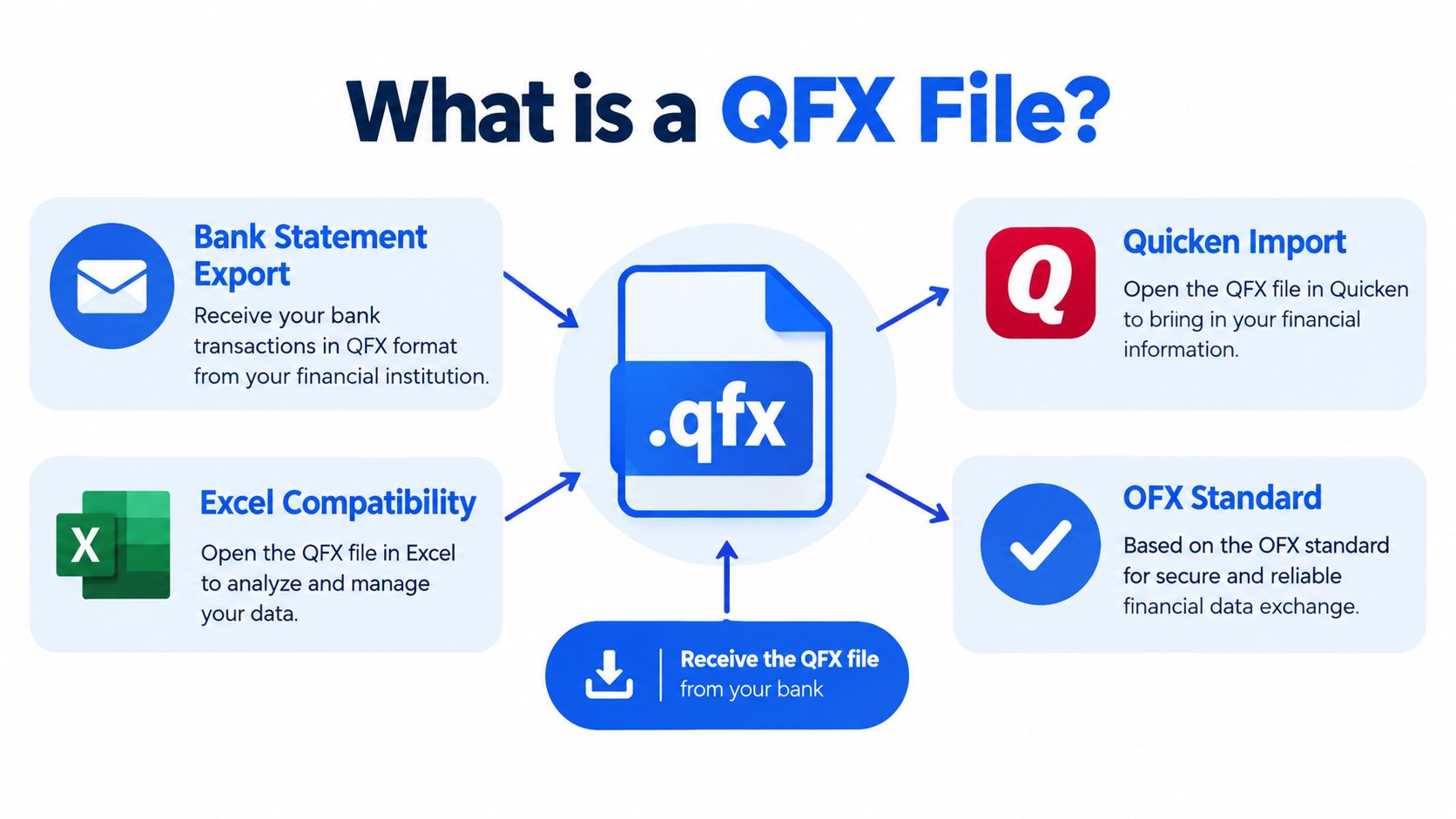
A QFX file generally carries:
- Account identifiers, so the receiving application can associate the records with an account.
- Transaction dates and amounts, usually with payee, description, memo, type, and balance information.
- Institution information, including Intuit-specific data used by Quicken to identify and authorize the financial institution.
- Transaction identifiers, which help software recognize records that have already been imported.
The practical distinction is simple: QFX is a file import interface, not a bank API. We should treat each download as a defined set of records for a particular account and date range. If two downloads overlap, duplicate detection becomes part of the bookkeeping task. If a file opens successfully, that still doesn't establish that every transaction, balance, character, or institution field is correct.
Anatomy of a QFX File From Header to Transaction Row
A QFX file is layered. A parser shouldn't begin by assuming that the entire document is strict XML, because many QFX downloads use the older OFX 1.x syntax.
Start with the header
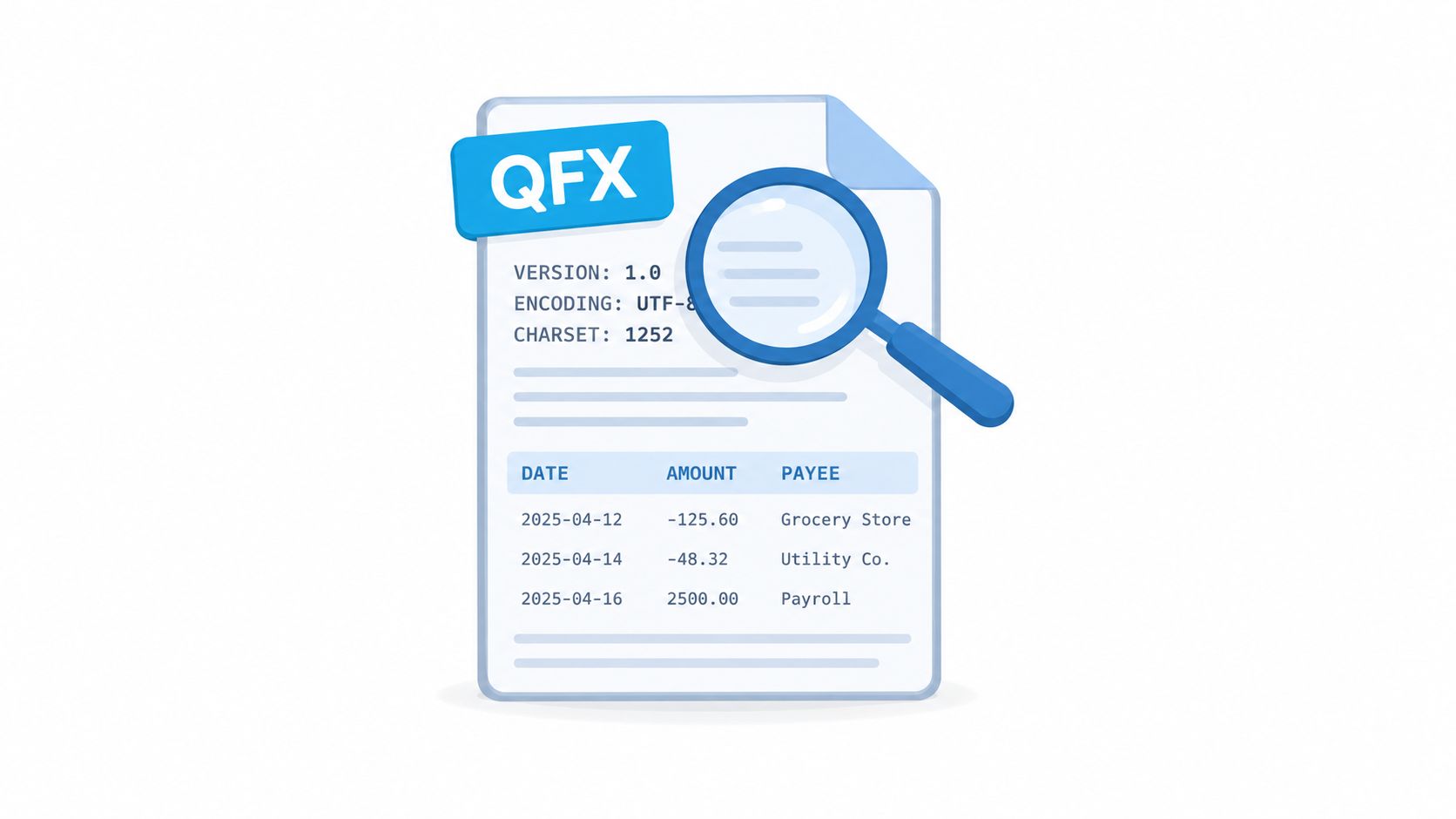
Legacy files commonly begin with ASCII key-value lines such as:
OFXHEADER:100DATA:OFXSGMLVERSION:102orVERSION:103SECURITY:NONEENCODING:USASCIICHARSET:1252COMPRESSION:NONE
These declarations matter. OFX 1.x uses an SGML-style body, so tags may omit closing elements that a strict XML parser requires. The declared character set may also be Windows code page 1252 rather than UTF-8. A converter that assumes every .qfx file is modern XML can fail before it reaches the transaction data.
OFX 2.0, released in 2004, moved the format toward well-formed XML. That creates a historical divide between older SGML-like QFX files and later XML-based documents. A reliable ingestion process detects the version and encoding before choosing how to parse the body.
Parsing rule: Read the header first, honor its version and character-set declarations, then process the body with syntax appropriate to that declaration.
Move through the account and transaction blocks
The body normally contains an <OFX> envelope, an account-information block, and one or more transaction records. The QFX variant may include an Intuit-specific identifier such as <INTU.BID>, which helps Quicken recognize the participating institution.
A parser should expect fields such as:
- FITID, the financial-institution transaction identifier.
- DTPOSTED, the transaction date.
- TRNAMT, the transaction amount.
- NAME or PAYEE, the merchant or recipient description.
- MEMO, additional transaction detail.
- TRNTYPE, the transaction type.
- BALAMT, where a balance is supplied.
Preserving FITID is especially important when a bank reissues overlapping downloads. Matching only on date and amount can confuse two legitimate transactions or allow the same transaction to enter twice. A stable source identifier gives the normalization process a stronger basis for idempotent imports.
QFX vs OFX vs QBO vs QIF vs CSV
These formats aren't interchangeable labels for the same file. Each answers a different workflow question.
| Format | Native software | Balances preserved | Best for |
|---|---|---|---|
| QFX | Quicken Web Connect | Often, when supplied by the institution | Importing a bank download into Quicken |
| OFX | Financial applications that support OFX | Depends on the institution's payload | General structured financial-data exchange |
| QBO | QuickBooks workflows | Depends on the export | QuickBooks-oriented bank-feed imports |
| QIF | Older personal-finance applications | Usually focused on transaction records | Legacy transaction exchange |
| CSV | Excel, Google Sheets, and many accounting systems | Only if the exported columns include them | Review, reconciliation, cleanup, and manual mapping |
OFX is the foundation, while QFX adds Intuit-specific institution information for Quicken. A generic OFX document may contain perfectly usable transaction records but still fail in Quicken if it lacks the information Quicken expects for Web Connect.
QBO serves a different application context. We shouldn't change a file's extension and assume that a QFX payload has become a valid QuickBooks import. The receiving software determines which headers, identifiers, account mappings, and transaction conventions it will accept.
QIF is older and should be treated cautiously. Quicken doesn't accept QIF for its Web Connect workflow, so requesting QIF from a client who needs a Web Connect import can send the process in the wrong direction. The explanation of the OFX file format is useful when we need to distinguish the open family format from application-specific variants.
CSV is usually the practical review target. It opens easily in spreadsheet software, but it may not preserve the metadata needed for a native financial-software import. A CSV conversion should therefore retain account context, dates, descriptions, amounts, transaction types, identifiers, and relevant balances rather than producing a visually tidy but incomplete table.
How to Open a QFX File in Quicken, Excel, and a Text Editor
The right opening method depends on what we need to accomplish. Importing, inspecting, and converting are different jobs.
Use Quicken for the native workflow
Quicken is the natural destination for a QFX file created for Web Connect. In the account area, we select the relevant account or begin adding one, choose the option to import downloaded transactions, and select the QFX file. Quicken may ask us to identify the financial institution or match the file to an existing account.
The institution list matters because Quicken doesn't rely only on the filename. A QFX file can contain plausible transaction data and still fail if its institution information isn't recognized or if the account cannot be matched correctly.
Use Excel for a quick look, not a true import
Excel may open a QFX file as text, but it won't interpret the SGML tags as a clean transaction table. We may see header declarations, nested tags, dates, amounts, and memos mixed together. That view can help us confirm that the file contains expected records, but it isn't a reliable spreadsheet conversion by itself.
A text editor is often better for diagnosis. It lets us inspect the header, search for INTU.BID, locate FITID, and review the first transaction blocks without Excel altering the file's encoding or display.
Use a parser when the file must be normalized
A programmatic workflow should detect the header, honor the declared character set, tolerate OFX 1.x tag closure, and validate required fields before writing CSV or XLSX. It should also retain the original file and source identifiers so the normalized output can be compared with the source during reconciliation.
The Four Validation Gates Before You Trust the Import
A QFX filename is only the first checkpoint. We should treat validation as four separate gates because each one catches a different failure.
Gate one checks the extension
The file should have the expected .qfx extension for the workflow, but changing an extension doesn't convert the underlying document. Renaming statement.ofx to statement.qfx may leave the payload unchanged and won't add the institution metadata Quicken expects.
Gate two checks OFX syntax
Inspect the header and body together. Is the file OFX 1.x with SGML-style tags, or a later XML-oriented document? Does the declared encoding match the actual text? A parser that assumes strict UTF-8 XML may reject a valid legacy download containing CHARSET:1252 or omitted closing tags.
Gate three checks institution identity
Look for Intuit-specific data such as INTU.BID, along with the account-identification fields. Quicken uses institution information as part of Web Connect compatibility. Other applications may accept the same document as ordinary OFX and ignore those fields, so success in one application doesn't prove that Quicken will accept it.
Gate four checks financial arithmetic
Finally, test the numbers independently of the file structure. Confirm that:
opening balance + credits − debits = closing balance
Review fees, interest, reversals, and other adjustments separately. A file can parse cleanly, identify the institution, and still omit a row or apply the wrong sign to a debit.
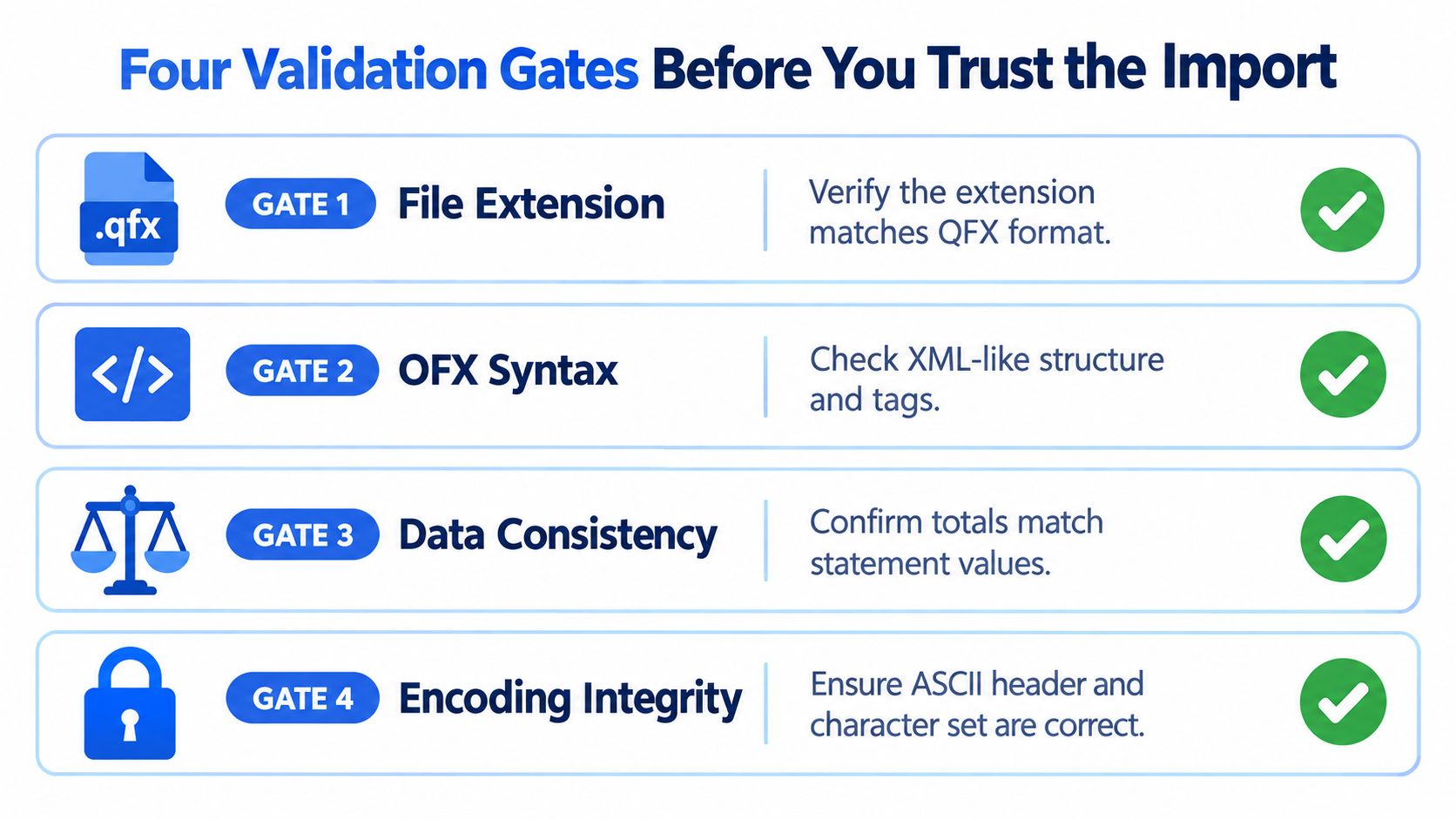
Diagnostic order: Check the extension, inspect the OFX header and syntax, verify the institution identifier, then reconcile the balances. Don't stop at the first successful gate.
This order also explains why “it opened in Quicken” isn't identical to “it imported correctly.” Quicken may accept the file while the bookkeeper still needs to check account mapping, duplicates, transaction signs, date ranges, and statement arithmetic.
Converting QFX Statements Into a Spreadsheet-Ready File
QFX-to-CSV or QFX-to-XLSX conversion is mainly a normalization task. The source already contains structured records, so we aren't trying to reconstruct a table from a page image. We need to map the existing fields consistently and preserve the meaning of each value.
A useful output usually includes:
- Transaction date, retaining the source date rather than replacing it with an import date.
- Description and payee, kept distinct from the memo when both are available.
- Debit and credit treatment, with a documented sign convention.
- Transaction type, such as payment, deposit, fee, transfer, or interest.
- FITID or another source identifier, for duplicate review.
- Balance fields, where the source supplies them.
- Account and statement-period context, so rows don't lose their origin.
A debit can appear as a negative transaction amount, while a human-readable statement may show it in a withdrawal column. Those representations are not automatically equivalent unless the conversion rules document how they were mapped. The same caution applies when a statement provides an available balance, current balance, and statement balance. We should label the balance rather than placing an unlabeled figure in a generic “balance” column.
The bank statement to CSV guidance is more relevant when the starting point is a PDF rather than a QFX file. PDF extraction introduces different problems, including page layout, table boundaries, scanned images, OCR errors, and password protection. A digital PDF may expose text cleanly, while a scan requires OCR to recognize the visible characters and reconstruct rows.
autobankstatement converts digital and scanned PDF bank statements, including password-protected files, into CSV or Excel/XLSX. It supports bulk uploads and files up to 25 MB, offers a free guest preview before payment, gives registered users 24-hour download access, and auto-deletes uploads within 24 hours. Plans include Starter at $15 per month for 400 pages, Professional at $30 per month for 1,000 pages, and Business at $50 per month for 4,000 pages, with annual discounts and custom enterprise limits.
The choice of starting format matters. If the bank already provides QFX, parse and normalize that structured file. If the team has only a PDF, use a PDF extraction workflow and treat the resulting spreadsheet as a document conversion that requires source comparison.
Verifying Balances and Keeping an Audit Trail
A converted file should be treated as evidence that needs review, not as an unquestioned replacement for the source. Start with the statement's opening balance, total money paid in, total money paid out, and closing balance. The core check is opening balance + credits − debits = closing balance, with separate attention to fees, interest, reversals, and adjustments.
The CFPB's personal financial data guidance distinguishes transaction information from account-balance information. That distinction matters when a statement contains multiple balance types, such as an available balance, statement balance, or current balance. A spreadsheet should preserve the labels that appear in the source rather than treating every balance as interchangeable.
If the arithmetic fails, inspect the conversion in a deliberate order:
- Missing rows: Compare the first and last transaction dates and scan for page or period gaps.
- Duplicate rows: Check repeated identifiers, dates, amounts, and descriptions.
- Sign errors: Confirm that withdrawals, deposits, fees, and reversals use the intended convention.
- OCR characters: Compare unclear digits and symbols with the original scan.
- Balance definitions: Determine whether the source shows a statement balance, current balance, or another measure.
The IRS recordkeeping guidance says bank statements can be backed up electronically and that paper records can be scanned into an electronic format and stored on a backup device. That supports retaining the original PDF or scan alongside the CSV or XLSX, while following the tax, banking, and internal policies that apply to the organization.
A spreadsheet is well suited to filtering, review, reconciliation, and analysis. The source document should remain the reference for disputed descriptions, unclear characters, handwritten marks, and questions about what appeared on the original statement.
When QFX Is the Right Choice and When to Use Something Else
QFX is the right choice when a financial institution provides a Web Connect download for Quicken. Quicken's documentation identifies QFX as the supported Web Connect format for checking, savings, credit-card, brokerage, and retirement accounts, while QIF isn't accepted for that workflow, as explained in Quicken's transaction-download guidance.
Use QBO for a QuickBooks-oriented workflow, and choose CSV or XLSX when the immediate need is spreadsheet reconciliation, cleanup, or review. If the starting point is a PDF, don't pretend that renaming the PDF or exporting a visually similar file creates a valid QFX import. Extract the rows, preserve the source, and validate the balance arithmetic.
For older transaction files, the QIF format guide can help identify whether a legacy workflow is involved. Whatever format we choose, the filename is only one gate. Confirm the structure, institution identity, account mapping, transaction identifiers, date range, and opening balance + credits − debits = closing balance before using the file for a close, tax filing, or loan application.
autobankstatement converts digital, scanned, and password-protected PDF bank statements into CSV or Excel/XLSX, with bulk upload support and files up to 25 MB. Use the free guest preview to inspect the output, then visit autobankstatement when you need a spreadsheet-ready file for reconciliation or bookkeeping review.
Convert your next statement in minutes
Upload a bank statement PDF — digital, scanned, or password-protected — preview the extracted table, and download clean CSV or Excel.