Convert PDF to Text: Methods, OCR and Accuracy Checks
Learn how to convert PDF to text with direct extraction, OCR for scanned statements, password handling and balance checks for accurate records.
A forty-page bank statement arrives on Monday, and the close is Friday. The dates and amounts are right there on screen, yet typing them into a sheet will eat the afternoon and still leave a digit wrong. We need to convert PDF to text in a way that protects the ledger, not just a way that produces a file quickly.
A PDF is a page container, not a spreadsheet. Some statements carry real characters we can pull out. Others are only pictures of pages. A file from a lender may also be locked. We classify the PDF first, extract or recognize the text second, and refuse to post any figure we have not checked. The original PDF stays the record. The text file is only a working copy.
Table of Contents
- Which Conversion Method Fits Your PDF
- How to Extract Text from a Digital PDF
- Running OCR on Scanned Statements
- Opening Password-Protected Statements
- Privacy and Records Before You Upload
- Checking Text Before It Reaches Your Books
- Choose a Conversion Path for Your Next Statement
Which Conversion Method Fits Your PDF
Open the statement and try to drag across a word on page one. If the word highlights, the page has a text layer and we can extract it. If the cursor slides over a flat picture, the page is a scan and optical character recognition (OCR) is the only route. OCR reads pixels, so it can misread a 3 as an 8 or drop a minus sign.
Three sources cover almost every file we see. Monthly downloads from online banking are usually digital. Older branch copies are often scans. Statements sent by lenders or landlords are frequently password-locked, and the lock does not tell us which of the first two we have underneath.
| Method | Best for | Handles scans | Main risk |
|---|---|---|---|
| Copy and paste from a PDF viewer | Short digital pages | No | Columns merge and line breaks disappear |
| Desktop PDF editor export (for example Adobe Acrobat) | Digital PDFs needed as a Word or text file | Only with an OCR add-on | Layout drift on multi-column pages |
| pdftotext -layout (Poppler) | Batches of digital PDFs and repeatable scripts | No | Without -layout, columns can interleave |
| Python libraries such as pdfplumber or PyMuPDF | Table-aware extraction by coordinates | No | Needs coding and custom checks |
| OCRmyPDF with Tesseract | Scanned statements, local and free | Yes | Digit, sign and decimal errors need validation |
| Online converter (upload) | One-off files with no setup | Often yes | The file leaves your machine, so privacy must be checked |
Select a word on every page. A highlight means direct extraction. No highlight means we plan for OCR. One statement can mix both, so the first page is not enough.
How to Extract Text from a Digital PDF
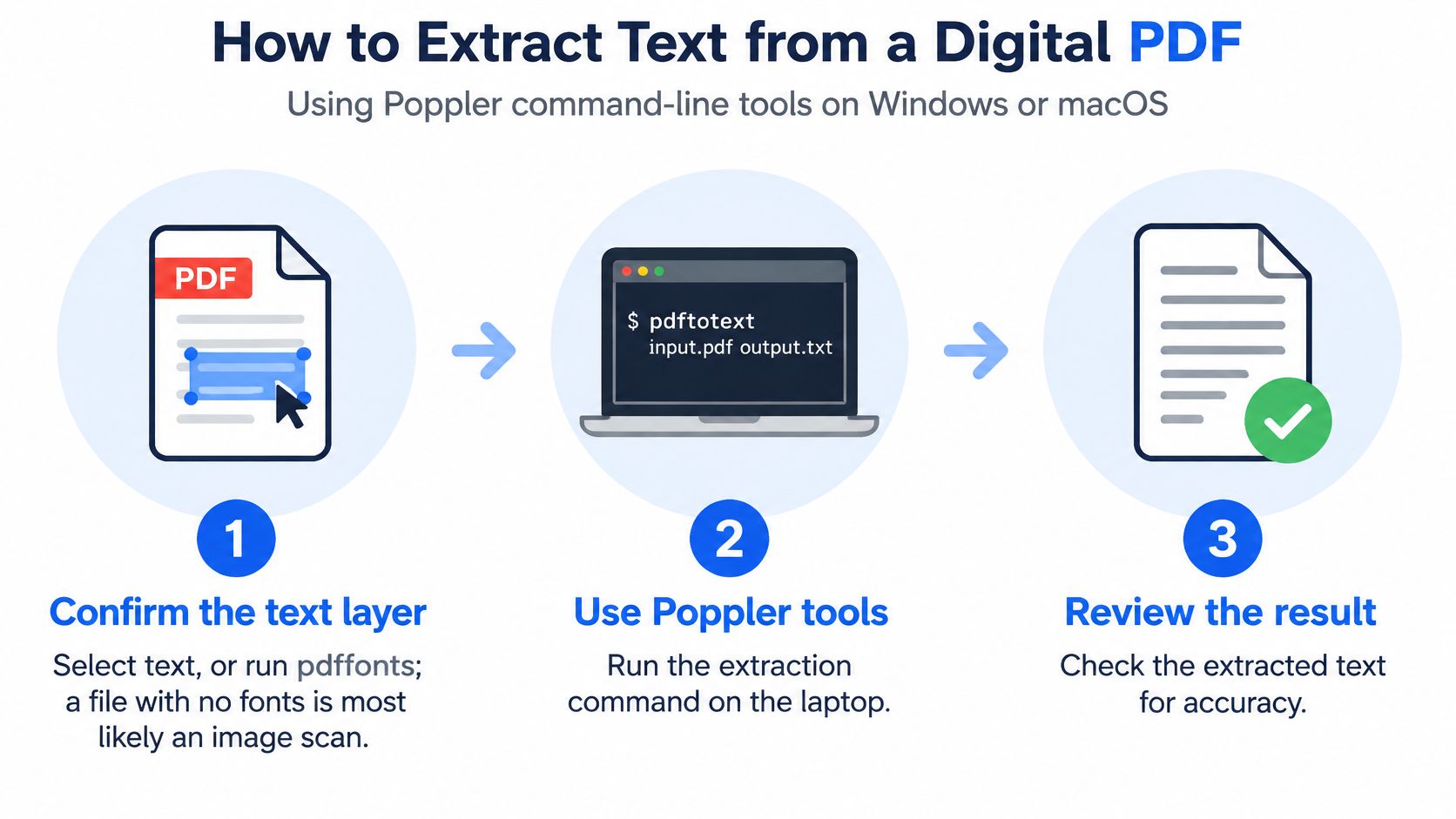
On a Windows or macOS laptop with Poppler installed, a digital statement can be turned into plain text without guessing any character. Classify each page first as digital, image-only, or hybrid. A page with selectable text stays on this route. Sending it through OCR would throw away characters we already trust.
Confirm the layer, then extract
- Confirm the text layer. Select a sentence, or run
pdffonts statement.pdf. A file that lists no fonts is most likely an image. - Check the page count with
pdfinfo statement.pdf, so we know how many pages the text file should cover. - Extract with columns kept in place:
pdftotext -layout statement.pdf statement.txt. The-layoutflag lines up dates, descriptions, and amounts. - Limit a long file with
-f 2 -l 5when only a middle range is needed. - Save as UTF-8 so currency symbols survive the next tool.
- Compare the first and last page against the PDF, line by line, before we touch the middle.
A published extraction paper on the ACM Digital Library makes the layout point clearly. PDF stores character positions and drawing commands, not paragraphs or table rows, and content-stream order is not guaranteed to match visual reading order. Naive concatenation can interleave columns, drop a header below the transactions, or scramble a footnote. For day-to-day work we measure field accuracy and numeric reconciliation separately, because a page can read well and still shift one critical amount into the wrong column.
What healthy output looks like
A clean text file has one transaction per line, dates in a single format, amounts with signs or parentheses still attached, and header rows sitting above the lines they describe. If a balance has slid under the description, re-run with -layout rather than fixing columns by hand.
Readers without a command line can export the same digital file from a desktop PDF editor to Word or plain text, then apply the same first-page and last-page comparison.
Running OCR on Scanned Statements
When no word on the page will highlight, OCR is the only route. We run it locally so the statement never leaves the machine, and we treat every digit as unproven until the later checks pass. A short primer on what OCR actually reads is worth a look before the first batch.
Resolution, then recognition
Start at 300 DPI in grayscale. Lower resolution blurs lookalike digits such as 3 and 8, and no later setting repairs a blurry scan. Deskew and clean before recognition:
ocrmypdf --deskew --clean statement.pdf statement_ocr.pdf
Skew and speckle are what push Tesseract off a character. Once that file exists, extract it the same way as a digital PDF: pdftotext -layout statement_ocr.pdf statement.txt.
| Setting | Value | Use when |
|---|---|---|
| Scan resolution | 300 DPI grayscale | Digits such as 3 and 8 blur below that |
| Tesseract --psm 6 | Single uniform block | Single-column transaction lists |
| Tesseract --psm 4 | Single column of mixed text sizes | Statements with headers and totals in one column |
| Language pack | -l eng | Add other languages only when the statement needs them |
If a page comes back as a wall of fragments, change the page segmentation mode rather than retyping the page. Pass --psm 6 for a plain transaction list and --psm 4 when headers and totals share one column with the rows. Add -l eng unless the statement is in another language.
How wrong "pretty good" still is
A peer-reviewed study in Digital Scholarship in the Humanities reported average word accuracy normally ranging from 90% to 95% after OCR models were combined with preprocessing. Accuracy above 90% was enough for semantic analysis in that research. For a bank statement it is not enough. A 95% word-accuracy rate still means roughly 5 incorrect words per 100, and those misses cluster on dates, account numbers, decimals, and symbols. Direct extraction from a text-native PDF does not carry that uncertainty. OCR rebuilds characters from pixels and must also guess their order.
Practical rule: never import OCR output until the balance check and the row checks have passed. Low-confidence characters bunch up in 0 and O, 1 and I, decimal points, and minus signs.
Opening Password-Protected Statements
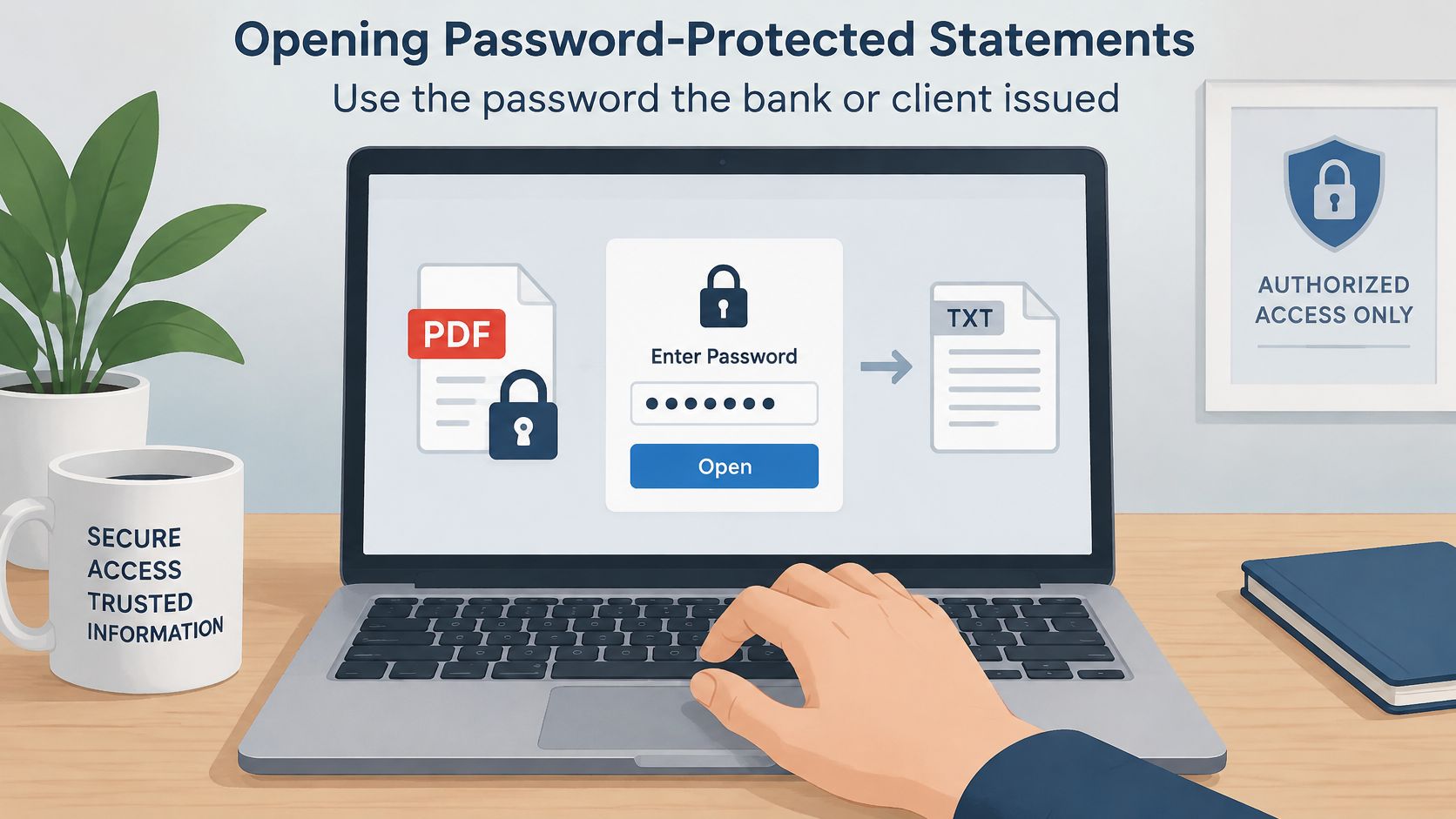
Use only the password the bank or the client issued, and only on a file we are authorized to open. Guessing passwords, or trying a password from a different account, is out of scope for this work.
Pass the password, then throw the copy away
- Extract in one step.
pdftotext -upw YOURPASSWORD -layout statement.pdf statement.txtopens the file and keeps columns aligned. - Make a decrypted copy only if several tools need it.
qpdf --password=YOURPASSWORD --decrypt statement.pdf unlocked.pdfwrites that copy. - Keep the password out of shell history. Prompt for it with
read -s, store it in a variable, and pass the variable. A password sitting in history is a second copy of the key. - Delete the decrypted file as soon as conversion finishes. Keep the original encrypted PDF as the record.
- Remember what the password does not change. It opens the file. It does not add a text layer. A locked digital PDF still follows direct extraction. A locked scan still needs OCR. If you are sending a client file through a hosted tool instead, read how password-protected uploads are handled before the file leaves the laptop.
If the password fails, ask the bank or the client for a fresh copy. A file we cannot open is a file we cannot convert, and a guessed password is not a workaround.
Privacy and Records Before You Upload
An online converter receives the whole statement: account numbers, names, addresses, and every transaction. Before any client file goes up, we read the provider's retention policy, see how long files are stored, confirm they are deleted, and find out who on that side can open them. For sensitive client work, pdftotext and OCRmyPDF stay on our own machine and remove that question.
What we keep, and for how long
The Internal Revenue Service states that small businesses should generally retain employment-tax records for at least four years after the tax becomes due or is paid, whichever is later. The same guidance lists account statements, deposit slips, canceled checks, invoices, and expense records as documents that support business books. The four-year figure is about employment-tax records. Statements are named there as supporting documents, so we keep them for whatever our own retention policy, our advisor, or the applicable rules require, and we keep them longer when those rules say so.
The CSV or XLSX is a working copy. It is not the source. An examiner should be able to open the PDF that produced every row.
A folder that survives a question:
- Original PDF: stored unchanged, never overwritten by an export.
- Converted file: saved beside it, with the method and the date in the filename, such as
checking-2025-03-pdftotext.txt. - Access: limited to the people who already handle that client's books.
Log which method produced each file. When a figure is challenged, we should be able to say whether it came from a text layer or from OCR, and on which date.
Checking Text Before It Reaches Your Books
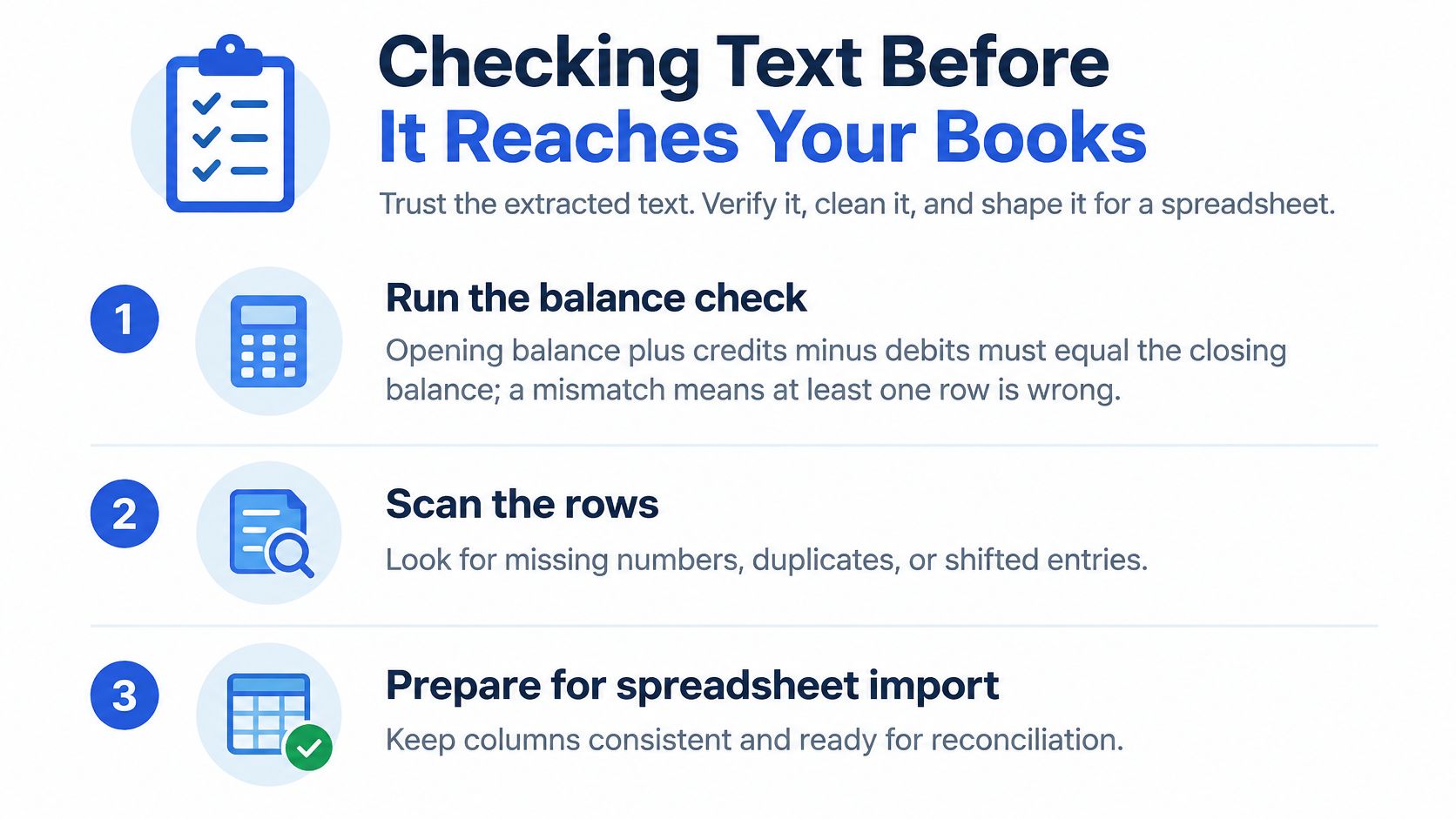
Text that looks complete can still be wrong in one cell. We prove the file before it touches a ledger, using the same bank-statement checks we would use on a hand-keyed sheet.
The balance equation comes first
Opening balance + credits − debits = closing balance. If that equation fails, at least one row is wrong, even when the text reads smoothly. Count the rows on each page against the statement's own transaction count. Then spot-check ten rows per page, always including the first and the last transaction, against the PDF.
After the numbers agree, shape the file for a spreadsheet. Use one date format, such as YYYY-MM-DD. Keep decimal points and strip thousands separators from amount columns. Turn parentheses and trailing minus signs into negative values. Split columns on a delimiter, not on spaces, and attach any continuation line to the transaction it belongs to.
| Symptom | Likely cause | Fix |
|---|---|---|
| Balance check fails by a single digit | A lookalike digit (0/O or 1/I) or a dropped decimal | Re-check the flagged amount against the source image and correct it |
| Debits appear as positive numbers | Minus sign or parentheses lost | Convert parentheses and trailing minus signs to negative values |
| One transaction split across two rows | Multi-line description read as a new row | Merge rows with no date into the row above |
| Columns interleaved or headers below transactions | Raw content-stream order used | Re-extract with -layout or coordinate-based parsing |
| Day and month swapped | Locale mismatch in date format | Set the locale and check any date above 12 |
Any row that fails the balance check, or that holds an amount we cannot read, goes back to the source image. We correct it from the page. We do not guess a digit to make the total land.
Choose a Conversion Path for Your Next Statement
Route the next file by what it is, not by whichever tool is already open.
Digital and one-off: pdftotext -layout, then the first-and-last-page read. Scanned: local OCR at 300 DPI, then the balance equation before any import. Password-protected: the password the issuer gave us, then the same path the accessible page would have taken. Sensitive client data: keep the processing on our own machine.
Volume changes the tooling, not the standard. When a month of statements would mean hours of copy and paste, a purpose-built converter is one option among these routes. We built autobankstatement to turn bank-statement PDFs into CSV or Excel, including locked and scanned files, with files up to 25 MB and bulk upload, and a guest preview of the table before anyone pays. Its output still has to pass opening balance plus credits minus debits against the closing balance. A faster file is not a checked file.
Pick one statement this week. Run it through the method that matches its pages, finish the balance check, and archive the original PDF next to the converted file.
When the stack of statements is too large for a laptop script, autobankstatement converts digital, scanned, and password-protected bank-statement PDFs into CSV or Excel so we can reconcile instead of retyping. The same balance check still decides whether a row is fit for the books. Try a statement on autobankstatement and keep the original PDF beside whatever you download.
Convert your next statement in minutes
Upload a bank statement PDF — digital, scanned, or password-protected — preview the extracted table, and download clean CSV or Excel.