
How to Convert Excel File to PDF Format
Learn how to convert Excel file to PDF format across desktop, web, and Mac. Master layout controls, page breaks, and multi-sheet exports
The report is ready to send, but the PDF tells a different story. A column is clipped, the totals have moved onto another page, and a supporting schedule is missing because Excel exported only the active sheet. The workbook looks correct on screen, yet the document your client, auditor, or manager receives is difficult to read.
That's why learning how to convert an Excel file to PDF format is really a document-control task. Microsoft Excel includes PDF export as a built-in workflow through File > Save As > PDF (*.pdf), with options for high-quality output or minimum file size, and controls for page range, markup, and printing settings in its official PDF guidance. The conversion itself is easy. Producing a reliable, readable, complete PDF requires preparation.
Table of Contents
- Why Default Exports Break Financial Reports
- Controlling Layout and Print Areas in Excel Desktop
- Navigating Web and Mac Export Limitations
- Managing Multi-Sheet Workbooks and Page Breaks
- Ensuring Accessibility and Document Structure
- Reversing the Process for Bank Reconciliations
Why Default Exports Break Financial Reports
A spreadsheet is designed for interaction. A PDF is designed for controlled viewing and printing. Excel's grid has effectively unlimited horizontal and vertical space, while a PDF must divide that grid into physical pages according to paper size, orientation, margins, scaling, print areas, and page breaks.
That difference explains most export failures. A financial model may contain a stray formatted cell far to the right, an unused row with a border, or a hidden calculation range. Excel can treat that formatting as part of the printable region. The result may be blank pages, excessive page counts, or a report where important columns are reduced until the text is unreadable.
Practical rule: A clean worksheet view isn't proof of a clean PDF. Always judge the workbook from Print Preview before distributing it.
PDF remains a practical standard for external reporting because recipients can view it without relying on the same spreadsheet application, screen size, or workbook settings. Industry reporting says PDFs are used in over 80% of businesses, while 78% of professionals prefer PDF for sharing data because of its universal compatibility, according to document-creation statistics. Those figures describe the format's business role, but they don't make a badly prepared export acceptable.
What Excel gets wrong by default
Default settings often fail in four ways:
- Clipped columns: Wide income statements and transaction listings extend beyond the selected page width.
- Broken page relationships: A subtotal may appear at the bottom of one page while the rows it summarizes start on the next.
- Incomplete workbooks: Excel may export the active sheet instead of every tab required for the reporting package.
- Uncontrolled whitespace: Print settings can include unused cells and create blank or nearly blank pages.
The right response isn't to shrink everything until it fits. Excessive scaling can technically preserve all cells while making the report unusable. We should first decide what the reader needs, remove irrelevant columns, define the intended print region, and then choose page settings that preserve legibility.
A PDF also preserves the layout as it was prepared for readers, rather than exposing the live formulas, filters, and editable structure of the workbook. That makes it useful for finalized reports, but only after we've verified that the exported pages contain the correct information in the correct order.
Controlling Layout and Print Areas in Excel Desktop
Excel Desktop gives us the most dependable control over a complex workbook because it exposes the page setup, print area, scaling, and preview settings in one environment. We should prepare the worksheet before opening the PDF save dialog.
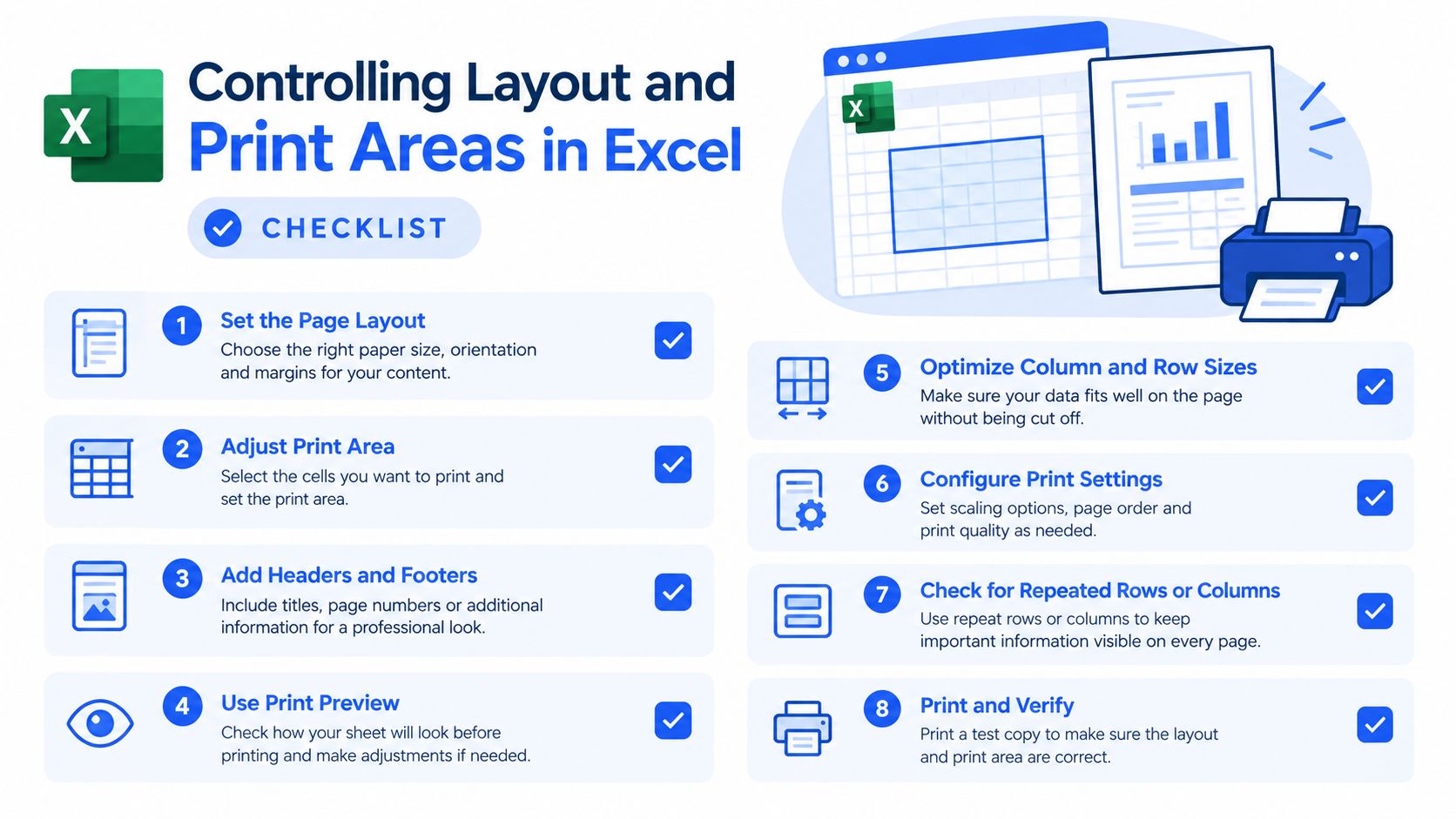
Set the printable region first
Select the exact cells that belong in the report. Then choose Page Layout > Print Area > Set Print Area. Excel will use that defined range when it prepares the printable output, rather than relying only on the visible grid.
This matters most when a sheet has old formatting, helper calculations, or content placed far outside the report. Adobe's guidance on preserving Excel formatting in PDF specifically emphasizes setting the print area and checking Print Preview, because PDF output can otherwise contain omitted content, clipped columns, or extra blank pages.
After setting the print area, select File > Print and inspect every page in the preview. Don't assume the first page represents the whole report. Move through the preview to check the final column, the last populated row, totals, and any notes or disclosures.
Choose page size, orientation, and scaling
For a wide balance sheet or detailed general ledger, use Page Layout > Orientation > Landscape. This orientation gives the table more horizontal room and can prevent aggressive shrinking.
Next, open Page Layout > Scale to Fit. Set Width to 1 page when the priority is keeping all columns on one page width. Leave the height flexible where possible, because forcing a long report onto one physical page can make the text too small to review.
The useful sequence is:
- Trim the report: Remove unnecessary columns, unused rows, and decorative formatting from the print range.
- Set the print area: Select the intended cells and use Page Layout > Print Area > Set Print Area.
- Select orientation: Use horizontal layout for wide tables and vertical layout for narrow schedules.
- Control width: Set the worksheet to fit across one page where readability remains acceptable.
- Review breaks: Open View > Page Break Preview and inspect the blue boundaries.
- Preview the PDF output: Use File > Print before saving the final file.
Use manual breaks where meaning changes
Page Break Preview lets us see where Excel will split the worksheet. Drag a boundary when a break separates a heading from its table, isolates a subtotal, or leaves a single data row on a new page.
We shouldn't force every report onto one page. A readable multi-page schedule is better than a compressed page that technically contains everything but requires magnification. The finance standard should be complete, legible, and logically divided, not merely small enough to export.
Navigating Web and Mac Export Limitations
Excel Desktop is usually the better choice for complex reporting packages, but distributed teams often work across Excel for the web, Google Sheets, and macOS. These platforms can produce a usable PDF, yet their controls and rendering behavior differ.
Excel for the web is convenient for straightforward worksheets and quick sharing. It's less suitable when the workbook depends on carefully positioned page breaks, intricate print settings, or complex objects. Google Sheets can open and export Excel files through File > Download > PDF, but the conversion may alter workbook behavior or formatting when the original file uses Excel-specific features.
On macOS, the system print dialog provides a practical fallback. Choose File > Print, select the relevant sheets or pages, adjust scaling and orientation, then use the PDF menu in the print dialog to save the document. This works well for a prepared sheet, but it doesn't replace checking workbook scope and page behavior first.
Platform Export Capabilities
| Platform | Page Break Control | Multi-Sheet Export | Best Use Case |
|---|---|---|---|
| Excel Desktop | Strong control through Page Break Preview and Page Setup | Suitable for active sheet, selected range, or entire workbook | Complex finance reports and controlled month-end packages |
| Excel for the web | More limited for detailed layout management | Useful for straightforward workbook sharing | Basic reports and collaborative review |
| Google Sheets | Browser-based layout controls, with possible changes after Excel import | Can export selected sheets or a workbook view | Simple browser workflows and lightweight sharing |
| macOS Print to PDF | Uses system print settings and preview | Depends on the selected print scope | Prepared sheets that need a local PDF copy |
The key trade-off is convenience versus control. A browser export is quick, but a report with multiple schedules, custom breaks, or strict presentation requirements deserves a desktop review. Teams can also consult this comparison of PDF-to-Excel conversion software when the broader workflow involves moving information between spreadsheet and PDF formats.
Regardless of platform, open the final PDF on a second device or viewer when the report is externally important. A file that looks acceptable in one application may reveal missing margins, awkward page breaks, or font substitutions elsewhere.
Managing Multi-Sheet Workbooks and Page Breaks
A month-end package rarely consists of one tab. It may include a management summary, profit and loss statement, balance sheet, cash flow, variance analysis, and supporting schedules. Exporting the active sheet alone creates a polished but incomplete document, which is more dangerous than an obviously failed conversion.
Start by reviewing each worksheet's print area and page setup. If the tabs use different orientations, paper sizes, or margins, the final PDF may look inconsistent. Standardize the document title, reporting period, and confidentiality wording through Page Layout > Page Setup, then configure headers and footers for the relevant sheets.
Export the correct workbook scope
In Excel Desktop, open File > Save As, choose PDF (*.pdf), and select Options before saving. Confirm whether the output should contain the Active sheet(s), a Selected range, or the Entire workbook.
Use the entire workbook when the PDF is a complete reporting package. Use active sheets when we're issuing a focused report and have deliberately excluded internal calculations. A selected range is useful for a controlled extract, but it requires an especially careful review because content outside the range won't appear in the file.
Control point: Name the final PDF so its reporting period and scope are obvious. Then compare its page count and tab coverage with the export plan before sending it.
Keep related information together
Use View > Page Break Preview to place breaks at sensible boundaries. A summary table should stay with the explanatory rows or nearby detail that helps the reader interpret it. Don't leave a heading stranded at the bottom of a page, and avoid splitting a small reconciliation block across two pages.
Repeat column headings on long schedules through Page Layout > Print Titles, where appropriate. This makes each page understandable when printed or reviewed separately. If a recipient asks for a page rotation after export, the issue is usually easier to avoid by setting orientation during preparation. For related PDF handling tasks, see this guide to rotating PDF files.
Finally, open the combined PDF and check the sequence manually. Confirm that the summary precedes its supporting schedules, hidden tabs haven't been omitted unintentionally, and page numbers continue consistently across the document.
Ensuring Accessibility and Document Structure
Exporting a visually correct PDF doesn't guarantee an accessible PDF. Excel's PDF workflow can include PDF/UA tags, but Microsoft explains that decorative elements such as gridlines, borders, slicers, and some graphical objects may be treated as artifacts and excluded from the semantic reading order in its Excel PDF accessibility documentation.
That distinction matters for screen-reader users and for organizations that need defensible document controls. A table may look perfectly aligned while its headers, row relationships, and reading order remain unclear to assistive technology.
Prepare the workbook before export
Run Review > Check Accessibility in Excel before saving. Resolve meaningful warnings, especially those involving merged cells, missing alternative text, unclear sheet names, and table structure.
When saving as PDF, enable Document structure tags for accessibility in the PDF options if the available Excel version provides that setting. Use clear table headers and avoid relying on color alone to communicate a financial status. A reader should be able to distinguish a variance, warning, or total from the surrounding data through labels and structure, not only through visual styling.
Why Print to PDF can fail
A system-level Print to PDF workflow can flatten content into an image-like output or strip semantic structure. Microsoft's broader PDF accessibility guidance recommends the Save As or Export path for accessible document creation rather than treating every print-generated PDF as equivalent.
Post-export review is still necessary. Open the PDF in an editor with an accessibility checker and inspect reading order, table headers, tags, and the treatment of decorative objects. In regulated or audit-sensitive work, remediation may be required even when the pages look correct.
Accessibility is therefore part of document quality, not a cosmetic add-on. A finance team should retain the source workbook, the reviewed PDF, and the evidence of its accessibility check according to its internal document-control policy.
Reversing the Process for Bank Reconciliations
The reverse problem is common in finance operations. We receive a bank statement as a PDF, but reconciliation requires structured rows that can be filtered, matched, and tested in Excel.
The converted table should preserve the opening balance, credits, debits, transaction dates, descriptions, and closing balance. Manual copy-pasting often breaks rows, shifts signs, or loses balance information. After extraction, validate the statement mathematically using opening balance + credits − debits = closing balance, a rule supported by Oracle's electronic bank statement integrity check.
That test should be paired with the broader reconciliation process. CPA Ireland's bank reconciliation guidance describes comparing the bank account opening balance with the statement opening balance, then accounting for items not yet debited or credited until the balances agree. QuickBooks' reconciliation guidance also frames the work around matching statement transactions to the books and adjusting for reconciling items.
For teams processing digital, scanned through OCR, or password-protected statements, extracting PDF data to Excel can be more reliable than rebuilding transaction rows manually. The output still needs review, especially where the source scan is unclear or the statement uses unusual layouts.
Autobankstatement converts digital, scanned through OCR, and password-protected PDF bank statements into CSV or Excel/XLSX, with bulk uploads and files up to 25 MB. We can preview files free as a guest before payment, registered users receive 24-hour download access, and uploads auto-delete within 24 hours. Visit autobankstatement to prepare statement data for balance checks and reconciliation.
Convert your next statement in minutes
Upload a bank statement PDF — digital, scanned, or password-protected — preview the extracted table, and download clean CSV or Excel.