Intelligent Document Processing: A Finance Team Guide
Learn how intelligent document processing turns bank statements and invoices into checked, usable data for finance teams, with the controls that matter.
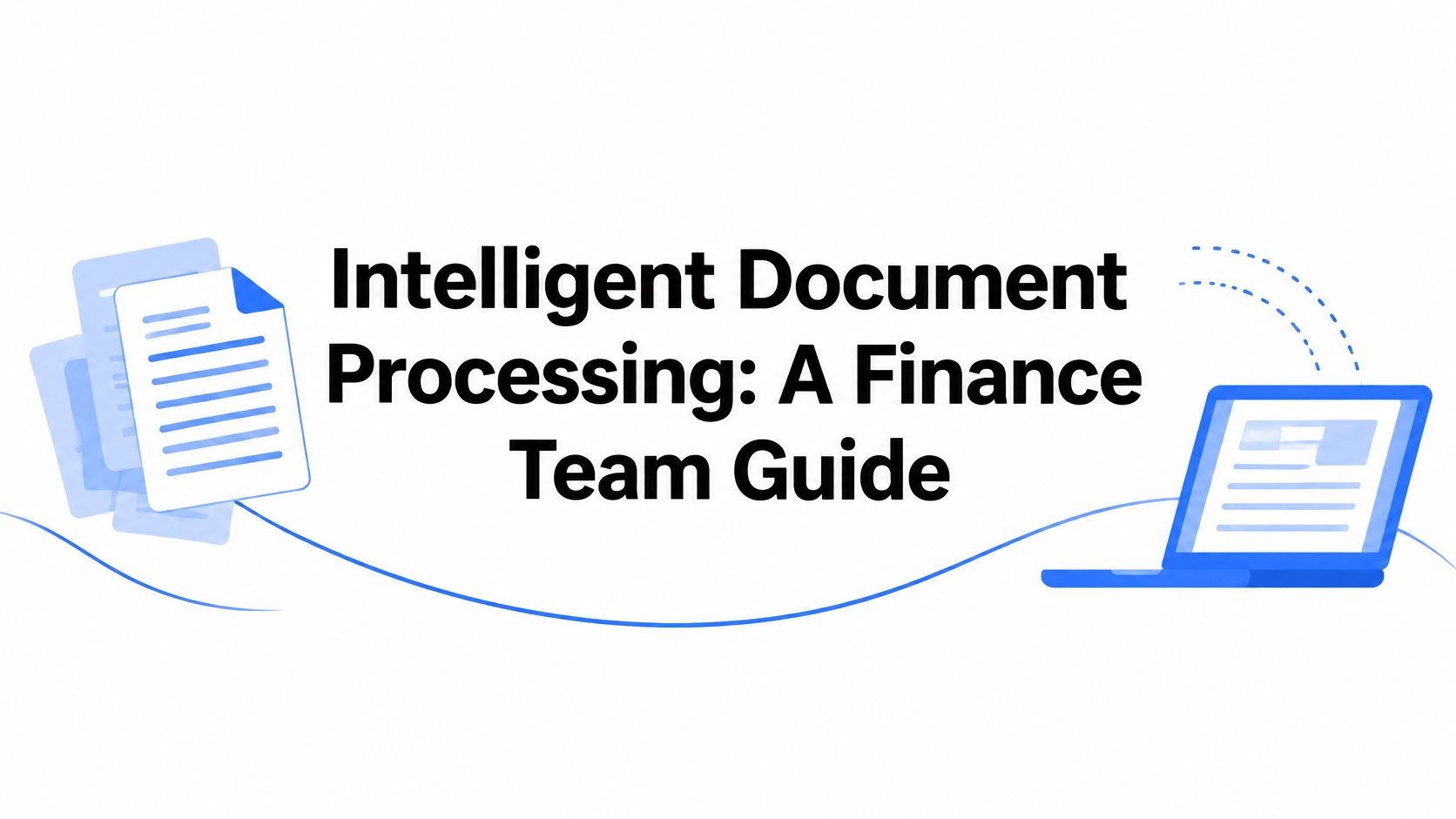
A client sends a 14-page bank statement as a PDF on the last day of the month. You can read every transaction on screen, but you can't sort, total, or reconcile any of it without retyping rows into a spreadsheet. That's the gap intelligent document processing is built to close, and it's also where mistakes enter when a tool looks tidy but hasn't verified the numbers.
Table of Contents
- What Intelligent Document Processing Means
- How the Stages of IDP Fit Together
- Where OCR Fits and Where It Stops
- How to Check Extracted Statement Data
- Finance Documents That Benefit Most and What to Check
- Privacy and Retention Questions to Settle First
- Decide Whether IDP Fits Your Finance Workflow
What Intelligent Document Processing Means
Say our bookkeeper opens that statement and tries to copy a column. The PDF was designed for printing, not for analysis, so dates merge with descriptions and amounts lose their columns. Intelligent document processing, or IDP, is the set of technologies that reads a document, locates the fields inside it, checks the values, and sends structured results into a workflow a person can review.
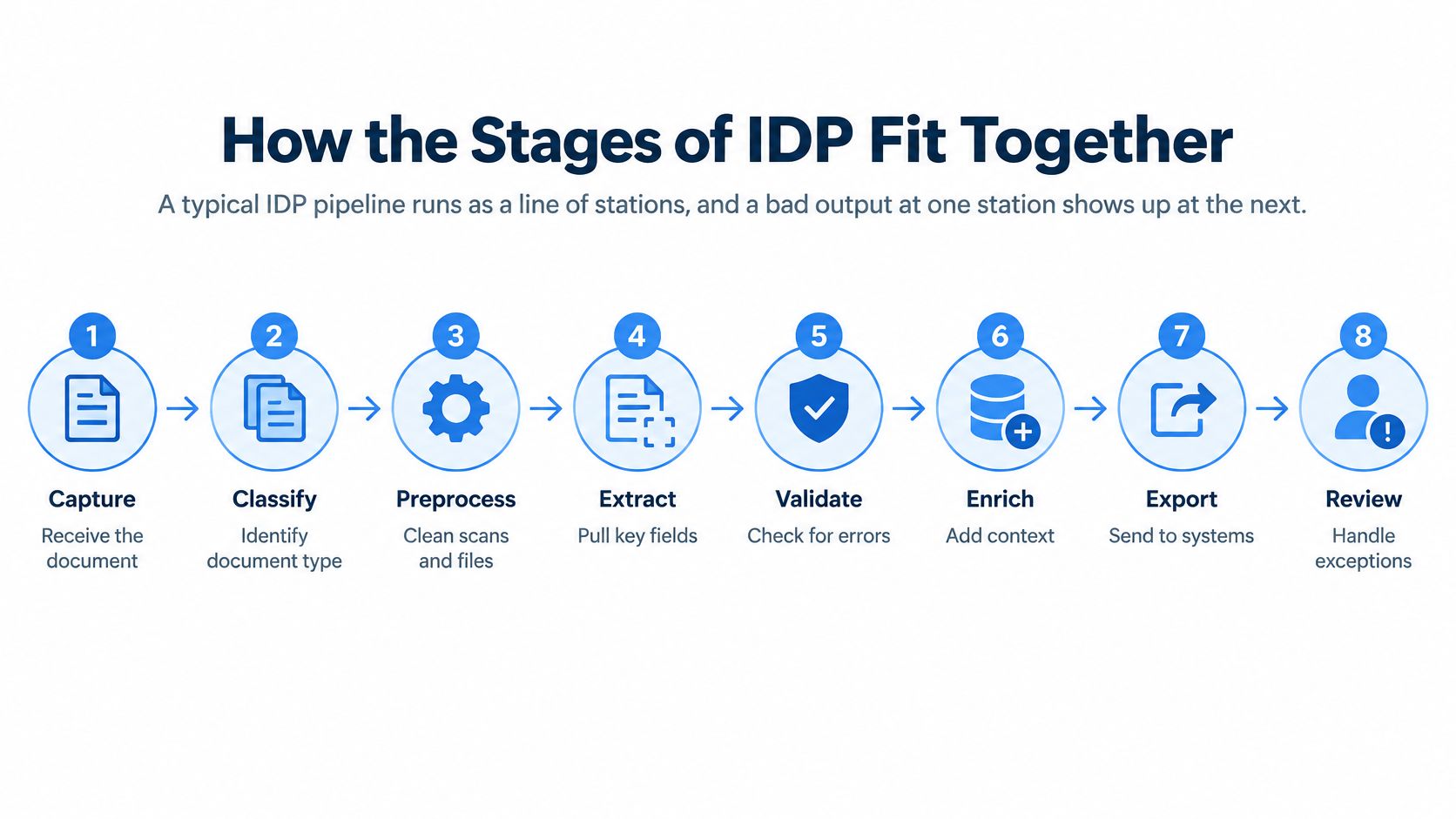
A useful analogy helps here. Plain optical character recognition (OCR) is like a photocopier that copies characters faithfully without understanding them. IDP is like a skilled clerk who knows that the number under the Debit heading belongs to the transaction on the left, that the balance should move by that amount, and that a row that doesn't add up needs a second look.
How IDP grew beyond OCR
IDP grew from OCR and added machine learning, natural language processing, layout analysis, classification, validation, and workflow automation. That shift is now operational rather than experimental. The 2025 AIIM and Deep Analysis survey of 600 large organizations in the United States and Europe found that 78% were already operational with AI in document processing. It also found that 66% of new projects were intended to replace existing systems rather than merely add another layer to legacy infrastructure.
Finance teams care because statements, invoices, forms, and claims are semi-structured. The same fields appear every time, but banks place them in different layouts, repeat headers across pages, and mix summaries with transactions. Recognized text alone doesn't tell you which column an amount came from.
The value isn't text you can search. It's reviewable structured data you can reconcile.
You now have the core distinction. OCR reads characters, while IDP preserves context, identifies fields and tables, normalizes values, and routes uncertain results for review. The stages that follow show how those jobs connect, where each one can fail, and why validation isn't an optional final polish.
How the Stages of IDP Fit Together
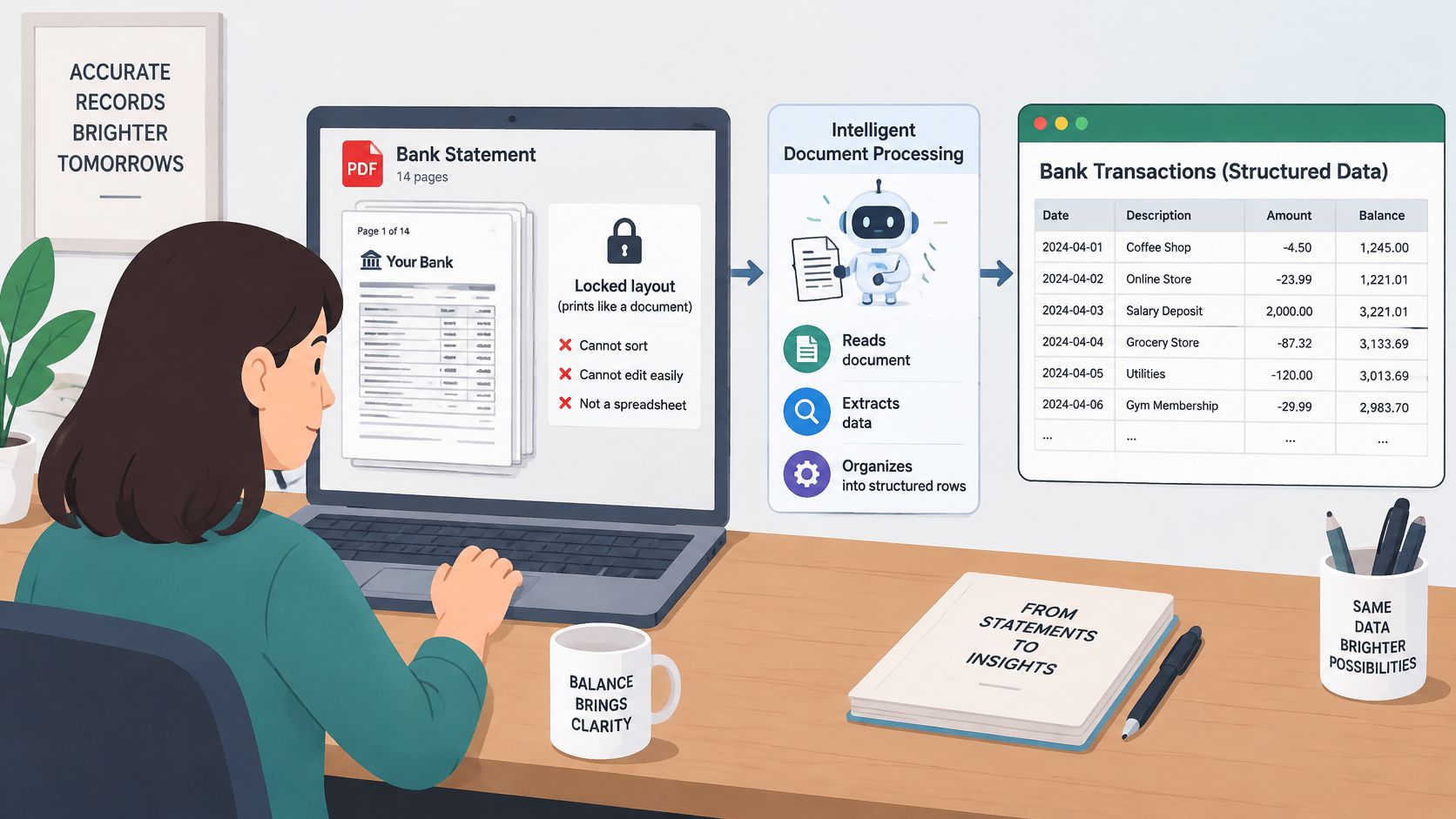
A typical IDP pipeline runs as a line of stations, and a bad output at one station shows up at the next.
| Stage | What It Does | Bank Statement Example | Common Failure |
|---|---|---|---|
| Intake and modality check | Detects whether the PDF has a text layer, is a scan or is password-protected | A scanned statement with no text layer, flagged before parsing | Scanned file treated as text, so columns are guessed |
| OCR | Turns page images into characters with positions | A scanned page from an older statement | Minus signs and decimal points misread |
| Layout and table detection | Finds the transaction table, headers and page breaks | Transactions continuing across three pages | Repeated headers copied in as data rows |
| Classification | Labels each page or section by its role | Cover letter versus transaction page | Summary page mistaken for transactions |
| Field extraction | Assigns values to date, description, debit, credit and balance | The amount under the Withdrawal heading | Values shifted one column left or right |
| Normalization | Converts dates, amounts and currency into consistent formats | 03/04 dates and 1,250.00 amounts set to one format | Day and month order swapped |
| Validation | Runs arithmetic and format rules on every row and balance | Opening balance plus credits minus debits equals closing | Errors that still look tidy in the table |
| Review and export | Routes low-confidence rows to a person and writes CSV or XLSX | Flagged rows in an exception queue | Unflagged rows exported without review |
One statement through the line
Our bookkeeper's file starts at intake, where the system checks whether there's a usable text layer, only page images, or a password to handle first. That single decision shapes everything downstream. A text-based page can be parsed from positions, while a scanned page needs OCR to turn pixels into characters with coordinates.
Next, layout and table detection finds where the transaction table starts and ends, including continuation pages. Classification separates the cover letter and summary from transaction pages, so totals don't become transactions. If either station mislabels a page, extraction will faithfully pull the wrong content.
Field extraction then assigns each value to date, description, debit, credit, or balance. Normalization makes those values comparable, for example by settling date order and decimal separators. A wrong assumption here doesn't look broken. It produces clean dates that are a month out.
Why failures surface late
Validation is often the first station that can prove something went wrong earlier. The running balance doesn't move by the row amount, or credits and debits don't reconcile to the closing balance. Review and export should then hold those rows for a person instead of writing them straight to CSV or XLSX.
Practical rule: Map each recurring problem to a station. Duplicated headers point to layout, swapped dates point to normalization, and shifted amounts point to extraction.
That mapping saves time because you stop treating every bad spreadsheet as a generic accuracy problem. You fix, route, or review at the station where the error began.
Where OCR Fits and Where It Stops
If you've used a PDF-to-text tool, it's easy to assume OCR is the whole job. It isn't. OCR reads character shapes in images, while IDP decides when OCR is needed at all, what the characters mean in a table, and which results need review. Our guide to what OCR does in document conversion covers that reading step in detail.
Native text is not the same input as a scan
A native PDF carries a text layer with characters and positions already embedded. A scanned PDF is only pixels until OCR interprets it. The OmniDocBench benchmark, described as covering 1,355 PDF pages across nine document types, reported TableBank mean table-extraction accuracy of approximately 0.91 for native PDFs versus 0.68 for scanned PDFs. Those two inputs shouldn't share one confidence threshold or routing policy.
OCR alone can create errors that look plausible. A 1 read as a 7 changes an amount, a dropped minus sign reverses direction, and a lost decimal point multiplies a value. A shifted column can turn a debit into a credit while the table still looks neat. Password-protected files add a prior step. They must be opened for the session, then routed according to whether the underlying pages are native or scanned.
| Input | How It Is Processed | Benchmark Signal | Routing Decision |
|---|---|---|---|
| Native text-based PDF | Text layer read directly, tables located from positions | Mean table accuracy about 0.91 on TableBank results | Standard threshold, validate every row |
| Scanned PDF | OCR applied to image regions, then layout and table detection | Mean table accuracy about 0.68 on TableBank results | Stricter threshold, more rows queued for review |
| Password-protected PDF | Unlocked for the conversion session, then routed as native or scanned | Set by the underlying native or scanned file | Confirm page count and balances after unlocking |
| Photographed or skewed scan | Deskew and noise correction before OCR | No separate figure; treat as scanned | Review every row until balances reconcile |
The working design is tiered. Use lightweight parsing for machine-readable PDFs, escalate scanned, malformed, or low-confidence pages to OCR or a specialized vision model, and reserve human review for records that fail deterministic checks. Scanned pages get stricter thresholds and more review. Native text can move faster, but it still gets validated.
How to Check Extracted Statement Data
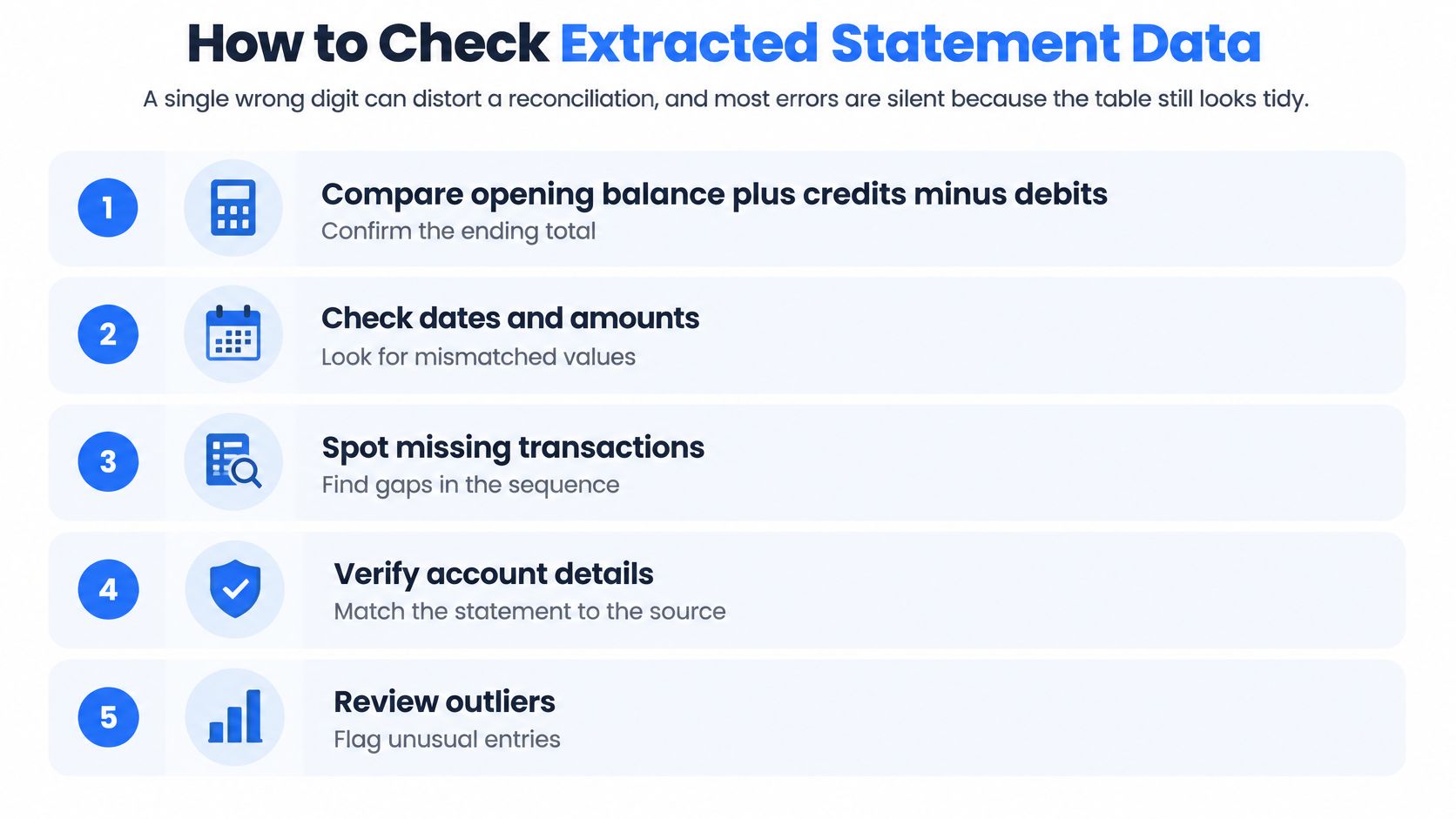
A table can look perfectly aligned and still carry a wrong digit into your reconciliation. Tidy columns prove nothing, so verification works like weighing a delivery before opening the boxes: confirm the totals first, then inspect the contents. The ten checks below rely on arithmetic and traceability. If you want background on the manual side, our guide to checking bank statements explains what reviewers look for before extraction enters the picture.
- Reconcile the balances first. Verify that opening balance + credits − debits = closing balance, because this one equation tests the whole extraction at once.
- Check debit and credit exclusivity. Each row should have a debit or a credit, never both or neither, unless the statement format clearly explains why.
- Test the running balance. It should move by exactly the row amount. A balance that jumps by the wrong figure exposes a shifted column or a misread digit.
- Parse every date. Confirm dates fall inside the statement period, and treat ambiguous forms like 03/04 carefully on international layouts, where the day and month can swap.
- Verify signs. Check negative amounts, parentheses, and trailing minus signs so withdrawals don't become deposits.
- Sample separators. Inspect decimal and thousands separators on larger amounts, where one misplaced point changes the value materially.
- Inspect page breaks. Confirm continuation pages repeat headers correctly and no row is duplicated or dropped where pages join.
- Match the summary. Compare row count and total credits and debits with the statement summary when one is printed.
- Sample against the source. Weight page breaks and low-confidence rows, because random sampling alone can miss clustered failures.
- Record corrections. Route failures to an exception queue and log each correction with the reviewer's initials and date.
Why balances anchor the review
Don't check transactions in isolation. Periodic statements are built so that opening and closing balances reflect everything the account did in between, so a sound workflow retains those balance fields rather than discarding them as decoration. If the equation differs, investigate fees, interest, pending items, or statement-specific conventions before blaming OCR.
Beginners often ask whether they should recheck rows that already passed. Only if the balance equation fails. Passed rows plus a broken equation usually mean a missing fee or interest line the extractor never saw, not a misread transaction.
No failing row reaches the export silently. It gets corrected, explained, or held back.
That rule is the difference between an automation rate you can advertise and a reconciliation you can defend. A workflow that labels its uncertain rows gives you something to review. A workflow that hides them gives you next month's unexplained difference.
Finance Documents That Benefit Most and What to Check
A small accounting firm receives 40 client statements in one batch at month-end. Some are native PDFs, some are scanned, and some are password-protected. When extraction runs first, the team stops retyping rows and spends its review time on exceptions: missing months, duplicated rows, and balances that don't reconcile. That shift, from typing to checking, is where IDP earns its place in a finance workflow.
| Document | Extraction Challenge | Output a Finance Team Needs | Check Before Use |
|---|---|---|---|
| Bank statement | Running balances, multi-page tables, scanned copies | Dated rows with debit, credit and balance columns | Opening plus credits minus debits equals closing |
| Supplier invoice | Line items, tax lines, changing layouts | Vendor, invoice number, date, net and total | Line items add up to the invoice total |
| Expense receipt | Small print, creases, phone photos | Merchant, date, amount and tax | Amount matches the card or bank transaction |
| Loan applicant statements | Several months and accounts in one file | Monthly inflows, outflows and closing balance | Every month covered with no gaps |
| Payslip | Earnings, deductions and tax in separate blocks | Gross, deductions and net pay | Gross minus deductions equals net pay |
Different documents fail in different places
Each row in the table points at a different failure mode. A bank statement needs running balances preserved, because they let you test each transaction in sequence rather than in isolation. A supplier invoice needs line items and tax lines that sum to the total, even when vendors rearrange the layout. A receipt is often a creased phone photo, so the extracted amount only becomes trustworthy when it matches a card or bank transaction.
Loan files create a coverage problem rather than a single-row problem. Several months and accounts may arrive in one file, and one missing month can change an assessment. Payslips separate earnings, deductions, and tax into blocks, so the core check is that gross minus deductions equals net pay. A well-designed workflow applies the right check to each document type instead of treating every file identically.
Keep output traceable to the source
Retention rules do not require evidence to stay on paper. Records may be kept as computer files or through other methods that accurately reproduce the original. For a finance workflow, that supports structured CSV or XLSX output alongside the source statement, because dates, descriptions, amounts, and balances must remain traceable back to the document they came from. The converter preserves the fields; the review confirms them.
Format choice follows the next job. CSV suits import into bookkeeping and accounting packages, while XLSX suits review, sorting, and annotation. Scope matters too. autobankstatement converts bank statement PDFs into CSV or Excel files, so the invoice, receipt, loan-file, and payslip rows above describe checks that apply to general IDP tools rather than functions this converter performs.
Privacy and Retention Questions to Settle First
A deleted working file doesn't settle compliance. Temporary processing and legal retention are different obligations, and confusing them leaves a firm with neither the working evidence it needs for review nor the finalized records it must keep. The distinction works like a meeting room whiteboard versus the filing cabinet: the whiteboard is wiped when the session ends, but the signed document goes into storage for years.
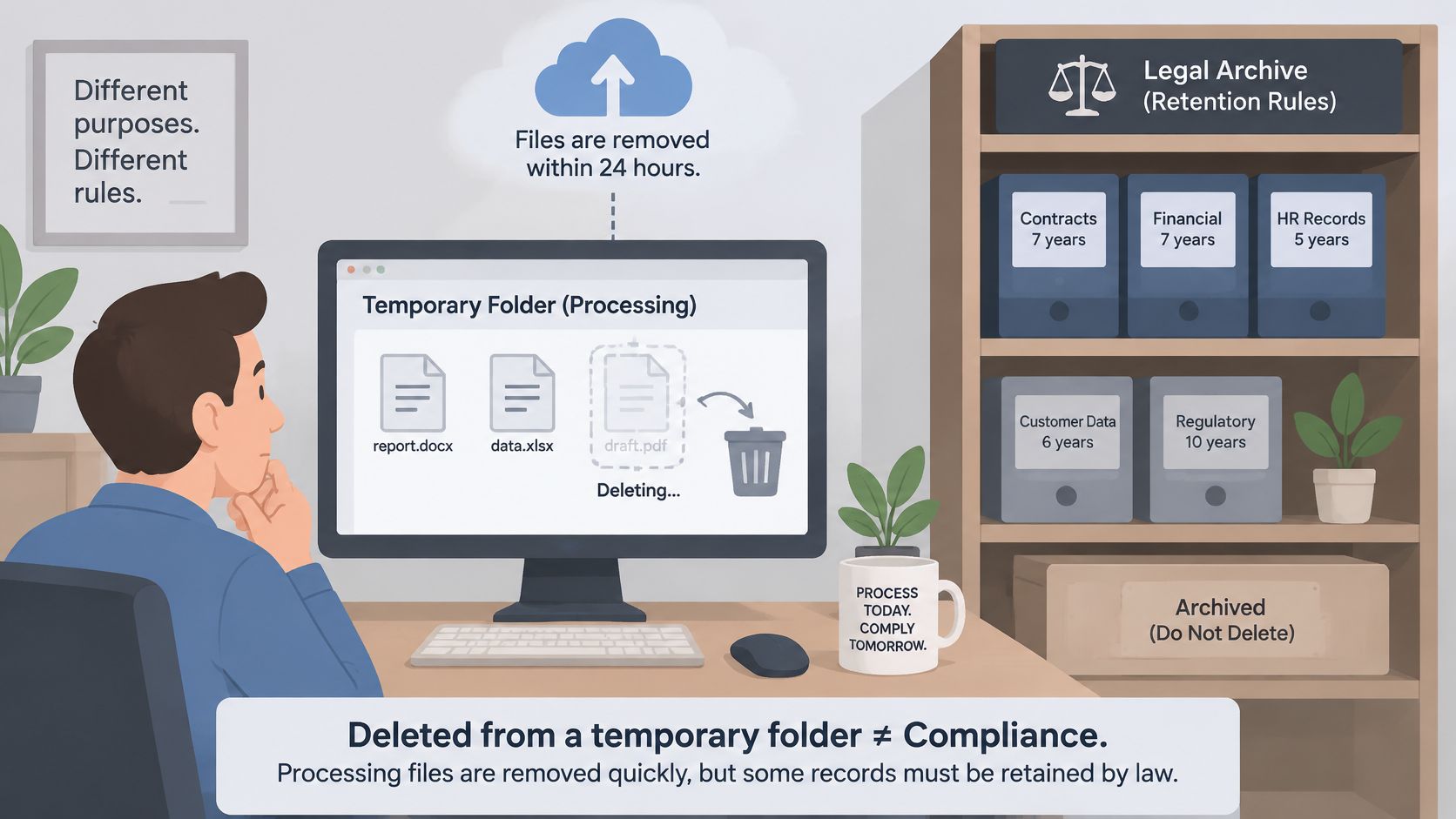
With autobankstatement, the uploaded statement is used only to complete the conversion and is deleted within 10 seconds after processing ends, while registered users keep 24-hour download access to the finished file. That is a processing window, not a records schedule. Fast deletion also does not mean nothing remains: the CSV or XLSX you download is yours to store, and your finalized source PDFs and outputs still follow your own tax, accounting, lending, and regulatory policies. Our guide on how long to keep credit card statements shows why those periods vary by record type.
Under Regulation E, the CFPB requires covered persons to retain evidence of compliance for at least two years from the date a disclosure is required or an action is taken. If an investigation or enforcement proceeding is known, related records must be retained until final disposition unless an agency or court permits earlier disposal. Security concerns also shape adoption. The Apryse global survey reported that 54% of surveyed organizations identified data security as the top obstacle to scaling AI, while 49% cited data quality. A tool earns trust here by showing its controls rather than promising them: you should be able to see what was deleted, when, and what remains under your control.
Five questions before the first upload
- Access and passwords: Who may upload and download, and how is a statement password handled during the session? With autobankstatement, the password for a locked file is entered at upload and used only for that conversion.
- Review availability: How long must the source PDF stay available while exceptions are checked, and is the download window long enough for your review pace?
- Final storage: Where do finalized CSV or XLSX files live under your firm's retention schedule?
- Processing region: Where is data processed, and does that meet your local rules and client commitments?
- Model training: Will customer documents be used to train any model, and can the provider state that in writing?
Ask any provider for written documentation of deletion, access, and training policies rather than accepting verbal assurances.
Decide Whether IDP Fits Your Finance Workflow
Fit isn't a feeling. It's a count of pages, input types, layouts, destinations, review capacity, and retention duties. Run through these questions with real numbers from last month rather than estimates.
The fit test
- Monthly volume: How many pages arrive each month, including peaks?
- Scanned share: What proportion are scanned or photographed rather than text-based?
- Layout variety: How many different bank layouts appear across clients or accounts?
- Destination: Is the target accounting import through CSV, or spreadsheet review in XLSX?
- Review capacity: Do reviewers have time to work an exception queue promptly?
- Retention coverage: Does your policy cover finalized records after temporary processing ends?
If most of your volume is invoices or receipts, a tool built for bank statements won't cover them, so evaluate tools designed for that document type instead. If statements dominate and reviewers can clear exceptions quickly, IDP usually fits because the balance check gives each file a clear pass or fail signal.
A low-risk first trial
Start with a free guest preview on one statement from a past month whose opening and closing balances you already know. Apply the balance equation, then sample rows against the source PDF. Three spots deserve the closest look: page breaks, where a repeated header can surface as a phantom transaction; signs, where a credit can flip into a debit; and separators, where a thousands comma can be misread as a decimal point. Judge the tool on those results, not on how polished the preview looks.
autobankstatement is built for that statement-specific job. It converts PDF bank statements, whether digital, scanned via OCR, or protected by a password entered at upload, into CSV or Excel/XLSX, handling files up to 25 MB and multiple files in one bulk session. Transactions land in clear rows you can review and edit in the browser before downloading. The original PDF is used only for the conversion and deleted within 10 seconds of processing, while registered accounts keep 24-hour download access to the finished file. Self-serve plans add dashboard credit tracking, so growing volume stays a settings change rather than a new project.
Let the balance check decide the trial, not the marketing.
A workflow earns trust by how it handles the rows it can't read cleanly. Look for one that flags uncertain extractions instead of hiding them, keeps source and output traceable, and points your reviewers at the few rows that could distort a reconciliation.
Try the balance check on a statement you already trust. The free guest preview turns a digital, scanned, or password-protected PDF into reviewable CSV or XLSX rows before you pay. If the opening balance, credits, debits, and closing balance reconcile cleanly, visit autobankstatement and match a plan to your month-end volume.
Convert your next statement in minutes
Upload a bank statement PDF — digital, scanned, or password-protected — preview the extracted table, and download clean CSV or Excel.