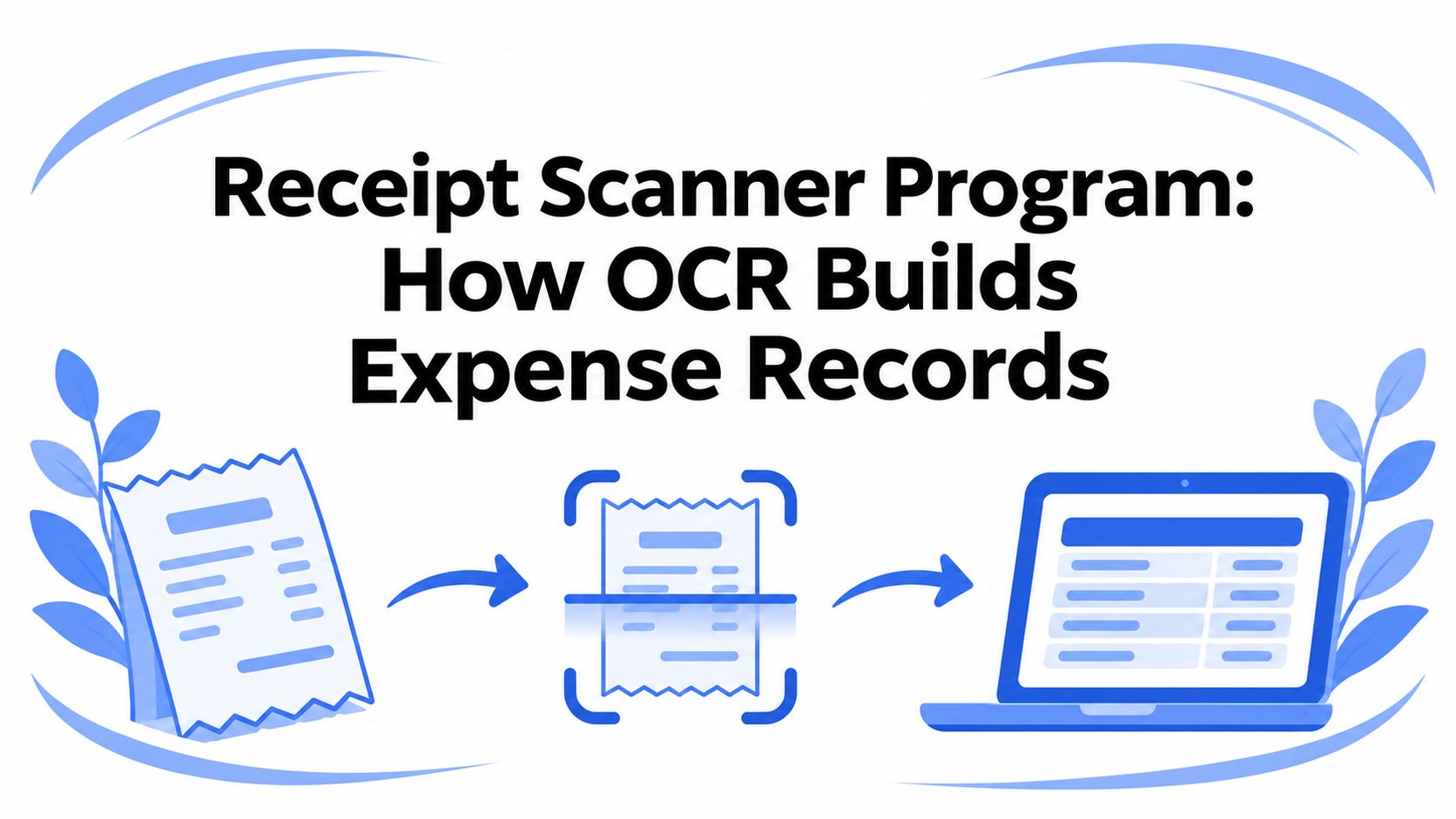
Receipt Scanner Program: How OCR Builds Expense Records
Learn how a receipt scanner program uses OCR to turn receipts into expense records, which fields to verify, and what features matter.
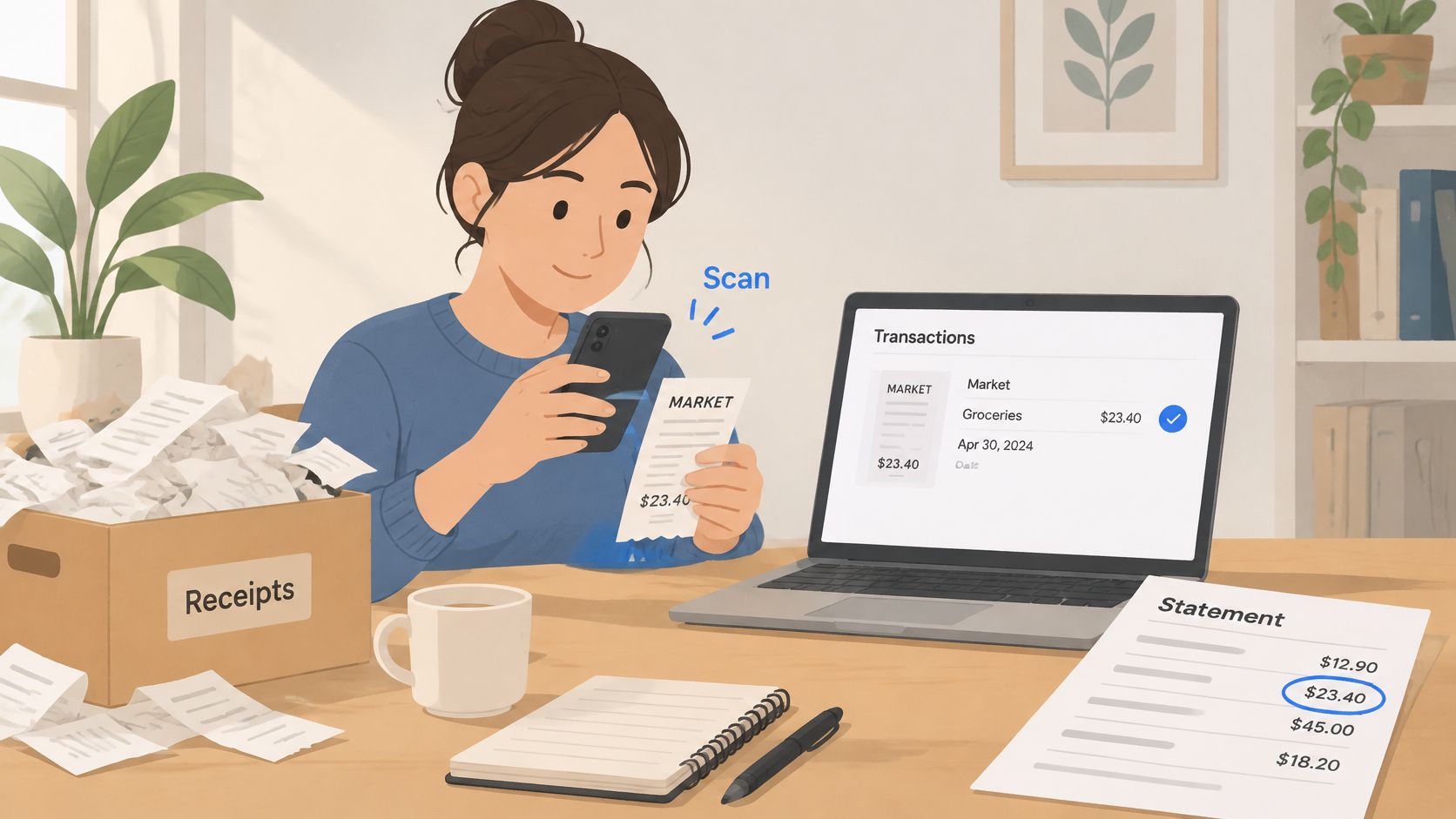
A card statement line for a hotel stay sits on the screen. The receipt saved in the expenses folder shows the same total, but the date is two days off, the tax line is blank, and the currency appears as three letters nobody on the team recognizes. Multiply that by fifty lines and you have the last week of the month.
Receipt capture looks like a speed problem: faster scanning, higher accuracy, fewer keystrokes. It's mostly a verification problem. What decides whether your books hold up isn't how quickly a program reads a receipt. It's which extracted values you can post without a second look, which need a match against the card or bank record, and which should stop a reimbursement until a person reads the paper.
Table of Contents
- What a Receipt Scanner Program Does for Your Records
- Receipt Fields and How Far to Trust Each One
- How OCR Turns a Receipt Image Into a Structured Record
- Features That Matter for Expense Tracking
- Testing a Program on Your Own Receipts
- Privacy, Retention and Records Rules for Scanned Receipts
- Choose a Program and Verify Its First Month of Output
What a Receipt Scanner Program Does for Your Records
Month-end in a small finance team has a familiar shape. The card statement arrives with forty or fifty lines, and somewhere else, in a shoebox, a shared drive or a camera roll, sit the paper slips and phone photos that are supposed to support them. Someone has to prove each line matches a document.
A receipt scanner program is software that captures a photo or scan of a receipt and pulls out the merchant, date, tax, currency and total into a record you can search, categorize and export. Think of it as a clerk who reads every slip and types it into the ledger. The clerk works in seconds, never tires, and still makes the occasional mistake that a person has to catch.
The history explains the shape of the tool. Receipt-scanning programs developed from basic image capture into automated expense-management systems built around optical character recognition, or OCR, and machine learning, where the learning layer improves recognition across layouts and transaction types, as Ramp's overview of receipt scanning in expense management sets out. The same overview reports that most expense-tracking tools now combine OCR with machine learning, and that 95% of receipts were captured and matched on the same day the corresponding transaction cleared.
That last figure captures why the category exists at all. An image is evidence. You can file it and forget it. Structured data can be matched to a card line, reviewed by a second person, rolled into a report and archived with a date attached. The shift from after-the-fact filing toward near-real-time documentation is what reduces missing receipts at close and keeps audit trails consistent.
Practical rule: the scanner shortens the data entry. The reviewer still decides what reaches the ledger.
Set expectations accordingly. Image quality, unusual fonts, handwriting, foreign currencies and odd tax-line formats all produce errors that no amount of automation removes. A program that extracts and then asks for validation beats one that extracts and assumes.
Receipt Fields and How Far to Trust Each One
A single accuracy percentage is the least useful number on a scanner's marketing page, because it averages a merchant name that is easy to read with a total that is easy to get wrong. A receipt works like a small evidence packet. Some fields are labels, some fields drive calculations, and some fields need a person to supply context. what a receipt is and which parts of it carry accounting weight makes the same distinction between the paper evidence and the data that earns a place in the ledger. The table below splits the receipt into the fields a finance team posts and pairs each one with the check that belongs in the workflow.
| Field | Typical OCR reliability | Verify before reimbursement or filing |
|---|---|---|
| Merchant name | High on clean prints; one-character errors are usually tolerable | Confirm the vendor for any business or tax claim |
| Date | Reliable when printed clearly; errors change the reporting period | Match to the card or bank posting date |
| Subtotal and tax | Can fail on faded thermal paper and unusual tax-line formats | Check that subtotal plus tax equals the total |
| Total | Decimal-point or digit errors corrupt the record | Compare with the card or bank statement amount |
| Currency | Weaker on foreign receipts and unusual symbols | Confirm the currency code for every foreign purchase |
| Payment method | Moderate reliability that drops when card details are truncated or inconsistently placed | Check the last four digits against the card used |
| Line items | Lowest reliability on crumpled or long receipts | Review only when the expense needs item-level detail |
| Business purpose | Not an OCR field; entered by the user | Add manually and keep it with the stored record |
Why one accuracy figure hides the problem
HyperVerge's review of receipt scanner accuracy reports field-level accuracy of roughly 95% to 99% on clean receipts, falling to about 75% to 90% for crumpled, faded or low-light images, while a separate benchmark matched only 86.4% of expected fields across a small mixed fixture set. Read those numbers side by side and the pattern is clear: the condition of the paper sets the ceiling, not the engine.
The differences matter because each field has a different job. A merchant name is a label. A wrong letter may still leave a name a human recognizes, and the tax authority does not read it as an amount. A date decides which period the expense lands in. A total decides the amount on the return, so a moved decimal point changes the accounting record. A currency code can multiply an entry by an exchange rate. These fields carry arithmetic consequences, so they get stricter treatment than a label near the top of the slip.
That is why a buyer should read an accuracy figure as an average, not as a promise about every field. Think of a scanner as a reader filling in a form from a faded source. It may copy the merchant name correctly and still misread the tax line below it. A lower average score can be safer if the program marks uncertain totals and tax values for review. The aim is not to remove people from the workflow. The aim is to send the right records to people before they reach the ledger.
The four checks that close the gap
- Total against the card or bank record. If the charge posted at a different amount, find out why before posting anything.
- Receipt date against the posting date. Tips settle later, weekend charges post Monday, and foreign transactions can lag. A mismatch of a few days is normal; a mismatch of a month is a filing error.
- Subtotal plus tax equals total. This single arithmetic check catches most extraction failures on the tax line, including a tax value that was never read at all.
- Currency code on every foreign purchase. Confirm the ISO code rather than trusting a symbol, since a dollar sign appears on receipts from several countries.
These checks are short on purpose. They fit the places where receipt data usually leaves the evidence trail and becomes a financial record. A reviewer who repeats them in the same order builds a habit that survives busy closing weeks. The habit also makes exceptions easier to explain, because the reviewer can point to the field that failed instead of rejecting the whole scan.
Receipts that break extraction
Long itemized receipts are the weakest case, because line items stack tightly, wrap across rows and often run to a second page. Handwritten notes, thermal paper that has faded in a glovebox, tax lines labeled in a language the engine was not tuned for, and discount or deposit rows that break the subtotal logic all push a receipt toward manual entry. Payment method fields can also weaken when a receipt shows only truncated card details, or when the last four digits sit far from the total block. A scanner may still capture the visible characters, but the reviewer should compare them with the card used before approving reimbursement.
A one-character slip in a merchant name is a nuisance. A moved decimal point in a total is a bookkeeping error.
The practical conclusion is uncomfortable for buyers who compare spec sheets. A slower program that flags uncertain totals and tax values is worth more than a faster one with a better average score, because the flag sends the right receipt to a person and lets the rest flow through. Verification is the point of the workflow. Speed helps only after the fields that affect money and reporting periods have been checked.
How OCR Turns a Receipt Image Into a Structured Record
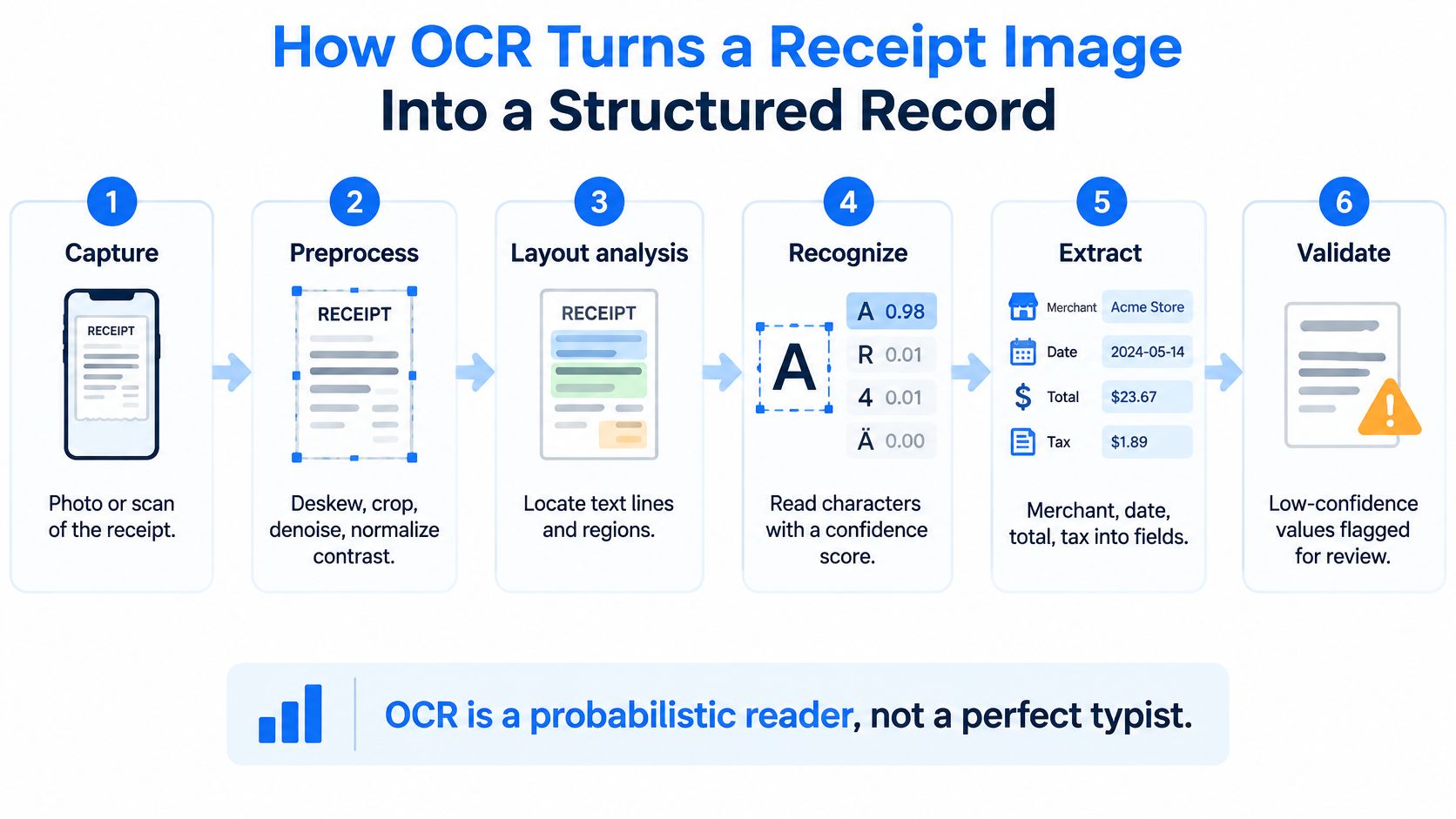
OCR works like a probabilistic reader, not a perfect typist. It assigns characters based on what the pixels most likely represent, so every extracted value carries a confidence level whether the interface shows it or not. That matters because a wrong merchant name is easy to spot, while a moved decimal in a total can pass into a report. The pipeline that turns a crumpled slip into a ledger line runs in a fixed order, and each stage narrows what the next stage can trust.
- Capture. A phone photo, a flatbed scan or a PDF arrives in whatever condition the user had available.
- Preprocess. The image is deskewed, cropped, denoised and contrast-normalized, and checked for blur, low resolution or compression artifacts. Everything downstream depends on this step.
- Layout analysis. The engine locates text regions and decides which block is the header, which is the itemized table and which is the totals area.
- Character recognition. Individual characters are read with a confidence score, so the system knows where it was certain and where it was guessing.
- Field extraction. Position and pattern rules assign text to merchant, date, subtotal, tax, total and currency, which is why a totals block at the bottom is treated differently from a line item in the middle.
- Normalization. Dates are converted to one format, decimal separators standardized, and currency symbols mapped to codes, so a European receipt and a US one can live in the same table.
- Validation. Internal rules run: does subtotal plus tax equal the total, do the line items sum to the subtotal, is the date a real date.
- Routing. Low-confidence or internally inconsistent receipts go to a review queue instead of straight to export.
Step 2 deserves close attention because image quality sets the ceiling for everything after it. NIST's study of image quality and machine-print OCR found that degrading print and image quality produced character-recognition error rates ranging from 1% to 74%. A dark, angled photo gives the engine weak pixels, and no parser can recover characters that were never readable. This is the main reason a single headline accuracy figure misleads buyers. Clean, simple receipts can make a program look excellent, while faded thermal paper, tight item rows and mixed tax labels expose the verification work that still matters.
Good systems keep the confidence score and the bounding-box coordinates for every field, so a reviewer can jump to the exact area of the image a value came from. That's the difference between correcting a record and guessing at it. It also supports the right division of labor: accept stable fields automatically, check uncertain totals and tax against card or bank records, and keep the original image available when the extracted row needs an audit trail. If the terminology is new to you, our explainer on how OCR reads a document and where it struggles covers the mechanics in plain terms.
Features That Matter for Expense Tracking
Feature lists tend to describe the same handful of capabilities in different words. The ones worth comparing are the ones that decide how a failure gets handled.
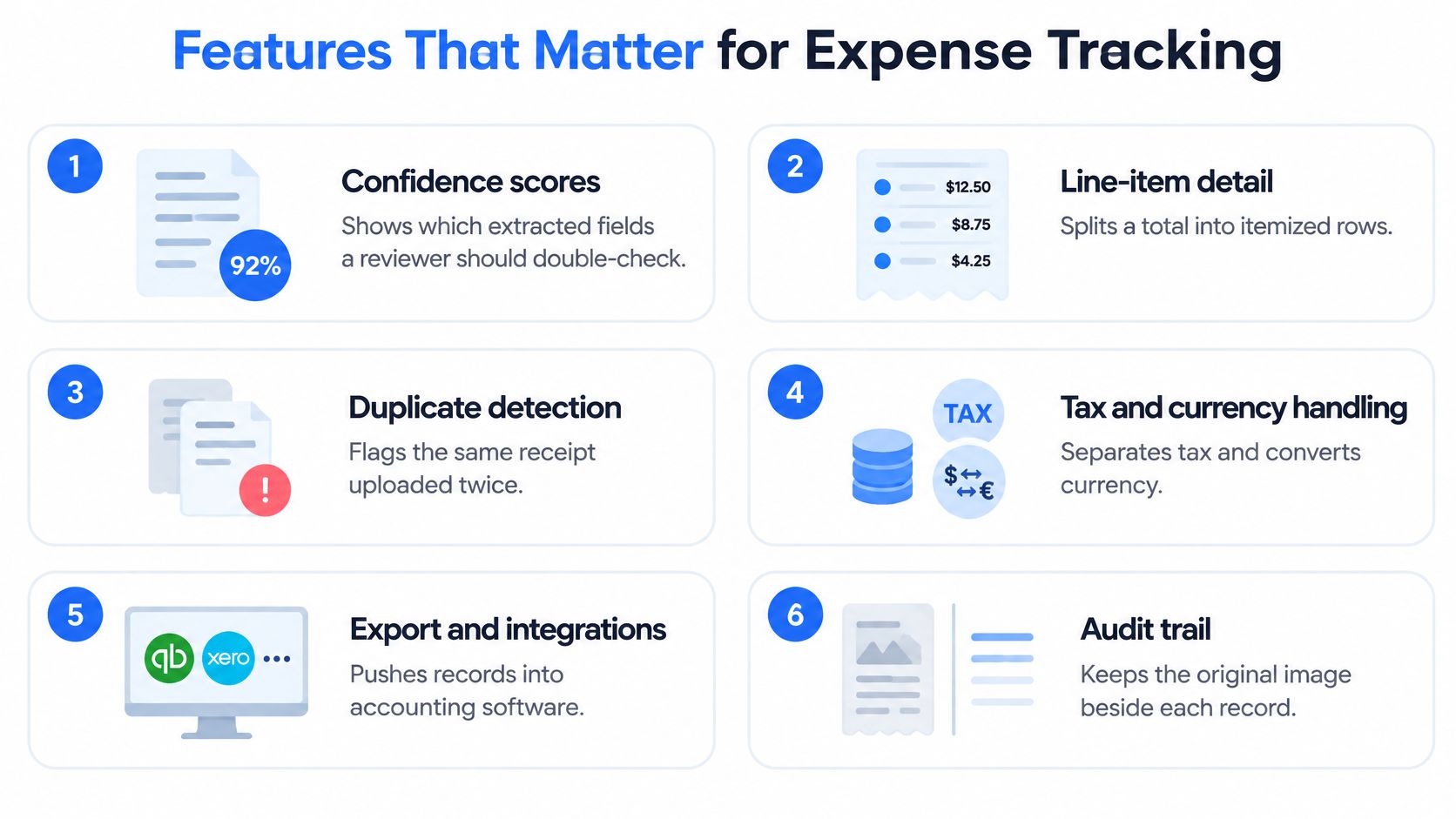
- Confidence scores per field. Without them, a reviewer has to check everything, which erases the time saved.
- An exception queue. Low-confidence and failed receipts belong in one list, not scattered across a dashboard.
- Duplicate detection. The same receipt photographed from two angles, or submitted by two people, is a common and expensive error.
- Correction history. Knowing which value changed, who changed it and when is what makes a record defensible later.
- Preservation of the original image. The extracted data is the convenience; the image is the evidence.
- Export to CSV or Excel. Review and archiving both need a format you can open without the vendor.
- Matching against card transactions. A receipt tied to a specific charge is reconciled; a receipt sitting in a folder is not.
- Mobile capture. Receipts get handed over at the counter, so capture has to happen there.
- Retention and deletion controls. These define how long images and extracted data stay, and who can remove them.
The right mix depends on the team. A sole trader mostly needs mobile capture and a clean export. A finance team processing employee expenses needs the exception queue, correction history and card matching, because the volume makes unreviewed errors certain.
Questions that separate a shortlist
- Is the price per user, per receipt or per document page? Those three models scale very differently at volume.
- What's the monthly limit, and what does exceeding it cost?
- Do stored images count against the same limit as scans?
- Does the free trial run long enough to test your own labeled sample? A week is enough for fifty receipts; a single demo is not.
- Does exported data survive cancellation? If the export is incomplete, you're renting your own archive.
Ask for the first-year cost at your real monthly volume rather than the entry-tier headline, then write down the three features your close cannot run without. That list is the shortlist criteria, and it's shorter than any comparison page suggests.
Testing a Program on Your Own Receipts
Extraction has to be measured on heterogeneous documents, not clean laboratory samples. The ReceiptBench research dataset holds 10,656 human-annotated receipt and receipt-like images across multilingual regions and document types including taxi invoices, ferry tickets and hotel statements, and its annotation pipeline reported 98.7% average annotation accuracy, per the ReceiptBench study on receipt understanding. That diversity is the point: layout variation, multilingual text, faded thermal printing, skew, shadows and unusual tax formats break systems that look flawless on a sample receipt.
A fair test uses 50 to 100 of your own receipts, stratified by image quality, language, currency, capture device and format. Run it once, then keep it.
- Gather a recent sample that includes faded thermal paper, phone photos taken in poor light, email PDFs and at least a few foreign receipts.
- Label the truth by hand. Merchant, date, subtotal, tax, total and currency, entered once in a spreadsheet you keep.
- Run the program on the same images. Don't cherry-pick the clean ones.
- Compare field by field, not receipt by receipt, so you can see which field fails and how often.
- Calculate precision and recall per field, plus total-amount accuracy, which is the number that affects your books.
- Group the failures by condition. Low light, handwriting, long itemized bills, foreign tax formats. The grouping tells you what to change in capture.
- Rerun the same sample after every update. An OCR engine change or a new parser can reduce accuracy on the cases you already solved.
Thresholds should be field-specific. A monetary total or a transaction date deserves automatic rejection or review when confidence is low, because the cost of a wrong one is a corrected filing. A merchant name or a description can absorb more variation before it's worth a human's attention.
Baseline first: a fixed, labeled sample of your own receipts is the only way to tell whether an update made the program better or worse.
Privacy, Retention and Records Rules for Scanned Receipts
A receipt is a surprisingly revealing document. It can carry a name, a partial card number, a loyalty identifier, a delivery address, a dietary choice, a medical purchase and a supplier relationship, sometimes all on one slip of thermal paper. A privacy review of these tools notes that many receipt-scanning systems process OCR on servers, and that some reward-based services monetize aggregated purchase data through advertisers and market-research firms, while on-device processing offers stronger privacy but may perform worse on damaged receipts, as covered in Finny's review of receipt scanning app safety.
That reframes the question. It isn't "is a receipt scanner safe" but "who can access my receipt data, how long is it kept, and can I use the tool without creating a commercial profile". A free scanner funded by purchase data can cost more than a paid one, particularly for a firm whose supplier relationships are commercially sensitive.
What records rules actually require
The records side is not optional. The IRS requires businesses to maintain sufficient books and records supporting income and deductions and to produce them on request during an examination, and its guidance on electronic accounting records recognizes electronic storage provided the system can index, store, preserve, retrieve and reproduce the records in a legible format.
NIST's digital identity guidance adds the security half: sensitive information needs protection for confidentiality and integrity, including encryption at rest and transmission through authenticated protected channels, and policy must address retention, protection and deletion, with destruction when data is no longer needed, according to NIST's digital identity guidance.
Retention rule: keep the source image next to the extracted record, and treat the export as a copy rather than the record itself.
Vendor questions worth asking before you upload
- Where does OCR run? On the device or on a server, since that changes your exposure entirely.
- How is data encrypted in transit and at rest?
- How long are images and extracted fields retained, and can you delete them permanently?
- Is purchase data sold, shared or used for analytics, and is that separable from the service?
- Which subcontractors and hosting regions are involved?
- Can you export everything if you leave?
If your team scans receipts across borders, run those questions past each regional entity. For day-to-day filing practice, our guide to keeping receipts organized for tax and audit covers the folder and naming conventions that make retrieval possible years later.
Choose a Program and Verify Its First Month of Output
Pick the program whose failure behaviour you can live with, then prove it in a single close. Every tool will be wrong sometimes; the difference is whether it tells you when.
- Export the month's extracted data beside the statement lines. Put the merchant, total and posting date side by side rather than checking the scanner against itself.
- Match each receipt to one statement line and mark three states: exact match, near match from a tip, rounding or foreign exchange, and unmatched.
- Treat a card line with no receipt as an open item at close. Don't post an unsupported total and promise to find the paper later.
- Re-check flagged totals, tax and currency fields before anything is posted, not after.
- Keep the original image with the entry for the period your tax adviser sets.
- Count errors by field so next month's rate is comparable with this one, and so a vendor change is measurable.
The substantiation standard gives you a field list to verify against. IRS Publication 583 states that for an electronic funds transfer a statement should show the amount transferred, the payee's name and the date the transfer was posted by the financial institution; for checks, the check number, amount, payee and posting date. Those are the values a bookkeeper should be able to read after any conversion, not an approximate interpretation of them.
One scope note keeps the workflow honest. A receipt scanner reads receipts. A bank statement PDF needs a separate converter, and ours handles digital, scanned and password-protected statements into CSV or Excel, with files up to 25 MB, bulk upload, a free guest preview before payment, 24-hour download access for registered users and uploads deleted within 24 hours. Plans run from $15 a month for 400 pages to $50 a month for 4,000 pages, with annual discounts and custom enterprise limits, and the converted transactions arrive as rows you can review and edit in the browser before downloading. When you check a converted statement, confirm that opening balance plus credits minus debits equals the closing balance, because a conversion that reconciles is a conversion you can file.
Receipt data only becomes a record when someone verifies it, and the same is true of the bank statements those receipts are matched against. If your month-end still involves retyping statement lines into a spreadsheet, autobankstatement turns PDF statements, including scanned and password-protected ones, into review-ready CSV or Excel tables you can check in the browser before you download, with uploads deleted within 24 hours. Bring your next statement, run the balance check, and see how much of the reconciliation happens before you touch a keyboard at autobankstatement.
Convert your next statement in minutes
Upload a bank statement PDF — digital, scanned, or password-protected — preview the extracted table, and download clean CSV or Excel.