
How to Open QFX Files in Quicken or Sheets
Learn how to open QFX files in Quicken on Windows or Mac, and what to do when you need CSV or Excel instead of a Quicken register.
A client sends a file for the close, we save it to the workpaper folder, and we double-click it expecting a statement or a spreadsheet. Instead Windows or macOS asks which app should handle it, or a text editor opens a wall of tags. That's usually the first sign we're dealing with QFX, and the file isn't broken. We're just asking it to do the wrong job.
Table of Contents
- Why Double-Clicking a QFX File Fails
- Get a Real QFX Download from the Bank
- Import the QFX File into Quicken
- When You Need CSV or Excel Instead
- Fix QFX Files That Will Not Import
- Check the Numbers and Take the Next Step
Why Double-Clicking a QFX File Fails
Double-clicking works for a PDF because a PDF is built for reading. A QFX file isn't. QFX means Quicken File eXchange, and it's the format many financial institutions use to transfer banking data into Quicken through Web Connect, as explained in Quicken guidance on importing files from your bank. The file can contain transaction records, account balances, and other account information so software can update a register.
That distinction decides how to open QFX correctly. We're not really opening a document. We're either importing structured data into Quicken, or we're trying to get rows we can sort and reconcile somewhere else. Those are different jobs, and they need different tools.
Import Is Not the Same as Convert
When account matching and transaction history inside Quicken matter, we import. Quicken links the download to a register, and transactions are added automatically or held for review depending on the account's download preferences. That preserves the workflow QFX was designed for.
When the job is analysis in Excel or Google Sheets, importing into Quicken may be a detour we don't need. We need dates, descriptions, debits, credits, and balances as a table. A QFX file doesn't present itself that way, even though the underlying data describes the same activity. If the related OFX format is causing similar confusion, our guide to what the OFX file format is and how it differs helps separate the two before we choose a path.
Practical rule: If we need a Quicken register, import the QFX. If we need a spreadsheet, don't force the QFX to pretend it's one.
Why Renaming the File Doesn't Work
We see this shortcut often in client folders. Someone renames statement.qfx to statement.csv and hopes Excel will sort it out. It won't, because renaming changes the label, not the underlying format. Excel still receives structured Web Connect data, not comma-separated rows.
Saving the text view as a CSV creates the same problem in a different form. We may get a file that opens, but we won't get clean columns we can trust for a reconciliation. Worse, we may alter the only copy of the download while trying to fix it.
- We need Quicken history: Use the Web Connect import and link the file to the right account.
- We need review outside Quicken: Get a real spreadsheet export or work from the official PDF statement.
- We only need to confirm the file arrived: Inspect a copy as text, then leave the original untouched.
That decision comes before any menu path. Once we know whether the end point is a register or a workbook, the next steps get much simpler and we stop treating every QFX problem as a missing app problem.
Get a Real QFX Download from the Bank
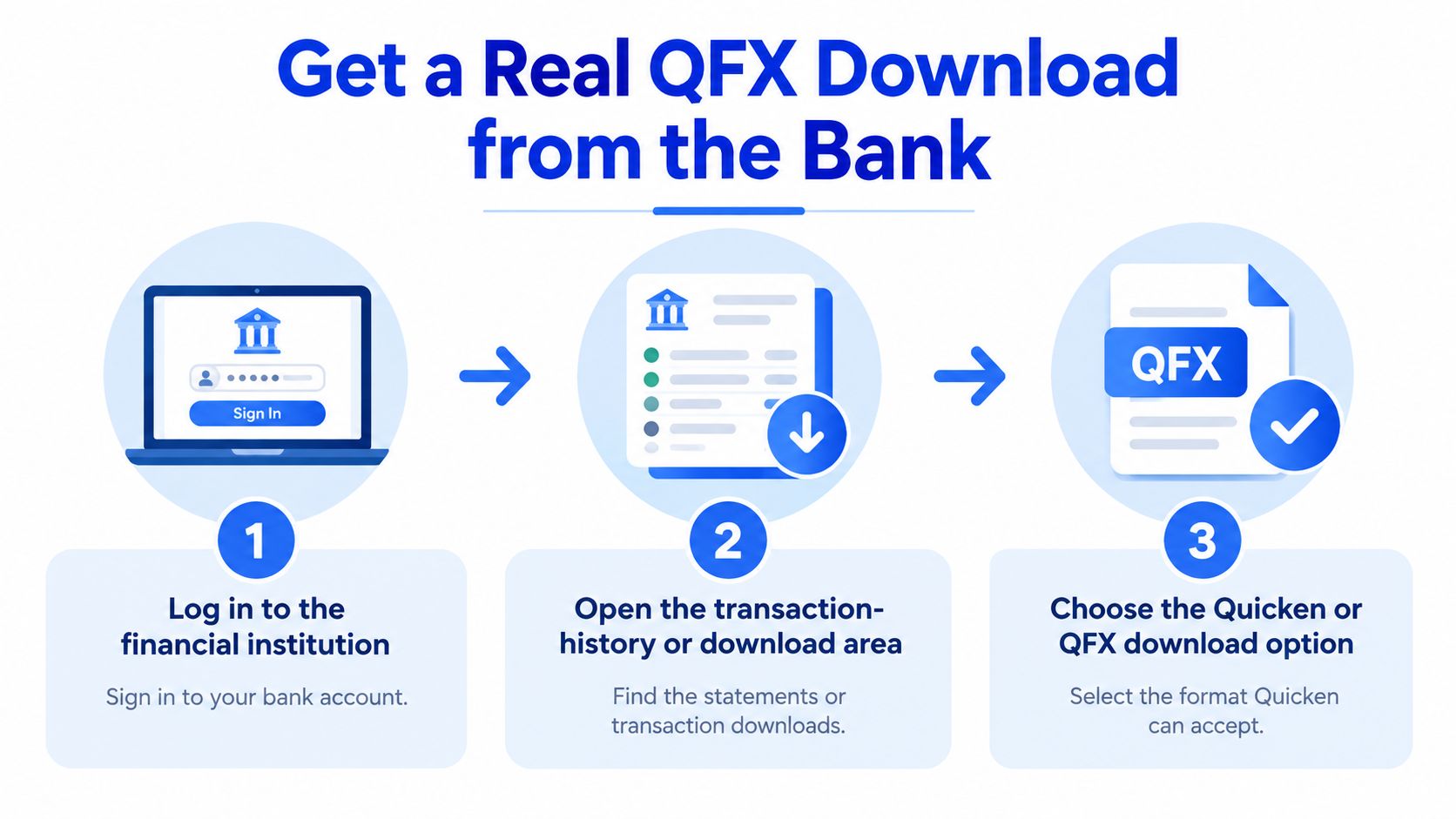
A clean import starts at the bank, not in Quicken. We log in to the financial institution, go to the transaction-history or download area, and look for a Quicken or Web Connect option. We don't grab the PDF statement and expect Quicken to treat it as transaction data, and we don't pick a generic export if our goal is a Web Connect import.
The saved filename should end in .qfx. That ending is our first check before we leave the bank site. If the file ends in something else, we pause and confirm what we downloaded.
Check the Format Before We Import
File endings matter here because similar names describe different jobs. QIF isn't accepted for this Web Connect process, so a QIF download won't become valid just because we point Quicken's Web Connect import at it. QXF is also different. It's a Quicken transfer format, not the bank download we're trying to produce in this step.
We also confirm the account type fits the workflow. Quicken supports Web Connect downloads for checking, savings, credit-card, brokerage, and retirement accounts. If we're downloading for a different purpose, or the institution doesn't offer Quicken for that account, we need to know that now rather than after a failed import.
Confirm Account and Date Range
Before anyone imports, we check three things against the workpaper request. First, the institution matches the client's actual bank. Second, the account matches the register we'll link to later. Third, the date range matches the period we intend to post.
- Institution check: The download came from the bank that holds the account, not a similarly named portal or an old login.
- Account check: We're not about to link a credit-card download to a checking register.
- Period check: The dates cover the month or quarter we're closing, without overlapping a period we've already posted.
We keep the original download unchanged in the source folder. If an import goes wrong, we can retry from a clean file instead of wondering whether someone opened, edited, and resaved it.
A verified .qfx file from the right account for the right period is a source document. We treat it that way and don't edit it by hand.
Sometimes the bank no longer offers a Quicken or Web Connect download at all. When that happens, we don't keep clicking and we don't blame the double-click. We record that QFX isn't available from that institution and switch to the export the bank does support, whether that's a direct connection workflow, a CSV, or the PDF statement.
Import the QFX File into Quicken
This is the actual open step, and it happens through Quicken's menus. We don't drag the file onto the Quicken icon and hope for the best. We import it, we link it deliberately, and then we review what landed in the register.
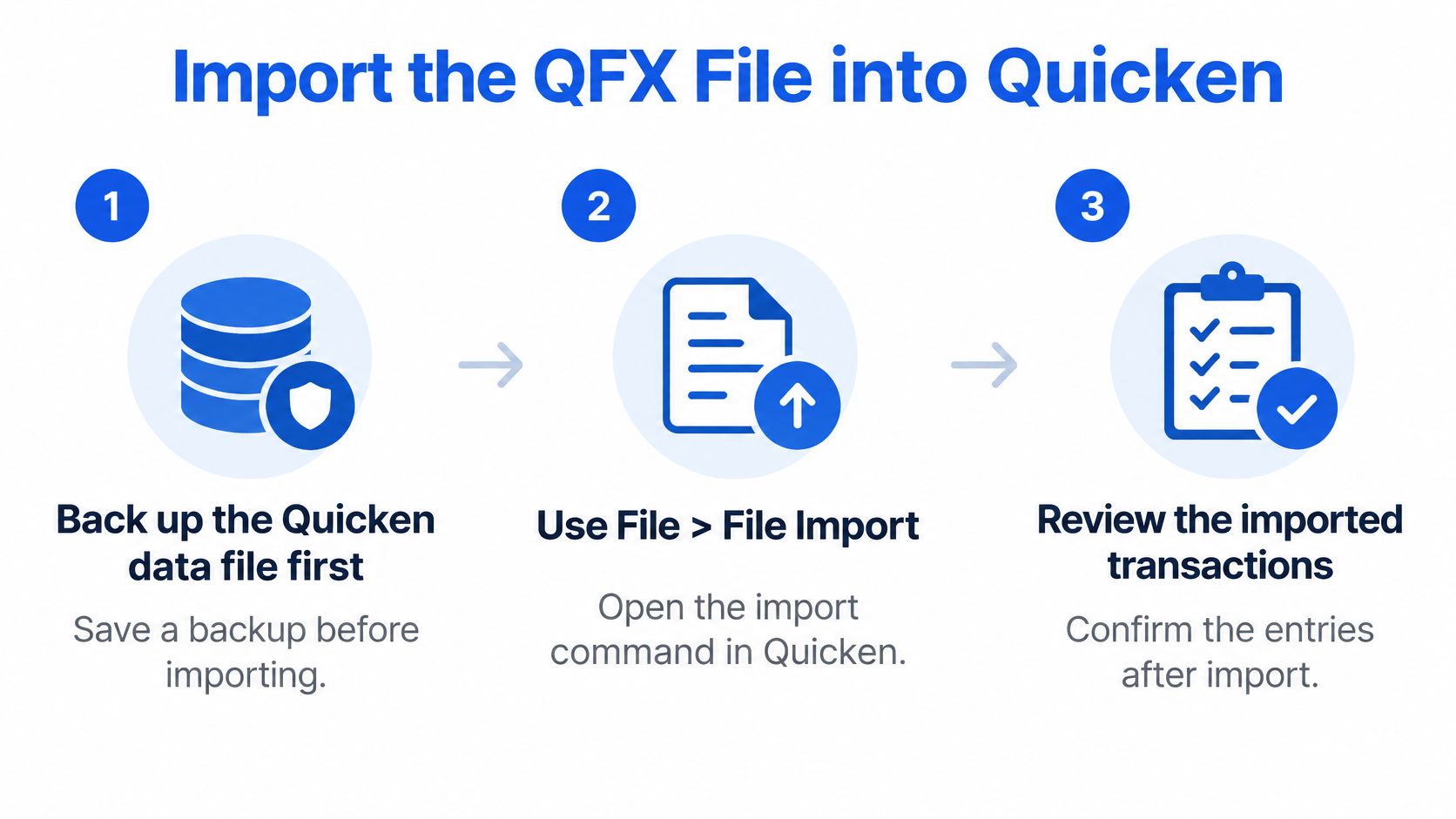
Before we touch the import, we back up the Quicken data file. That backup is our undo button if we link to the wrong account or import the wrong period. It takes a moment, and it saves a painful cleanup when a client file contains months of categorized history.
Windows Import Path
On Windows, we select File > File Import > Quicken Transfer Format (.QFX) File, browse to the downloaded file, and choose Open. Quicken's Web Connect workflow is also described as File > File Import > Web Connect File in Quicken instructions for downloading transactions on Mac and related workflows. The wording varies by version and platform, but the job is the same. We're importing a Web Connect file, not opening a document.
During the final stage, Quicken asks where the transactions belong. We either create a new account or choose Link to connect the imported transactions to an existing account. We create a new account only when that register doesn't exist yet. In an established client file, linking is usually the right answer, and creating a duplicate account is how we end up with two partial histories for the same bank account.
Mac Import Path
On Mac, we select File > Import > Bank or Brokerage File (OFX, QFX), choose the file, and select the destination account. Then we review the account register afterward. The menu names differ from Windows, but the control point is identical. The destination account has to match the institution and account type from the download.
We slow down at that account selection screen. A checking download linked to a savings register can import successfully and still be completely wrong. Successful isn't the same as correct.
Review What Quicken Added
After import, Quicken may add transactions automatically or present them for review and acceptance, depending on the account's download preferences. Either way, we open the register and check the result against the period we downloaded. We look at the first and last dates, scan for obvious duplicates, and confirm the balance direction makes sense for the account.
- Confirm the register: We're looking at the account we intended to update.
- Accept with intent: If transactions are held for review, we accept them after checking payees, dates, and amounts, not as a reflex.
- Stop if it looks wrong: If the link was wrong, we restore from the backup we made before importing rather than deleting rows one by one.
Register check: A completed import progress bar isn't a finished close. The register review is what makes the import trustworthy.
When the review passes, we have what QFX is good at. Transactions sit in the right Quicken account with their history intact, ready for categorization and reconciliation inside Quicken.
When You Need CSV or Excel Instead
A lender reviewing a loan package doesn't want a QFX file. Neither does the staff accountant who needs to filter six months of transactions in Excel, or the reviewer who needs rows they can sort, tag, and attach to workpapers. Opening and converting are two different jobs. Import into Quicken when the account match matters; reach for a spreadsheet path only when the work happens outside Quicken.
A QFX file can still be inspected as text with Notepad or TextEdit. That view proves the download is readable and contains transaction data. It doesn't give us a workbook, and we never save that text view as a CSV and call it converted.
Pick the Source That Matches the Job
Before we convert anything, we run through a quick comparison. The goal decides the source, and the source decides the output we're allowed to claim.
| Goal | Start with | Usable result | Do not |
|---|---|---|---|
| Update a Quicken register | QFX from the bank | Linked transactions in Quicken | Rename the file and open it in Excel |
| Analyze in a spreadsheet | Bank CSV export if offered | Rows in Excel or Sheets | Save the QFX text view as CSV |
| Work from the official statement | PDF bank statement | CSV or XLSX table after conversion | Pretend the PDF is a Web Connect file |
| Quickly confirm a download arrived | A copy of the QFX in a text editor | Visual confirmation only | Edit and resave the original |
If the bank offers a real CSV or spreadsheet export, that's the cleanest spreadsheet path, so we download it for analysis and keep the QFX reserved for Quicken. One file serving both jobs is where mistakes creep in. Our walkthrough on converting a PDF into Google Sheets covers the related case where the statement itself, not a bank export, is the source.
When the PDF Statement Is the Better Source
Sometimes the only official record we receive is a PDF statement, and that's the case autobankstatement is built for. We upload the PDF, and if the file is locked, we enter its password at upload so it can be opened for that conversion. Transactions come out as clean rows in CSV or Excel/XLSX format.
We can preview and review the converted table in the browser, make quick edits, and confirm the output before paying. Charges apply when we download or export the finished file, either as a one-time charge or under a subscription plan. As one customer put it: "Password-protected statements used to slow us down. Now it is a simple upload, review, and download." (Michael Rodriguez, Accountant, Rodriguez & Associates)
We're equally clear about the boundary. We don't export QFX, OFX, QIF, or QBO, and we don't connect to accounting software. If the job requires a Quicken register, Quicken and a valid QFX remain the right tools.
That discipline is what holds up during a close. One source file, one output, named plainly in the workpapers. Mixing a renamed QFX, a hand-edited text file, and a PDF conversion in the same folder is how reviewers lose track of which numbers they can trust.
Fix QFX Files That Will Not Import
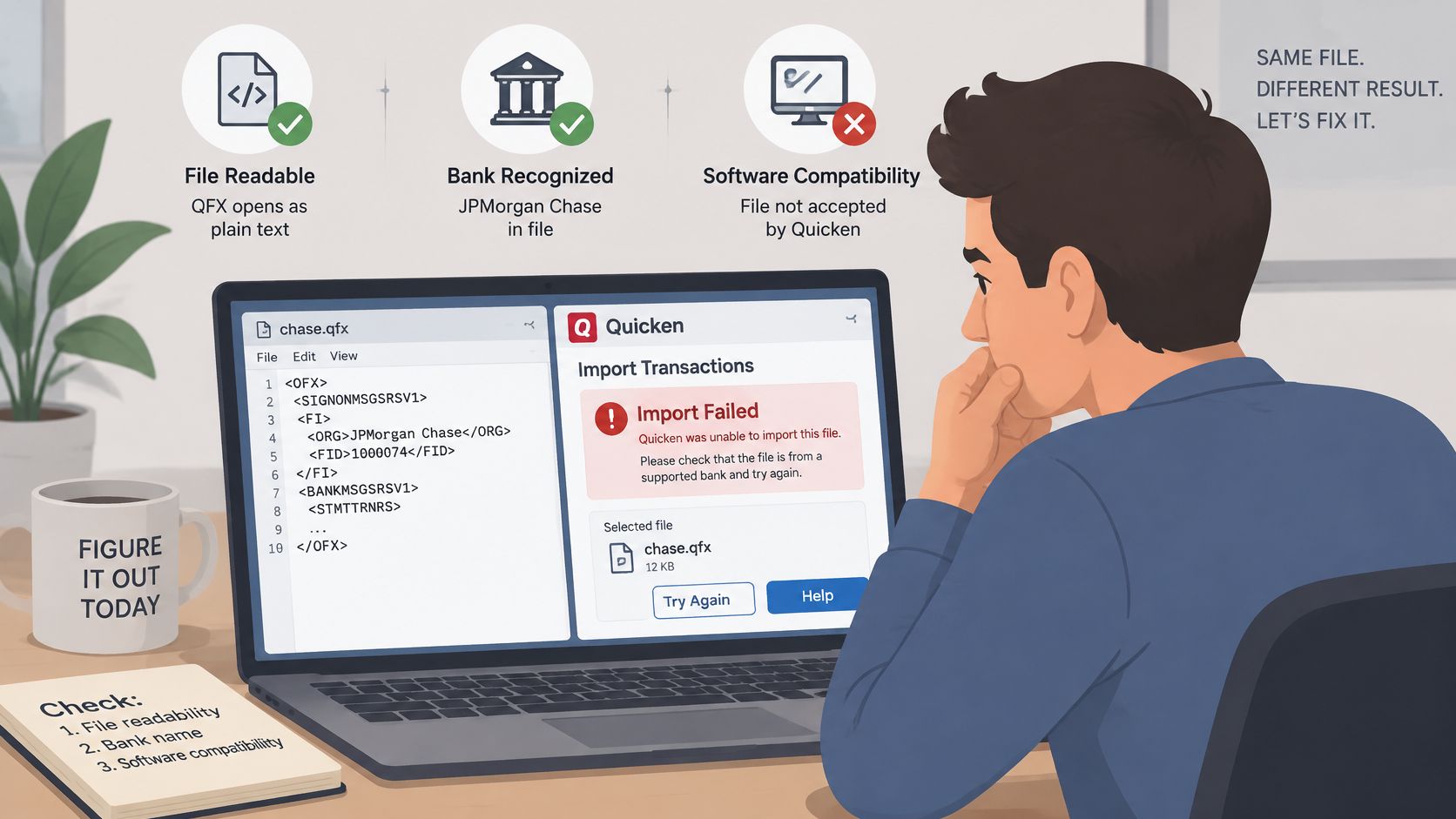
The most confusing failure looks like this. The file opens fine in a text editor, so we assume it's valid, and then Quicken rejects it. Both things can be true at once, because readability and import acceptance are separate tests.
Quicken's Web Connect guidance treats QFX as data supplied through participating financial-institution websites for supported Quicken workflows, as noted in Quicken Web Connect troubleshooting guidance. A file can look intact as text and still fail when Quicken doesn't recognize the institution, or when the Quicken version is no longer supported. Technical validity, institution recognition, and software support have to line up together.
Work Through One Cause at a Time
We back up the Quicken data file before every retry. Then we change one variable, test again, and note the result. Random retrying just multiplies uncertainty in a client file.
- Wrong institution or account: Re-download from the correct institution and account, then confirm the destination register matches that account type.
- Wrong file format: Check the ending again. QIF isn't the Web Connect format here, and QXF is a separate Quicken transfer file. Our explainer on the QIF file type helps when a client sends the wrong one.
- Unrecognized institution: Confirm the download came from a participating institution's Quicken option. If it didn't, another import attempt won't make Quicken recognize it.
- Unsupported Quicken version: Check whether the version in use is still supported for this workflow. If it isn't, updating or replacing that version is the fix, not editing the QFX by hand.
- Wrong link at import: Restore the backup and relink to the existing account instead of creating a new one.
We also distinguish QXF carefully when a client exports from Quicken itself rather than downloading from a bank. Quicken documents QXF as its own transfer format in Quicken guidance on managing QXF files on Mac. Forcing a QXF through a Web Connect path, or treating a QFX as a QXF, sends us troubleshooting the wrong workflow.
If a text editor can read the file but Quicken can't import it, we don't have a readability problem. We have a compatibility problem.
Know When to Leave the QFX Path
Some institutions have reduced or discontinued downloadable QFX support and moved users toward a direct bank connection or another export format. When that's the situation, no menu click restores the missing download. We document the institution as the blocker and switch sources.
For spreadsheet work, that switch usually means a bank CSV if one is offered, or the PDF statement if it isn't. For Quicken work, it means following the connection method the institution and the supported Quicken version now require. Either way, we end with a clear answer about whether the file, the institution, or the software stopped the import.
Check the Numbers and Take the Next Step
Whichever path we used, we prove the period before we trust it for a month-end close, a tax file, or a loan package. A file that imported or converted without an error still needs an arithmetic check. That's what separates a downloaded file from a workpaper we can sign off.
On a statement or a converted table, we verify that opening balance + credits − debits = closing balance. Then we spot-check a few descriptions and amounts against the source document. In Quicken, we run the same thinking against the register after transactions are accepted or auto-added, and we confirm the ending balance agrees with the statement period.
A clean import message means nothing on its own. I have seen files load perfectly and still be short a week of transactions because the date range was wrong.
If the Arithmetic Fails
We don't post and hope the difference is timing. We go back to the step that could have introduced it. That may mean re-downloading the QFX for the correct dates, restoring the backup and relinking the account, or reconverting the correct PDF statement.
- Balance ties: We keep the source file, note the period checked, and move to categorization or review.
- Balance doesn't tie: We stop, find whether a date range, account link, or source file caused the gap, and rerun that step.
- Descriptions don't match the source: We treat the output as unreviewed and don't use it for client reporting yet.
Choose One Next Action
For a team with a valid QFX and a supported Quicken file, the next step is clear. We back up, import through Web Connect, link to the existing account, and review the register. That's the full answer to how to open QFX when Quicken is the destination, and it's the right call whenever account matching and register history matter.
For a team whose bank no longer offers QFX, or whose workpapers live in Excel, we start from the PDF statement instead. That is a different job, and it deserves a different tool. We upload the statement and add a password if the file is locked. After upload, transactions are pulled into clear rows, and we can review the table in the browser and make quick edits before downloading CSV or XLSX. Conversions and previews may be created before payment, and one-time charges and subscription plan usage apply when downloading or exporting a file.
Once the output lands in Excel, the work is the same as any other converted statement. We run the balance check above, confirm the descriptions match the PDF, and only then build it into the close checklist. If the numbers don't tie, the problem sits in the source file or the date range, and we rerun the upload rather than patching rows by hand.
If your bank no longer gives you a usable QFX download, or your review work happens in a spreadsheet rather than Quicken, we can turn the official PDF statement into clean CSV or Excel rows you can check with the balance test above. Upload a statement, preview it for free, and download the table when it ties by visiting autobankstatement.
Convert your next statement in minutes
Upload a bank statement PDF — digital, scanned, or password-protected — preview the extracted table, and download clean CSV or Excel.