
Parse the Data in Bank Statements: A Practical Guide
Learn how to parse the data from bank statements: prepare PDFs, extract transactions, check balances and export clean CSV or Excel files.
You're closing the books and the bank statements arrive as PDFs. One is a clean digital file, one is a password-protected export, and another is a scan that will not even highlight text. The job is to parse the data into rows you can reconcile, but the true test is not whether a parser can read the text. It is whether the extracted rows tie back to the statement's opening and closing balances before anyone posts them.
Poor data quality is a measurable business problem. A 2017 analysis published by MIT Sloan Management Review estimated that bad data costs most companies between 15% and 25% of revenue when firms account for correction work, verification, rework, and decisions made from inaccurate records. The same analysis found knowledge workers can spend as much as 50% of their time handling routine data-quality problems rather than higher-value activities.
The load lands in accounting departments. In 2025, 41% of surveyed U.S. accounting firms identified time-consuming data entry as a technology-related challenge, according to Intuit QuickBooks. Gartner research cited by IBM estimated that poor data quality costs an average organization USD 12.9 million annually. That is why a converted file is not automatically a correct one.
Table of Contents
- Sorting Statement Types Before You Parse
- What Happens to Your Statement and Password
- How to Parse a Statement Step by Step
- Checking Parsed Rows Against the Statement
- Fixing the Errors Parsers Commonly Make
- Choosing CSV or Excel for the Export
- Signing Off the File and Taking the Next Step
Sorting Statement Types Before You Parse
Start by sorting every bank statement before upload. The file type decides whether we parse an embedded text layer, run OCR, or open a password-protected file, and each path carries a different risk. If text highlights and copies as characters, we use a standard parse. If nothing highlights, the page is probably a scan.
Here is how we classify the five formats we see most often:
| Statement type | How to recognize it | Handling | Main risk |
|---|---|---|---|
| Digital PDF with text layer | Text highlights and copies as characters | Standard parse with no OCR step | Wrapped descriptions split into extra rows |
| Scanned PDF | Text does not highlight; the page is an image | OCR, then route amounts and dates to review | Misread digits and dropped decimal points |
| Password-protected PDF | File opens only after a password prompt | Enter the password at upload for that conversion only | Wrong or changed password stalls the job |
| Multi-currency statement | Balances shown in more than one currency | Parse each currency separately and check each balance | Mixed-currency totals added together by mistake |
| Multi-page statement with repeated headers | Column headings repeat at the top of each page | Remove repeated header rows before counting and totaling | Headers ingested as transactions |
The IRS reconciliation guidance treats bank statements as third-party source documents that support a taxpayer's records. Its recommended process is to compare deposits on the bank statement with deposits in the checkbook, compare canceled checks by number and dollar amount, prepare a bank reconciliation, and update the books for unrecorded items such as service charges. The guidance also says the adjusted bank-statement balance should equal the adjusted checkbook balance. For our parsing workflow, that starts by recording the opening and closing balances before any upload.
The Prep Checklist Before Upload
- Confirm period and account number. Write both down so the output can be filed against one account and one period.
- Collect passwords securely. Ask the client or bank through a secure channel rather than email, then use the password only for the locked conversion.
- Respect the file limit. Check that the file is under the 25 MB limit and split larger PDFs before upload.
- Record the balance pair. Note the opening and closing balances as the reference for every later check.
At the end of this sort, each file should have a clear label, a known opening and closing balance, and a route: standard parse, OCR, password decryption, separate currency split, or repeated-header cleanup. For multi-currency statements, we expanded our parsers in 2023 to handle international statement layouts, multi-currency balances, and right-to-left scripts instead of forcing them into a single-column template.
What Happens to Your Statement and Password
Before anything is uploaded, decide what leaves your control. The wrong time to learn a parser's data handling is after a client statement is already in a queue.
Before You Upload
Autobankstatement converts PDF bank statements into CSV or Excel/XLSX, handles digital, scanned, and password-protected files, and accepts files up to 25 MB. Bank statements are converted within 10 seconds, and the uploaded statement data disappears after 10 seconds, so the parser acts as a temporary processing step rather than a storage location. Registered users get 24-hour download access to their outputs, which means the export needs to be retrieved and filed promptly. Keep the original statement and the verified export in your own records system, because a temporary parser window is not a backup.
A password entered at upload is used for that conversion only. It decrypts the file so it can be parsed and nothing beyond that, so a stale or compromised client password cannot open anything later. The exact workflow is in our password-protected file upload guide.
The privacy concern is concrete. An analysis of almost 1,300 breach incidents found that 93% involved financial information and 49% included bank statements, according to the ABA Banking Journal. Bank statements concentrate exactly the details fraudsters want: account numbers, balances, transaction patterns, and counterparty names.
Practical rule: Cut exposure before uploading. Remove account numbers the job doesn't need where the layout allows, and parse only statements you are authorized to handle.
Short retention cuts risk, but it does not replace your own controls. Treat every conversion as a handoff: the file goes in, the table comes out, and responsibility for the data returns to you the moment the export is saved. Put questions about subprocessors and security to the vendor in writing before using any converter for client work, and keep the answers with your engagement records.
How to Parse a Statement Step by Step
We treat a bank-statement extraction as a draft import until it passes the balance equation. Start with the file type, because a digital text PDF and a 40-page scan need different levels of review. The five moves in the graphic below are the core of the work; the full sequence adds the upload and save controls we use before a file reaches the ledger.
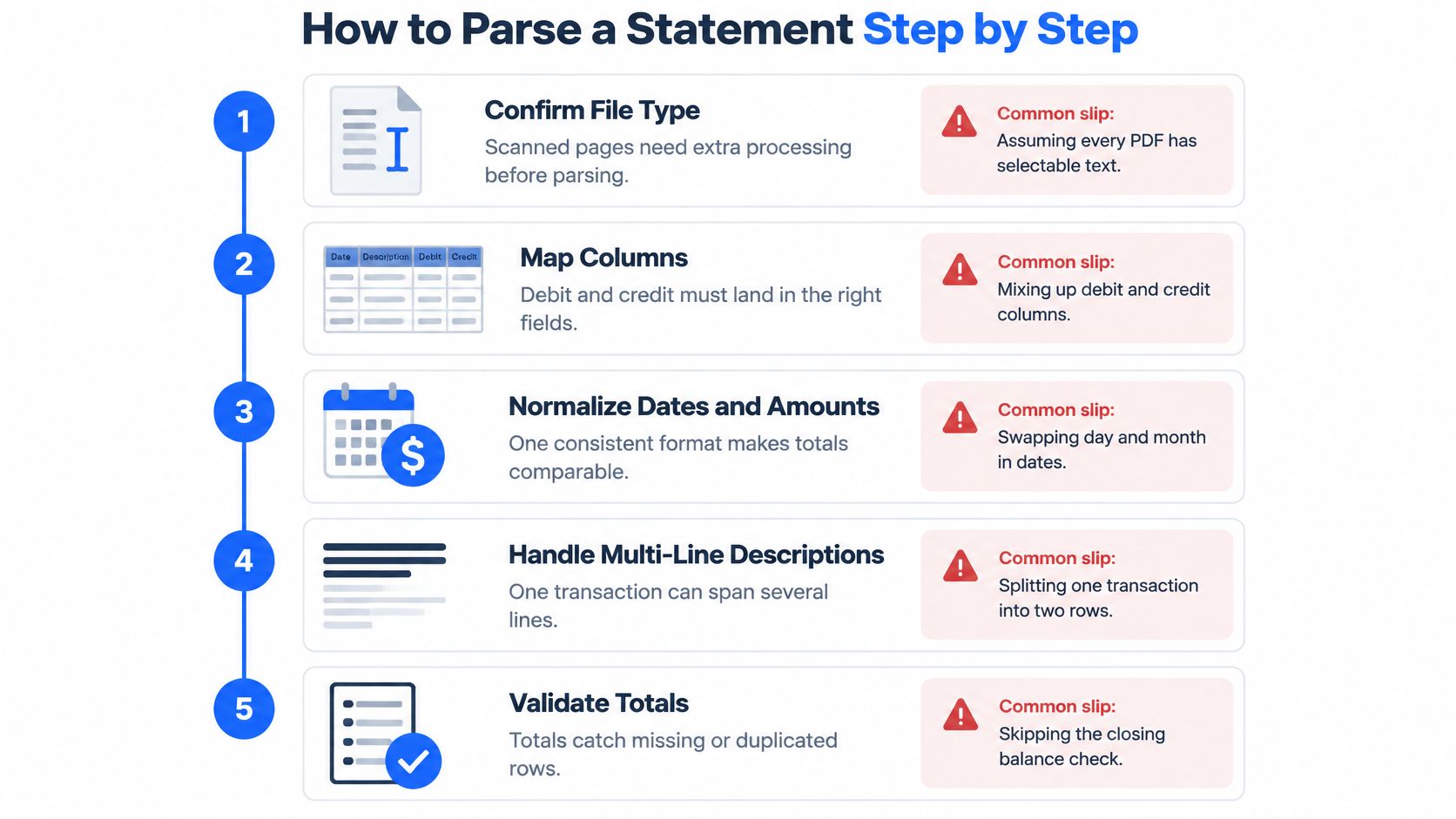
The Full Working Sequence
- Confirm the file type. Check for selectable text and note any scanned pages. Scanned pages need OCR and more review than digital text.
- Enter a password only when the file is locked. Use it for that conversion and nothing else, so a stale or compromised password cannot open later files.
- Upload the statement and let the parser build the table. For bulk work, group statements by account so each output maps to one account and one period.
- Review the browser preview before download. Confirm the first and last transaction dates fall inside the statement period and that the row count is plausible for the page count. After upload, transactions are pulled into clear rows, and we can make quick edits before downloading.
- Correct obvious preview problems. A merged column or a mislabeled header should be fixed in the preview so the downloaded file is the file we checked.
- Map every output to one standard column set. Date, description, debit, credit, and balance. This makes later totals comparable.
- Choose one sign convention. Either negative amounts for debits or separate debit and credit columns, and keep it for every account. Do not mix.
- Save the untouched output beside the original statement. The record should show what the parser produced and what we changed.
Sign check: Keep one sign convention across all accounts. Mixing negative debits with separate credit columns creates a reconciliation that seems to tie but cannot be traced.
A reliable PDF parser should use a staged pipeline rather than direct text scraping. It should identify whether a file has a text layer or requires OCR, detect table regions, extract rows and columns, normalize dates and signs, then validate the accounting math. Table-extraction quality varies, which is why validation matters. In one large benchmark covering 86,000 pages, table-extraction recall remained relatively high at 0.89 to 0.93, but precision fell to approximately 0.65 on a challenging dataset, according to arXiv table-extraction research. Treat every extracted row as provisional until column alignment, transaction count, balance continuity, and total debit and credit sums pass.
Checking Parsed Rows Against the Statement
A parsed file that balances on total debits and credits can still be wrong. An offsetting error, such as a credit read as a debit paired with a dropped row, can leave totals right while the ledger gets two bad entries. A matching total is not proof. Parsing should be treated as a controlled review, with the extracted rows tied back to the statement before anyone relies on them.
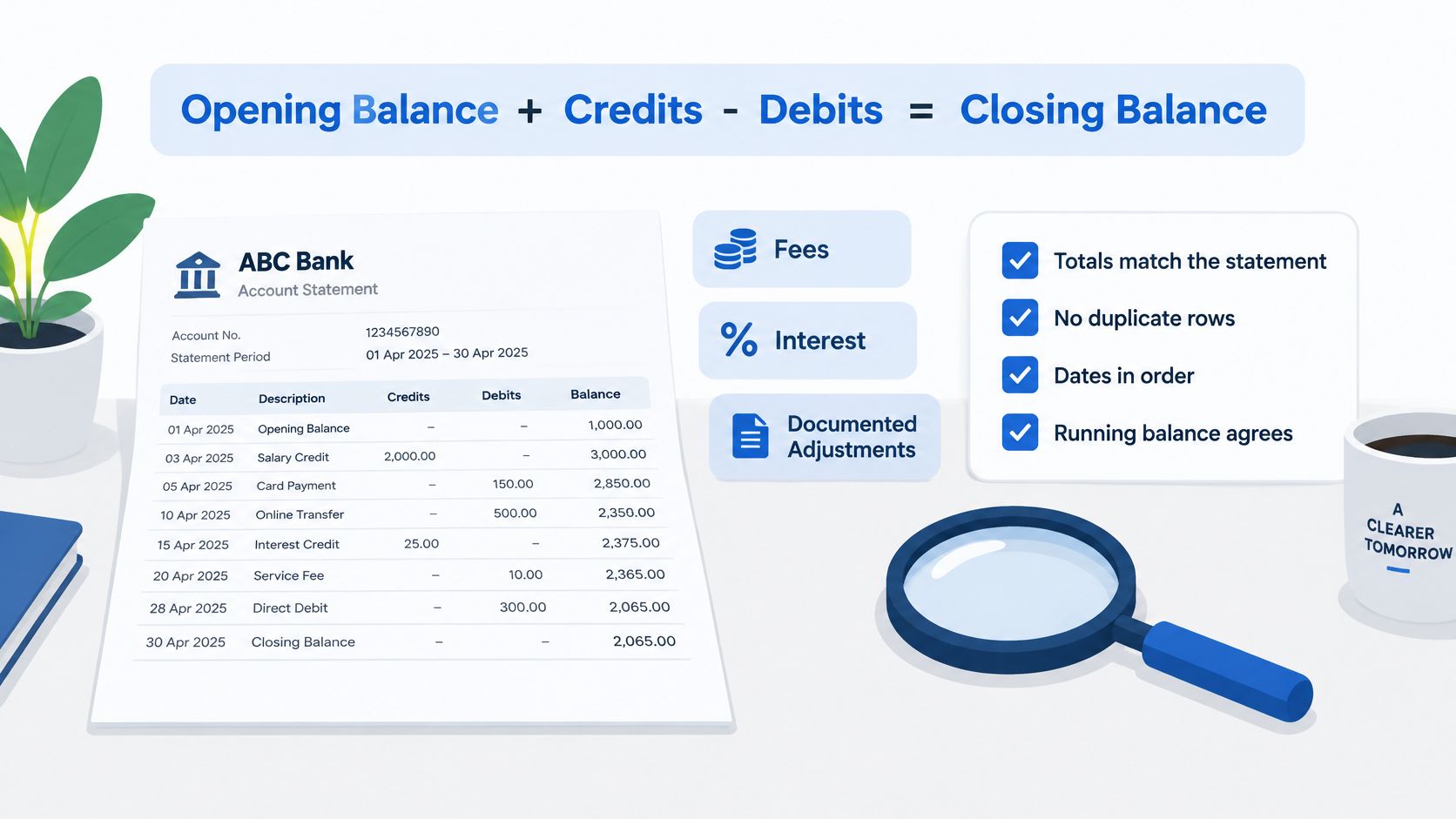
The Balance Equation
The first check is opening balance plus credits minus debits equals closing balance, with fees, interest, and documented adjustments shown as separate lines. If that equation fails, locate the last row where the running balance still agreed and inspect the next one. That row, not the grand total, usually exposes the break. For a full walkthrough of comparing the statement to the books, use our bank statement checking guide.
Work the proof in the same order every time. Read the opening balance from the statement, then confirm each parsed row moves the balance in the expected direction. A debit should reduce the balance, and a credit should increase it, unless the statement itself presents balances in a different convention. At the end, compare the computed closing balance with the printed closing balance. If they agree, keep the calculation with the file. If they do not, stop before posting or exporting.
The Checks We Run Before Posting
- Transaction count. Compare the row count with what the page count suggests, and remove repeated page headers before counting.
- Debit and credit totals. Compare the sum against any summary printed on the statement, not just against the running balance.
- Running-balance continuity. Check each row in order. A break points to the exact transaction that failed.
- Date boundaries. Dates must sit inside the statement period, with no duplicates where two files overlap.
- Signs and currency labels. Confirm that debits and credits are consistent and that mixed-currency rows are not totaled together.
- Exception queue. Route any amount, date, or balance flagged with low OCR confidence to review.
These checks matter because reconciliation still depends on human review when source data is inconsistent. The Kani Payments reconciliation survey found no surveyed businesses reported error-free reconciliation, and manual intervention plus poor system integration accounted for 44% of mistakes. Data quality remains a common obstacle, so the review should focus on where the extraction could have altered meaning: wrapped descriptions, dropped signs, repeated headers, OCR uncertainty, and rows pulled from the wrong column.
Control point: A matching grand total is weaker than a running balance that ties row by row. Check continuity first.
When the equation ties and flagged rows are cleared, move to the book side. Compare the adjusted bank balance with the adjusted book balance and investigate unmatched deposits, withdrawals, and fees instead of forcing them to agree.
Fixing the Errors Parsers Commonly Make
The most common parser error is not a missing figure. A long description wraps onto a second line, and the parser reads the continuation as a second transaction. That inflates the row count and splits one purchase into two entries.
The table groups the symptoms we check first, the likely cause, and the fix to apply before export.
| Symptom | Likely cause | Fix |
|---|---|---|
| One transaction appears as two rows | Long description wrapped onto a second line | Merge the continuation line into the transaction above and recount |
| Amount has no minus sign | Negative sign separated from the number | Apply the sign from the debit column or the original statement |
| Debits and credits appear reversed | Column order changed between statements | Remap columns and confirm the running balance still moves correctly |
| Page heading appears as a transaction | Repeated header row on each page | Delete header rows and rerun the transaction count |
| Amount digits look wrong | OCR confused similar characters such as 3 and 8 | Check the value against the scanned page and correct from the source |
| Amount looks ten times too large or too small | Decimal separator dropped during OCR | Confirm decimal placement and reprocess the page at higher resolution |
OCR Needs Confidence-Aware Review
OCR-based parsing requires confidence-aware review because character recognition accuracy does not guarantee financially correct transaction values. A practical workflow renders each page at a consistent resolution, deskews and denoises it, runs OCR, preserves word coordinates, then reconstructs rows by clustering tokens with nearby vertical positions and assigning columns using detected boundaries.
Numeric fields should receive stricter thresholds than descriptions. A misread merchant name is usually recoverable, while confusing 8 with 3 or dropping a decimal separator can corrupt reconciliation. In NIST's TRAIT evaluation, one evaluated OCR system achieved only 21.4% word accuracy and 39.9% character accuracy on its test setting, according to the NIST report. That shows OCR performance can degrade sharply on difficult form-like documents.
Working rule: Fix the error once in the preview or the source, rerun the balance check, and record which fix you applied.
Route any amount, date, or balance with low confidence to human review, keep the original page coordinates for traceability, and never accept OCR output just because the text looks readable.
Choosing CSV or Excel for the Export
CSV carries only plain rows and suits systems that import flat files. XLSX keeps the file readable for filtering, pivot tables, and sharing with a client. The export format should match the next step, not the one we just finished.
| Format | Best for | Watch for |
|---|---|---|
| CSV | Importing into systems that accept flat files | No formatting or formulas; check encoding and date order before import |
| XLSX | Review, filtering, pivot tables and sharing with a client | Excel may reinterpret dates or leading zeros when reopened and saved |
| CSV with ISO dates and UTF-8 | Archiving and transfers between systems | Keep the verified file untouched; avoid resaving in spreadsheet software |
Set Export Conventions Once
- ISO dates. Use dates such as 2026-03-31 so day and month cannot be swapped later.
- One header row. Keep a single header row at the top of the export.
- One transaction per row. Do not allow wrapped descriptions to create extra rows.
- Consistent decimal separator. Use the same decimal separator throughout, so amounts import predictably.
- UTF-8 encoding in CSV. Use UTF-8 when descriptions contain accented or non-Latin characters.
Excel may reinterpret dates or strip leading zeros when a CSV is opened and saved. Keep the verified CSV untouched and make working copies. Name files by account, year-month, and export date, such as checking-2026-03-export, so the period is visible without opening the file. For the import setup that avoids date and encoding problems, our CSV and Excel import guide covers file structure and spreadsheet settings.
The IRS electronic recordkeeping requirements state that an electronic system must index, store, preserve, retrieve, and reproduce records in a legible format. Electronic records are subject to the same controls and retention rules as paper records. That means the exported spreadsheet should remain complete, readable, and retrievable, and the original statement and resulting file should be kept together according to the applicable tax and recordkeeping rules.
Signing Off the File and Taking the Next Step
Release a parsed file only when the balance equation ties, the transaction and total counts match, and every flagged row is resolved or documented. Otherwise hold the file and record the open exception. A clean-looking table is not a sign-off.
The Final Spot-Check
- Second-person review. Ask someone to spot-check the largest debits and credits and a sample of rows from each page. Errors cluster in high-value rows and at page breaks.
- Sign-off record. Keep the original statement, the untouched export, the list of corrections with page references, the reviewer's initials, and the date.
Routine digital statements can move through the standard parser and checklist quickly. Scanned, multi-currency, or unusually formatted statements justify a slower review and a wider sample. Test the workflow on one statement first. The Guest option lets users try the converter and see their table before paying, which is the right way to confirm the parser handles a particular bank layout. Then apply the same checklist to the rest of the batch.
Autobankstatement converts PDF bank statements into CSV or Excel/XLSX, supports digital, scanned, and password-protected files, and gives you a free guest preview before payment. If you're ready to turn statement PDFs into reviewable rows and run the balance checks in this workflow, visit autobankstatement and test the process on a single statement before you trust the batch.
Convert your next statement in minutes
Upload a bank statement PDF — digital, scanned, or password-protected — preview the extracted table, and download clean CSV or Excel.